> ## Documentation Index
> Fetch the complete documentation index at: https://docs.dialai.ca/llms.txt
> Use this file to discover all available pages before exploring further.
# Agent Voices
> Pick the synthetic voice your AI agent uses on voice channels and per-flow variants
 The synthetic voice an AI agent uses on phone calls (and on voice-enabled web chats) is configured in two places:
1. **The voice catalog** — every voice available to your tenant. Managed under [Building Blocks > Voices](/building-blocks#voices).
2. **Per-POC voice assignment** — which voice each Phone or Web POC uses, set on the [Points of Contact > Edit > Variants tab](/points-of-contact#variants).
This page is the operator's guide to both.
## The voice catalog
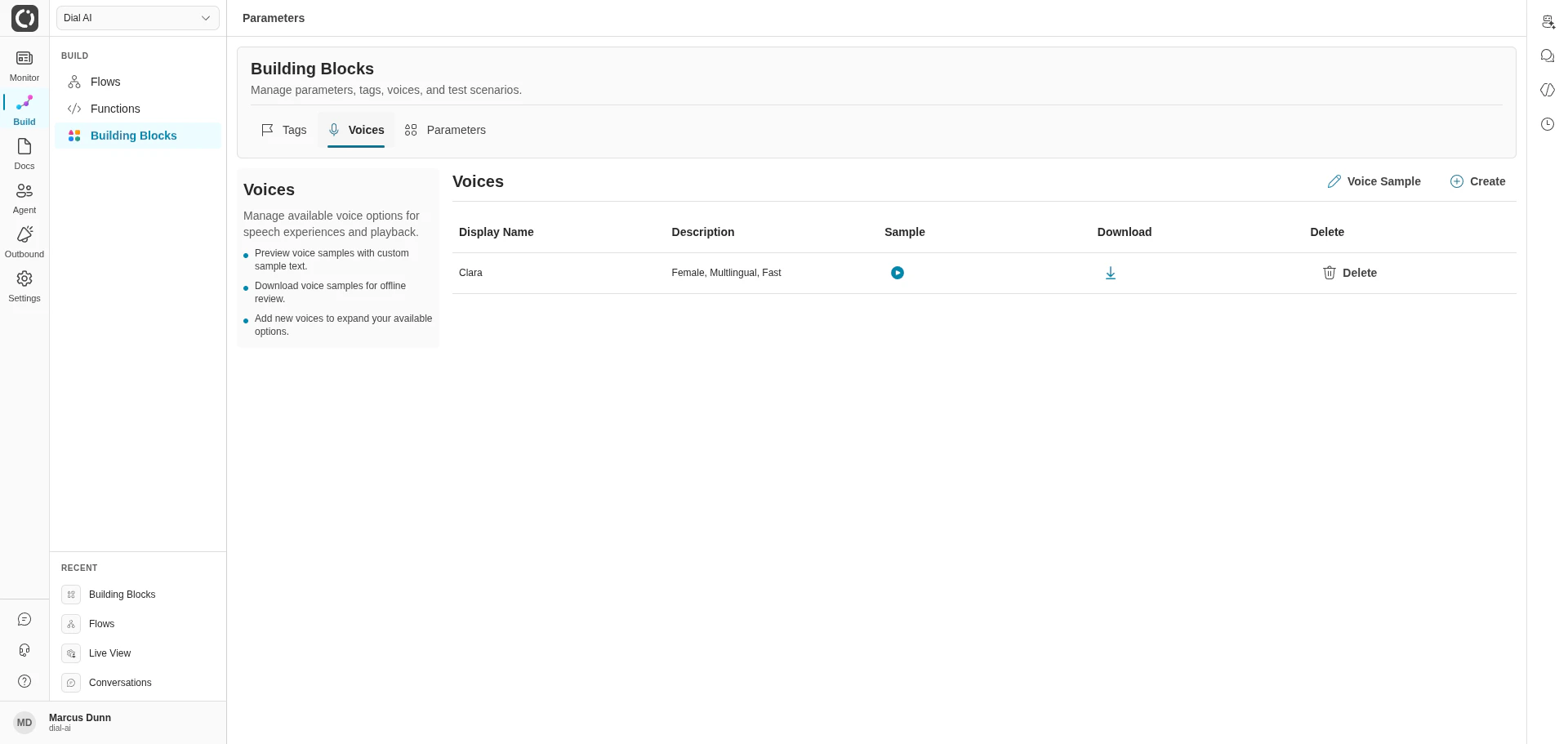
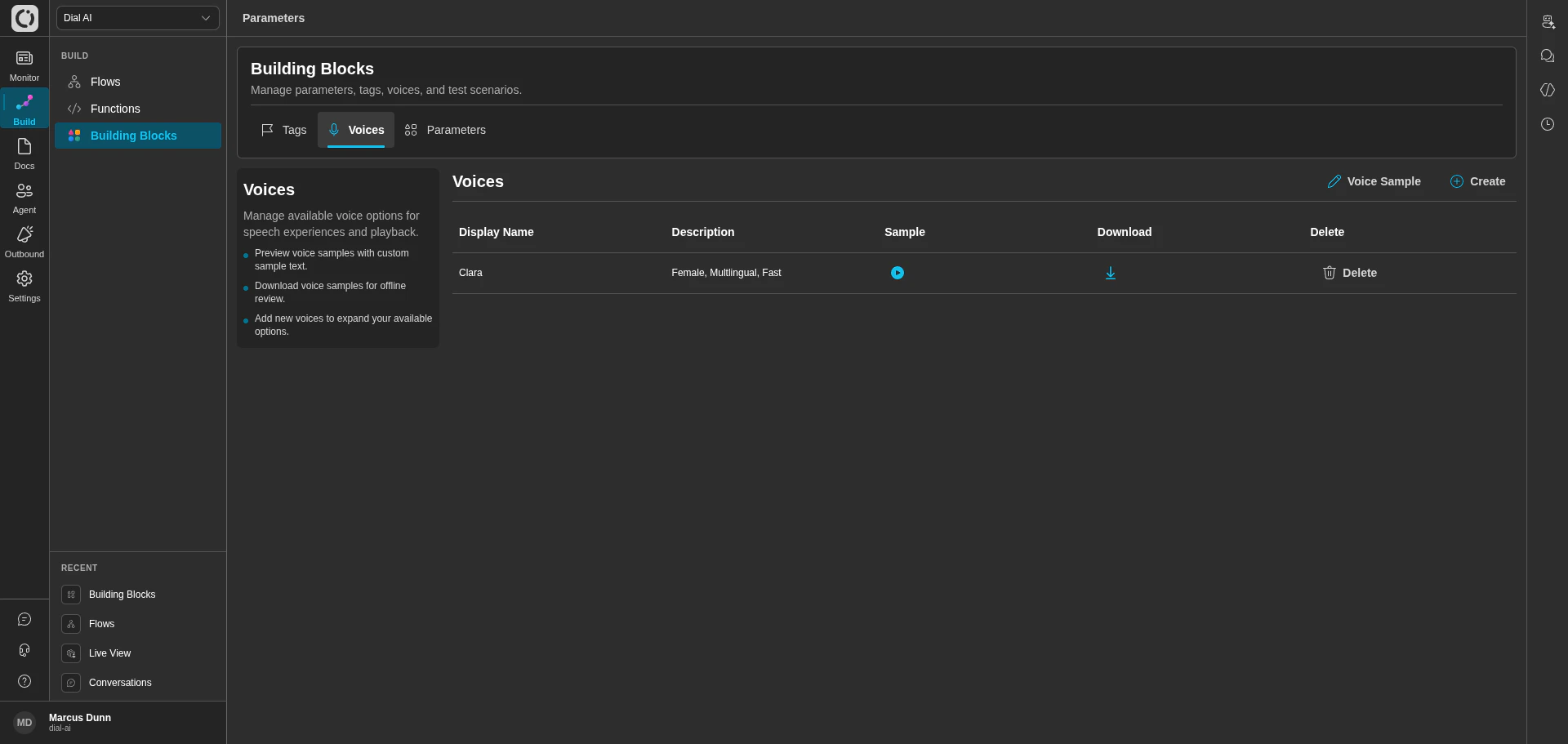
Navigate to **Build > Building Blocks > Voices** to see every voice configured for your tenant.
Each voice has:
* **Display Name** — what shows in dropdowns (e.g., "Clara").
* **Description** — voice characteristics (e.g., "Female, Multilingual, Fast").
* **Sample** — a play button to preview the voice with the configured sample text.
* **Download** — save the sample audio to disk.
### Previewing voices
Click the play button on any row. The sample plays with whatever text you've configured via **Voice Sample** at the top of the page.
### Editing the sample text
Click **Voice Sample** to change the text that previews use. Useful for hearing specific brand phrases, customer-facing names, or terminology your agent will actually say.
### Adding and removing voices
* **Create** — add a new voice from the supported voice catalog.
* **Delete** — remove a voice. Any POC currently using the deleted voice falls back to the tenant default.
## Assigning a voice to a POC
A voice is selected per Variant on a Phone or Web POC:
Navigate to **Agent > Points of Contact**, find the POC, click **Edit**.
The first variant (`A`) is selected by default; create more variants for A/B testing different voices.
Use the **Voice** dropdown to select from the catalog.
Submit the variant changes; the new voice applies to subsequent calls.
## Tips
* **Match voice to brand.** A clinical hospital line wants a different voice than a casual retail line. Listen to a few options with realistic sample text before deciding.
* **Test multilingual voices on multilingual flows.** Some voices speak only one language well; pick a clearly multilingual voice if your flow handles `Multilingual` as a language setting.
* **A/B test before standardizing.** Use Variants on a Phone POC to split traffic across two voices and compare downstream metrics (handle time, customer satisfaction proxy).
* **Re-sync sample text after major copy changes.** When you update the agent's standard greeting, update the Voice Sample to match — easier to evaluate voices against words you actually use.
## Related
Manage the full voice / tag / parameter catalog.
Assign a voice to a specific Phone or Web POC.
Configure the speaker language a voice expects.
The synthetic voice an AI agent uses on phone calls (and on voice-enabled web chats) is configured in two places:
1. **The voice catalog** — every voice available to your tenant. Managed under [Building Blocks > Voices](/building-blocks#voices).
2. **Per-POC voice assignment** — which voice each Phone or Web POC uses, set on the [Points of Contact > Edit > Variants tab](/points-of-contact#variants).
This page is the operator's guide to both.
## The voice catalog
Navigate to **Build > Building Blocks > Voices** to see every voice configured for your tenant.
Each voice has:
* **Display Name** — what shows in dropdowns (e.g., "Clara").
* **Description** — voice characteristics (e.g., "Female, Multilingual, Fast").
* **Sample** — a play button to preview the voice with the configured sample text.
* **Download** — save the sample audio to disk.
### Previewing voices
Click the play button on any row. The sample plays with whatever text you've configured via **Voice Sample** at the top of the page.
### Editing the sample text
Click **Voice Sample** to change the text that previews use. Useful for hearing specific brand phrases, customer-facing names, or terminology your agent will actually say.
### Adding and removing voices
* **Create** — add a new voice from the supported voice catalog.
* **Delete** — remove a voice. Any POC currently using the deleted voice falls back to the tenant default.
## Assigning a voice to a POC
A voice is selected per Variant on a Phone or Web POC:
Navigate to **Agent > Points of Contact**, find the POC, click **Edit**.
The first variant (`A`) is selected by default; create more variants for A/B testing different voices.
Use the **Voice** dropdown to select from the catalog.
Submit the variant changes; the new voice applies to subsequent calls.
## Tips
* **Match voice to brand.** A clinical hospital line wants a different voice than a casual retail line. Listen to a few options with realistic sample text before deciding.
* **Test multilingual voices on multilingual flows.** Some voices speak only one language well; pick a clearly multilingual voice if your flow handles `Multilingual` as a language setting.
* **A/B test before standardizing.** Use Variants on a Phone POC to split traffic across two voices and compare downstream metrics (handle time, customer satisfaction proxy).
* **Re-sync sample text after major copy changes.** When you update the agent's standard greeting, update the Voice Sample to match — easier to evaluate voices against words you actually use.
## Related
Manage the full voice / tag / parameter catalog.
Assign a voice to a specific Phone or Web POC.
Configure the speaker language a voice expects.