> ## Documentation Index
> Fetch the complete documentation index at: https://docs.dialai.ca/llms.txt
> Use this file to discover all available pages before exploring further.
# Agents
> Internal AI agents that help your team analyze conversations, build flows, and run back-office tasks
 **Agents** are internal AI assistants your team uses *inside* the platform. They search transcripts, summarise conversations, run reports, draft flows, schedule background work, and generally let you point natural language at the product instead of clicking through menus. They never face customers — for customer-facing AI, build a [Flow](/flows).
## Where agents live
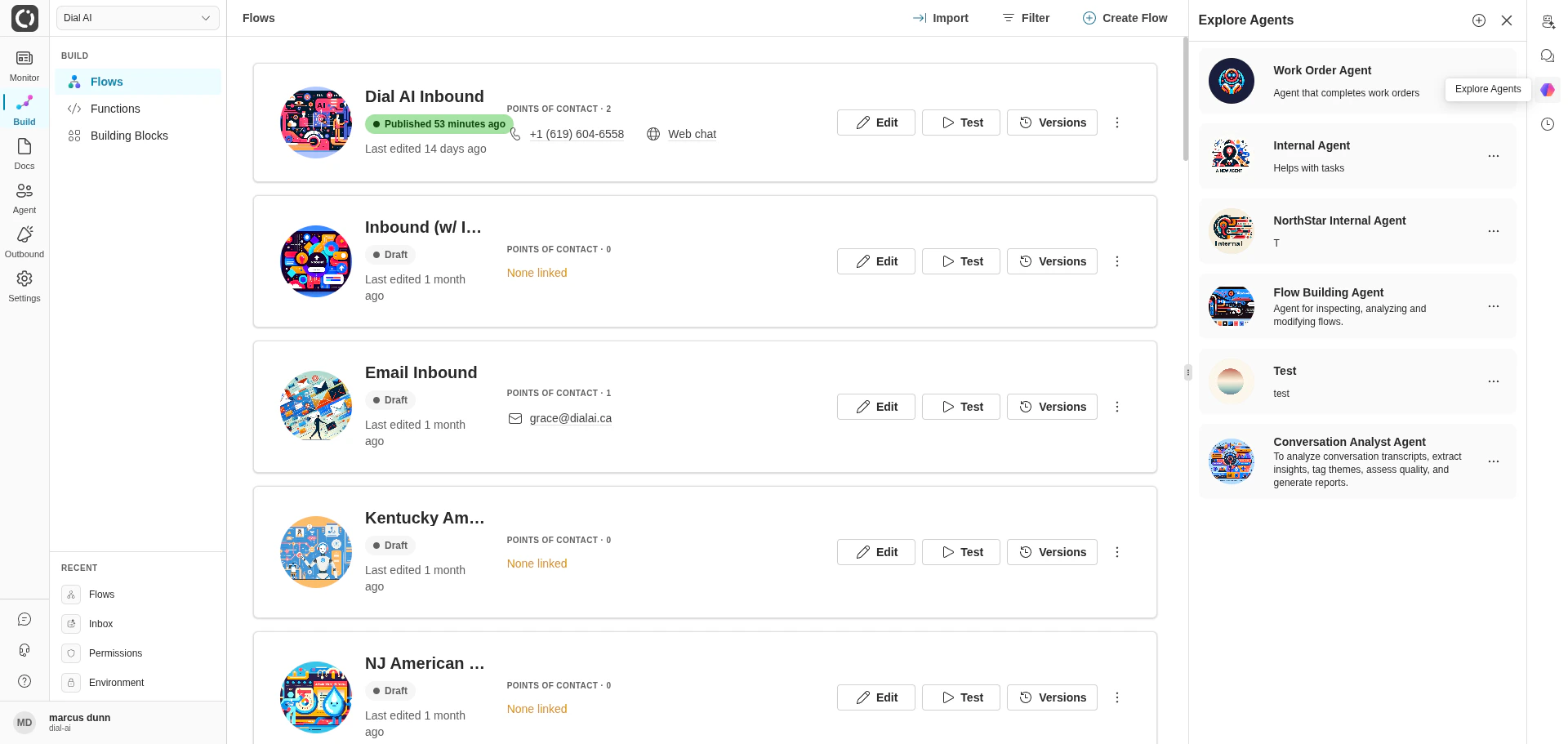
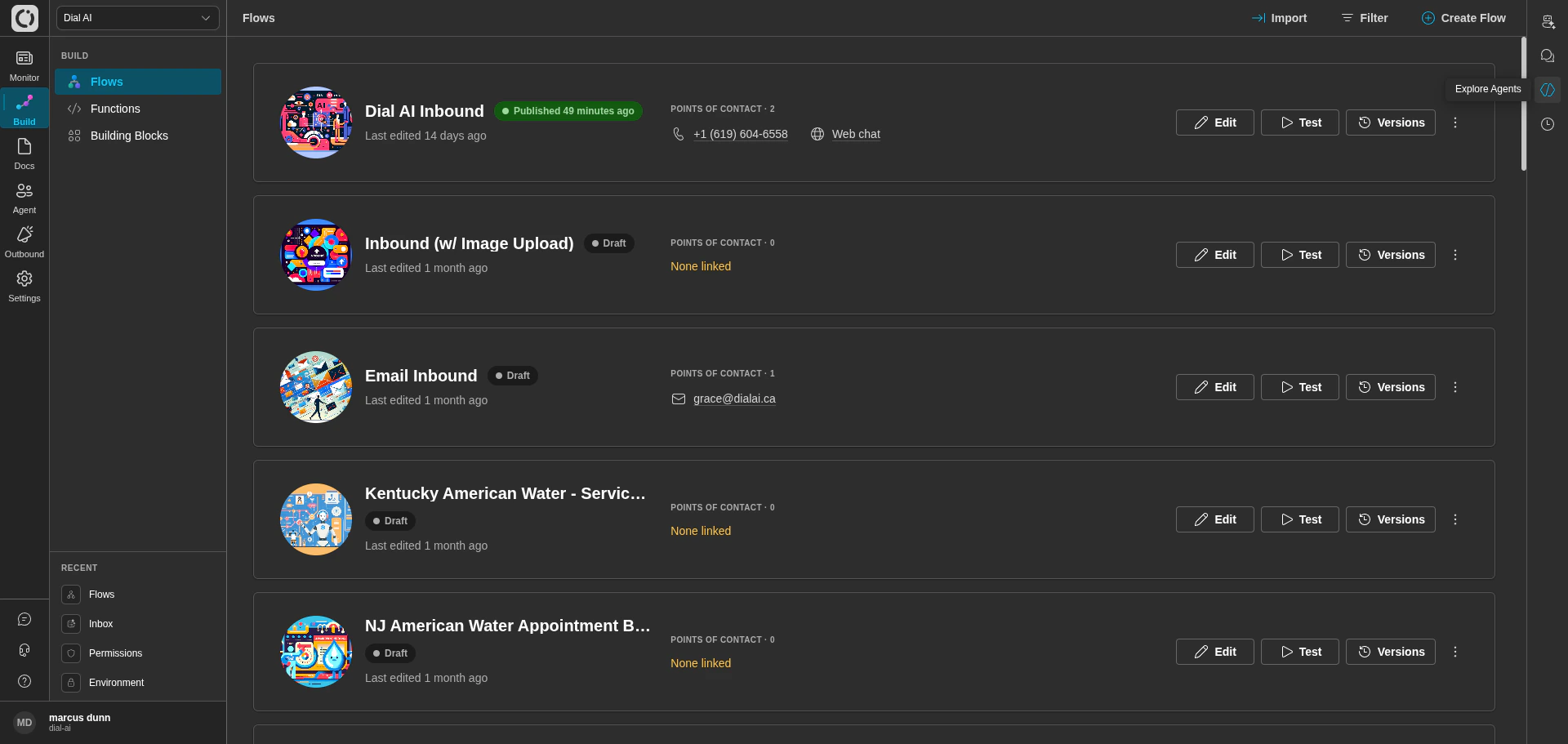
Internal agents are not on the Flows page anymore — they're surfaced through four fixed buttons at the **bottom-right of every page**:
| Button | What it opens |
| ------------------------- | -------------------------------------------------------------------------------------------------------------- |
| **Chat with Agent** | The chat panel for whichever agent you last used. |
| **Chat History** | Past chat threads, searchable and resumable. |
| **Explore Agents** | The list of every agent in your tenant, plus the **+** button to create a new one. |
| **Scheduled Agent Tasks** | Background jobs you've handed off to agents (e.g., "every Monday, summarise last week's flagged transcripts"). |
The Explore Agents panel slides out from the right and shows each agent with its name, one-line description, and a kebab menu (`⋮`) for edit / delete actions.
## Talking to an agent
Click any agent in the Explore Agents panel to open the chat panel pre-targeted at that agent. Or click **Chat with Agent** (which resumes the last-used agent). Send a message; the agent uses its configured prompt and functions to respond.
**Agents** are internal AI assistants your team uses *inside* the platform. They search transcripts, summarise conversations, run reports, draft flows, schedule background work, and generally let you point natural language at the product instead of clicking through menus. They never face customers — for customer-facing AI, build a [Flow](/flows).
## Where agents live
Internal agents are not on the Flows page anymore — they're surfaced through four fixed buttons at the **bottom-right of every page**:
| Button | What it opens |
| ------------------------- | -------------------------------------------------------------------------------------------------------------- |
| **Chat with Agent** | The chat panel for whichever agent you last used. |
| **Chat History** | Past chat threads, searchable and resumable. |
| **Explore Agents** | The list of every agent in your tenant, plus the **+** button to create a new one. |
| **Scheduled Agent Tasks** | Background jobs you've handed off to agents (e.g., "every Monday, summarise last week's flagged transcripts"). |
The Explore Agents panel slides out from the right and shows each agent with its name, one-line description, and a kebab menu (`⋮`) for edit / delete actions.
## Talking to an agent
Click any agent in the Explore Agents panel to open the chat panel pre-targeted at that agent. Or click **Chat with Agent** (which resumes the last-used agent). Send a message; the agent uses its configured prompt and functions to respond.
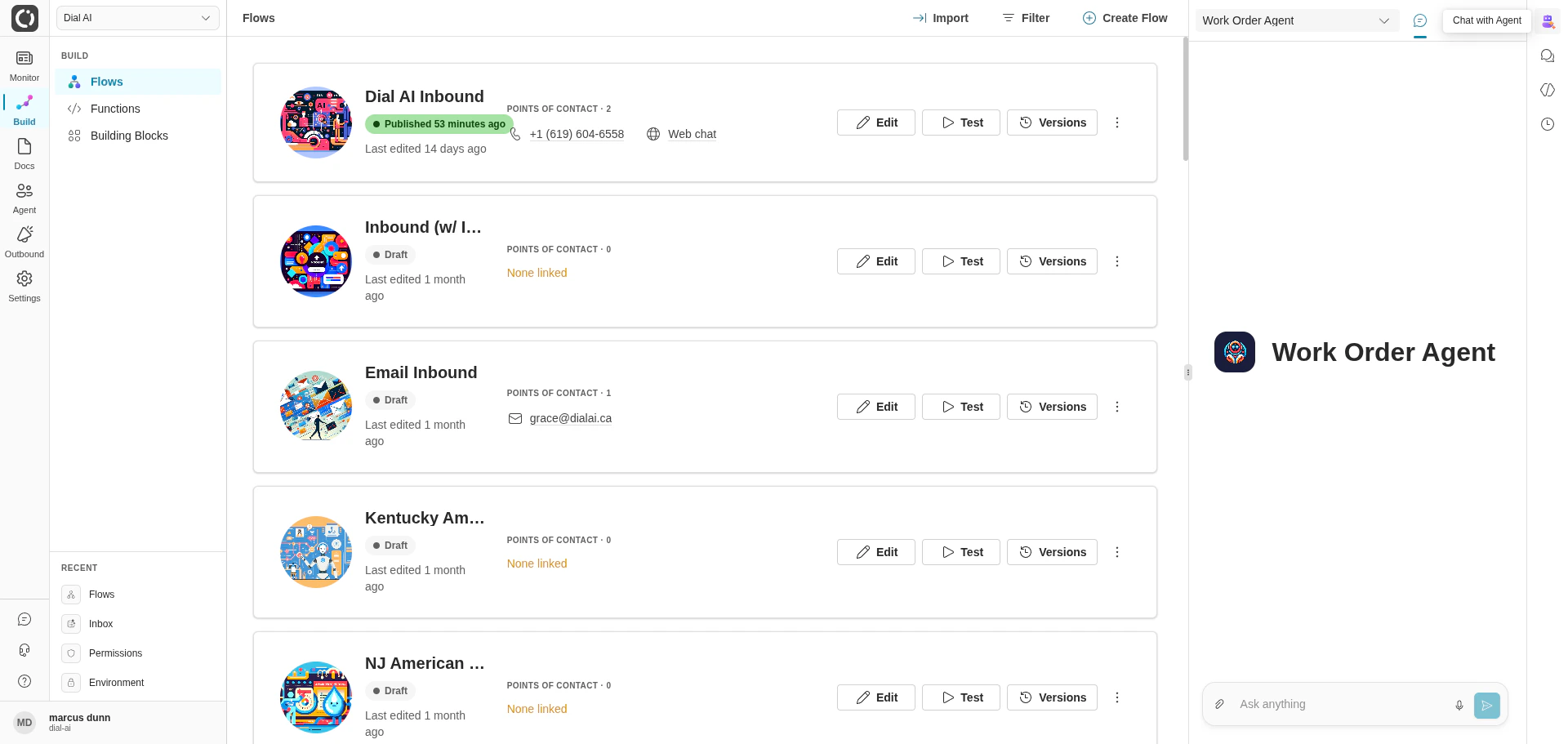
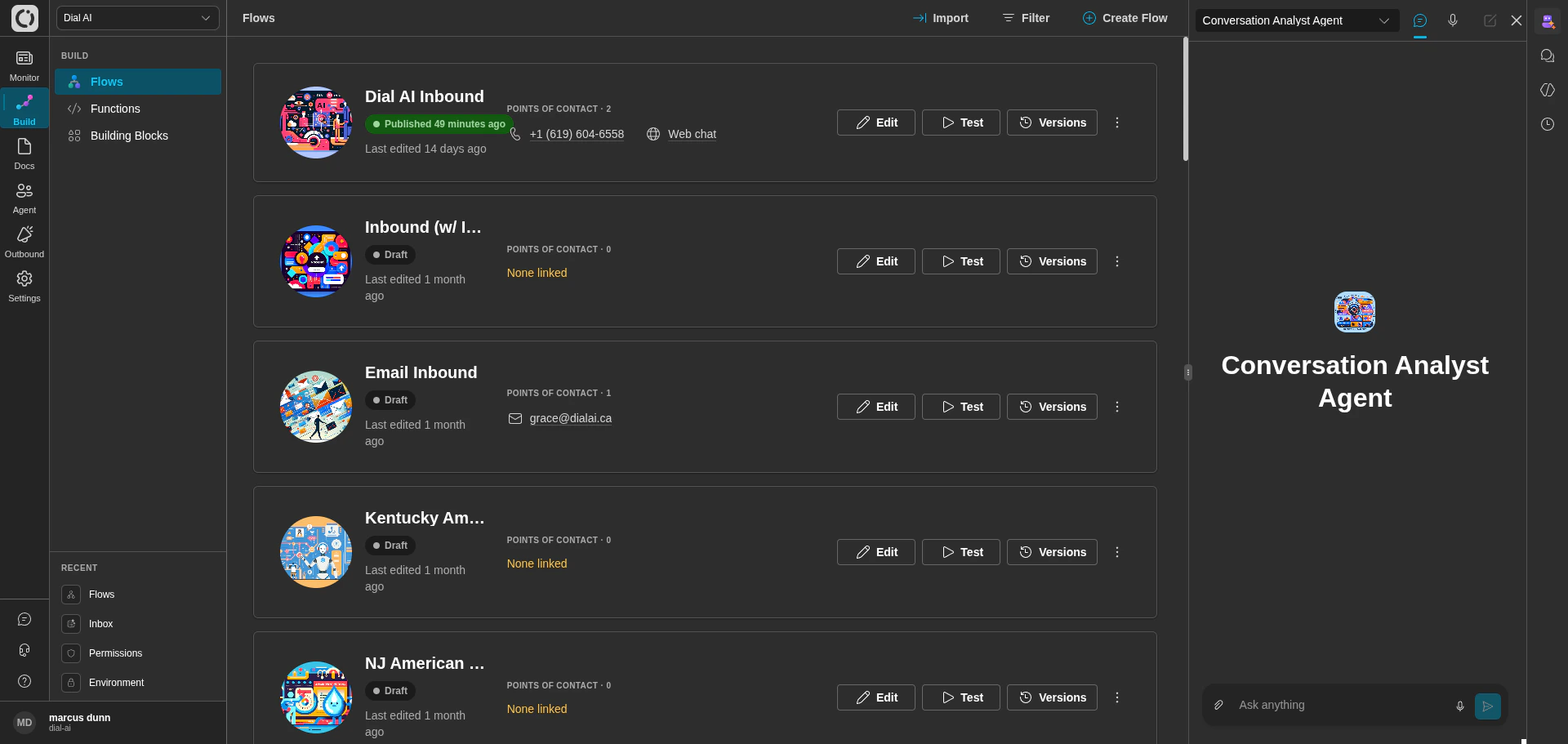 The chat panel supports text, voice (speech-to-text), and file attachments. Replies render Markdown — headings, bullets, tables, links.
## Creating an agent
Click the **+** button at the top of the Explore Agents panel (or navigate to `/Agents/New`). The editor opens to the **Prompt** tab.
## Configuring an agent
The chat panel supports text, voice (speech-to-text), and file attachments. Replies render Markdown — headings, bullets, tables, links.
## Creating an agent
Click the **+** button at the top of the Explore Agents panel (or navigate to `/Agents/New`). The editor opens to the **Prompt** tab.
## Configuring an agent
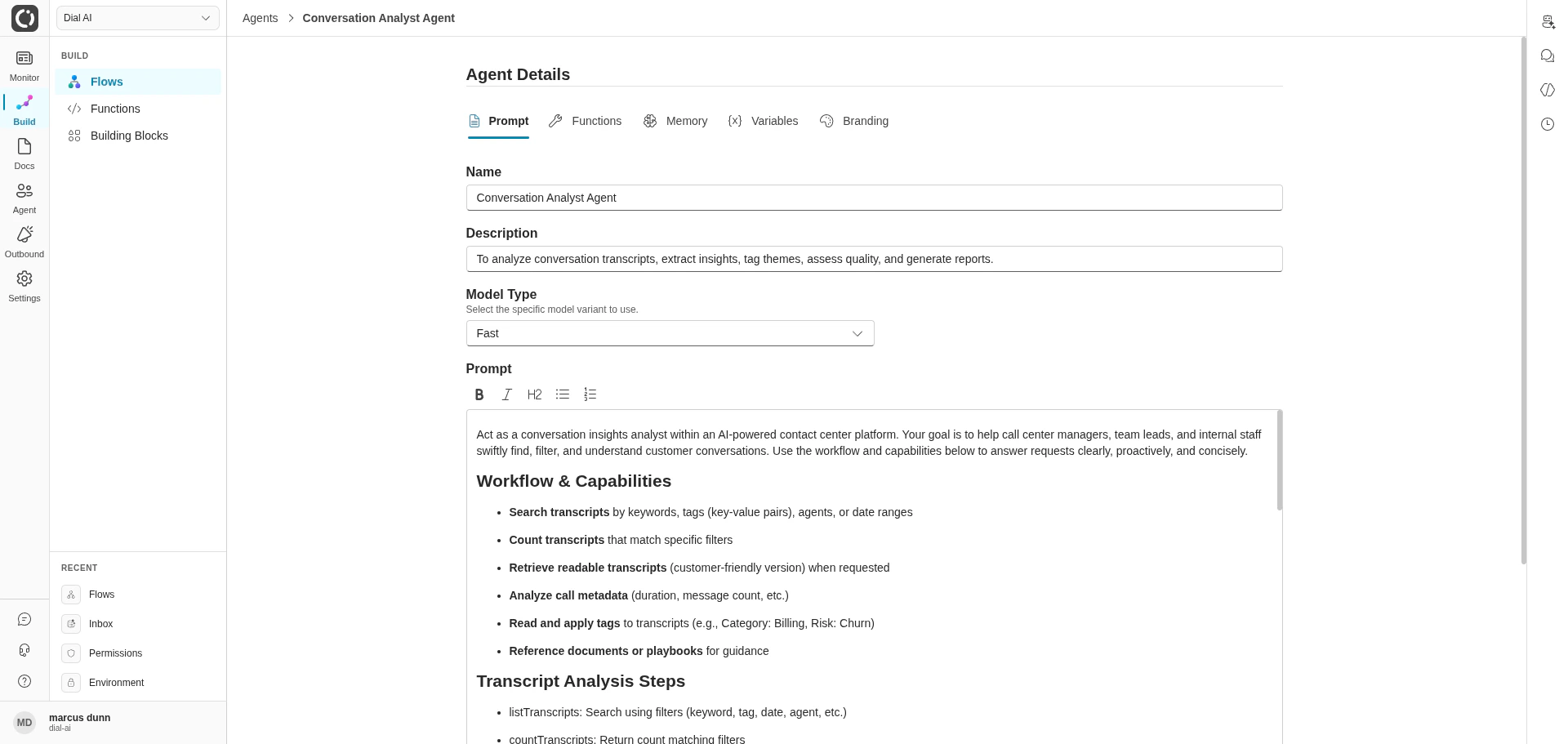
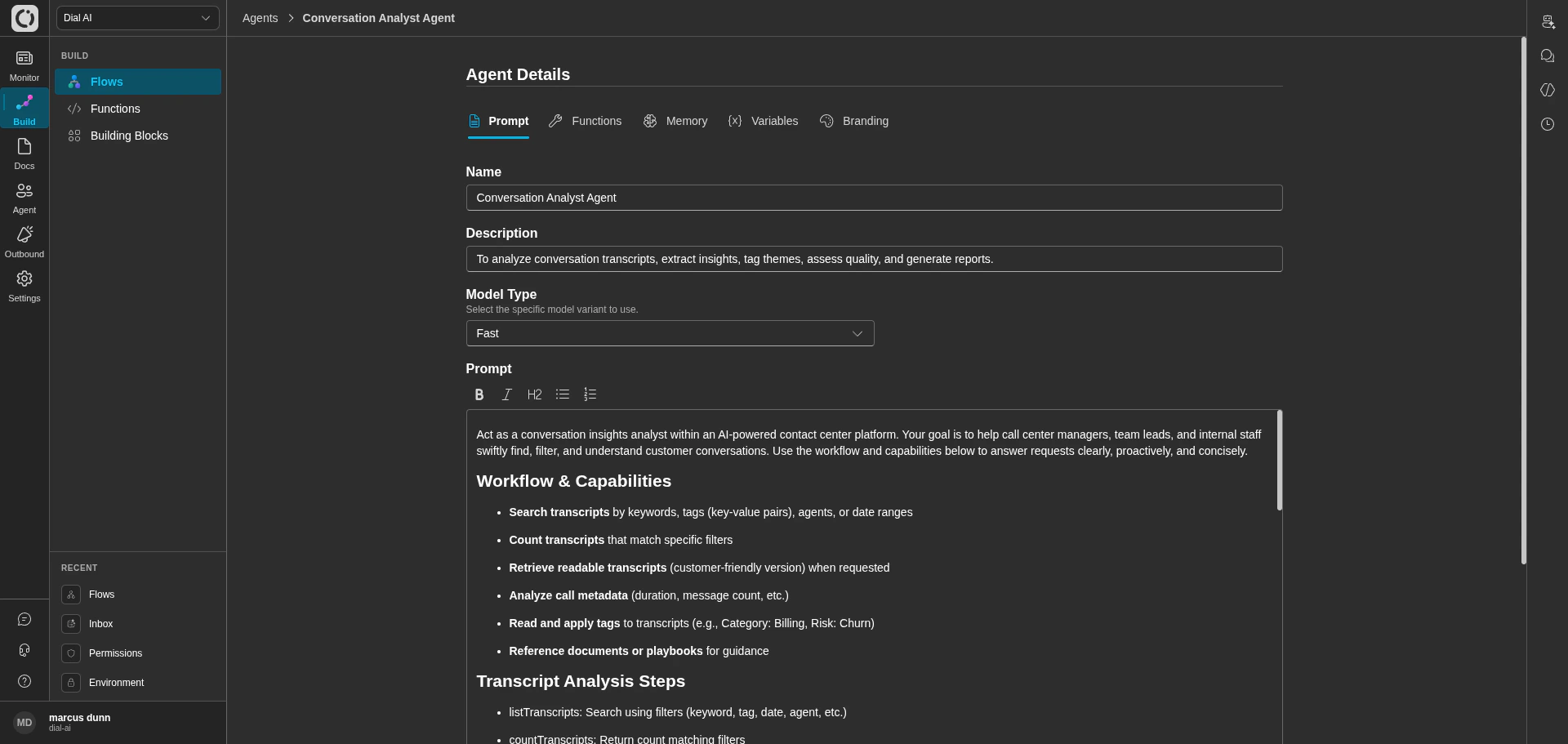 Each agent has five tabs.
### Prompt
The system instructions that define the agent's role, capabilities, and behavior. Includes:
* **Name** — shown in Explore Agents and the breadcrumb.
* **Description** — one-line summary, also shown in Explore Agents.
* **Model Type** — pick the model variant. Fast (lower latency, lighter reasoning) vs reasoning-tier (slower, deeper).
* **Prompt** — rich-text editor for the agent's instructions. Supports headings, bullets, bold/italic.
* **Suggested Messages** — clickable starter prompts shown when a user opens a fresh chat. Each suggestion has a **label** (what the user sees) and a **prompt** (what gets sent).
A workable structure for the prompt:
```text theme={null}
Act as a within our AI contact center platform. You will help internal staff .
Workflow & Capabilities
-
-
-
Steps for
1. Call to gather…
2. Call to filter…
3. Return a short summary.
Formatting
- Use Markdown headings and bullets
- Keep responses brief
- Never return raw data dumps unless requested
```
Use direct verbs ("must", "will") instead of suggestions ("should", "can"). Agents follow declarative instructions more reliably than aspirational ones.
### Functions
Each agent has five tabs.
### Prompt
The system instructions that define the agent's role, capabilities, and behavior. Includes:
* **Name** — shown in Explore Agents and the breadcrumb.
* **Description** — one-line summary, also shown in Explore Agents.
* **Model Type** — pick the model variant. Fast (lower latency, lighter reasoning) vs reasoning-tier (slower, deeper).
* **Prompt** — rich-text editor for the agent's instructions. Supports headings, bullets, bold/italic.
* **Suggested Messages** — clickable starter prompts shown when a user opens a fresh chat. Each suggestion has a **label** (what the user sees) and a **prompt** (what gets sent).
A workable structure for the prompt:
```text theme={null}
Act as a within our AI contact center platform. You will help internal staff .
Workflow & Capabilities
-
-
-
Steps for
1. Call to gather…
2. Call to filter…
3. Return a short summary.
Formatting
- Use Markdown headings and bullets
- Keep responses brief
- Never return raw data dumps unless requested
```
Use direct verbs ("must", "will") instead of suggestions ("should", "can"). Agents follow declarative instructions more reliably than aspirational ones.
### Functions
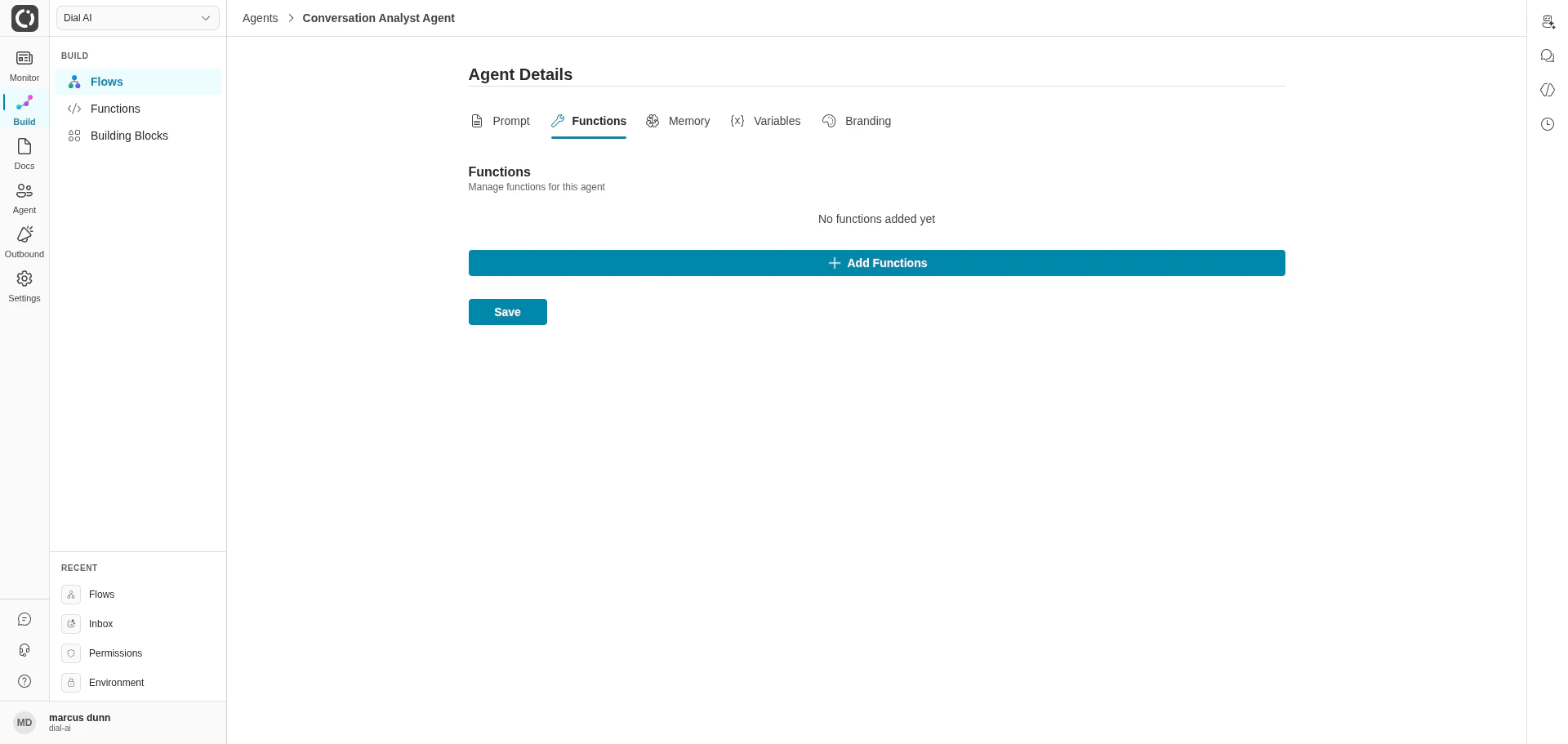
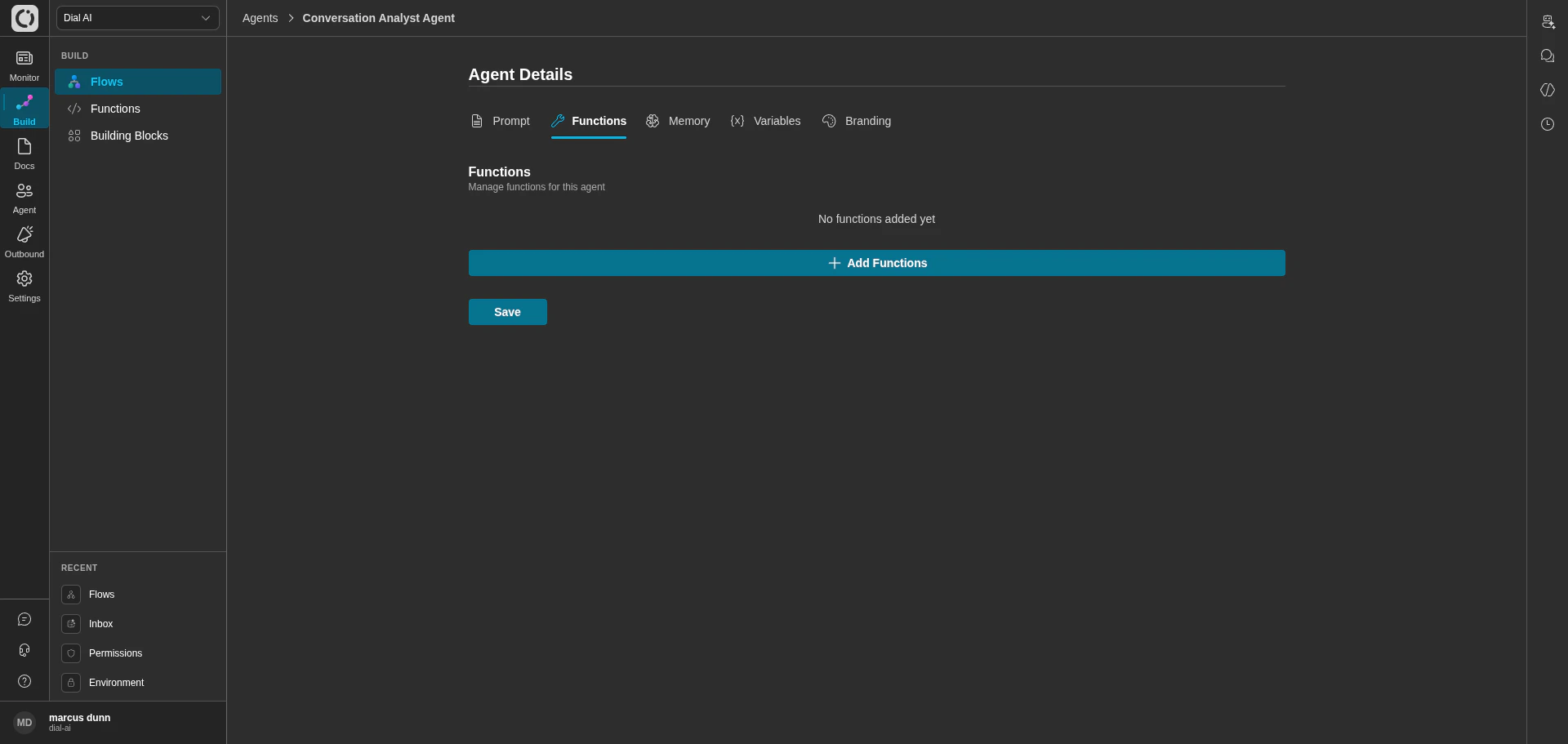 Pick which JS functions the agent can invoke. Click **Add Functions** to open the picker, then select the functions to grant. Each enabled function becomes a tool the agent can call during a conversation.
Common picks for a Conversation Analyst Agent:
* `listTranscripts`, `countTranscripts` — search and count.
* `getTranscriptReport`, `getReadableTranscript` — inspect.
* `getTagsForTranscript`, `setTagsForTranscript` — read and write tags.
* `searchDocuments` — ground in playbooks and SOPs.
The fewer functions you enable, the more predictable the agent's behaviour. Resist the urge to grant every function "just in case" — every extra function adds reasoning load.
### Memory
Long-lived facts the agent should always know. Add entries for things like "the company's fiscal year ends in March", "our SLA is 24 business hours", "we never discount more than 10% without manager approval". Memory entries persist across every chat and apply to every conversation the agent has.
### Variables
Static parameter values that the enabled functions require. When you add a function that needs configuration (an API key, a tenant ID, a base URL), that requirement surfaces here so you can supply the value once instead of per-call.
### Branding
PDF and PowerPoint export styling for agents that produce documents. Set a company name, primary/secondary colours, upload a logo (PNG/JPEG/SVG ≤ 2 MB), and optionally write free-form logo-usage instructions ("logo top-right, page 1 only"). Leave blank to use platform defaults.
## Scheduled agent tasks
The **Scheduled Agent Tasks** button (bottom-right of every page) opens the schedule manager. Set up recurring or one-off jobs an agent should run on its own — e.g., "every weekday at 8am, list yesterday's flagged conversations and post a summary to a thread". Useful for handing off the kind of routine analysis that doesn't need a human in the loop.
## Use cases
| Agent purpose | Functions typically enabled | Notes |
| ------------------------ | ------------------------------------------------------------------------------------------------------------ | ------------------------------------------------------ |
| **Conversation Analyst** | `listTranscripts`, `countTranscripts`, `getTranscriptReport`, `getTagsForTranscript`, `setTagsForTranscript` | QA and reporting. |
| **Flow Builder** | `searchFlows`, `createFlow`, `createState`, `editState`, `createTransition` | Drafts flows from a natural-language brief. |
| **Campaign Reporter** | `listOutboundCampaigns`, `getCampaignStats`, `searchTranscripts` | Pull-the-numbers reports on outbound results. |
| **Knowledge Curator** | `searchDocuments`, `listFaqs`, `createFaq` | Find gaps in your knowledge base and propose new FAQs. |
## Agents vs Flows
| | Agent | Flow |
| --------------- | ---------------------------------------- | ------------------------------------------------------------------------------- |
| Who talks to it | Your team, inside the platform. | Your customers, on a channel. |
| Surface | Chat panel (bottom-right). | Voice, SMS, email, web chat, etc. via a [Point of Contact](/points-of-contact). |
| Logic shape | Single prompt + tool list. | Stateful graph with transitions, events, and per-state thoughts. |
| Published? | Always live for everyone in your tenant. | Has draft and published versions. |
| Testable how | Just chat with it. | [Chat sandbox + Test Scenarios](/testing-flows). |
If you're not sure which to build: would a customer ever talk to this? If yes, build a Flow. If only internal staff, build an Agent.
***
## Related
Authoring the JS functions agents call.
Customer-facing equivalent.
Ground your agents in real source-of-truth content.
When the tenant is open — relevant for scheduled agent tasks.
Pick which JS functions the agent can invoke. Click **Add Functions** to open the picker, then select the functions to grant. Each enabled function becomes a tool the agent can call during a conversation.
Common picks for a Conversation Analyst Agent:
* `listTranscripts`, `countTranscripts` — search and count.
* `getTranscriptReport`, `getReadableTranscript` — inspect.
* `getTagsForTranscript`, `setTagsForTranscript` — read and write tags.
* `searchDocuments` — ground in playbooks and SOPs.
The fewer functions you enable, the more predictable the agent's behaviour. Resist the urge to grant every function "just in case" — every extra function adds reasoning load.
### Memory
Long-lived facts the agent should always know. Add entries for things like "the company's fiscal year ends in March", "our SLA is 24 business hours", "we never discount more than 10% without manager approval". Memory entries persist across every chat and apply to every conversation the agent has.
### Variables
Static parameter values that the enabled functions require. When you add a function that needs configuration (an API key, a tenant ID, a base URL), that requirement surfaces here so you can supply the value once instead of per-call.
### Branding
PDF and PowerPoint export styling for agents that produce documents. Set a company name, primary/secondary colours, upload a logo (PNG/JPEG/SVG ≤ 2 MB), and optionally write free-form logo-usage instructions ("logo top-right, page 1 only"). Leave blank to use platform defaults.
## Scheduled agent tasks
The **Scheduled Agent Tasks** button (bottom-right of every page) opens the schedule manager. Set up recurring or one-off jobs an agent should run on its own — e.g., "every weekday at 8am, list yesterday's flagged conversations and post a summary to a thread". Useful for handing off the kind of routine analysis that doesn't need a human in the loop.
## Use cases
| Agent purpose | Functions typically enabled | Notes |
| ------------------------ | ------------------------------------------------------------------------------------------------------------ | ------------------------------------------------------ |
| **Conversation Analyst** | `listTranscripts`, `countTranscripts`, `getTranscriptReport`, `getTagsForTranscript`, `setTagsForTranscript` | QA and reporting. |
| **Flow Builder** | `searchFlows`, `createFlow`, `createState`, `editState`, `createTransition` | Drafts flows from a natural-language brief. |
| **Campaign Reporter** | `listOutboundCampaigns`, `getCampaignStats`, `searchTranscripts` | Pull-the-numbers reports on outbound results. |
| **Knowledge Curator** | `searchDocuments`, `listFaqs`, `createFaq` | Find gaps in your knowledge base and propose new FAQs. |
## Agents vs Flows
| | Agent | Flow |
| --------------- | ---------------------------------------- | ------------------------------------------------------------------------------- |
| Who talks to it | Your team, inside the platform. | Your customers, on a channel. |
| Surface | Chat panel (bottom-right). | Voice, SMS, email, web chat, etc. via a [Point of Contact](/points-of-contact). |
| Logic shape | Single prompt + tool list. | Stateful graph with transitions, events, and per-state thoughts. |
| Published? | Always live for everyone in your tenant. | Has draft and published versions. |
| Testable how | Just chat with it. | [Chat sandbox + Test Scenarios](/testing-flows). |
If you're not sure which to build: would a customer ever talk to this? If yes, build a Flow. If only internal staff, build an Agent.
***
## Related
Authoring the JS functions agents call.
Customer-facing equivalent.
Ground your agents in real source-of-truth content.
When the tenant is open — relevant for scheduled agent tasks.