> ## Documentation Index
> Fetch the complete documentation index at: https://docs.dialai.ca/llms.txt
> Use this file to discover all available pages before exploring further.
# Conversations
> Monitor and evaluate AI agent interactions with customers
export const meta = {
reusable: true
};
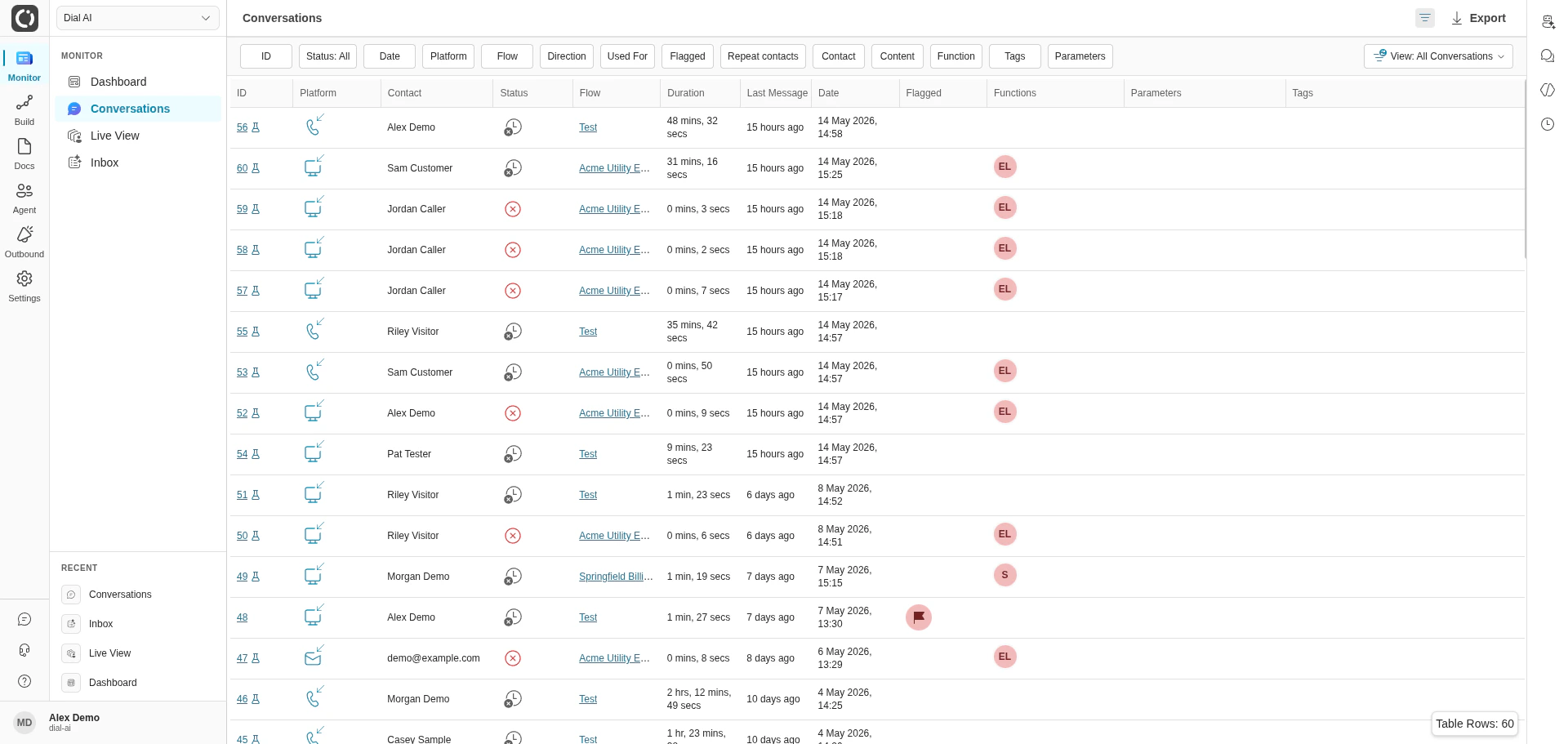
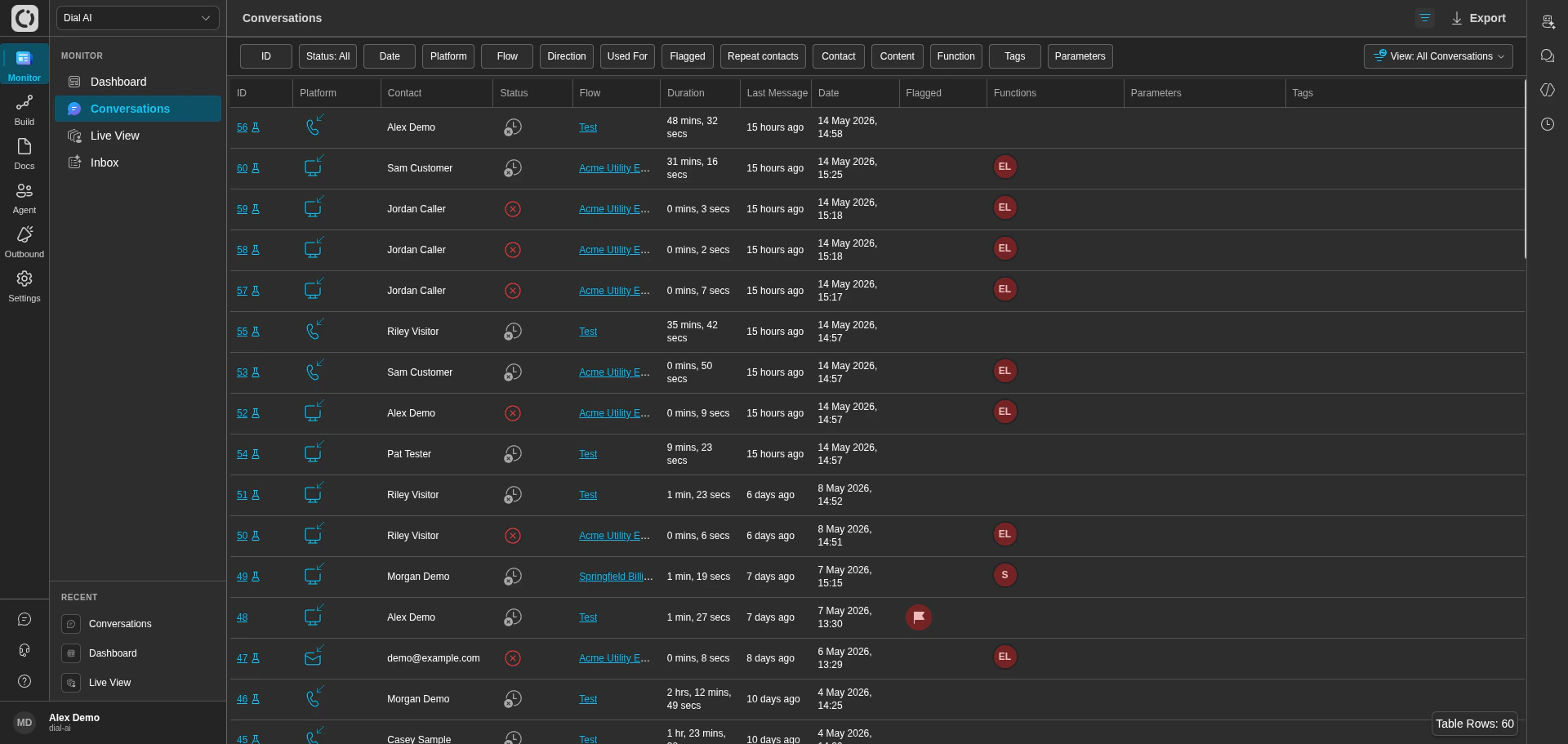 The **Conversations** page is the searchable archive of every interaction your AI agent has had with a customer — voice calls, web chats, SMS threads, and email conversations. Use it to spot-check quality, investigate flagged calls, build training datasets, and surface trends.
For in-flight conversations that need a human right now, see the [Inbox](/inbox). For real-time monitoring of conversations as they happen, see [Live View](/live-view).
## Accessing Conversations
Navigate to **Monitor > Conversations** in the left sidebar.
## The conversations table
Each row in the table is one conversation. Columns include:
| Column | What it shows |
| ---------------- | --------------------------------------------------------------------- |
| **ID** | The conversation's unique identifier. |
| **Platform** | Voice / SMS / Web / Email / Slack icon. |
| **Contact** | Phone number, email address, or contact name. |
| **Status** | See the [status reference](#call-status-indicators) below. |
| **Flow** | The flow this conversation ran through. Click "View Flow" to open it. |
| **Duration** | Total time from start to end. |
| **Last Message** | When the most recent message was sent. |
| **Date** | When the conversation started. |
| **Flagged** | A flag icon means the conversation was marked for review. |
| **Functions** | Function calls the agent made during the conversation. |
| **Parameters** | Internal parameter key/value pairs (e.g., account IDs). |
| **Tags** | Metadata like Call Reason, Language, Issue, and function outputs. |
Click any conversation to open the detail view.
### Call status indicators
* **Completed** — the conversation was successfully concluded.
* **Abandoned** — the customer ended the conversation prematurely.
* **Failed** — the conversation hit a technical issue.
* **Human Handoff** — handed off to a human, by the AI or by a supervisor.
* **In Progress** — currently active.
* **Reported** — flagged via the reporting workflow.
* **Restarted** — the conversation was restarted.
* **Unsubscribed** — the contact unsubscribed during the conversation.
* **No Answer** — the contact did not pick up.
* **Answering Machine — Message Left** / **No Message Left** — voicemail detected, with or without leaving a message.
## Conversation detail view
Selecting a conversation opens the detail view, which gives you a granular look at the interaction. The right-hand panel shows:
* **Platform** and **Point of Contact** — the channel and which POC the customer used to reach you.
* **Contact ID** — unique customer identifier (clickable to see all conversations from this contact).
* **Status** — the final outcome.
* **Tags** — Call Reason, Language, Issue, and any function-derived tags.
* **Sentiment** — top emotions detected during the conversation.
* **Flow** — which flow ran, with a link to open it.
* **Voice** — the synthetic voice used (for voice conversations).
* **Duration**, **Start**, **End** — timing.
* **Reason** — the AI's classification of why the customer called.
* **Summary** and **Analysis** — narrative and evaluation of how the conversation went.
The center panel shows the full transcript alongside the flow graph, with timestamps, function call results, and audio playback (for voice calls).
### Internal agent artifacts
When the AI agent generates artifacts during a conversation — CSVs, charts, PDFs, etc. — they appear inline in the transcript detail view. Click an artifact to preview it or download it locally. Artifacts are served from a CSP-locked subdomain so they can be safely embedded in the transcript.
### Export and download
The three-dot menu in the top-right of the detail view opens transcript management options:
* **Export transcript** — exports the full text transcript for documentation or training data.
* **Download audio** — saves the call recording (voice conversations only).
* **Delete** — removes the conversation from the list. Useful for clearing test conversations or obsolete records.
### Call monitoring actions
> These controls are available **only while an AI Agent call is in progress**. If a call is **queued** or **assigned** to a human, these actions are not shown.
### Listen In
Silent monitoring of the live call. The caller and the agent do not hear you.
**How to use**
1. Open the **⋯ Actions** menu on the active call.
2. Select **Listen In**.
**What happens**
* You can hear the conversation in real time.
* Your microphone is not connected to the call.
***
### Take Over
Assume live control of the call. You can hand control back later.
**How to use**
1. Open **⋯ Actions**.
2. Select **Take Over**.
**What happens**
* You are connected as the speaking participant.
* When finished, hand control back to the previous participant (AI Agent or original agent).
***
### Transfer
Send the live call to an **external phone number**.
**How to use**
1. Open **⋯ Actions**.
2. Select **Transfer**.
3. Enter the destination phone number.
4. Confirm to transfer.
**What happens**
* The system dials the destination number and bridges the caller.
* After transfer, control moves to the external destination.
***
### Enqueue
Move the live call into the **human agent queue**.
**How to use**
1. Open **⋯ Actions**.
2. Select **Enqueue**.
**What happens**
* The call is placed back into the queue to be assigned to a human agent.
* The AI Agent stops handling the call.
***
### End
Immediately hang up the call for all parties.
**How to use**
1. Open **⋯ Actions**.
2. Select **End** and confirm.
**What happens**
* The call ends immediately.
* Post-call processes (wrap-up, logging, transcript, etc.) continue as configured.
***
### Add Coaching
Send **coaching notes** to the agent only (not visible to the caller) while the call is active.
**How to use**
1. Open **⋯ Actions**.
2. Select **Add Coaching**.
3. Enter your coaching note and send.
**What happens**
* The note appears to the agent as an internal coaching message during the call.
* The caller never sees coaching notes.
***
### Summary (for quick scan)
| Action | Purpose | Notes |
| ------------ | ---------------------------------------------- | ------------------------------- |
| Listen In | Silent monitoring | No whisper audio |
| Take Over | You become the speaking participant | You can hand control back later |
| Transfer | Send caller to an **external** phone number | Replaces any prior inline refs |
| Enqueue | Return caller to the **human agent queue** | For assignment by a human agent |
| End | Hang up for all parties immediately | Triggers post-call handling |
| Add Coaching | Side-channel guidance to the agent (text only) | Not visible to the caller |
These controls only appear when the conversation is currently in progress.
### Sentiment and flags
Real-time sentiment analysis tags each conversation with the customer emotions detected — gratitude, curiosity, confusion, etc. Flags are set by the AI review agent based on anomalies or custom call-review criteria. Use them to triage which conversations are worth a closer look.
### Functions and parameters
The transcript shows each function call the agent made, with its inputs and outputs. Use this to verify the agent invoked the right tools at the right time and got the right responses back.
***
## Filtering
Click **Filter** in the top-right to open the filters panel. Each filter has a radio toggle to activate it; the table updates as you go.
| Filter | Use it to find |
| ------------------- | ----------------------------------------------------------------------------------------------------- |
| **ID** | A specific conversation by ID. |
| **Status** | One or more outcome statuses. |
| **Date** | A date range. |
| **Platform** | Voice, SMS, Web, Email, Slack, Human Phone. |
| **Flow** | A specific flow. |
| **Direction** | Inbound or outbound. |
| **Used For** | Production vs Test environment. |
| **Flagged** | Flagged-for-review only, or unflagged only. |
| **Repeat contacts** | A range of how many times the contact has interacted. |
| **Contact** | All conversations from a specific contact. |
| **Content** | A keyword or phrase in the transcript. |
| **Function** | Conversations where a specific function was called. |
| **Tags** | Conversations matching one or more tag key/value pairs (AND or OR via the **Match all tags** toggle). |
| **Parameters** | Internal parameter key/value pairs. |
A **View** selector at the top of the filters panel lets you load a saved combination of these filters — see [Views](#views) below.
## Views
A **View** is a saved combination of filters. The **View** dropdown at the top of the filters panel lets you switch between saved views; the three-dot menu next to it lets you set any view as the org-wide default.
Built-in views:
* **All Conversations** — no filters, the default.
* **Production Calls** — production-environment conversations only.
* **Test Calls** — test-environment conversations only.
Configure your own filters and save them as a custom view for quick reuse — for example, "Flagged voice calls in the last 7 days."
## Exporting
The **Export** button in the top-right exports the currently filtered table to CSV. Useful for offline analysis, BI tools, or sharing with stakeholders who don't have platform access.
***
## Related
Watch in-progress conversations.
Take over conversations that need human help.
Aggregate metrics and reporting.
The **Conversations** page is the searchable archive of every interaction your AI agent has had with a customer — voice calls, web chats, SMS threads, and email conversations. Use it to spot-check quality, investigate flagged calls, build training datasets, and surface trends.
For in-flight conversations that need a human right now, see the [Inbox](/inbox). For real-time monitoring of conversations as they happen, see [Live View](/live-view).
## Accessing Conversations
Navigate to **Monitor > Conversations** in the left sidebar.
## The conversations table
Each row in the table is one conversation. Columns include:
| Column | What it shows |
| ---------------- | --------------------------------------------------------------------- |
| **ID** | The conversation's unique identifier. |
| **Platform** | Voice / SMS / Web / Email / Slack icon. |
| **Contact** | Phone number, email address, or contact name. |
| **Status** | See the [status reference](#call-status-indicators) below. |
| **Flow** | The flow this conversation ran through. Click "View Flow" to open it. |
| **Duration** | Total time from start to end. |
| **Last Message** | When the most recent message was sent. |
| **Date** | When the conversation started. |
| **Flagged** | A flag icon means the conversation was marked for review. |
| **Functions** | Function calls the agent made during the conversation. |
| **Parameters** | Internal parameter key/value pairs (e.g., account IDs). |
| **Tags** | Metadata like Call Reason, Language, Issue, and function outputs. |
Click any conversation to open the detail view.
### Call status indicators
* **Completed** — the conversation was successfully concluded.
* **Abandoned** — the customer ended the conversation prematurely.
* **Failed** — the conversation hit a technical issue.
* **Human Handoff** — handed off to a human, by the AI or by a supervisor.
* **In Progress** — currently active.
* **Reported** — flagged via the reporting workflow.
* **Restarted** — the conversation was restarted.
* **Unsubscribed** — the contact unsubscribed during the conversation.
* **No Answer** — the contact did not pick up.
* **Answering Machine — Message Left** / **No Message Left** — voicemail detected, with or without leaving a message.
## Conversation detail view
Selecting a conversation opens the detail view, which gives you a granular look at the interaction. The right-hand panel shows:
* **Platform** and **Point of Contact** — the channel and which POC the customer used to reach you.
* **Contact ID** — unique customer identifier (clickable to see all conversations from this contact).
* **Status** — the final outcome.
* **Tags** — Call Reason, Language, Issue, and any function-derived tags.
* **Sentiment** — top emotions detected during the conversation.
* **Flow** — which flow ran, with a link to open it.
* **Voice** — the synthetic voice used (for voice conversations).
* **Duration**, **Start**, **End** — timing.
* **Reason** — the AI's classification of why the customer called.
* **Summary** and **Analysis** — narrative and evaluation of how the conversation went.
The center panel shows the full transcript alongside the flow graph, with timestamps, function call results, and audio playback (for voice calls).
### Internal agent artifacts
When the AI agent generates artifacts during a conversation — CSVs, charts, PDFs, etc. — they appear inline in the transcript detail view. Click an artifact to preview it or download it locally. Artifacts are served from a CSP-locked subdomain so they can be safely embedded in the transcript.
### Export and download
The three-dot menu in the top-right of the detail view opens transcript management options:
* **Export transcript** — exports the full text transcript for documentation or training data.
* **Download audio** — saves the call recording (voice conversations only).
* **Delete** — removes the conversation from the list. Useful for clearing test conversations or obsolete records.
### Call monitoring actions
> These controls are available **only while an AI Agent call is in progress**. If a call is **queued** or **assigned** to a human, these actions are not shown.
### Listen In
Silent monitoring of the live call. The caller and the agent do not hear you.
**How to use**
1. Open the **⋯ Actions** menu on the active call.
2. Select **Listen In**.
**What happens**
* You can hear the conversation in real time.
* Your microphone is not connected to the call.
***
### Take Over
Assume live control of the call. You can hand control back later.
**How to use**
1. Open **⋯ Actions**.
2. Select **Take Over**.
**What happens**
* You are connected as the speaking participant.
* When finished, hand control back to the previous participant (AI Agent or original agent).
***
### Transfer
Send the live call to an **external phone number**.
**How to use**
1. Open **⋯ Actions**.
2. Select **Transfer**.
3. Enter the destination phone number.
4. Confirm to transfer.
**What happens**
* The system dials the destination number and bridges the caller.
* After transfer, control moves to the external destination.
***
### Enqueue
Move the live call into the **human agent queue**.
**How to use**
1. Open **⋯ Actions**.
2. Select **Enqueue**.
**What happens**
* The call is placed back into the queue to be assigned to a human agent.
* The AI Agent stops handling the call.
***
### End
Immediately hang up the call for all parties.
**How to use**
1. Open **⋯ Actions**.
2. Select **End** and confirm.
**What happens**
* The call ends immediately.
* Post-call processes (wrap-up, logging, transcript, etc.) continue as configured.
***
### Add Coaching
Send **coaching notes** to the agent only (not visible to the caller) while the call is active.
**How to use**
1. Open **⋯ Actions**.
2. Select **Add Coaching**.
3. Enter your coaching note and send.
**What happens**
* The note appears to the agent as an internal coaching message during the call.
* The caller never sees coaching notes.
***
### Summary (for quick scan)
| Action | Purpose | Notes |
| ------------ | ---------------------------------------------- | ------------------------------- |
| Listen In | Silent monitoring | No whisper audio |
| Take Over | You become the speaking participant | You can hand control back later |
| Transfer | Send caller to an **external** phone number | Replaces any prior inline refs |
| Enqueue | Return caller to the **human agent queue** | For assignment by a human agent |
| End | Hang up for all parties immediately | Triggers post-call handling |
| Add Coaching | Side-channel guidance to the agent (text only) | Not visible to the caller |
These controls only appear when the conversation is currently in progress.
### Sentiment and flags
Real-time sentiment analysis tags each conversation with the customer emotions detected — gratitude, curiosity, confusion, etc. Flags are set by the AI review agent based on anomalies or custom call-review criteria. Use them to triage which conversations are worth a closer look.
### Functions and parameters
The transcript shows each function call the agent made, with its inputs and outputs. Use this to verify the agent invoked the right tools at the right time and got the right responses back.
***
## Filtering
Click **Filter** in the top-right to open the filters panel. Each filter has a radio toggle to activate it; the table updates as you go.
| Filter | Use it to find |
| ------------------- | ----------------------------------------------------------------------------------------------------- |
| **ID** | A specific conversation by ID. |
| **Status** | One or more outcome statuses. |
| **Date** | A date range. |
| **Platform** | Voice, SMS, Web, Email, Slack, Human Phone. |
| **Flow** | A specific flow. |
| **Direction** | Inbound or outbound. |
| **Used For** | Production vs Test environment. |
| **Flagged** | Flagged-for-review only, or unflagged only. |
| **Repeat contacts** | A range of how many times the contact has interacted. |
| **Contact** | All conversations from a specific contact. |
| **Content** | A keyword or phrase in the transcript. |
| **Function** | Conversations where a specific function was called. |
| **Tags** | Conversations matching one or more tag key/value pairs (AND or OR via the **Match all tags** toggle). |
| **Parameters** | Internal parameter key/value pairs. |
A **View** selector at the top of the filters panel lets you load a saved combination of these filters — see [Views](#views) below.
## Views
A **View** is a saved combination of filters. The **View** dropdown at the top of the filters panel lets you switch between saved views; the three-dot menu next to it lets you set any view as the org-wide default.
Built-in views:
* **All Conversations** — no filters, the default.
* **Production Calls** — production-environment conversations only.
* **Test Calls** — test-environment conversations only.
Configure your own filters and save them as a custom view for quick reuse — for example, "Flagged voice calls in the last 7 days."
## Exporting
The **Export** button in the top-right exports the currently filtered table to CSV. Useful for offline analysis, BI tools, or sharing with stakeholders who don't have platform access.
***
## Related
Watch in-progress conversations.
Take over conversations that need human help.
Aggregate metrics and reporting.