> ## Documentation Index
> Fetch the complete documentation index at: https://docs.dialai.ca/llms.txt
> Use this file to discover all available pages before exploring further.
# Email Campaigns
> Send AI-drafted outbound email campaigns to a recipient list
 **Email Campaigns** are outbound mailings sent through one of your configured email Points of Contact. The agent drafts and sends emails using the same flow context your inbound conversations use — useful for follow-ups, announcements, renewals, and re-engagement.
## Accessing Email Campaigns
Navigate to **Outbound > Email Campaigns** in the left sidebar.
## What's on the page
The campaigns table shows every email campaign in the tenant.
| Column | What it shows |
| ----------------- | ------------------------------------------------- |
| **ID** | The campaign's unique identifier. |
| **Target Email** | The recipient address (or list summary). |
| **Agent Email** | The configured email POC the campaign sends from. |
| **Status** | Pending / Sent / Failed. |
| **Last Modified** | When the campaign was last touched. |
**Create** in the top-right opens the campaign-creation form.
## Creating a campaign
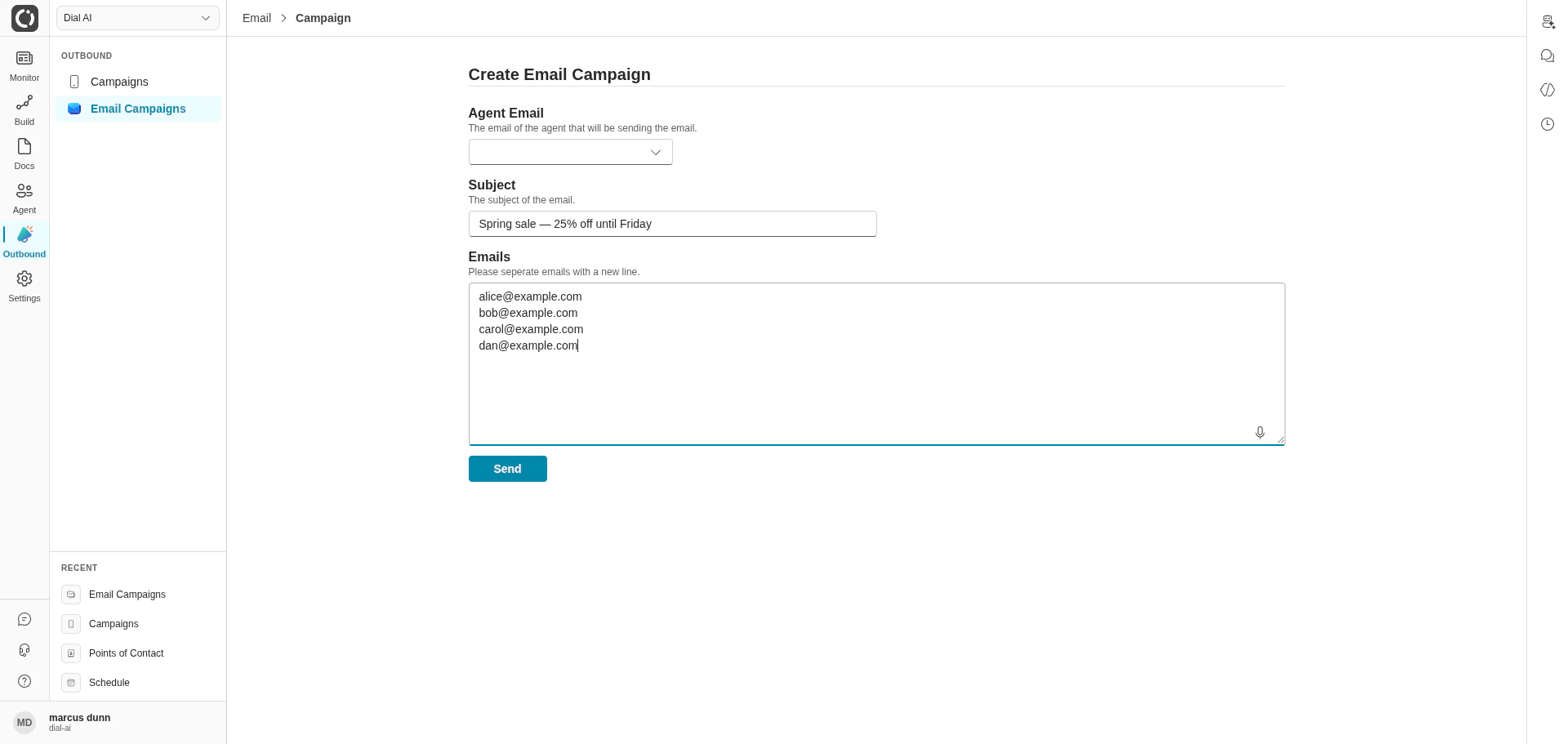
Opens the **Create Email Campaign** form.
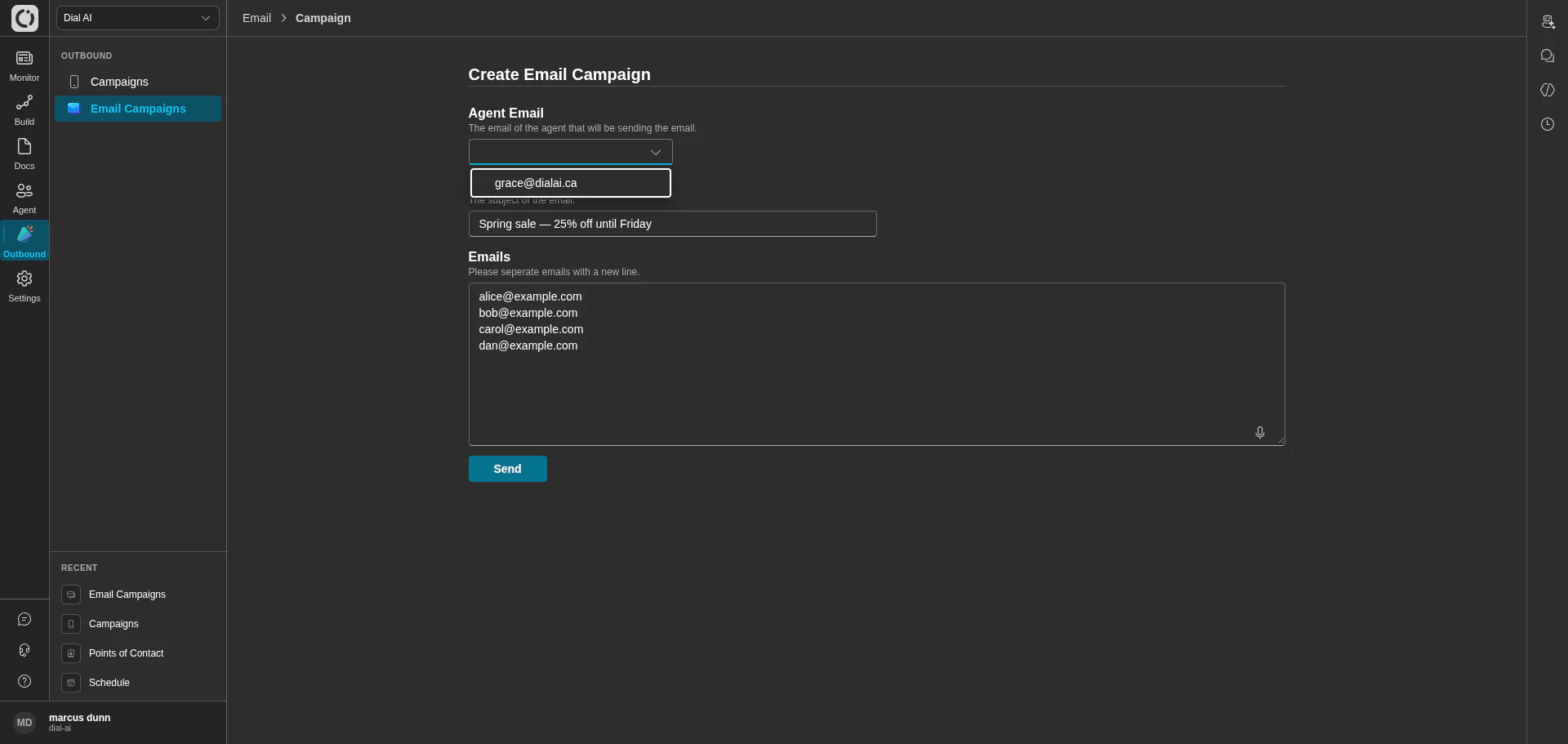
The dropdown lists every Email Point of Contact configured for your tenant. The chosen address is the **From** for the campaign. Configure email POCs under [Points of Contact > Email](/points-of-contact#email) first if the dropdown is empty.
The email subject line. Customers see this in their inbox preview, so make it specific and recognizable.
Paste one email address per line into the **Emails** field. The campaign sends a separate, agent-drafted email to each recipient — recipients don't see each other.
The campaign appears in the table with a **Pending** status. Each recipient's send transitions to **Sent** on success or **Failed** if delivery doesn't go through.
The body of each email is composed by the AI agent using your flow's instructions — the campaign form sets the subject and recipient list; the body is generated per recipient. To control body content, edit the flow attached to the sending Email POC.
## How Email Campaigns relate to Email POCs
An **Email Point of Contact** is the configured `From:` address — it has Microsoft 365 / SendGrid wiring and a flow attached. An **Email Campaign** is a one-shot batch send through that POC to a recipient list. The POC's flow drafts each message; the campaign just provides the recipients and subject line.
This means inbound replies to a campaign land back in the same Email POC's flow — so make sure that flow is configured to handle both initial-send and inbound-reply contexts.
## Multi-channel outreach
Pair email campaigns with [voice campaigns](/outbound):
* **Email first, voice follow-up** — send an opt-in email, then call the recipients who clicked through. Use the customer-journey data on each contact to coordinate.
* **Voice first, email follow-up** — for important calls, send an email summary the next day so the customer has a record.
## Best practices
* **Clear subject lines.** The subject is the only thing the customer reads before opening — make it concrete ("Your March invoice is ready" beats "An update").
* **Test on a single recipient first.** Add one test address before launching a large campaign so you can verify the agent's tone and links.
* **Keep recipient lists scoped.** Send focused campaigns to relevant segments rather than blasting your whole list — better deliverability, fewer unsubscribes.
* **Watch the Status column.** Many recipients stuck in **Pending** longer than expected usually means the sending POC's auth has expired — run a Health Check on the Email POC.
* **Respect compliance rules.** Email marketing regulations vary by jurisdiction. The platform doesn't enforce CAN-SPAM / GDPR / CASL for you — that responsibility is yours.
## Use cases
| Use case | Recipient list source |
| ---------------------- | ---------------------------------------------------- |
| Product announcements | Filtered customer segment |
| Promotional offers | Loyalty-program members, churn-risk contacts |
| Appointment reminders | Today's scheduled appointments |
| Follow-up after a call | Yesterday's transcripts where AI flagged a follow-up |
| Re-engagement | Inactive contacts beyond N days |
***
## Related
Voice version of the same idea.
Configure the sending address.
Attach knowledge the agent uses to draft each email.
**Email Campaigns** are outbound mailings sent through one of your configured email Points of Contact. The agent drafts and sends emails using the same flow context your inbound conversations use — useful for follow-ups, announcements, renewals, and re-engagement.
## Accessing Email Campaigns
Navigate to **Outbound > Email Campaigns** in the left sidebar.
## What's on the page
The campaigns table shows every email campaign in the tenant.
| Column | What it shows |
| ----------------- | ------------------------------------------------- |
| **ID** | The campaign's unique identifier. |
| **Target Email** | The recipient address (or list summary). |
| **Agent Email** | The configured email POC the campaign sends from. |
| **Status** | Pending / Sent / Failed. |
| **Last Modified** | When the campaign was last touched. |
**Create** in the top-right opens the campaign-creation form.
## Creating a campaign
Opens the **Create Email Campaign** form.
The dropdown lists every Email Point of Contact configured for your tenant. The chosen address is the **From** for the campaign. Configure email POCs under [Points of Contact > Email](/points-of-contact#email) first if the dropdown is empty.
The email subject line. Customers see this in their inbox preview, so make it specific and recognizable.
Paste one email address per line into the **Emails** field. The campaign sends a separate, agent-drafted email to each recipient — recipients don't see each other.
The campaign appears in the table with a **Pending** status. Each recipient's send transitions to **Sent** on success or **Failed** if delivery doesn't go through.
The body of each email is composed by the AI agent using your flow's instructions — the campaign form sets the subject and recipient list; the body is generated per recipient. To control body content, edit the flow attached to the sending Email POC.
## How Email Campaigns relate to Email POCs
An **Email Point of Contact** is the configured `From:` address — it has Microsoft 365 / SendGrid wiring and a flow attached. An **Email Campaign** is a one-shot batch send through that POC to a recipient list. The POC's flow drafts each message; the campaign just provides the recipients and subject line.
This means inbound replies to a campaign land back in the same Email POC's flow — so make sure that flow is configured to handle both initial-send and inbound-reply contexts.
## Multi-channel outreach
Pair email campaigns with [voice campaigns](/outbound):
* **Email first, voice follow-up** — send an opt-in email, then call the recipients who clicked through. Use the customer-journey data on each contact to coordinate.
* **Voice first, email follow-up** — for important calls, send an email summary the next day so the customer has a record.
## Best practices
* **Clear subject lines.** The subject is the only thing the customer reads before opening — make it concrete ("Your March invoice is ready" beats "An update").
* **Test on a single recipient first.** Add one test address before launching a large campaign so you can verify the agent's tone and links.
* **Keep recipient lists scoped.** Send focused campaigns to relevant segments rather than blasting your whole list — better deliverability, fewer unsubscribes.
* **Watch the Status column.** Many recipients stuck in **Pending** longer than expected usually means the sending POC's auth has expired — run a Health Check on the Email POC.
* **Respect compliance rules.** Email marketing regulations vary by jurisdiction. The platform doesn't enforce CAN-SPAM / GDPR / CASL for you — that responsibility is yours.
## Use cases
| Use case | Recipient list source |
| ---------------------- | ---------------------------------------------------- |
| Product announcements | Filtered customer segment |
| Promotional offers | Loyalty-program members, churn-risk contacts |
| Appointment reminders | Today's scheduled appointments |
| Follow-up after a call | Yesterday's transcripts where AI flagged a follow-up |
| Re-engagement | Inactive contacts beyond N days |
***
## Related
Voice version of the same idea.
Configure the sending address.
Attach knowledge the agent uses to draft each email.