> ## Documentation Index
> Fetch the complete documentation index at: https://docs.dialai.ca/llms.txt
> Use this file to discover all available pages before exploring further.
# Environment
> Manage tenant-scoped environment variables and secrets
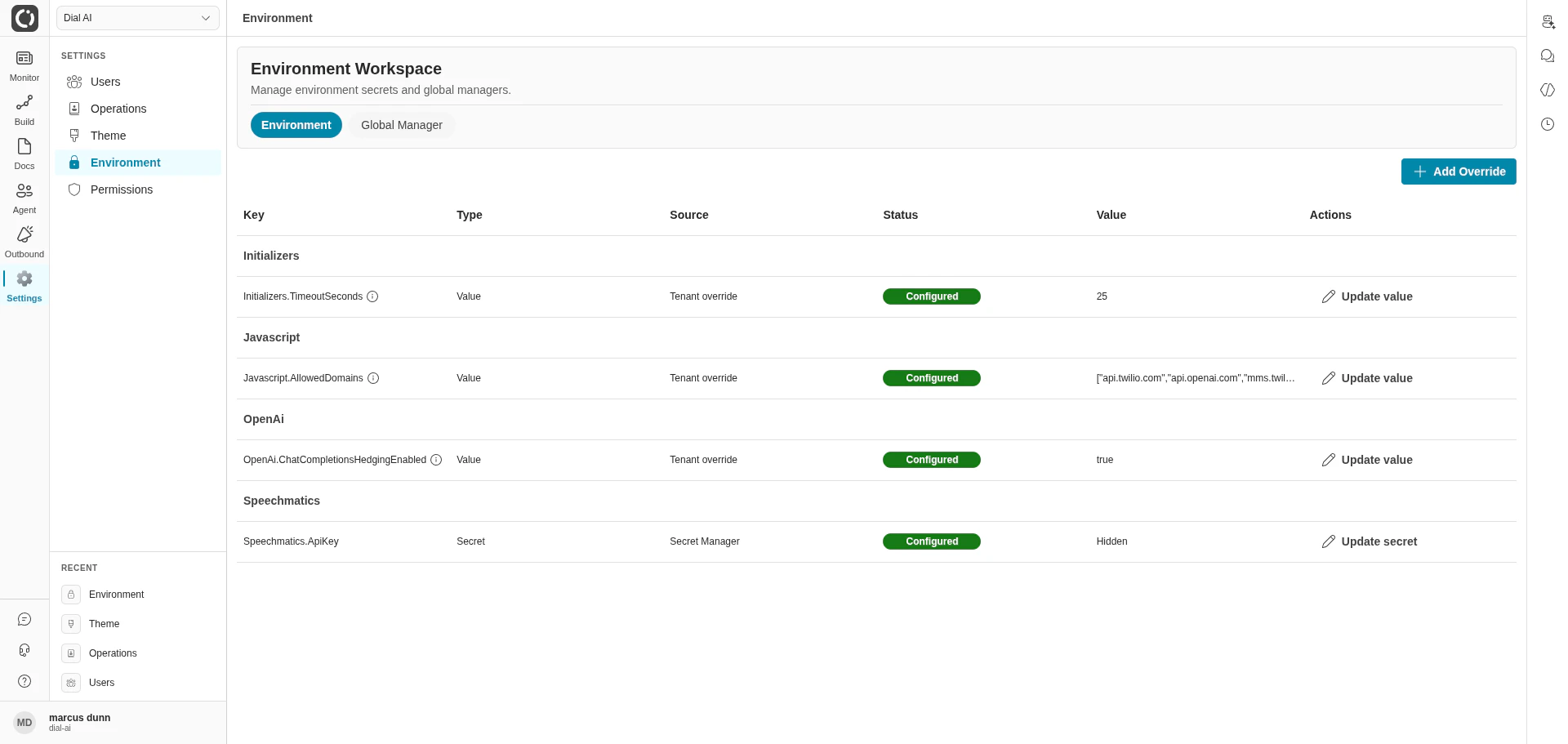
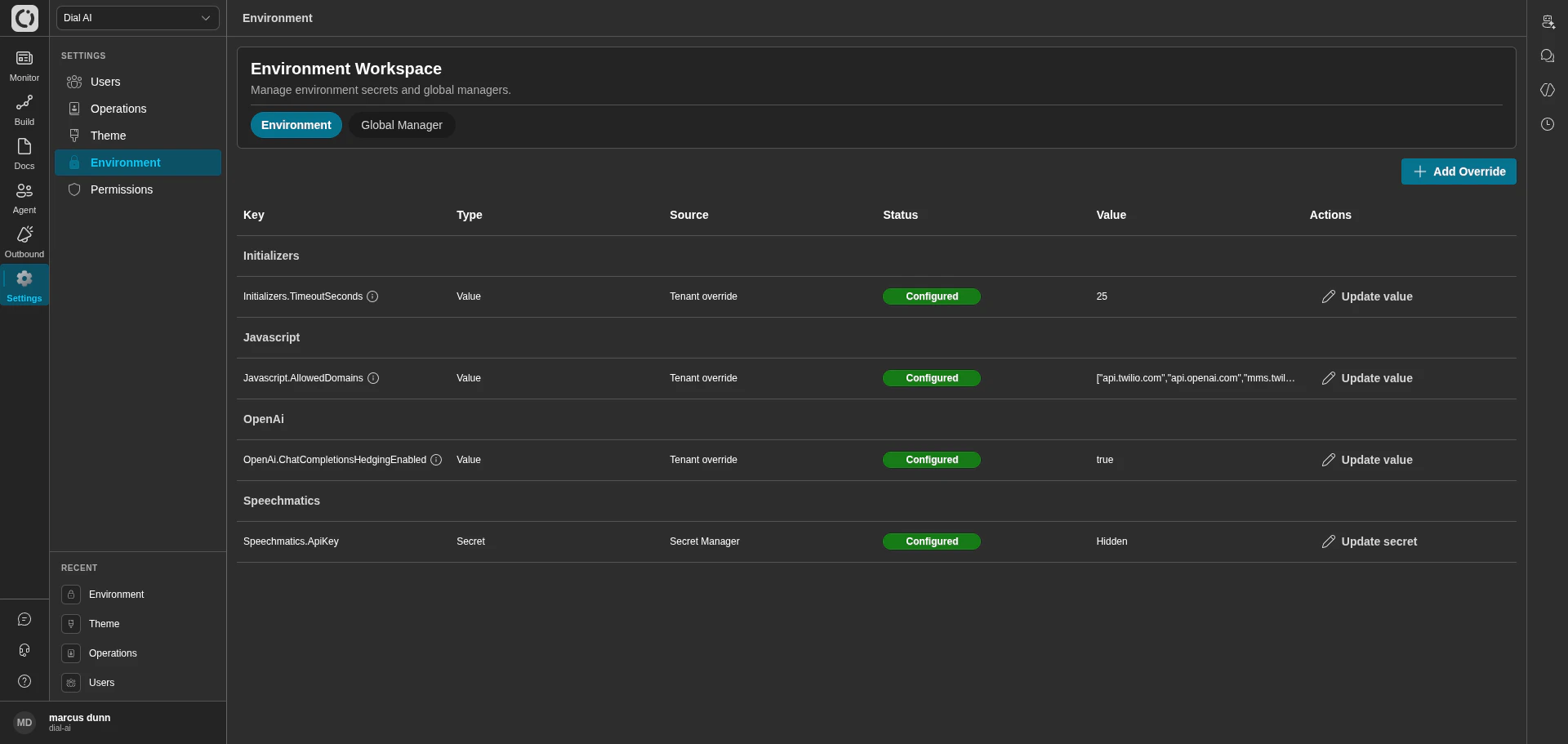 The **Environment** workspace is where you view and override the platform configuration values that apply to your tenant — timeouts, allow-lists, integration API keys, and other knobs that change platform behavior without touching a flow. Two tabs: **Environment** (your tenant's overrides) and **Global Manager** (cross-tenant rollouts).
## Accessing Environment
Navigate to **Settings > Environment** in the left sidebar.
## Environment tab
The Environment tab lists every config entry visible to your tenant, grouped by namespace (e.g., `Initializers`, `Javascript`, `OpenAi`, `Speechmatics`).
| Column | What it shows |
| ----------- | ---------------------------------------------------------------------------------------------------------------------------------- |
| **Key** | Dotted-path name of the entry (e.g., `Initializers.TimeoutSeconds`, `Javascript.AllowedDomains`). |
| **Type** | `Value` for plain config; `Secret` for values pulled from the secret manager. |
| **Source** | Where the current value comes from — `Tenant override` (set here), `Secret Manager` (provisioned externally), or platform default. |
| **Status** | `Configured` once an override is in place. |
| **Value** | The current value. Secrets show as **Hidden**. |
| **Actions** | **Update value** (for plain values) or **Update secret** (for secrets). |
Click the **information** icon next to a key to see its description and accepted format.
### Adding an override
Opens the override dialog.
Choose the variable from the catalog. The catalog lists every variable the platform recognises.
For plain values, type the new value. For secrets, you'll be prompted to write to the configured secret manager.
The override takes effect immediately for new conversations.
Changes to integration credentials (e.g., `Speechmatics.ApiKey`, `OpenAi.*`) propagate to live infrastructure on the next request — if the new value is invalid, live conversations will start failing. Validate against a non-production tenant first.
## Global Manager tab
The Global Manager applies the same change to multiple tenants at once. Useful for platform-wide rollouts where you don't want to click through tenants individually.
Toggle **All** to target every tenant, or turn it off and pick specific tenants from the multi-select.
Choose the variable to roll out.
Enter the new value in the **Action** panel.
The table below shows the current value for each selected tenant — useful for spotting tenants where an override is intentional and shouldn't be clobbered.
Pushes the change to every tenant in scope.
Global Manager is typically restricted to platform admins. Most tenant operators don't have access — and shouldn't need it.
## Environment vs flow Variables
Don't confuse this page with [flow Variables](/flow-configuration#variables) (the per-flow knobs on the flow editor's Variables tab):
| Surface | Scope | Who sets it | Used by |
| --------------------------- | ------------ | -------------- | ---------------------------------------------------------- |
| **Environment** (this page) | Tenant-wide. | Tenant admins. | Platform infrastructure — timeouts, allow-lists, API keys. |
| **Flow Variables** | One flow. | Flow author. | Function code and prompt templating inside that flow only. |
If a value is shared across multiple flows, it belongs here. If a value is specific to one flow's behavior, it belongs on the flow's Variables tab.
***
## Related
Tenant branding — display name, logos, palette.
Per-flow Variables, Wrap Up, Start Up, and more.
Roles that can read or modify these values.
The **Environment** workspace is where you view and override the platform configuration values that apply to your tenant — timeouts, allow-lists, integration API keys, and other knobs that change platform behavior without touching a flow. Two tabs: **Environment** (your tenant's overrides) and **Global Manager** (cross-tenant rollouts).
## Accessing Environment
Navigate to **Settings > Environment** in the left sidebar.
## Environment tab
The Environment tab lists every config entry visible to your tenant, grouped by namespace (e.g., `Initializers`, `Javascript`, `OpenAi`, `Speechmatics`).
| Column | What it shows |
| ----------- | ---------------------------------------------------------------------------------------------------------------------------------- |
| **Key** | Dotted-path name of the entry (e.g., `Initializers.TimeoutSeconds`, `Javascript.AllowedDomains`). |
| **Type** | `Value` for plain config; `Secret` for values pulled from the secret manager. |
| **Source** | Where the current value comes from — `Tenant override` (set here), `Secret Manager` (provisioned externally), or platform default. |
| **Status** | `Configured` once an override is in place. |
| **Value** | The current value. Secrets show as **Hidden**. |
| **Actions** | **Update value** (for plain values) or **Update secret** (for secrets). |
Click the **information** icon next to a key to see its description and accepted format.
### Adding an override
Opens the override dialog.
Choose the variable from the catalog. The catalog lists every variable the platform recognises.
For plain values, type the new value. For secrets, you'll be prompted to write to the configured secret manager.
The override takes effect immediately for new conversations.
Changes to integration credentials (e.g., `Speechmatics.ApiKey`, `OpenAi.*`) propagate to live infrastructure on the next request — if the new value is invalid, live conversations will start failing. Validate against a non-production tenant first.
## Global Manager tab
The Global Manager applies the same change to multiple tenants at once. Useful for platform-wide rollouts where you don't want to click through tenants individually.
Toggle **All** to target every tenant, or turn it off and pick specific tenants from the multi-select.
Choose the variable to roll out.
Enter the new value in the **Action** panel.
The table below shows the current value for each selected tenant — useful for spotting tenants where an override is intentional and shouldn't be clobbered.
Pushes the change to every tenant in scope.
Global Manager is typically restricted to platform admins. Most tenant operators don't have access — and shouldn't need it.
## Environment vs flow Variables
Don't confuse this page with [flow Variables](/flow-configuration#variables) (the per-flow knobs on the flow editor's Variables tab):
| Surface | Scope | Who sets it | Used by |
| --------------------------- | ------------ | -------------- | ---------------------------------------------------------- |
| **Environment** (this page) | Tenant-wide. | Tenant admins. | Platform infrastructure — timeouts, allow-lists, API keys. |
| **Flow Variables** | One flow. | Flow author. | Function code and prompt templating inside that flow only. |
If a value is shared across multiple flows, it belongs here. If a value is specific to one flow's behavior, it belongs on the flow's Variables tab.
***
## Related
Tenant branding — display name, logos, palette.
Per-flow Variables, Wrap Up, Start Up, and more.
Roles that can read or modify these values.