> ## Documentation Index
> Fetch the complete documentation index at: https://docs.dialai.ca/llms.txt
> Use this file to discover all available pages before exploring further.
# Building Your First Flow
> Step-by-step guide to creating and configuring your first AI agent flow
Building your first flow on the platform is a straightforward process. This guide will walk you through each step, from creating a new flow to configuring its states and actions.
## Introduction to Flows
Flows are essential to directing your AI agent's conversation with customers. Each flow is composed of **States** and **Transitions** that guide the agent's responses based on customer input. Setting up flows effectively ensures your AI agent can handle various scenarios and provide an optimal customer experience.
***
## Step 1: Creating a New Flow
To start, navigate to **Build > Flows** in the sidebar.
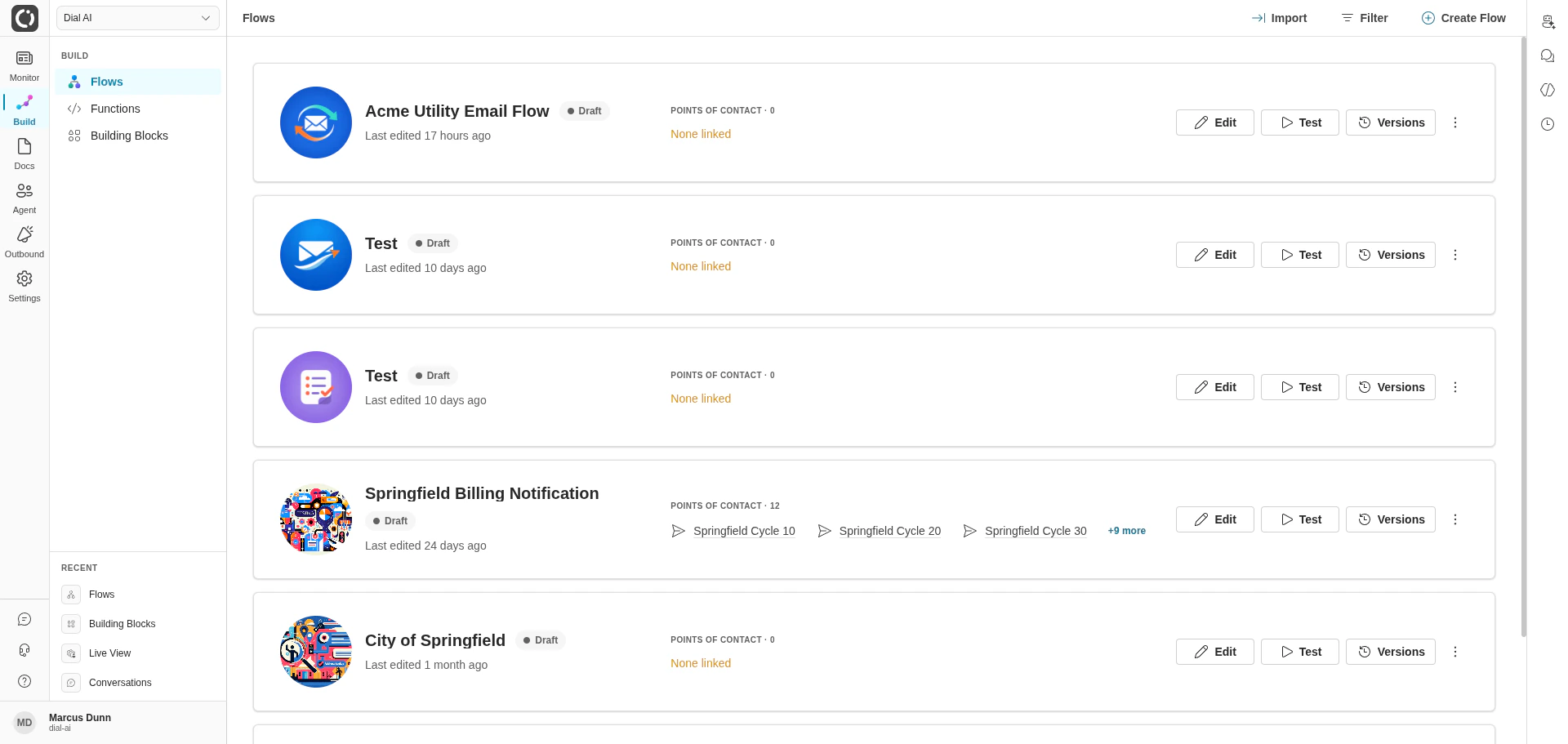
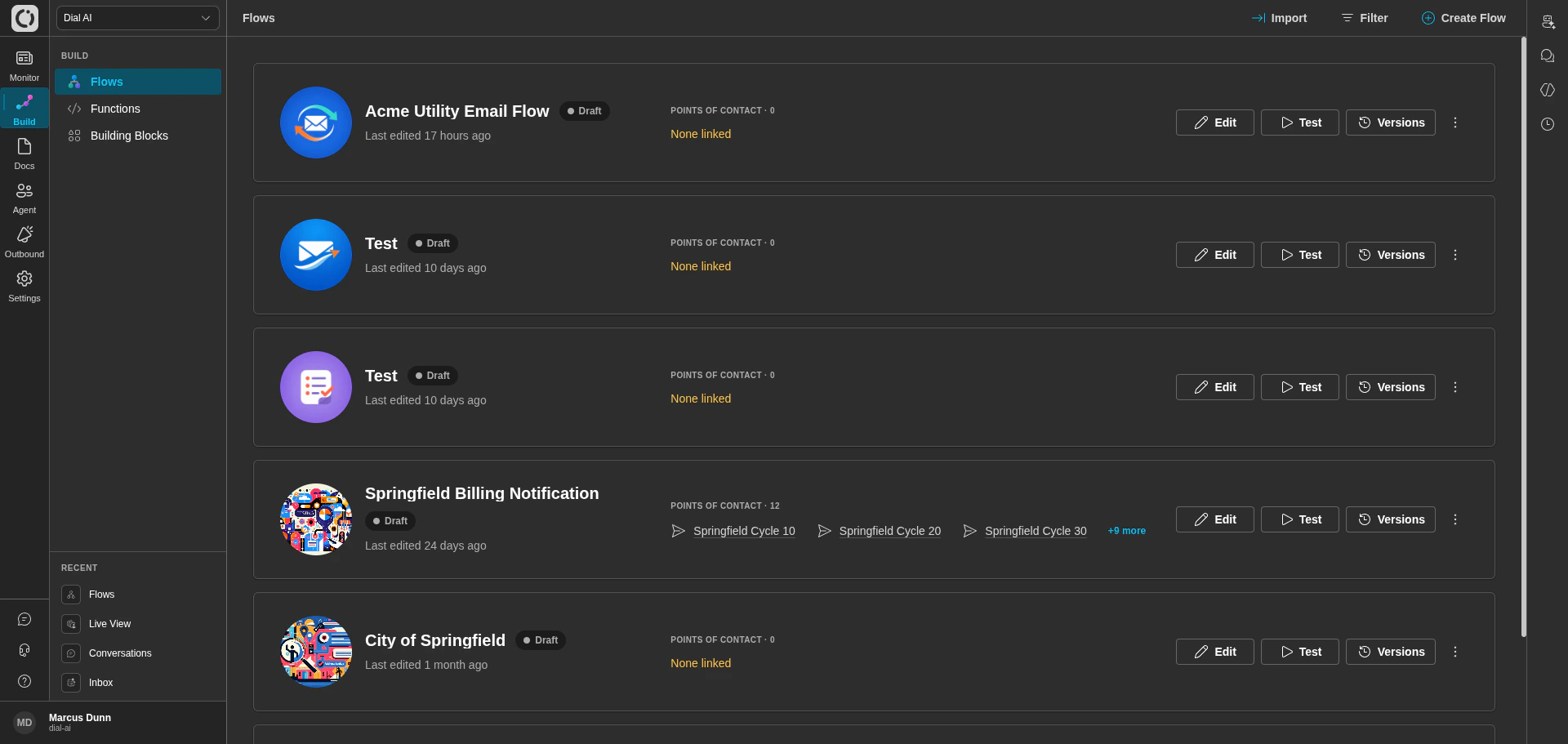 1. Click **Create Flow** in the top-right corner.
2. Enter a **Name** and **Description** for your flow. The name should be something descriptive, like "Car Cleaning Appointment Flow," to help identify the flow's purpose.
After you create the flow, it will appear in your list of flows as a card. Now, you can begin adding states and configuring the flow.
***
## Step 2: Configuring Flow Settings
On the new flow's card click **More actions > Configure** — or open the flow editor and click **Configure** in the top-right toolbar.
1. Click **Create Flow** in the top-right corner.
2. Enter a **Name** and **Description** for your flow. The name should be something descriptive, like "Car Cleaning Appointment Flow," to help identify the flow's purpose.
After you create the flow, it will appear in your list of flows as a card. Now, you can begin adding states and configuring the flow.
***
## Step 2: Configuring Flow Settings
On the new flow's card click **More actions > Configure** — or open the flow editor and click **Configure** in the top-right toolbar.
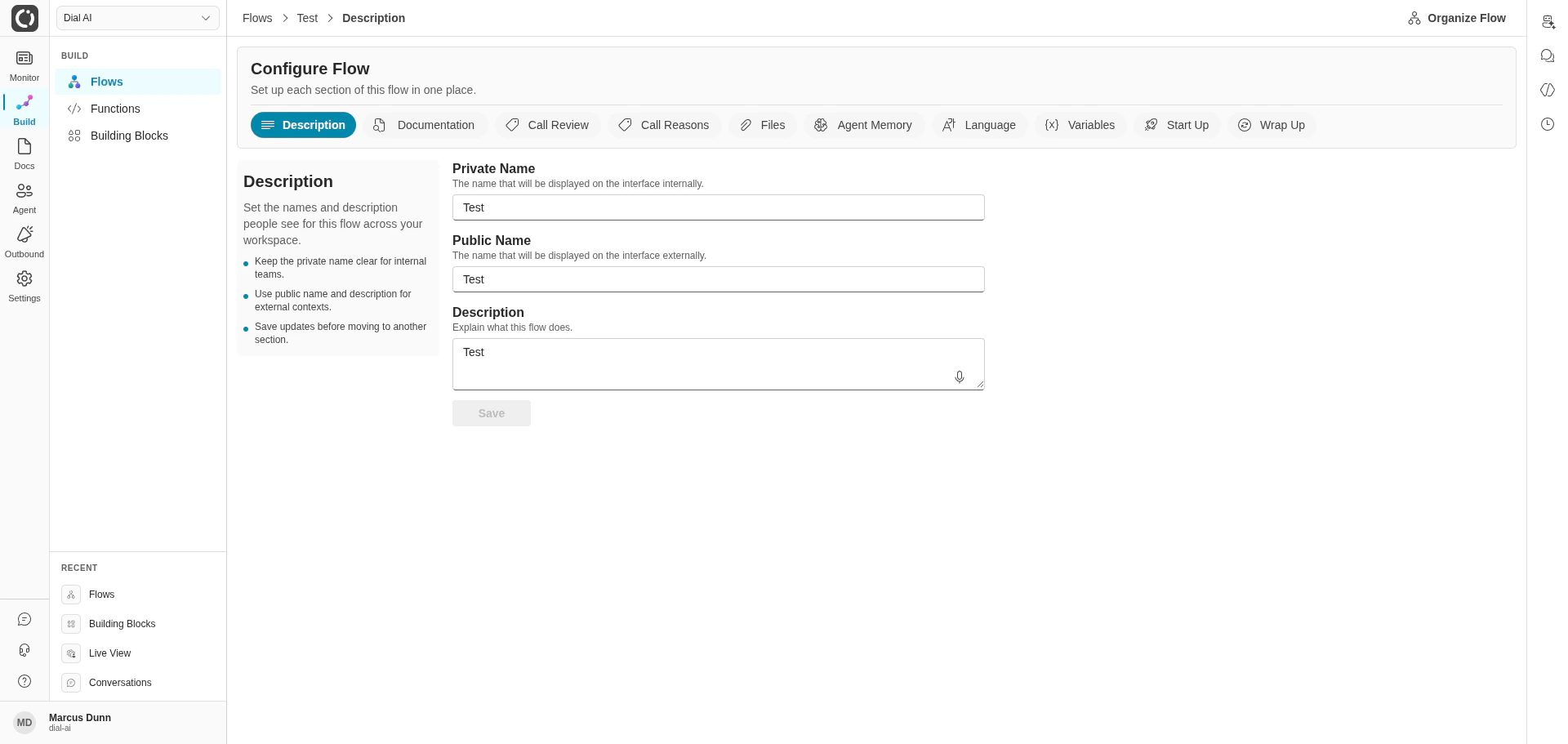
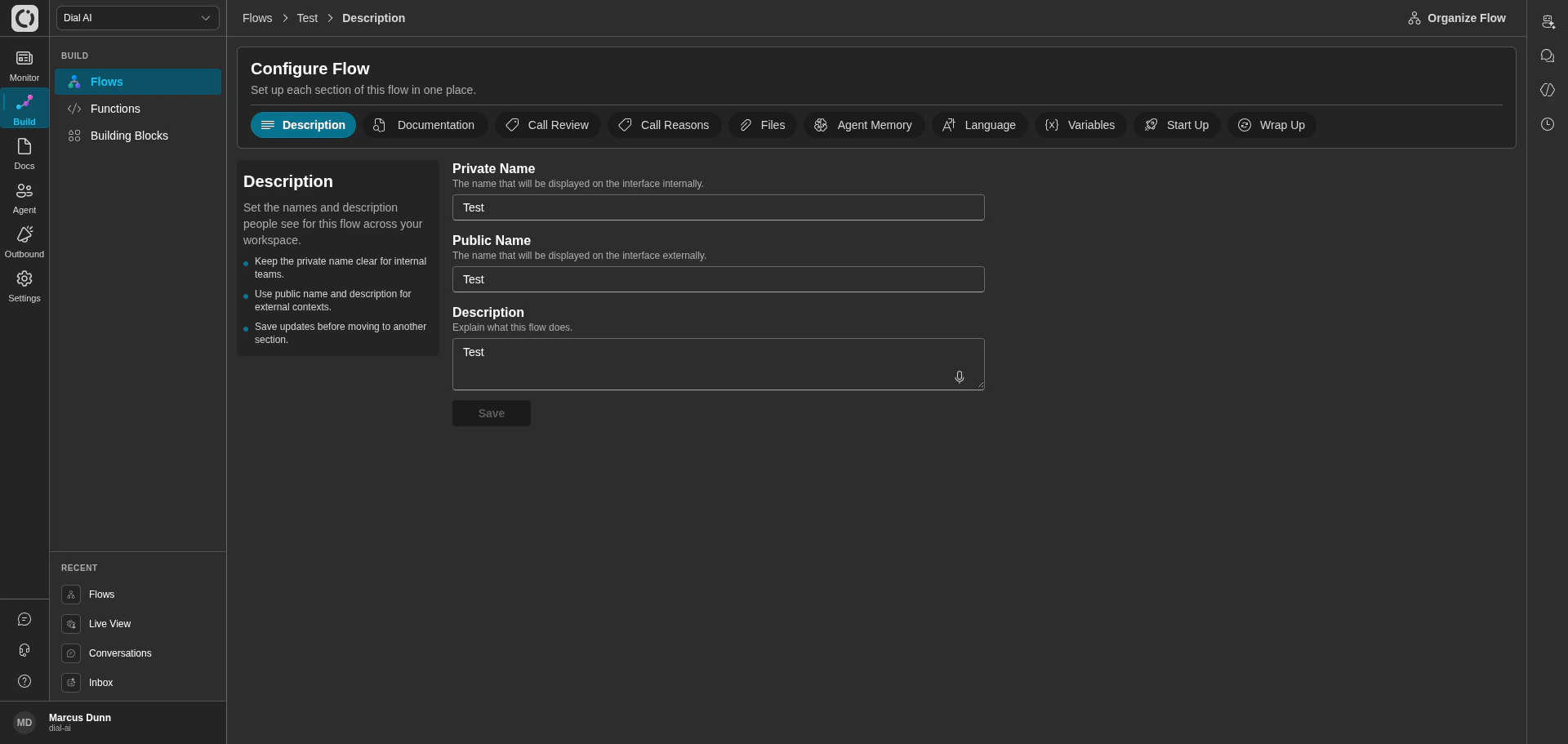 The Configure Flow page has **ten tabs**, each controlling a different aspect of the flow:
* **Description**: Set the Private Name, Public Name, and Description for the flow.
* **Documentation**: Attach reference documents and FAQs, configure query rewriting, and set how much documentation the AI receives per message.
* **Call Review** *(Beta)*: Configure how calls are reviewed and flagged.
* **Call Reasons**: Define the intents the AI may classify a conversation under.
* **Files**: Upload and manage files (PDF, text, HTML, CSV) attached directly to the flow.
* **Agent Memory**: Enable or disable long-term memory so the agent can reference past conversations.
* **Language**: Set the primary language the flow expects from the speaker.
* **Variables**: Set the AI model, streaming behavior, and static parameter values.
* **Start Up**: Select functions that run at the beginning of the workflow (e.g., caller ID lookup).
* **Wrap Up**: Select finalizer functions that run at the end of the conversation (these do not take parameters).
For a complete reference of every field on each tab, see [Flow Configuration](/flow-configuration).
When you're done, click **Save** on each tab to apply your settings.
***
## Step 3: Adding and Editing States
### Creating the Initial State
The **Initial State** is where the flow begins. By default, a flow starts with an "Initial" state that you can edit to define how the agent introduces itself or begins the interaction.
The Configure Flow page has **ten tabs**, each controlling a different aspect of the flow:
* **Description**: Set the Private Name, Public Name, and Description for the flow.
* **Documentation**: Attach reference documents and FAQs, configure query rewriting, and set how much documentation the AI receives per message.
* **Call Review** *(Beta)*: Configure how calls are reviewed and flagged.
* **Call Reasons**: Define the intents the AI may classify a conversation under.
* **Files**: Upload and manage files (PDF, text, HTML, CSV) attached directly to the flow.
* **Agent Memory**: Enable or disable long-term memory so the agent can reference past conversations.
* **Language**: Set the primary language the flow expects from the speaker.
* **Variables**: Set the AI model, streaming behavior, and static parameter values.
* **Start Up**: Select functions that run at the beginning of the workflow (e.g., caller ID lookup).
* **Wrap Up**: Select finalizer functions that run at the end of the conversation (these do not take parameters).
For a complete reference of every field on each tab, see [Flow Configuration](/flow-configuration).
When you're done, click **Save** on each tab to apply your settings.
***
## Step 3: Adding and Editing States
### Creating the Initial State
The **Initial State** is where the flow begins. By default, a flow starts with an "Initial" state that you can edit to define how the agent introduces itself or begins the interaction.
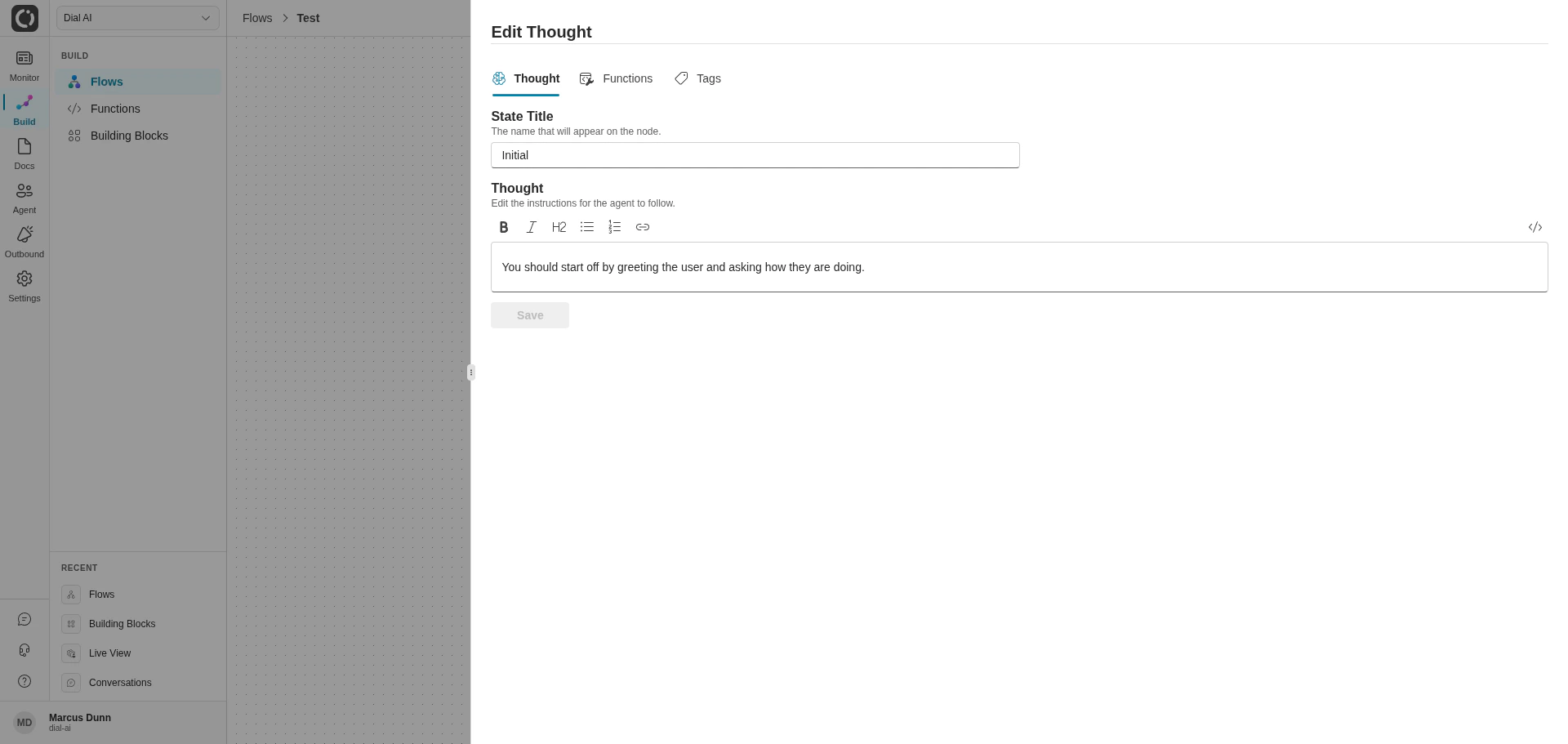
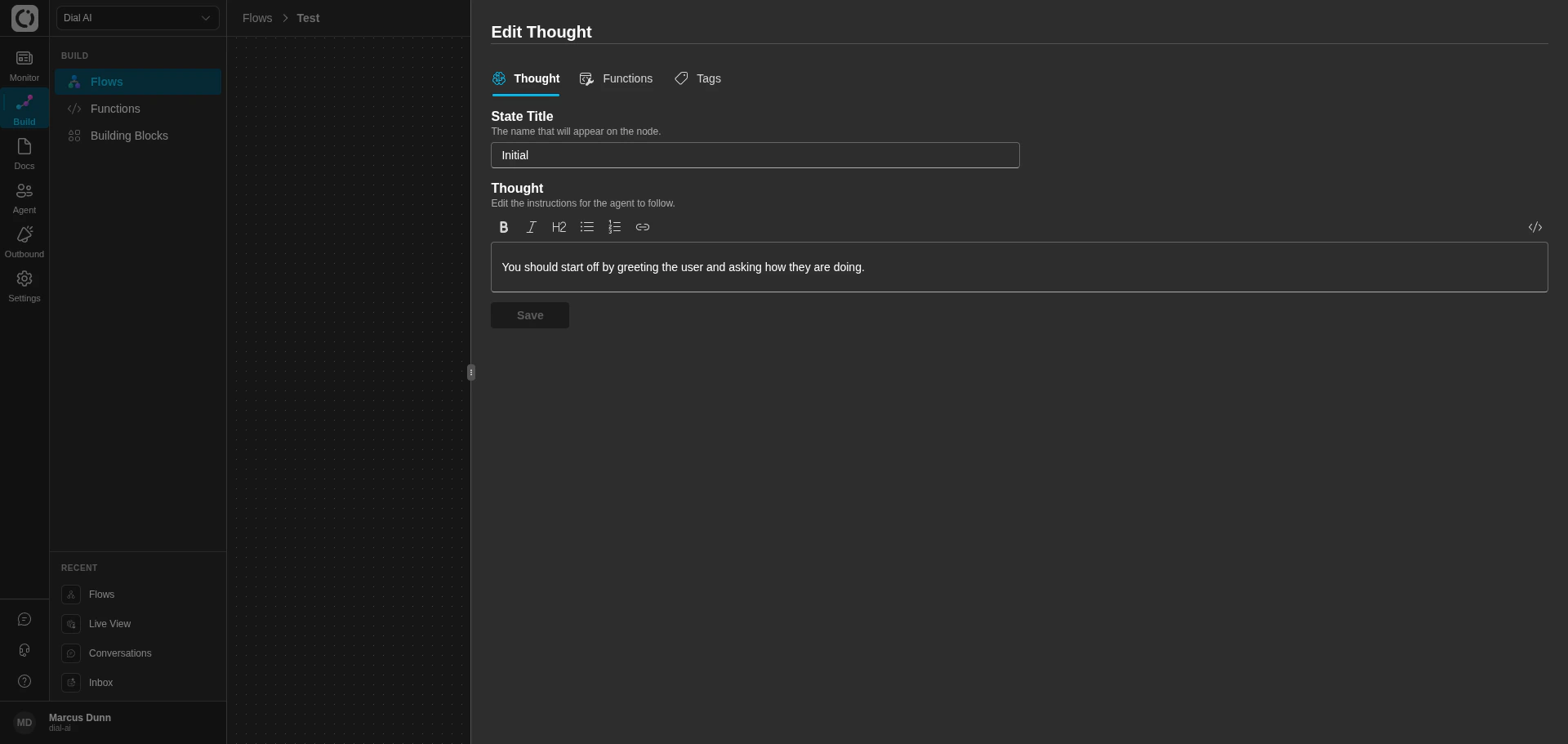 1. Double-click on the **Initial** state node to open the Edit Thought panel.
2. In the **Thought** section, enter the instructions that guide the agent's response. For instance, "Welcome the customer and ask how you can assist with their car cleaning needs." For an in-depth guide on designing thoughts, see [Designing Thoughts](/thoughts).
3. Switch to the **Functions** tab to add any functions (predefined or custom) the agent should perform at this state. For example, if you need the agent to verify customer information, attach a relevant function.
4. Switch to the **Tags** tab to assign tags. Tags help categorize and visually group states in the flow.
When you're finished, click **Save** to finalize the state.
***
## Step 4: Adding More States
Each additional state lets you structure the conversation further, guiding the agent based on customer responses.
1. Double-click on the **Initial** state node to open the Edit Thought panel.
2. In the **Thought** section, enter the instructions that guide the agent's response. For instance, "Welcome the customer and ask how you can assist with their car cleaning needs." For an in-depth guide on designing thoughts, see [Designing Thoughts](/thoughts).
3. Switch to the **Functions** tab to add any functions (predefined or custom) the agent should perform at this state. For example, if you need the agent to verify customer information, attach a relevant function.
4. Switch to the **Tags** tab to assign tags. Tags help categorize and visually group states in the flow.
When you're finished, click **Save** to finalize the state.
***
## Step 4: Adding More States
Each additional state lets you structure the conversation further, guiding the agent based on customer responses.
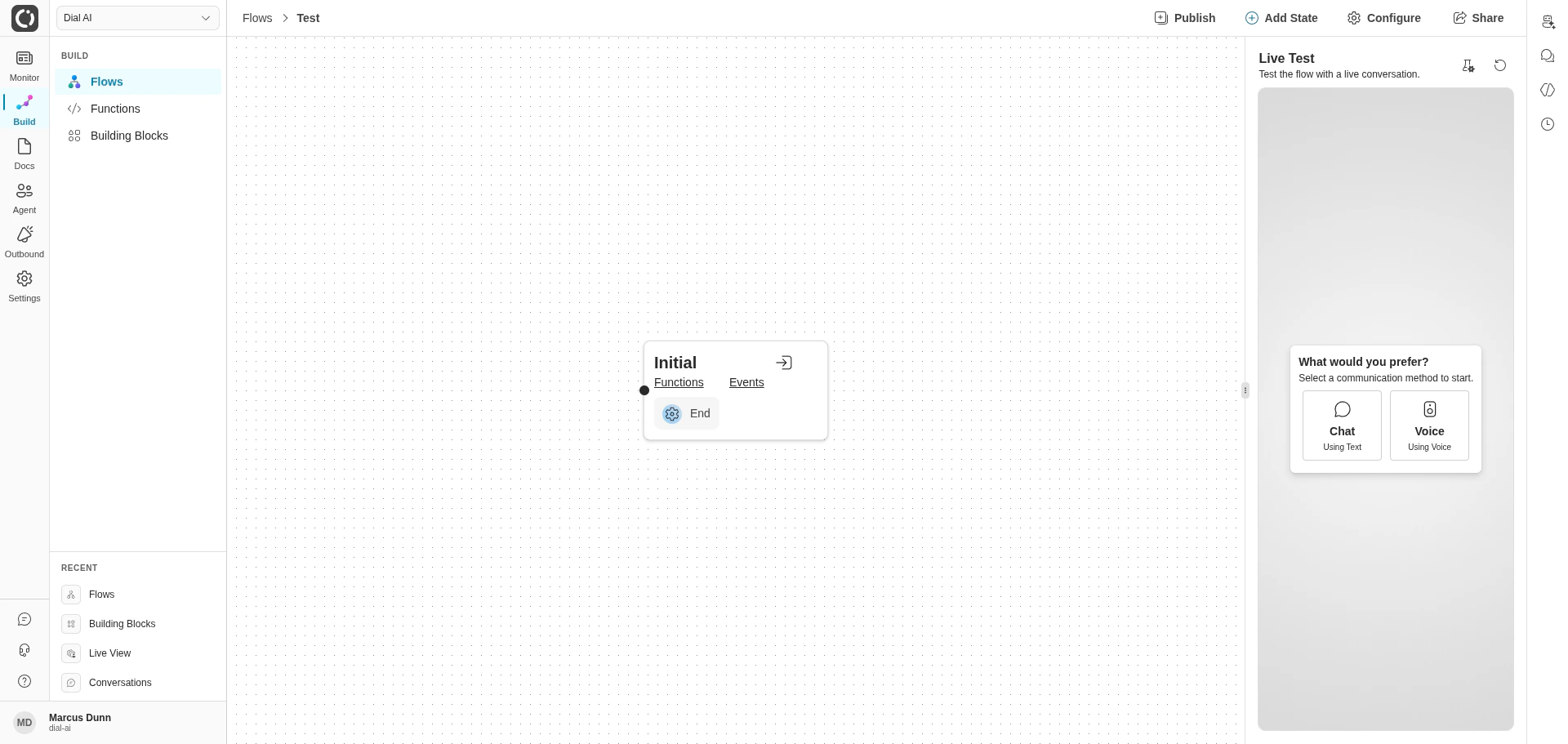
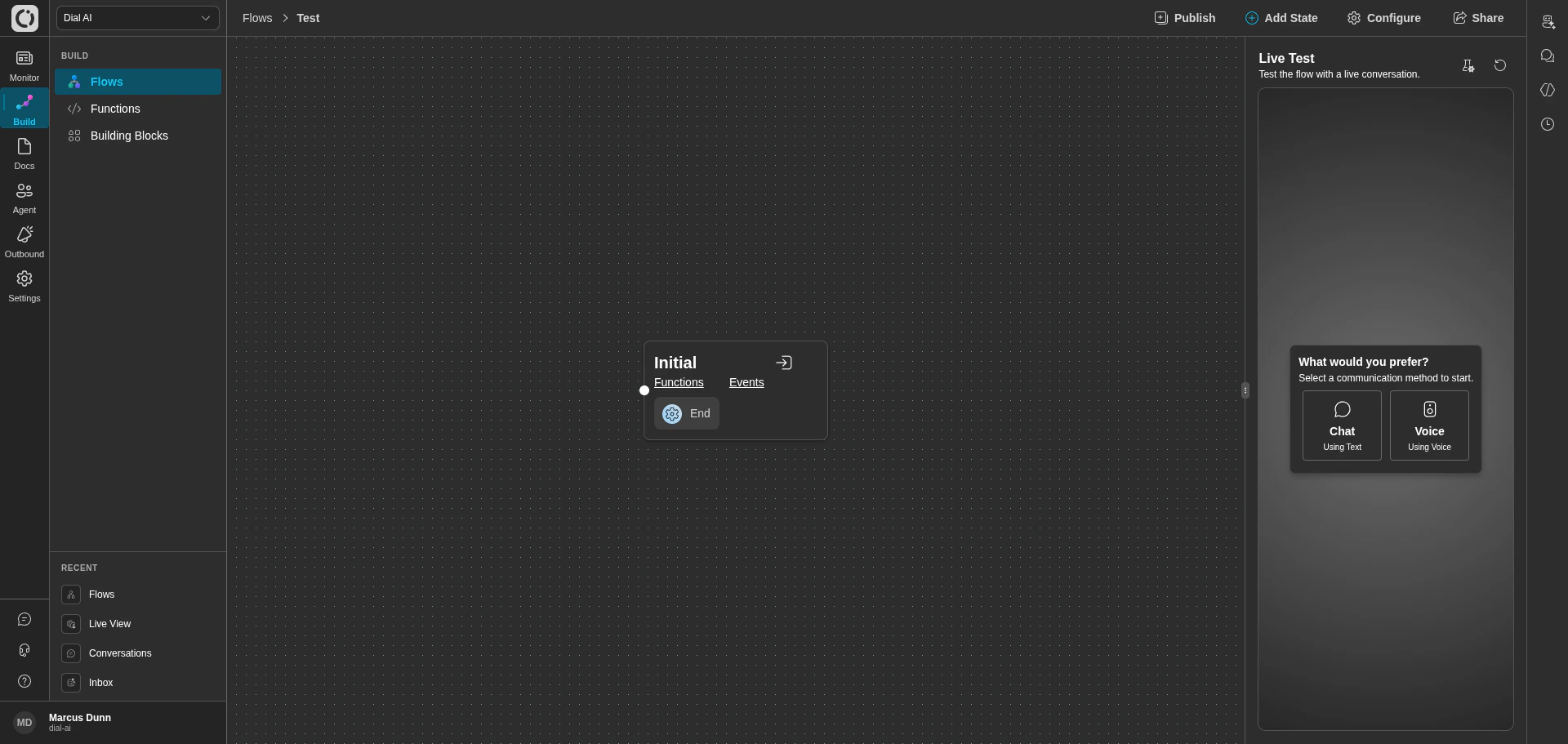 1. Click **Add State** in the top-right toolbar.
2. Name the state descriptively (e.g., "Confirm Appointment" or "Provide Pricing").
3. Double-click the new state to open the Edit Thought panel and fill in its **Thought**, **Functions**, and **Tags**.
4. To delete a state, select it and press Delete.
Each state should represent a clear step in the conversation, directing the agent on what to say, ask, or do based on the conversation context.
***
## Step 5: Connecting States with Transitions
Transitions between states are controlled by **Events**. Events are triggered by function calls. When an event is triggered, the flow moves to the next state based on the event's conditions.
1. Drag a line from one state to another to create a transition.
2. A dialog will appear to configure the event that triggers the transition. The options are limited to possible events output by the functions of the upstream state.
For example, if the customer confirms their address, that function will emit the 'Address Verified' event that then triggers a transition to the "Verify Appointment Details" state.
***
## Step 6: Testing the Flow
Testing is crucial to ensuring your flow behaves as expected. To test:
1. From the **Flows** page, click **Test** on the flow card.
2. Choose the channel you want to emulate — Voice, Web, SMS, Email, or Advanced.
3. Begin typing responses as if you were the customer to verify that the agent follows the flow correctly.
During testing, watch for:
* **Accurate transitions** — the flow moves to the correct next state for each customer response.
* **Proper function execution** — every function attached to a state fires when expected with the right inputs.
* **Response clarity** — the agent's language is clear, on-brand, and aligned with your thoughts.
For deeper testing including recorded Test Scenarios you can replay across versions, see [Testing Flows](/testing-flows).
***
## Step 7: Publish the Flow
Publishing creates an immutable version of the flow that Points of Contact can reference, so editing the draft never disrupts production.
1. Click the **Publish** button in the top-right of the flow editor.
2. Give the version a title and description.
3. After publish, the **Versions** menu on the flow card shows both Current Draft and the new published version.
***
## Step 8: Deploying the Flow
To deploy the flow, you will need to configure a Point-Of-Contact (POC) that connects the flow to a communication channel like Voice, SMS, or Web.
Here, you can choose the published version of the flow you wish to deploy.
Check out our guide on [Creating a Point of Contact](/points-of-contact) for detailed instructions on setting up a POC for your flow.
***
## Key Concepts Reference
### States
* **Definition**: A point in the conversation where the AI agent performs actions or gives responses.
* **Configuration**: Set the **Thoughts** (instructions) and **Functions** (actions) to guide the agent’s responses at each stage.
### Functions
* **Purpose**: Functions allow the AI to perform tasks like data retrieval or notifications.
* **Customization**: Users can create custom functions via webhooks, defining them on external servers.
### Parameters
* **Types**: Normal parameters (passed to functions) and internal parameters (set by functions).
* **Usage**: Used to maintain data consistency across the flow and perform specific tasks based on the conversation.
### Events
* **Definition**: Triggers that determine when the conversation moves from one state to another.
* **Example**: An event could move the flow from "Confirm Address" to "Confirm Appointment" once the address is verified.
By following this guide, you can set up a flow that effectively manages customer interactions. Building flows with well-defined states, functions, and events will help your AI agent provide consistent and valuable support across various customer scenarios.
1. Click **Add State** in the top-right toolbar.
2. Name the state descriptively (e.g., "Confirm Appointment" or "Provide Pricing").
3. Double-click the new state to open the Edit Thought panel and fill in its **Thought**, **Functions**, and **Tags**.
4. To delete a state, select it and press Delete.
Each state should represent a clear step in the conversation, directing the agent on what to say, ask, or do based on the conversation context.
***
## Step 5: Connecting States with Transitions
Transitions between states are controlled by **Events**. Events are triggered by function calls. When an event is triggered, the flow moves to the next state based on the event's conditions.
1. Drag a line from one state to another to create a transition.
2. A dialog will appear to configure the event that triggers the transition. The options are limited to possible events output by the functions of the upstream state.
For example, if the customer confirms their address, that function will emit the 'Address Verified' event that then triggers a transition to the "Verify Appointment Details" state.
***
## Step 6: Testing the Flow
Testing is crucial to ensuring your flow behaves as expected. To test:
1. From the **Flows** page, click **Test** on the flow card.
2. Choose the channel you want to emulate — Voice, Web, SMS, Email, or Advanced.
3. Begin typing responses as if you were the customer to verify that the agent follows the flow correctly.
During testing, watch for:
* **Accurate transitions** — the flow moves to the correct next state for each customer response.
* **Proper function execution** — every function attached to a state fires when expected with the right inputs.
* **Response clarity** — the agent's language is clear, on-brand, and aligned with your thoughts.
For deeper testing including recorded Test Scenarios you can replay across versions, see [Testing Flows](/testing-flows).
***
## Step 7: Publish the Flow
Publishing creates an immutable version of the flow that Points of Contact can reference, so editing the draft never disrupts production.
1. Click the **Publish** button in the top-right of the flow editor.
2. Give the version a title and description.
3. After publish, the **Versions** menu on the flow card shows both Current Draft and the new published version.
***
## Step 8: Deploying the Flow
To deploy the flow, you will need to configure a Point-Of-Contact (POC) that connects the flow to a communication channel like Voice, SMS, or Web.
Here, you can choose the published version of the flow you wish to deploy.
Check out our guide on [Creating a Point of Contact](/points-of-contact) for detailed instructions on setting up a POC for your flow.
***
## Key Concepts Reference
### States
* **Definition**: A point in the conversation where the AI agent performs actions or gives responses.
* **Configuration**: Set the **Thoughts** (instructions) and **Functions** (actions) to guide the agent’s responses at each stage.
### Functions
* **Purpose**: Functions allow the AI to perform tasks like data retrieval or notifications.
* **Customization**: Users can create custom functions via webhooks, defining them on external servers.
### Parameters
* **Types**: Normal parameters (passed to functions) and internal parameters (set by functions).
* **Usage**: Used to maintain data consistency across the flow and perform specific tasks based on the conversation.
### Events
* **Definition**: Triggers that determine when the conversation moves from one state to another.
* **Example**: An event could move the flow from "Confirm Address" to "Confirm Appointment" once the address is verified.
By following this guide, you can set up a flow that effectively manages customer interactions. Building flows with well-defined states, functions, and events will help your AI agent provide consistent and valuable support across various customer scenarios.