> ## Documentation Index
> Fetch the complete documentation index at: https://docs.dialai.ca/llms.txt
> Use this file to discover all available pages before exploring further.
# Flows
> Create, manage, test, and publish AI conversation flows
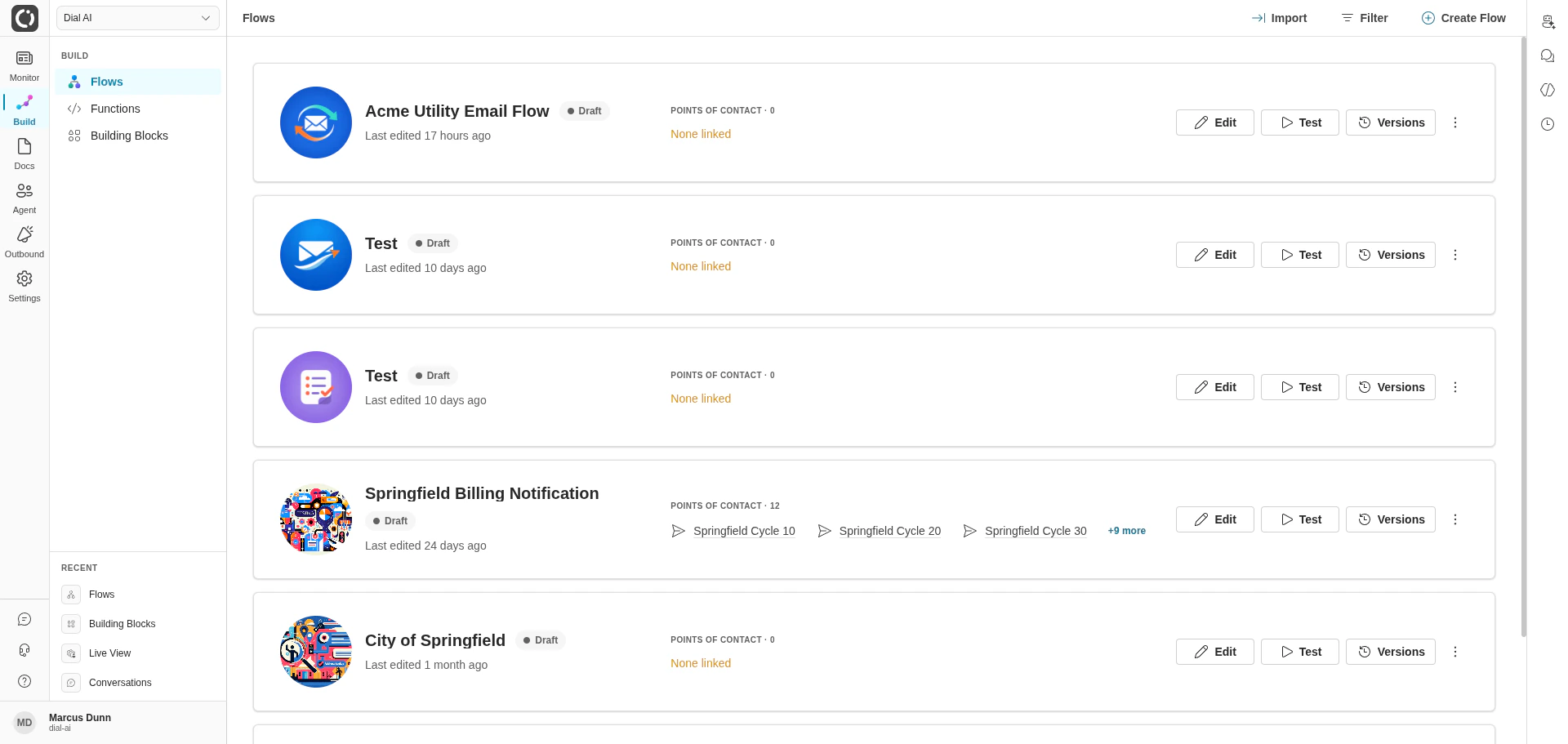
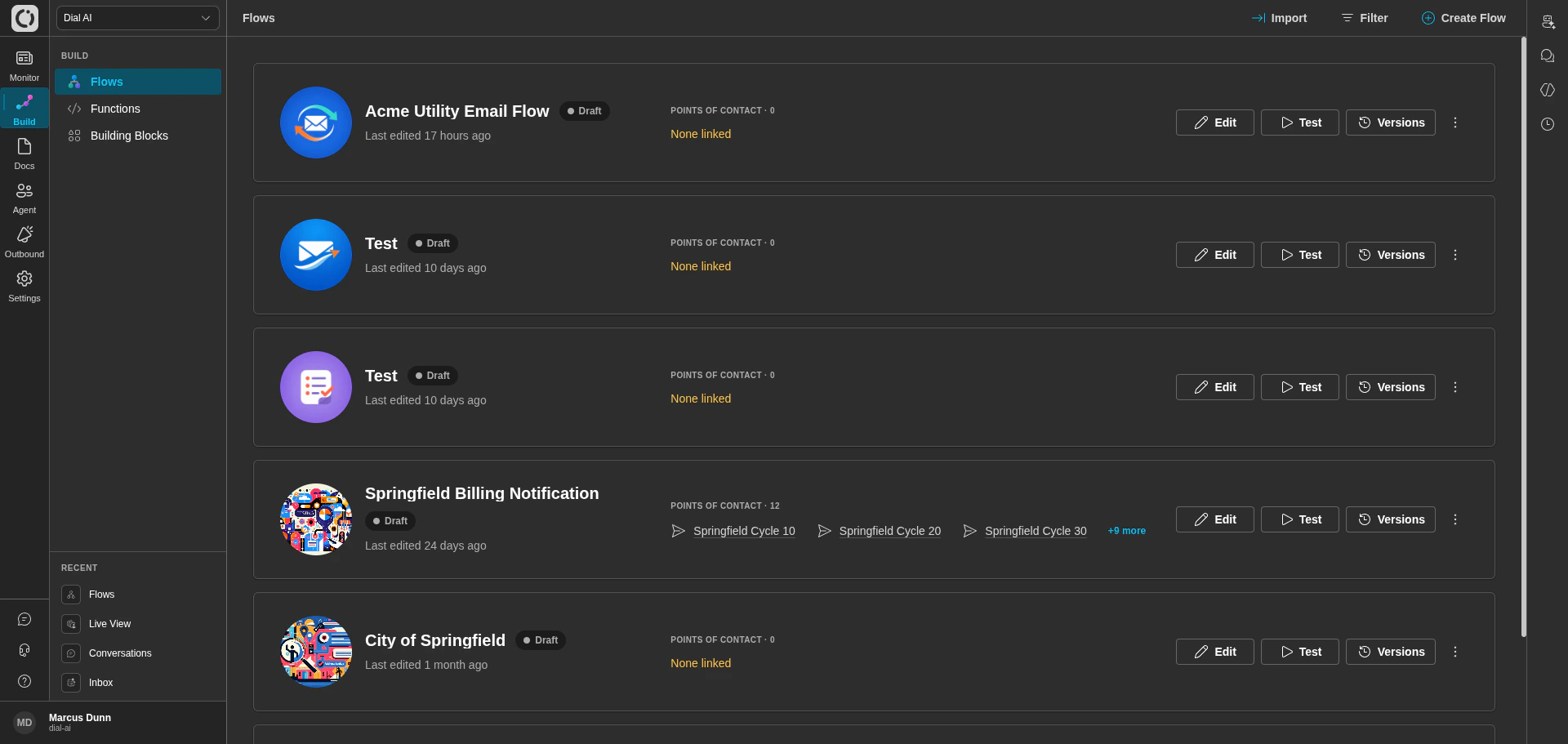 The **Flows** page is your hub for AI conversations. Every customer-facing flow your tenant owns is here as a card — open it, edit it, test it on any channel, or publish a new version.
## Accessing the Flows page
Navigate to **Build > Flows** in the left sidebar.
## What's on a flow card
Each card represents one flow and shows:
* The flow's **name** and an auto-generated **thumbnail**.
* Whether the latest version is **Draft** or **Published**.
* The **last edited** timestamp.
* The **Points of Contact** linked to this flow, with quick links to each.
Four action buttons live on every card:
| Button | What it does |
| ---------------- | ---------------------------------------------------------------------------------------- |
| **Edit** | Open the flow editor — the visual canvas of states and transitions. |
| **Test** | Pop a menu to test the flow on a specific channel (Voice, Web, SMS, Email, or Advanced). |
| **Versions** | Switch between the current draft and any published versions. |
| **More actions** | Configure, Export, Generate AI Image, Duplicate, Delete. |
## Test menu
The **Test** menu lets you run a real-time conversation against the flow without involving a real customer or channel.
The **Flows** page is your hub for AI conversations. Every customer-facing flow your tenant owns is here as a card — open it, edit it, test it on any channel, or publish a new version.
## Accessing the Flows page
Navigate to **Build > Flows** in the left sidebar.
## What's on a flow card
Each card represents one flow and shows:
* The flow's **name** and an auto-generated **thumbnail**.
* Whether the latest version is **Draft** or **Published**.
* The **last edited** timestamp.
* The **Points of Contact** linked to this flow, with quick links to each.
Four action buttons live on every card:
| Button | What it does |
| ---------------- | ---------------------------------------------------------------------------------------- |
| **Edit** | Open the flow editor — the visual canvas of states and transitions. |
| **Test** | Pop a menu to test the flow on a specific channel (Voice, Web, SMS, Email, or Advanced). |
| **Versions** | Switch between the current draft and any published versions. |
| **More actions** | Configure, Export, Generate AI Image, Duplicate, Delete. |
## Test menu
The **Test** menu lets you run a real-time conversation against the flow without involving a real customer or channel.
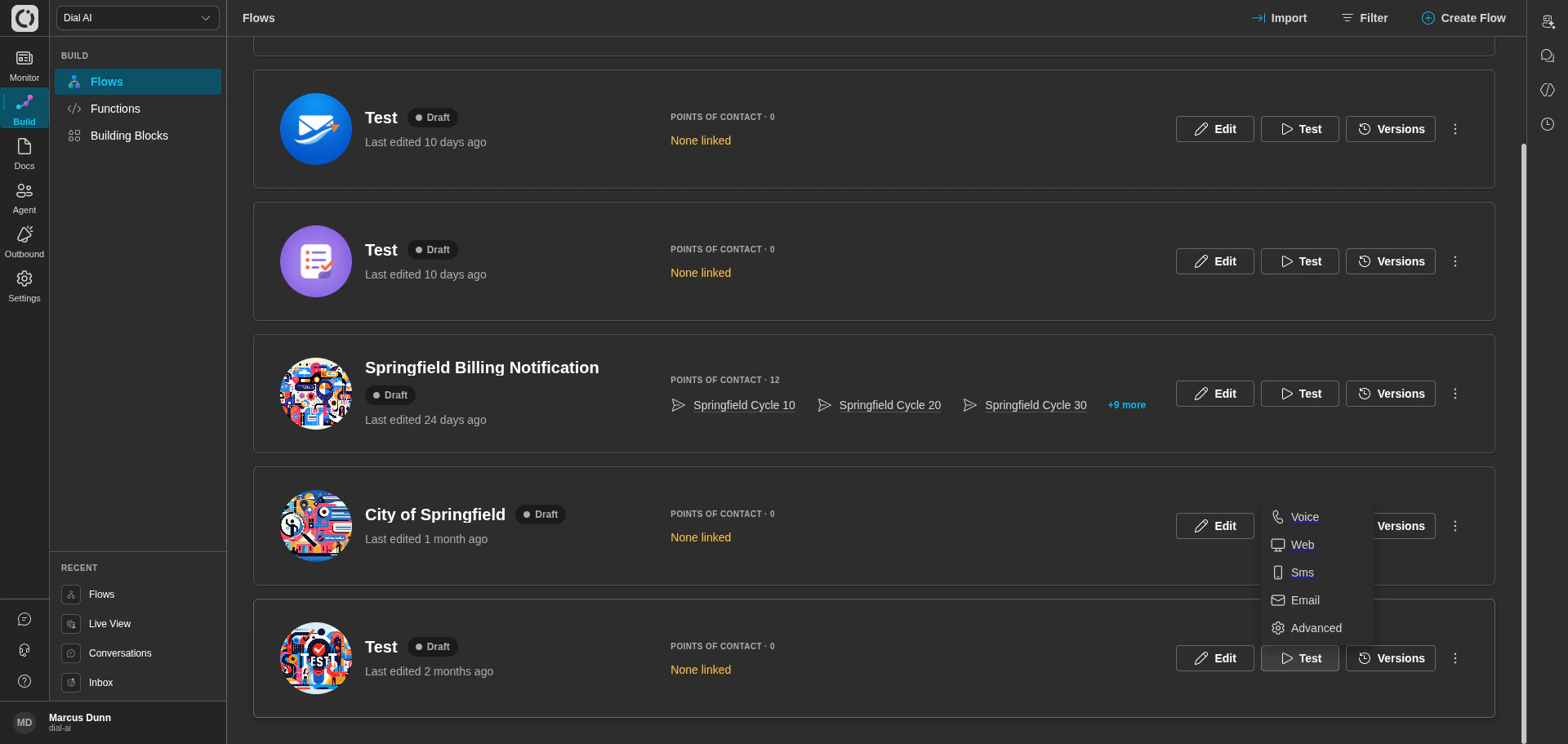 * **Voice** — simulates a phone call. Use spaced letters (e.g., `B r i a n`) to imitate the customer spelling something out, just like over a real voice line.
* **Web** — runs the flow as a web chat session with the same UI a customer would see.
* **SMS** — short, single-message turns.
* **Email** — async, formatted-body conversation.
* **Advanced** — opens a configurable test interface with platform-specific parameters.
For deeper testing — including recorded scenarios you can replay against future versions — see [Testing Flows](/testing-flows).
## More actions menu
* **Voice** — simulates a phone call. Use spaced letters (e.g., `B r i a n`) to imitate the customer spelling something out, just like over a real voice line.
* **Web** — runs the flow as a web chat session with the same UI a customer would see.
* **SMS** — short, single-message turns.
* **Email** — async, formatted-body conversation.
* **Advanced** — opens a configurable test interface with platform-specific parameters.
For deeper testing — including recorded scenarios you can replay against future versions — see [Testing Flows](/testing-flows).
## More actions menu
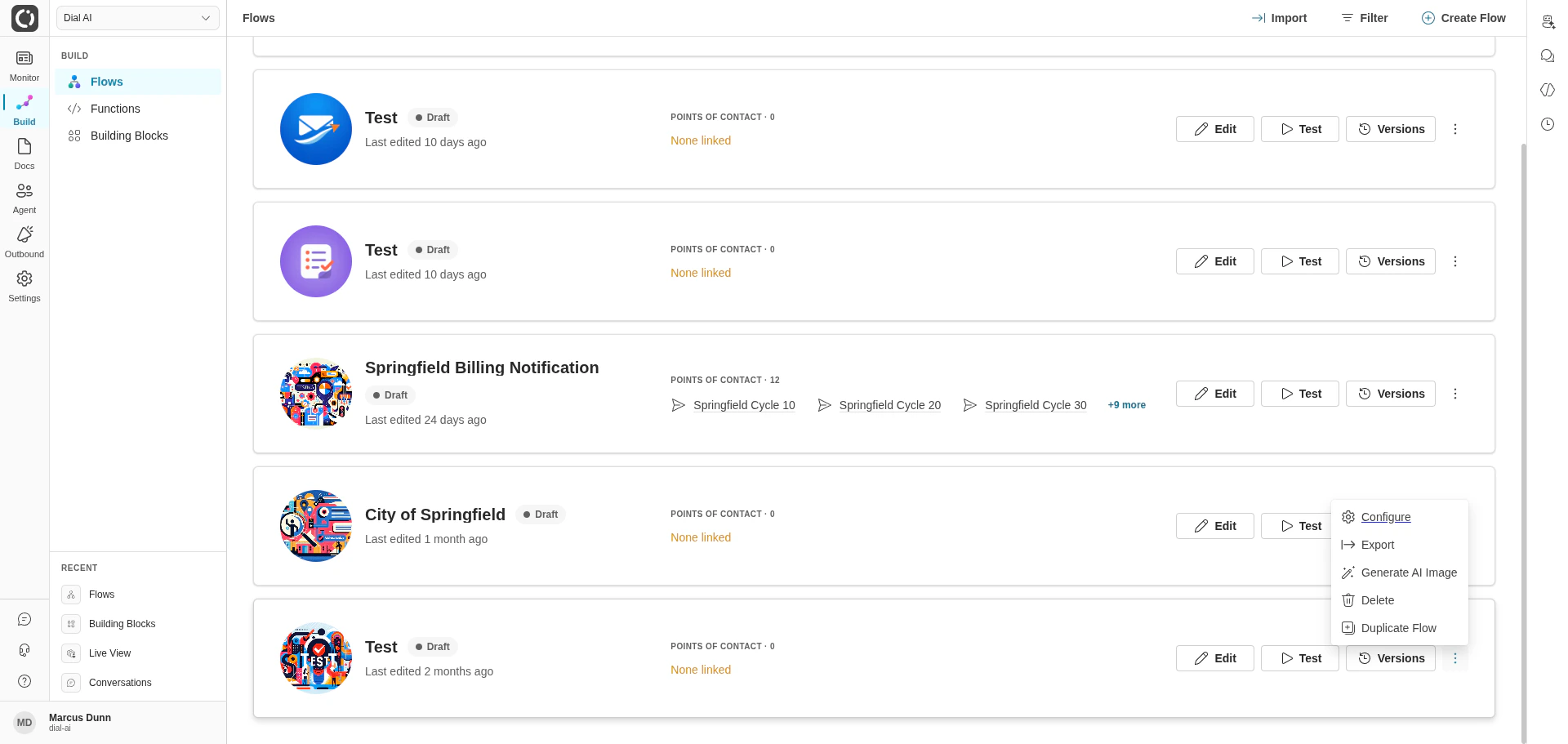
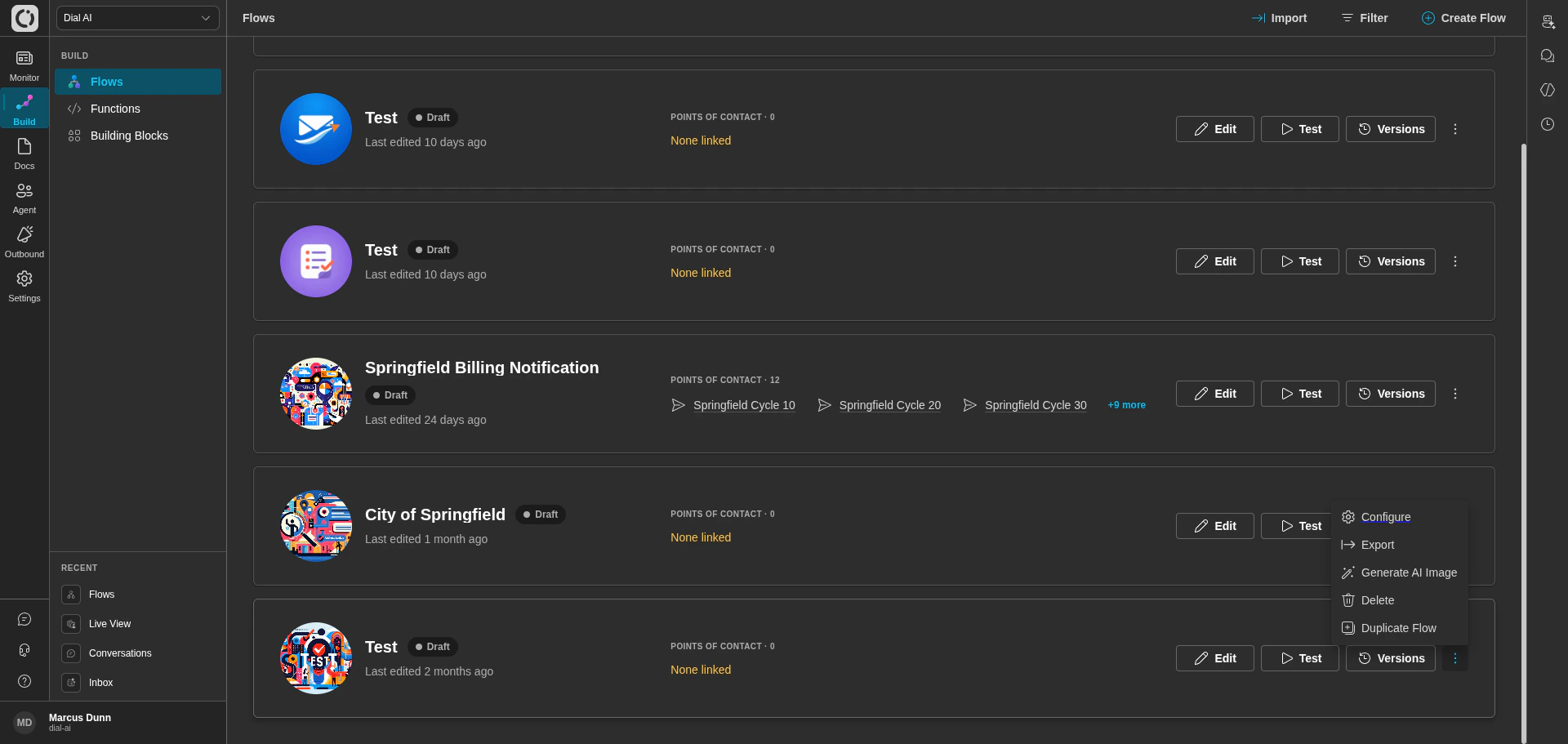 * **Configure** — open the Configure Flow page. See [Flow Configuration](/flow-configuration) for the full reference of every tab.
* **Export** — download the flow as a portable JSON file.
* **Generate AI Image** — re-roll the auto-generated thumbnail.
* **Delete** — irreversibly remove the flow. Disabled if any POC still references it.
* **Duplicate Flow** — make a copy. Useful for testing experimental changes against a known baseline.
## Importing a flow
The **Import** link in the top-right brings in a flow exported from this or another Dialai workspace.
Opens the import dialog.
Drag-and-drop or **Upload a file**. Only files exported from a Dialai instance work — hand-edited JSON is unsupported and will likely fail validation.
The flow appears in your grid as a fresh draft. Open it to confirm states, transitions, and function references resolved correctly.
## Filtering
Click **Filter** in the top-right to open a sidebar that lets you narrow the visible flows by name. Useful when your tenant has tens of flows and you want to find one quickly.
## Creating a new flow
Click **Create Flow** in the top-right. You'll land on the new-flow form to set the private/public name and description. After save, the flow opens in the editor with a single **Initial** state, ready for you to fill in.
For a step-by-step walkthrough, see [Building Your First Flow](/first-flow).
## Tips
* Keep flow private names clear for internal teams; reserve the public name for customer-visible contexts (auto-generated emails, voice greetings).
* Use **Duplicate Flow** before any large structural change — gives you a known-good rollback point.
* Spelling/phonetic accuracy matters most on voice calls: when testing Voice, watch for the AI agent reading numbers digit-by-digit and spelling names letter-by-letter where appropriate.
***
## Related
Step-by-step guide for a brand new flow.
Every Configure Flow tab.
Test Platform, Test Scenarios, and version-aware regression checks.
Wire a flow to a channel.
* **Configure** — open the Configure Flow page. See [Flow Configuration](/flow-configuration) for the full reference of every tab.
* **Export** — download the flow as a portable JSON file.
* **Generate AI Image** — re-roll the auto-generated thumbnail.
* **Delete** — irreversibly remove the flow. Disabled if any POC still references it.
* **Duplicate Flow** — make a copy. Useful for testing experimental changes against a known baseline.
## Importing a flow
The **Import** link in the top-right brings in a flow exported from this or another Dialai workspace.
Opens the import dialog.
Drag-and-drop or **Upload a file**. Only files exported from a Dialai instance work — hand-edited JSON is unsupported and will likely fail validation.
The flow appears in your grid as a fresh draft. Open it to confirm states, transitions, and function references resolved correctly.
## Filtering
Click **Filter** in the top-right to open a sidebar that lets you narrow the visible flows by name. Useful when your tenant has tens of flows and you want to find one quickly.
## Creating a new flow
Click **Create Flow** in the top-right. You'll land on the new-flow form to set the private/public name and description. After save, the flow opens in the editor with a single **Initial** state, ready for you to fill in.
For a step-by-step walkthrough, see [Building Your First Flow](/first-flow).
## Tips
* Keep flow private names clear for internal teams; reserve the public name for customer-visible contexts (auto-generated emails, voice greetings).
* Use **Duplicate Flow** before any large structural change — gives you a known-good rollback point.
* Spelling/phonetic accuracy matters most on voice calls: when testing Voice, watch for the AI agent reading numbers digit-by-digit and spelling names letter-by-letter where appropriate.
***
## Related
Step-by-step guide for a brand new flow.
Every Configure Flow tab.
Test Platform, Test Scenarios, and version-aware regression checks.
Wire a flow to a channel.