> ## Documentation Index
> Fetch the complete documentation index at: https://docs.dialai.ca/llms.txt
> Use this file to discover all available pages before exploring further.
# iframe Integration
> Embed a Dialai chat session inside your existing web application using an HTML iframe
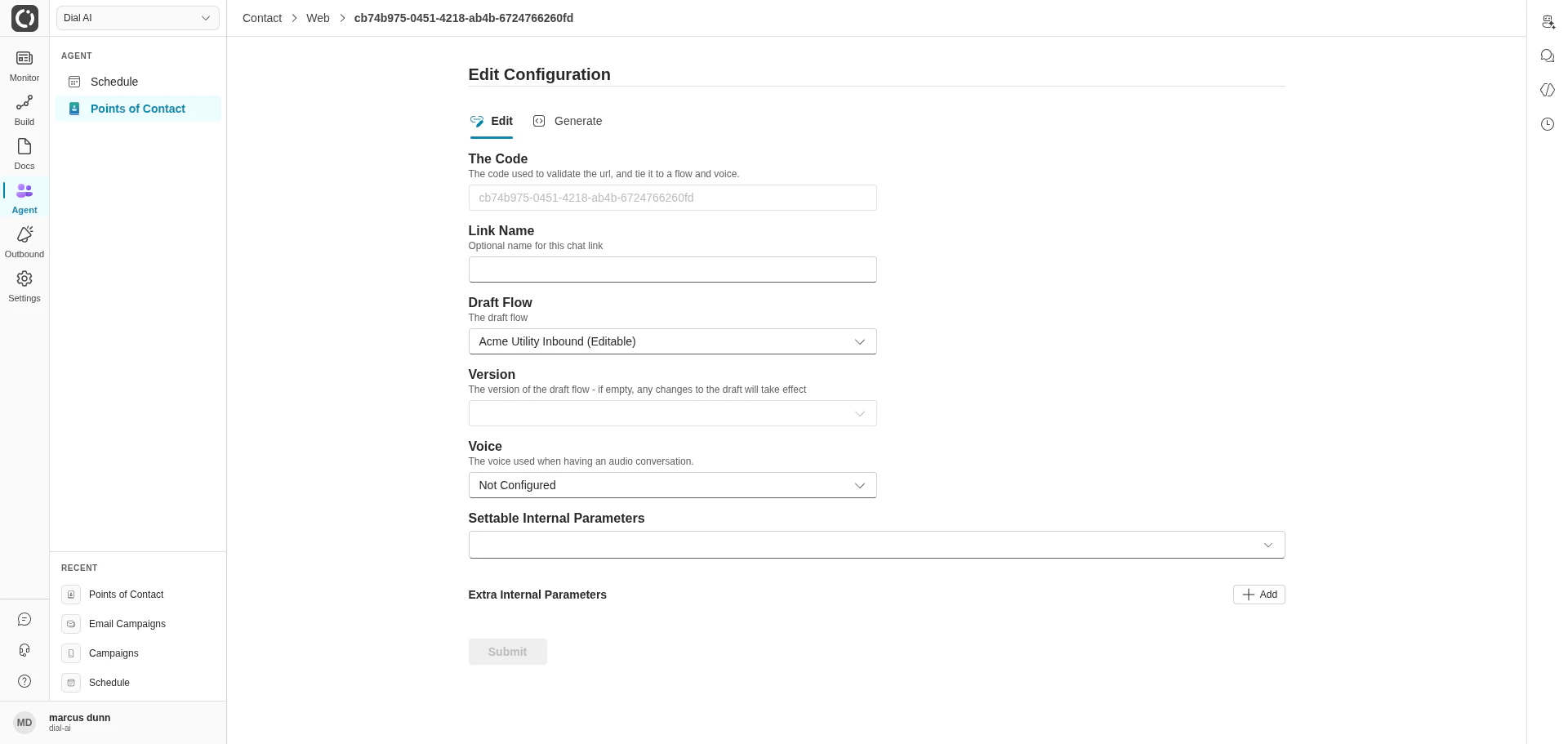
 Dialai chat links can be embedded in any web application via a standard HTML `
```
Replace the URL with the one from the Generate tab, and adjust width/height to fit your page.
### Toggling on a button click
For a "click to open chat" pattern, mount/unmount the iframe on demand. Chat context is preserved between iframe reloads as long as the visitor's session cookie is intact.
```js theme={null}
document.getElementById("toggle-chat").addEventListener("click", () => {
const id = "dial-ai-chat";
const existing = document.getElementById(id);
if (existing) {
existing.remove();
return;
}
const iframe = document.createElement("iframe");
iframe.id = id;
iframe.src = "https://your-instance.dialai.ca/your-tenant/chat/00000000-0000-0000-0000-000000000000";
iframe.width = "500";
iframe.height = "500";
document.getElementById("root").append(iframe);
});
```
## iframe vs script tag
| Use iframe when… | Use [script tag](/script-tag-integration) when… |
| ----------------------------------------------------- | ------------------------------------------------------------------- |
| You want chat embedded inline in your layout. | You want a floating button + modal. |
| You're OK with iframe-sandbox limitations. | You want native styling and a smaller bundle footprint. |
| You're embedding inside another iframe-friendly host. | You're embedding inside a SPA where DOM control is straightforward. |
## CSP and X-Frame-Options
The chat URL ships with a `Content-Security-Policy-Report-Only` header that allows `frame-ancestors 'self' https://*.hansencx.com`. The report-only policy means the platform logs violations but doesn't block — if your embed origin is outside the allow-list you'll see violation reports in browser dev tools, not a blocked iframe. If you need your embed origin allowed in an enforced policy, contact your account representative to extend the platform's CSP.
Your embedding page does not need any special headers unless your own CSP restricts iframe sources — in that case, allow `https://your-instance.dialai.ca` in your page's `frame-src` directive.
## Tips
* **Use a stable Version** when embedding into production. Tracking the draft means the chat behavior can change at any time without you knowing.
* **Set Link Name** before you copy the URL. It shows up in [Conversations](/conversations) and makes it much easier to attribute traffic.
* **Test the embed on a staging URL** before production — some browsers and corporate firewalls block third-party iframes even when CSP allows them.
***
## Related
Floating button + modal instead of inline iframe.
Skip the widget entirely and use the REST API.
How to pass verified user identity into the chat.
Manage Web POCs.
Dialai chat links can be embedded in any web application via a standard HTML `
```
Replace the URL with the one from the Generate tab, and adjust width/height to fit your page.
### Toggling on a button click
For a "click to open chat" pattern, mount/unmount the iframe on demand. Chat context is preserved between iframe reloads as long as the visitor's session cookie is intact.
```js theme={null}
document.getElementById("toggle-chat").addEventListener("click", () => {
const id = "dial-ai-chat";
const existing = document.getElementById(id);
if (existing) {
existing.remove();
return;
}
const iframe = document.createElement("iframe");
iframe.id = id;
iframe.src = "https://your-instance.dialai.ca/your-tenant/chat/00000000-0000-0000-0000-000000000000";
iframe.width = "500";
iframe.height = "500";
document.getElementById("root").append(iframe);
});
```
## iframe vs script tag
| Use iframe when… | Use [script tag](/script-tag-integration) when… |
| ----------------------------------------------------- | ------------------------------------------------------------------- |
| You want chat embedded inline in your layout. | You want a floating button + modal. |
| You're OK with iframe-sandbox limitations. | You want native styling and a smaller bundle footprint. |
| You're embedding inside another iframe-friendly host. | You're embedding inside a SPA where DOM control is straightforward. |
## CSP and X-Frame-Options
The chat URL ships with a `Content-Security-Policy-Report-Only` header that allows `frame-ancestors 'self' https://*.hansencx.com`. The report-only policy means the platform logs violations but doesn't block — if your embed origin is outside the allow-list you'll see violation reports in browser dev tools, not a blocked iframe. If you need your embed origin allowed in an enforced policy, contact your account representative to extend the platform's CSP.
Your embedding page does not need any special headers unless your own CSP restricts iframe sources — in that case, allow `https://your-instance.dialai.ca` in your page's `frame-src` directive.
## Tips
* **Use a stable Version** when embedding into production. Tracking the draft means the chat behavior can change at any time without you knowing.
* **Set Link Name** before you copy the URL. It shows up in [Conversations](/conversations) and makes it much easier to attribute traffic.
* **Test the embed on a staging URL** before production — some browsers and corporate firewalls block third-party iframes even when CSP allows them.
***
## Related
Floating button + modal instead of inline iframe.
Skip the widget entirely and use the REST API.
How to pass verified user identity into the chat.
Manage Web POCs.