> ## Documentation Index
> Fetch the complete documentation index at: https://docs.dialai.ca/llms.txt
> Use this file to discover all available pages before exploring further.
# Inbox
> Monitor and take over conversations that need human handling
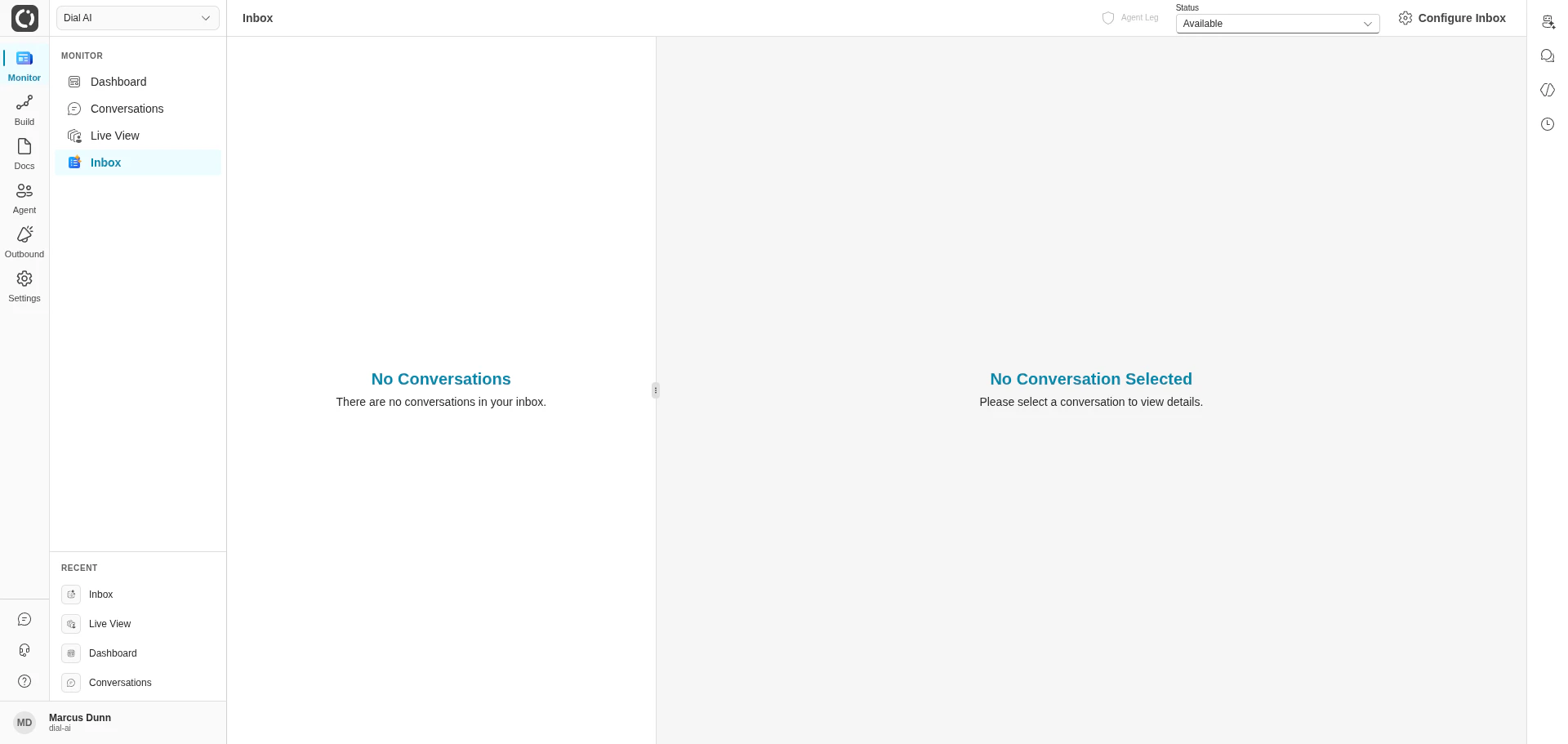
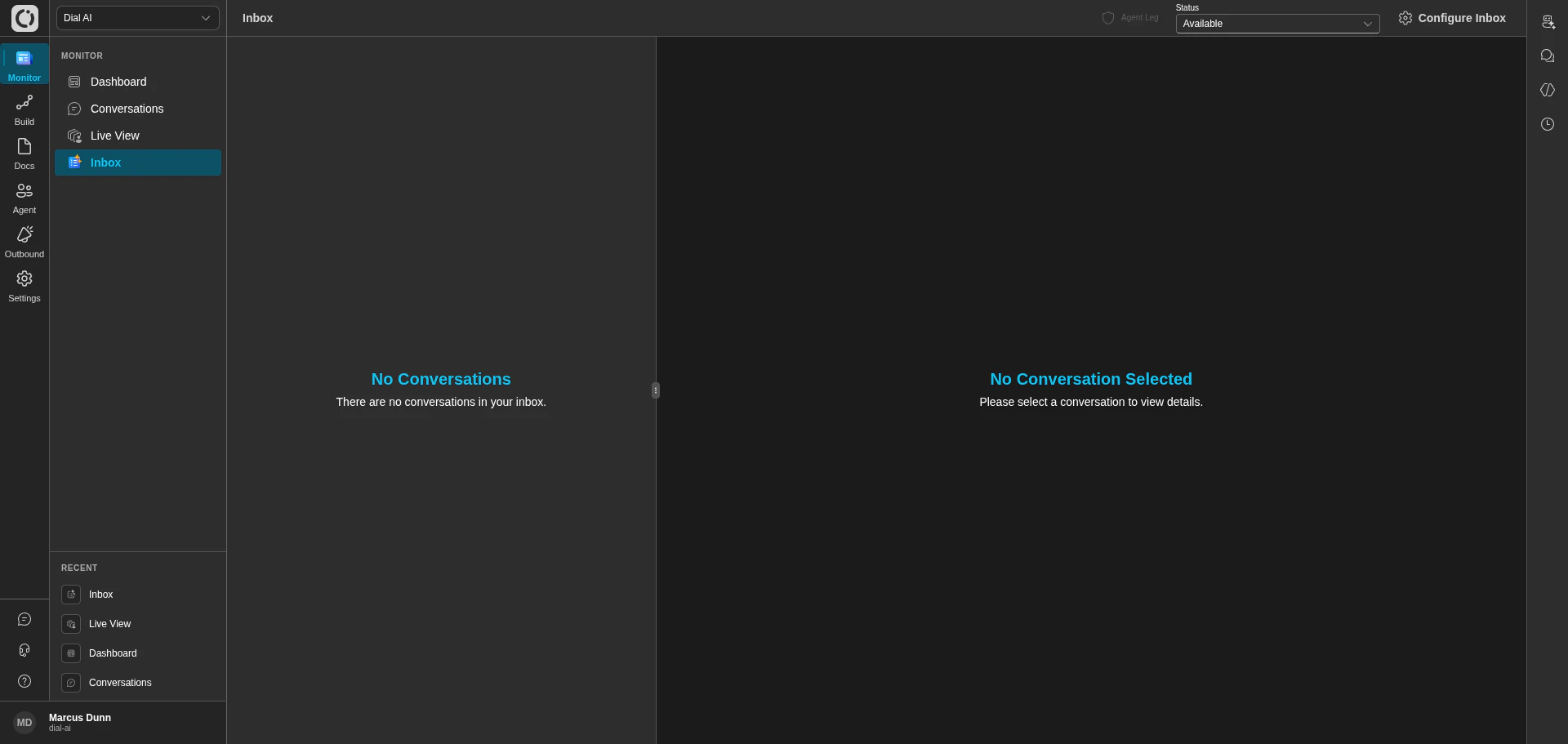 The **Inbox** is built for human agents who handle conversations the AI can't (or shouldn't) resolve on its own. When a conversation is queued for human help — by the AI itself, by a supervisor, or by a routing rule — it shows up here, waiting for a human to pick it up.
Pair the Inbox with [Live View](/live-view) for real-time monitoring of AI-handled conversations, and with [Conversations](/conversations) for the searchable archive after a conversation closes.
## Accessing the Inbox
Navigate to **Monitor > Inbox** in the left sidebar.
There are two views:
* **Inbox** (default) — every conversation in your queue, routed by skill match.
* **Inbox / Personal** — a configurable per-agent view. Set this up under **Configure Inbox** in the top bar.
## Audio configuration (Agent Leg status)
The top-left of the Inbox shows your **Agent Leg** indicator — your audio connection's readiness for voice calls.
* **Connected** — you're ready to receive voice calls.
* **Disconnected** — click to reconnect. The system uses your configured phone number from **Settings > Personal Configuration**, or opens a modal to set up web audio with your headset.
* **Ringing** — a queued voice call is being routed to you.
For chat and email conversations, no audio leg is needed.
## Status management
Use the **Status** dropdown in the top bar to control your availability:
* **Available** — eligible for new conversations.
* **Busy** or **Offline** — conversations won't route to you. Skill-based conversations that are already assigned to you are returned to the queue for reassignment; conversations that were routed directly to you (agent-specific) remain assigned and are not re-routed.
## How a conversation reaches you
The AI agent decides it needs human help — based on the flow logic, the customer's request, or a function call — and queues the conversation with one or more **Skills** describing what's needed (e.g., Billing, Spanish, Fraud Assistance). Skills are managed under **Settings > Operations > Skills**.
The Automatic Call Distributor picks an **Available** agent whose configured skills match. Chat and email caps can be adjusted from the Inbox top bar or under **Settings > Personal Configuration**. Voice calls are capped at one per agent at a time and cannot be changed.
When a conversation is routed to you, you can **Accept** it to take it on, or **Reject** it back into the ACD for reassignment.
## Taking over
* **Voice calls** — your phone or headset rings (per your selected audio method). Answer to take control.
* **Chats / emails** — open directly inside the Inbox for real-time messaging.
The conversation panel shows the full context: the transcript so far, sentiment, the flow the AI was running, and any parameters the AI captured before handing off.
## Ending a conversation
After you resolve the issue:
1. **Hang up** (voice) or click **End** (chat/email).
2. The conversation enters a **Wrap-up** state for any final notes.
3. Once wrap-up closes, you're eligible for new conversations again.
***
## Related
Watch AI-handled conversations in real time.
Search past conversations.
Define and manage routing skills.
Set your phone, status, and skill assignments.
The **Inbox** is built for human agents who handle conversations the AI can't (or shouldn't) resolve on its own. When a conversation is queued for human help — by the AI itself, by a supervisor, or by a routing rule — it shows up here, waiting for a human to pick it up.
Pair the Inbox with [Live View](/live-view) for real-time monitoring of AI-handled conversations, and with [Conversations](/conversations) for the searchable archive after a conversation closes.
## Accessing the Inbox
Navigate to **Monitor > Inbox** in the left sidebar.
There are two views:
* **Inbox** (default) — every conversation in your queue, routed by skill match.
* **Inbox / Personal** — a configurable per-agent view. Set this up under **Configure Inbox** in the top bar.
## Audio configuration (Agent Leg status)
The top-left of the Inbox shows your **Agent Leg** indicator — your audio connection's readiness for voice calls.
* **Connected** — you're ready to receive voice calls.
* **Disconnected** — click to reconnect. The system uses your configured phone number from **Settings > Personal Configuration**, or opens a modal to set up web audio with your headset.
* **Ringing** — a queued voice call is being routed to you.
For chat and email conversations, no audio leg is needed.
## Status management
Use the **Status** dropdown in the top bar to control your availability:
* **Available** — eligible for new conversations.
* **Busy** or **Offline** — conversations won't route to you. Skill-based conversations that are already assigned to you are returned to the queue for reassignment; conversations that were routed directly to you (agent-specific) remain assigned and are not re-routed.
## How a conversation reaches you
The AI agent decides it needs human help — based on the flow logic, the customer's request, or a function call — and queues the conversation with one or more **Skills** describing what's needed (e.g., Billing, Spanish, Fraud Assistance). Skills are managed under **Settings > Operations > Skills**.
The Automatic Call Distributor picks an **Available** agent whose configured skills match. Chat and email caps can be adjusted from the Inbox top bar or under **Settings > Personal Configuration**. Voice calls are capped at one per agent at a time and cannot be changed.
When a conversation is routed to you, you can **Accept** it to take it on, or **Reject** it back into the ACD for reassignment.
## Taking over
* **Voice calls** — your phone or headset rings (per your selected audio method). Answer to take control.
* **Chats / emails** — open directly inside the Inbox for real-time messaging.
The conversation panel shows the full context: the transcript so far, sentiment, the flow the AI was running, and any parameters the AI captured before handing off.
## Ending a conversation
After you resolve the issue:
1. **Hang up** (voice) or click **End** (chat/email).
2. The conversation enters a **Wrap-up** state for any final notes.
3. Once wrap-up closes, you're eligible for new conversations again.
***
## Related
Watch AI-handled conversations in real time.
Search past conversations.
Define and manage routing skills.
Set your phone, status, and skill assignments.