> ## Documentation Index
> Fetch the complete documentation index at: https://docs.dialai.ca/llms.txt
> Use this file to discover all available pages before exploring further.
# Live View
> Monitor and manage active customer conversations in real time
export const meta = {
reusable: true
};
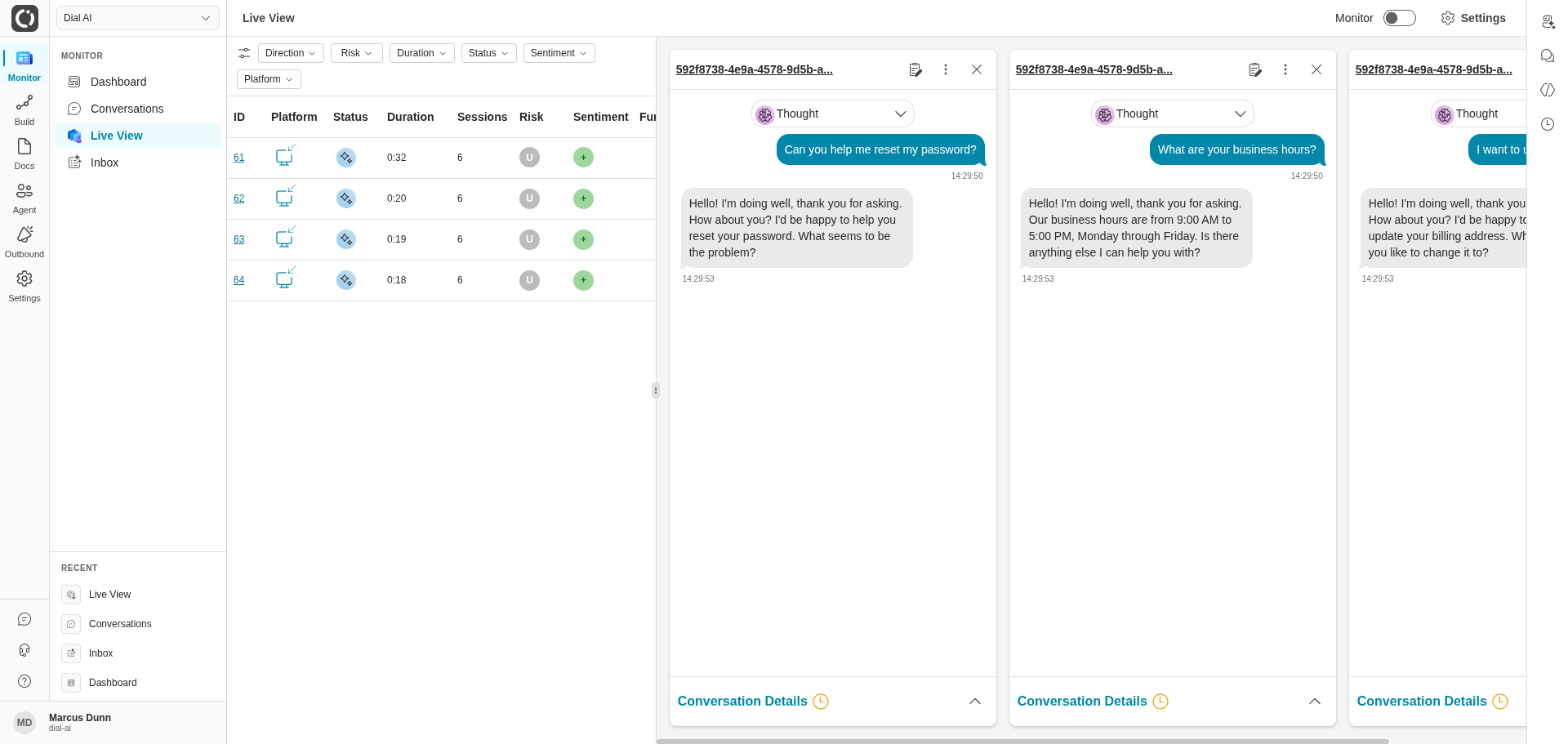
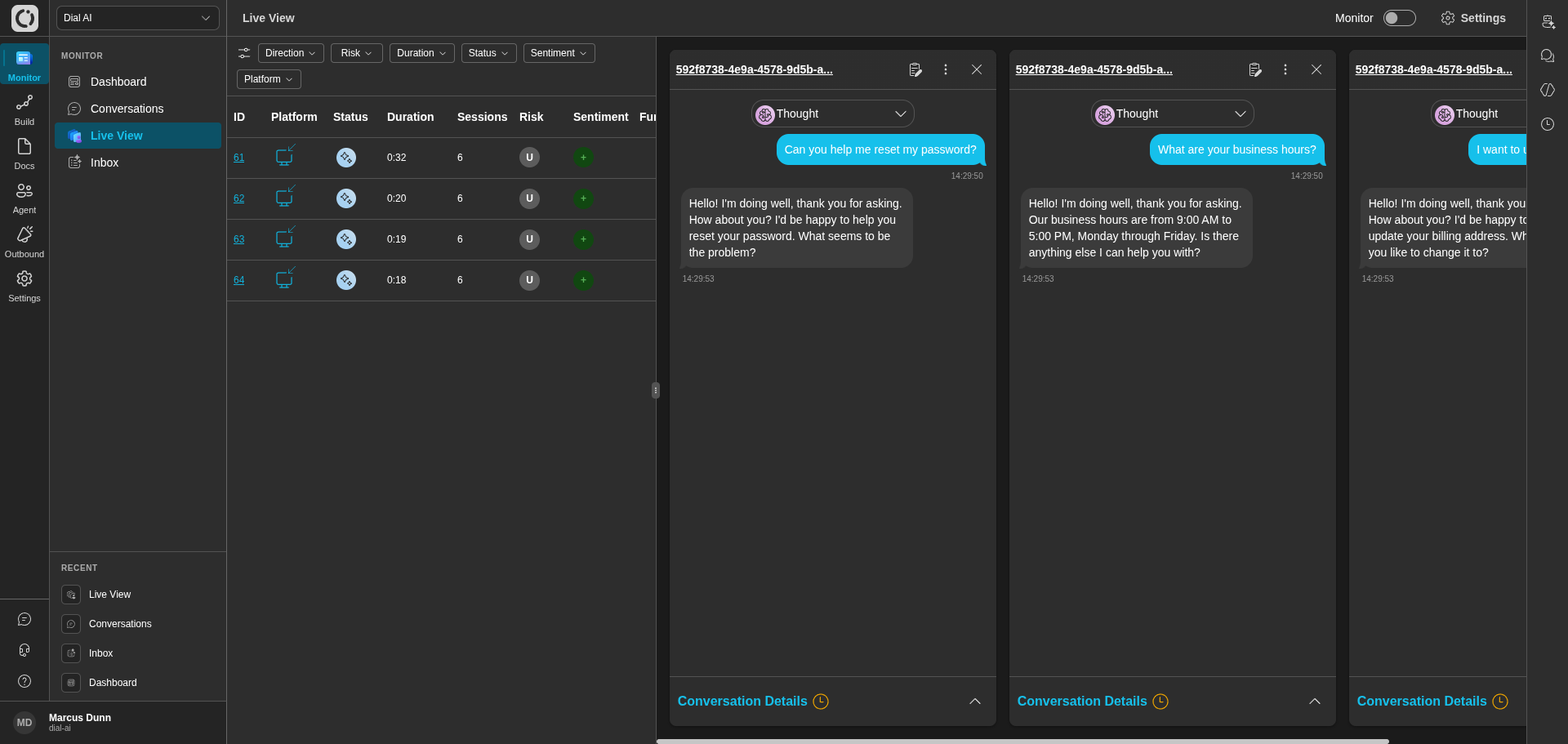 The **Live View** page gives supervisors and operators a real-time pulse on every conversation in flight. Watch what the AI agent is doing right now, listen in on voice calls, step in if a conversation goes sideways, and transfer to a human when needed.
For the searchable archive of past conversations, see [Conversations](/conversations). For conversations waiting to be assigned to a human, see the [Inbox](/inbox).
## Accessing Live View
Navigate to **Monitor > Live View** in the left sidebar.
## The conversation list
The conversation table shows every in-progress interaction across every channel. Columns include:
| Column | What it shows |
| ------------- | ------------------------------------------------------------ |
| **ID** | Unique conversation identifier. |
| **Platform** | Voice / SMS / Web Chat / Email / Slack icon. |
| **Status** | Where the conversation is in its lifecycle. |
| **Duration** | How long it's been going. |
| **Sessions** | How many sessions this contact has had in the past 24 hours. |
| **Risk** | Color-coded estimation of how the call is progressing. |
| **Sentiment** | Detected customer emotion. |
| **Functions** | Functions the AI has called during the interaction. |
Click any row to expand the detail panel beneath it.
### Filters
The filter toolbar at the top lets you narrow the view by **Direction**, **Risk**, **Duration**, **Status**, **Sentiment**, and **Platform**. Useful when a high volume of calls makes it hard to spot the ones that need attention.
## Conversation details panel
Selecting a conversation opens its detail panel below the table. The panel shows:
* **Platform** and **Contact ID** — the channel and customer identifier.
* **Status** — current lifecycle state.
* **Top sentiments** — up to the top three emotions detected so far, filtering out any with a score at or below 0.1.
* **Duration** and **Start** — timing.
* **Live transcript** — messages as they happen, alongside the flow graph showing the current state and the path the conversation has taken so far.
* **Function calls** — every tool the AI has invoked, with inputs and outputs.
You can expand multiple call detail panels at once to keep an eye on several conversations in parallel.
## Monitor mode
Toggle **Monitor** in the top bar to listen in on a voice call without the customer or the AI knowing. This is supervisor-mode listening — useful for quality assurance and training. Turn it off when you're not actively monitoring; it consumes a softphone leg while engaged.
### Call monitoring actions
> These controls are available **only while an AI Agent call is in progress**. If a call is **queued** or **assigned** to a human, these actions are not shown.
### Listen In
Silent monitoring of the live call. The caller and the agent do not hear you.
**How to use**
1. Open the **⋯ Actions** menu on the active call.
2. Select **Listen In**.
**What happens**
* You can hear the conversation in real time.
* Your microphone is not connected to the call.
***
### Take Over
Assume live control of the call. You can hand control back later.
**How to use**
1. Open **⋯ Actions**.
2. Select **Take Over**.
**What happens**
* You are connected as the speaking participant.
* When finished, hand control back to the previous participant (AI Agent or original agent).
***
### Transfer
Send the live call to an **external phone number**.
**How to use**
1. Open **⋯ Actions**.
2. Select **Transfer**.
3. Enter the destination phone number.
4. Confirm to transfer.
**What happens**
* The system dials the destination number and bridges the caller.
* After transfer, control moves to the external destination.
***
### Enqueue
Move the live call into the **human agent queue**.
**How to use**
1. Open **⋯ Actions**.
2. Select **Enqueue**.
**What happens**
* The call is placed back into the queue to be assigned to a human agent.
* The AI Agent stops handling the call.
***
### End
Immediately hang up the call for all parties.
**How to use**
1. Open **⋯ Actions**.
2. Select **End** and confirm.
**What happens**
* The call ends immediately.
* Post-call processes (wrap-up, logging, transcript, etc.) continue as configured.
***
### Add Coaching
Send **coaching notes** to the agent only (not visible to the caller) while the call is active.
**How to use**
1. Open **⋯ Actions**.
2. Select **Add Coaching**.
3. Enter your coaching note and send.
**What happens**
* The note appears to the agent as an internal coaching message during the call.
* The caller never sees coaching notes.
***
### Summary (for quick scan)
| Action | Purpose | Notes |
| ------------ | ---------------------------------------------- | ------------------------------- |
| Listen In | Silent monitoring | No whisper audio |
| Take Over | You become the speaking participant | You can hand control back later |
| Transfer | Send caller to an **external** phone number | Replaces any prior inline refs |
| Enqueue | Return caller to the **human agent queue** | For assignment by a human agent |
| End | Hang up for all parties immediately | Triggers post-call handling |
| Add Coaching | Side-channel guidance to the agent (text only) | Not visible to the caller |
These controls let you intervene on a live call — barge in to talk to the customer, transfer to a human agent, or end the call.
## Settings
The **Settings** button in the top bar opens preferences that tailor your Live View experience:
* **Auto open** — automatically opens new conversations as they appear in the list.
* **Audio alert** — plays a notification sound when a new conversation starts.
* **Auto clear** — removes completed conversations from the list automatically.
* **Max conversations** — caps how many conversations auto-open at once.
These settings are per-user; they don't affect other operators.
## Empty state
When there are no active conversations, the table shows "No Conversations" along with a hint about whether your filters might be hiding live activity. Clear the filters to see everything that's actually in flight.
***
## Related
Past transcripts, searchable and filterable.
Take over a conversation that needs a human.
Aggregate live metrics.
The **Live View** page gives supervisors and operators a real-time pulse on every conversation in flight. Watch what the AI agent is doing right now, listen in on voice calls, step in if a conversation goes sideways, and transfer to a human when needed.
For the searchable archive of past conversations, see [Conversations](/conversations). For conversations waiting to be assigned to a human, see the [Inbox](/inbox).
## Accessing Live View
Navigate to **Monitor > Live View** in the left sidebar.
## The conversation list
The conversation table shows every in-progress interaction across every channel. Columns include:
| Column | What it shows |
| ------------- | ------------------------------------------------------------ |
| **ID** | Unique conversation identifier. |
| **Platform** | Voice / SMS / Web Chat / Email / Slack icon. |
| **Status** | Where the conversation is in its lifecycle. |
| **Duration** | How long it's been going. |
| **Sessions** | How many sessions this contact has had in the past 24 hours. |
| **Risk** | Color-coded estimation of how the call is progressing. |
| **Sentiment** | Detected customer emotion. |
| **Functions** | Functions the AI has called during the interaction. |
Click any row to expand the detail panel beneath it.
### Filters
The filter toolbar at the top lets you narrow the view by **Direction**, **Risk**, **Duration**, **Status**, **Sentiment**, and **Platform**. Useful when a high volume of calls makes it hard to spot the ones that need attention.
## Conversation details panel
Selecting a conversation opens its detail panel below the table. The panel shows:
* **Platform** and **Contact ID** — the channel and customer identifier.
* **Status** — current lifecycle state.
* **Top sentiments** — up to the top three emotions detected so far, filtering out any with a score at or below 0.1.
* **Duration** and **Start** — timing.
* **Live transcript** — messages as they happen, alongside the flow graph showing the current state and the path the conversation has taken so far.
* **Function calls** — every tool the AI has invoked, with inputs and outputs.
You can expand multiple call detail panels at once to keep an eye on several conversations in parallel.
## Monitor mode
Toggle **Monitor** in the top bar to listen in on a voice call without the customer or the AI knowing. This is supervisor-mode listening — useful for quality assurance and training. Turn it off when you're not actively monitoring; it consumes a softphone leg while engaged.
### Call monitoring actions
> These controls are available **only while an AI Agent call is in progress**. If a call is **queued** or **assigned** to a human, these actions are not shown.
### Listen In
Silent monitoring of the live call. The caller and the agent do not hear you.
**How to use**
1. Open the **⋯ Actions** menu on the active call.
2. Select **Listen In**.
**What happens**
* You can hear the conversation in real time.
* Your microphone is not connected to the call.
***
### Take Over
Assume live control of the call. You can hand control back later.
**How to use**
1. Open **⋯ Actions**.
2. Select **Take Over**.
**What happens**
* You are connected as the speaking participant.
* When finished, hand control back to the previous participant (AI Agent or original agent).
***
### Transfer
Send the live call to an **external phone number**.
**How to use**
1. Open **⋯ Actions**.
2. Select **Transfer**.
3. Enter the destination phone number.
4. Confirm to transfer.
**What happens**
* The system dials the destination number and bridges the caller.
* After transfer, control moves to the external destination.
***
### Enqueue
Move the live call into the **human agent queue**.
**How to use**
1. Open **⋯ Actions**.
2. Select **Enqueue**.
**What happens**
* The call is placed back into the queue to be assigned to a human agent.
* The AI Agent stops handling the call.
***
### End
Immediately hang up the call for all parties.
**How to use**
1. Open **⋯ Actions**.
2. Select **End** and confirm.
**What happens**
* The call ends immediately.
* Post-call processes (wrap-up, logging, transcript, etc.) continue as configured.
***
### Add Coaching
Send **coaching notes** to the agent only (not visible to the caller) while the call is active.
**How to use**
1. Open **⋯ Actions**.
2. Select **Add Coaching**.
3. Enter your coaching note and send.
**What happens**
* The note appears to the agent as an internal coaching message during the call.
* The caller never sees coaching notes.
***
### Summary (for quick scan)
| Action | Purpose | Notes |
| ------------ | ---------------------------------------------- | ------------------------------- |
| Listen In | Silent monitoring | No whisper audio |
| Take Over | You become the speaking participant | You can hand control back later |
| Transfer | Send caller to an **external** phone number | Replaces any prior inline refs |
| Enqueue | Return caller to the **human agent queue** | For assignment by a human agent |
| End | Hang up for all parties immediately | Triggers post-call handling |
| Add Coaching | Side-channel guidance to the agent (text only) | Not visible to the caller |
These controls let you intervene on a live call — barge in to talk to the customer, transfer to a human agent, or end the call.
## Settings
The **Settings** button in the top bar opens preferences that tailor your Live View experience:
* **Auto open** — automatically opens new conversations as they appear in the list.
* **Audio alert** — plays a notification sound when a new conversation starts.
* **Auto clear** — removes completed conversations from the list automatically.
* **Max conversations** — caps how many conversations auto-open at once.
These settings are per-user; they don't affect other operators.
## Empty state
When there are no active conversations, the table shows "No Conversations" along with a hint about whether your filters might be hiding live activity. Clear the filters to see everything that's actually in flight.
***
## Related
Past transcripts, searchable and filterable.
Take over a conversation that needs a human.
Aggregate live metrics.