> ## Documentation Index
> Fetch the complete documentation index at: https://docs.dialai.ca/llms.txt
> Use this file to discover all available pages before exploring further.
# Manage Documents
> Upload files, sync from S3 or Confluence, and curate the knowledge your AI agents can search
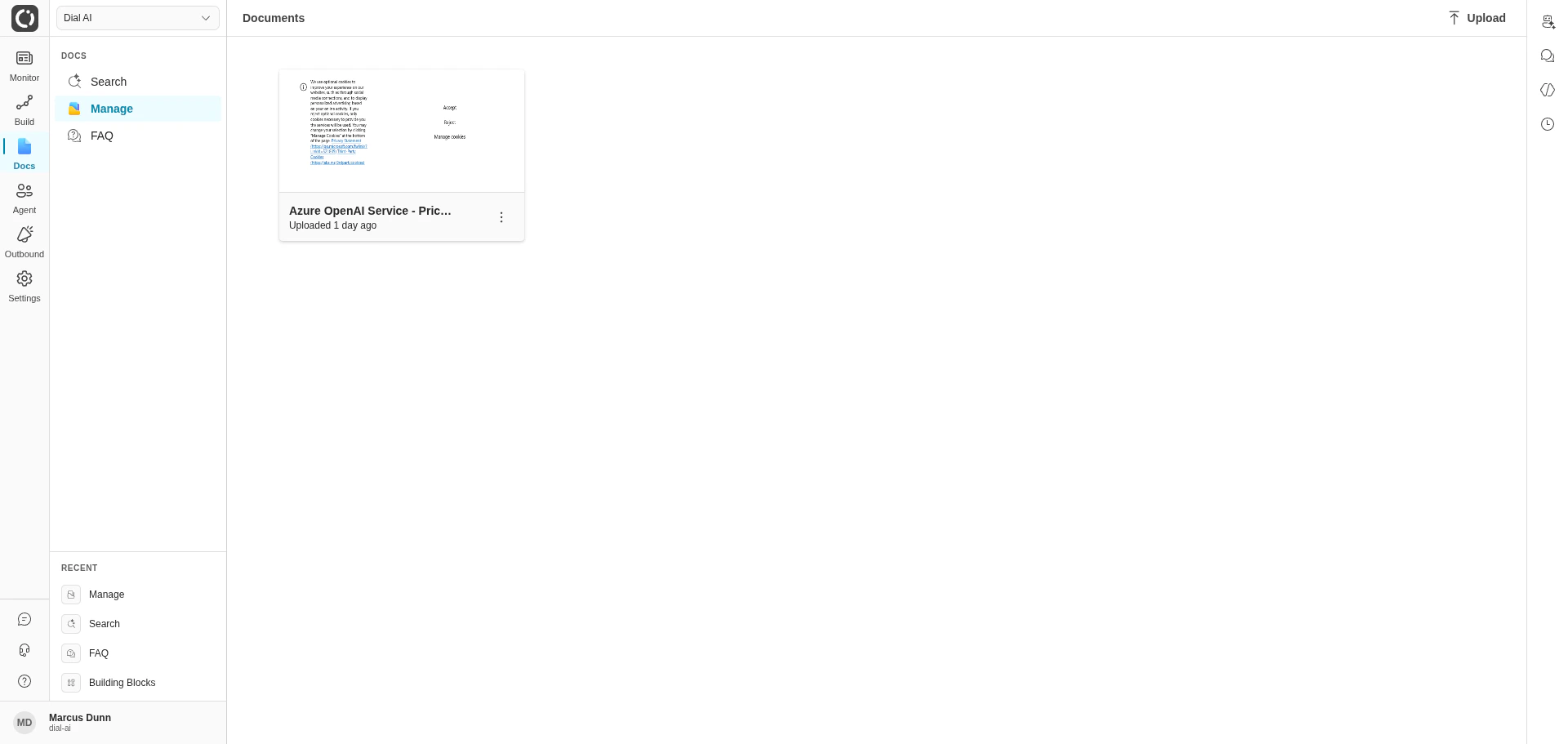
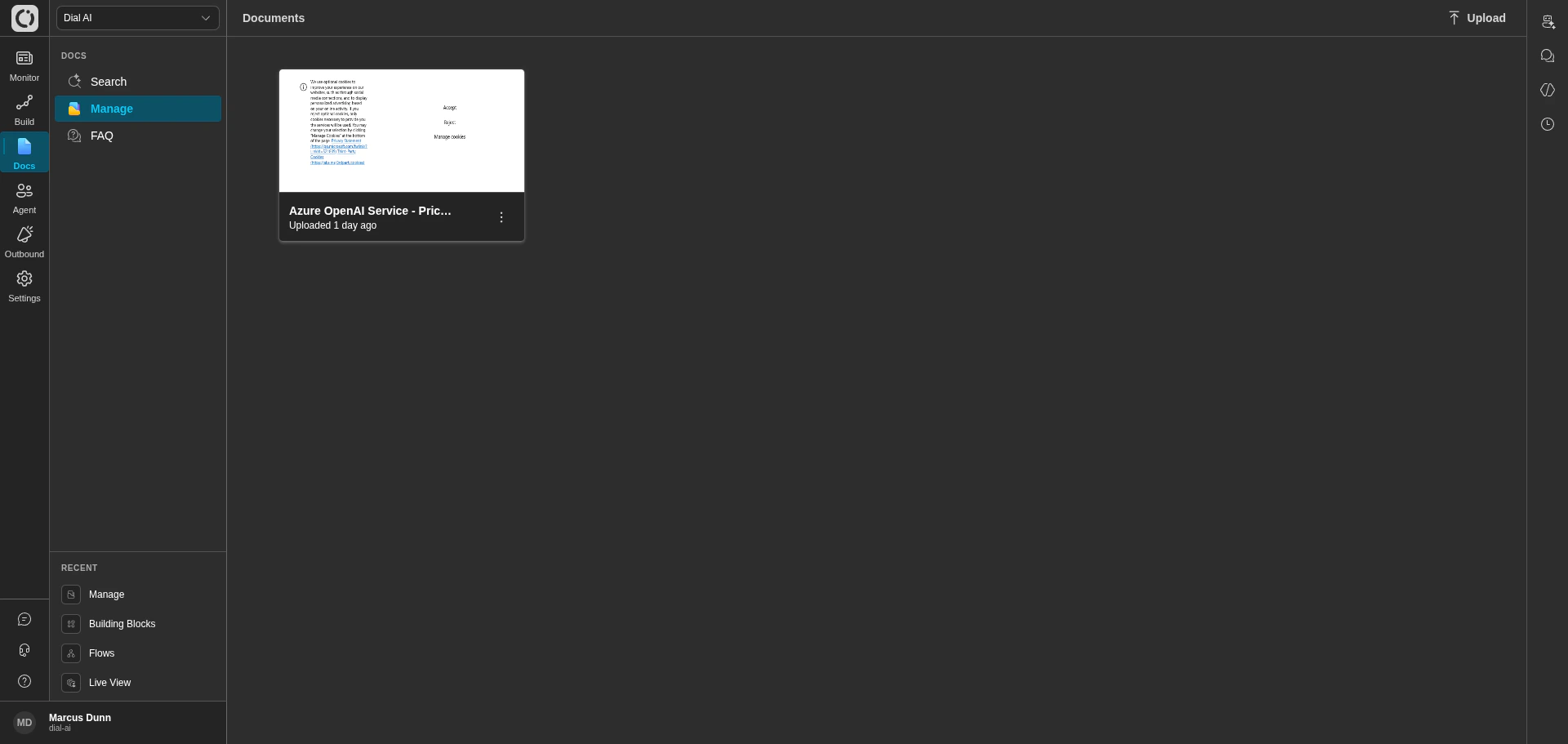 The **Documents** page is your tenant's knowledge library — every reference document the AI agent can search during a conversation lives here, whether it came from a direct file upload, an S3 bucket, or a Confluence space.
## Accessing Manage Documents
Navigate to **Docs > Manage** in the left sidebar.
## What's on the page
Every document indexed in the tenant appears as a card showing:
* The document name (filename for uploads, page or object name for connectors).
* An **Uploaded** or **Synced** timestamp showing when the index was last updated.
* A **More actions** menu (three-dot) with Download, Sync, and Delete.
The **Upload** button in the top-right opens the upload dialog, where you choose the source type.
## Adding documents
The Upload dialog has three tabs, one per source type. Click any tab to switch.
### File upload
The **Documents** page is your tenant's knowledge library — every reference document the AI agent can search during a conversation lives here, whether it came from a direct file upload, an S3 bucket, or a Confluence space.
## Accessing Manage Documents
Navigate to **Docs > Manage** in the left sidebar.
## What's on the page
Every document indexed in the tenant appears as a card showing:
* The document name (filename for uploads, page or object name for connectors).
* An **Uploaded** or **Synced** timestamp showing when the index was last updated.
* A **More actions** menu (three-dot) with Download, Sync, and Delete.
The **Upload** button in the top-right opens the upload dialog, where you choose the source type.
## Adding documents
The Upload dialog has three tabs, one per source type. Click any tab to switch.
### File upload
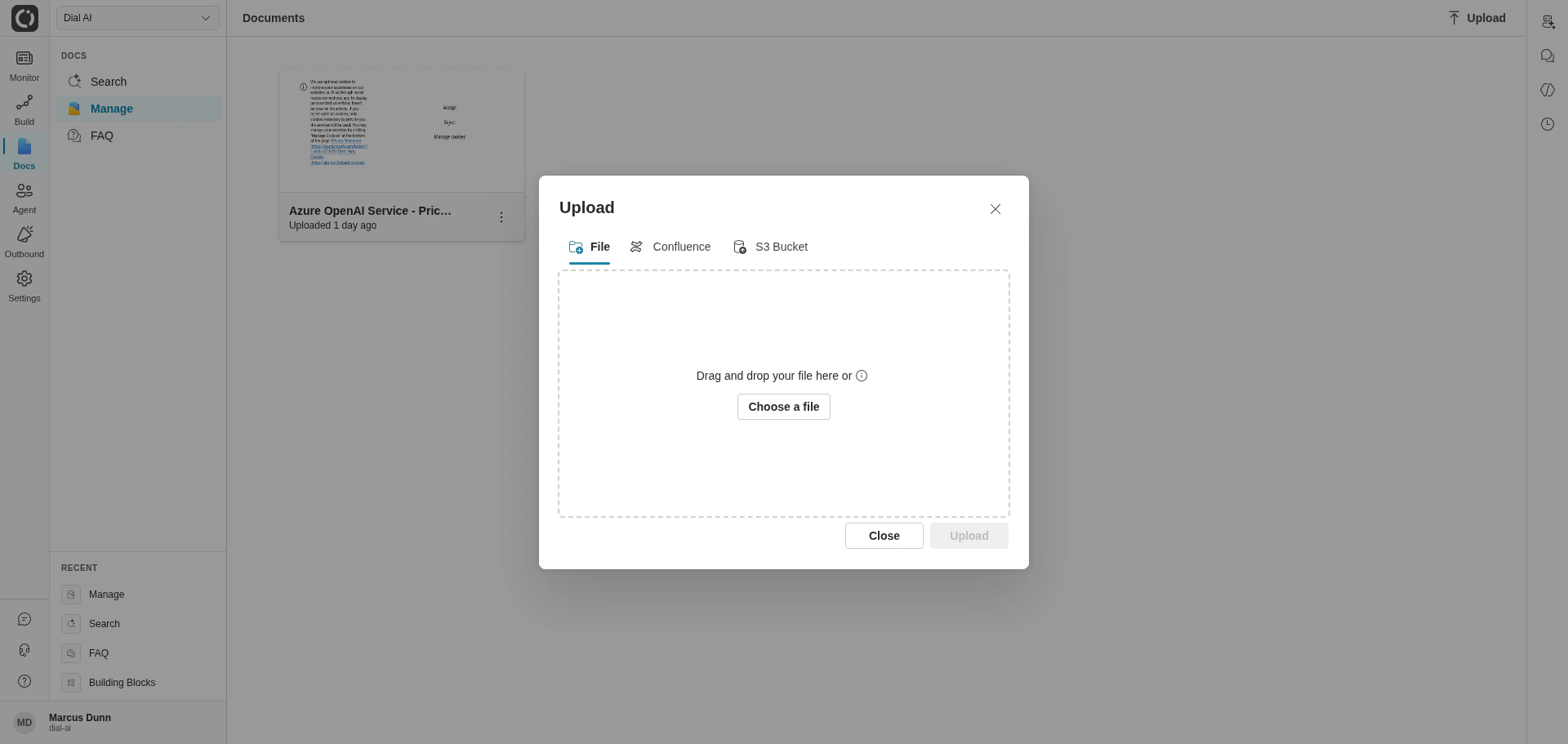
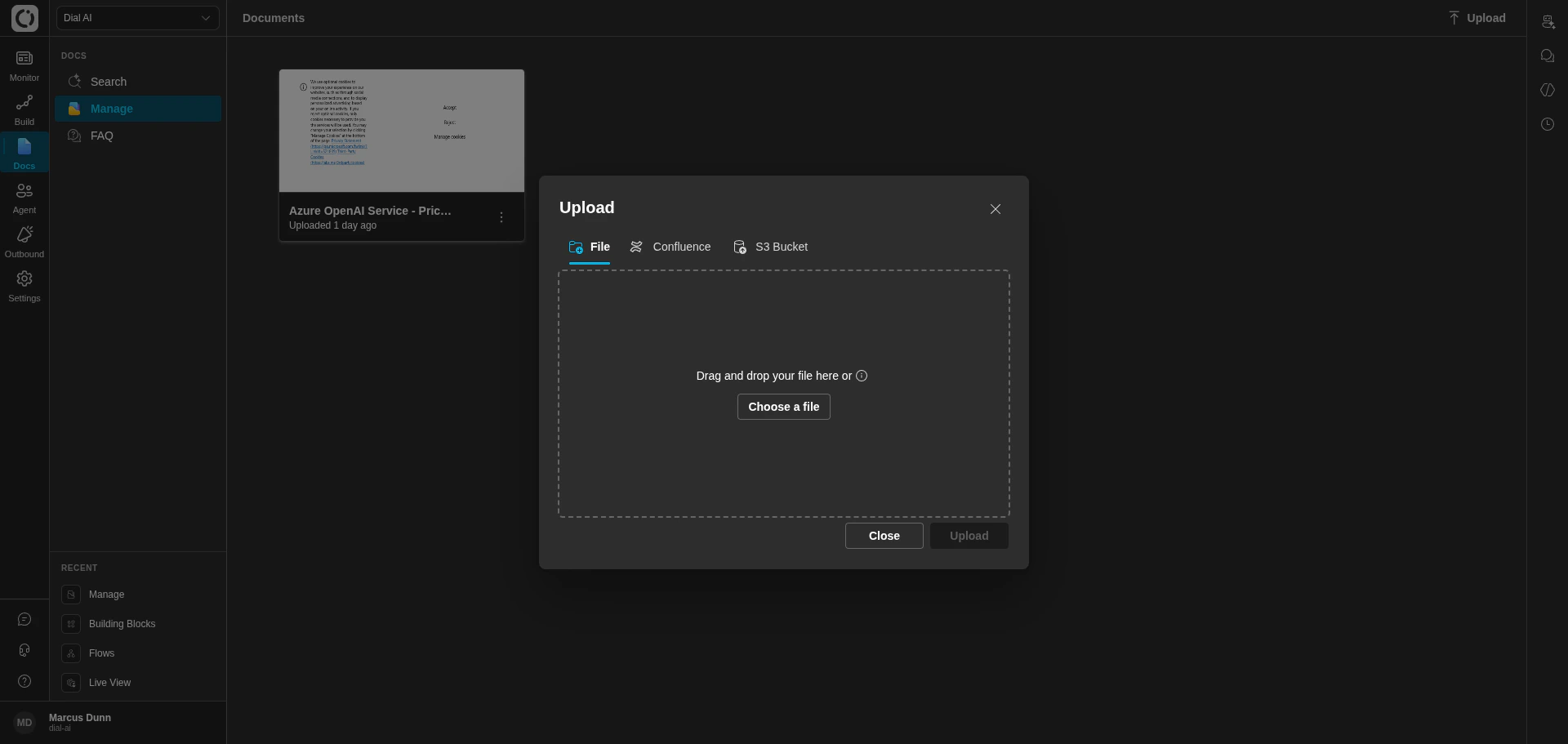 Use the **File** tab for one-off documents you want to manage manually.
Supported formats: **PDF, TXT, HTM, HTML**.
The dialog closes immediately. The document appears in the list and indexes in the background; the card shows a processing indicator until indexing completes.
Updating a file means re-uploading it — there's no in-place file replace. The recommended workflow is: delete the old version, upload the new one, re-attach to any flow that needs it.
### S3 Bucket
Use the **File** tab for one-off documents you want to manage manually.
Supported formats: **PDF, TXT, HTM, HTML**.
The dialog closes immediately. The document appears in the list and indexes in the background; the card shows a processing indicator until indexing completes.
Updating a file means re-uploading it — there's no in-place file replace. The recommended workflow is: delete the old version, upload the new one, re-attach to any flow that needs it.
### S3 Bucket
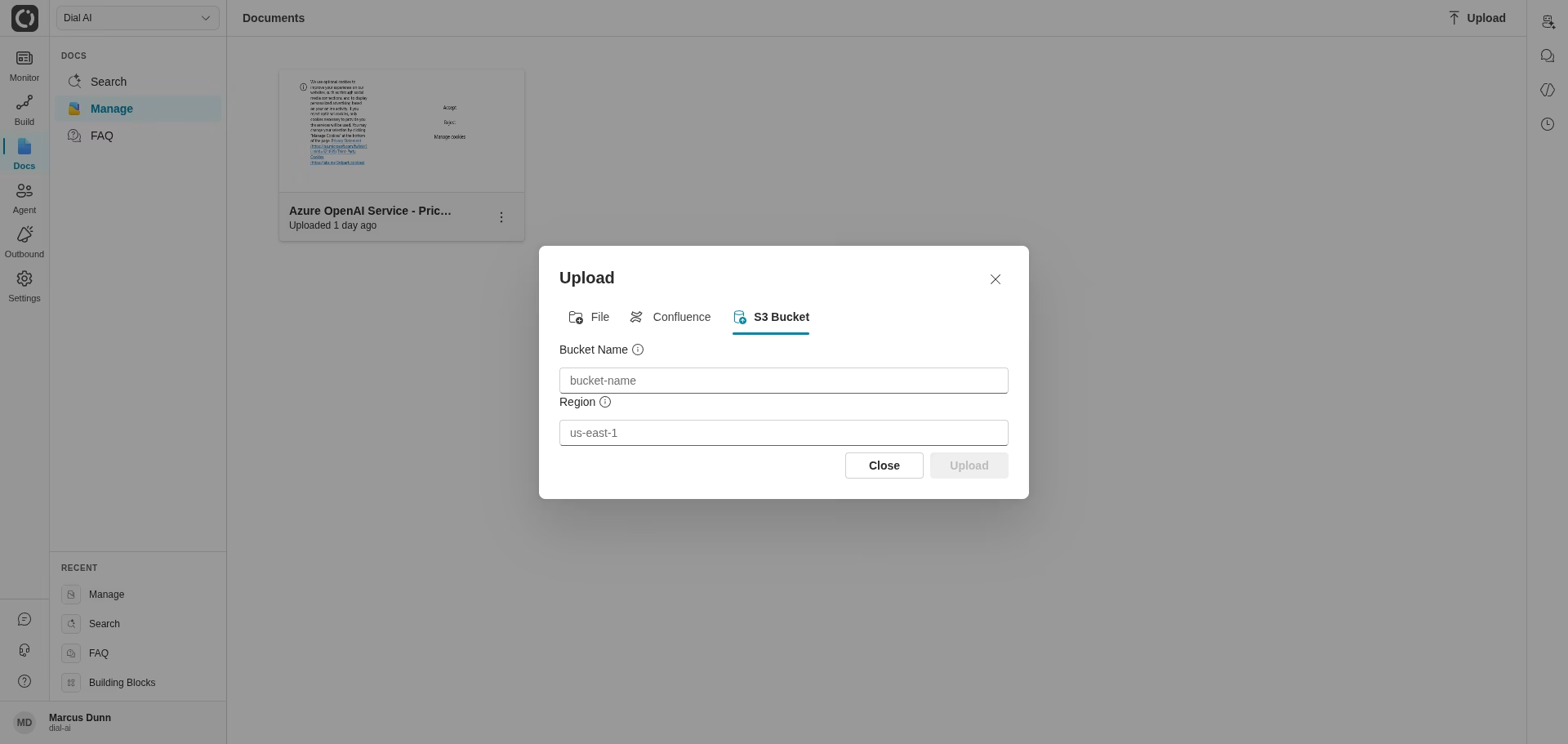
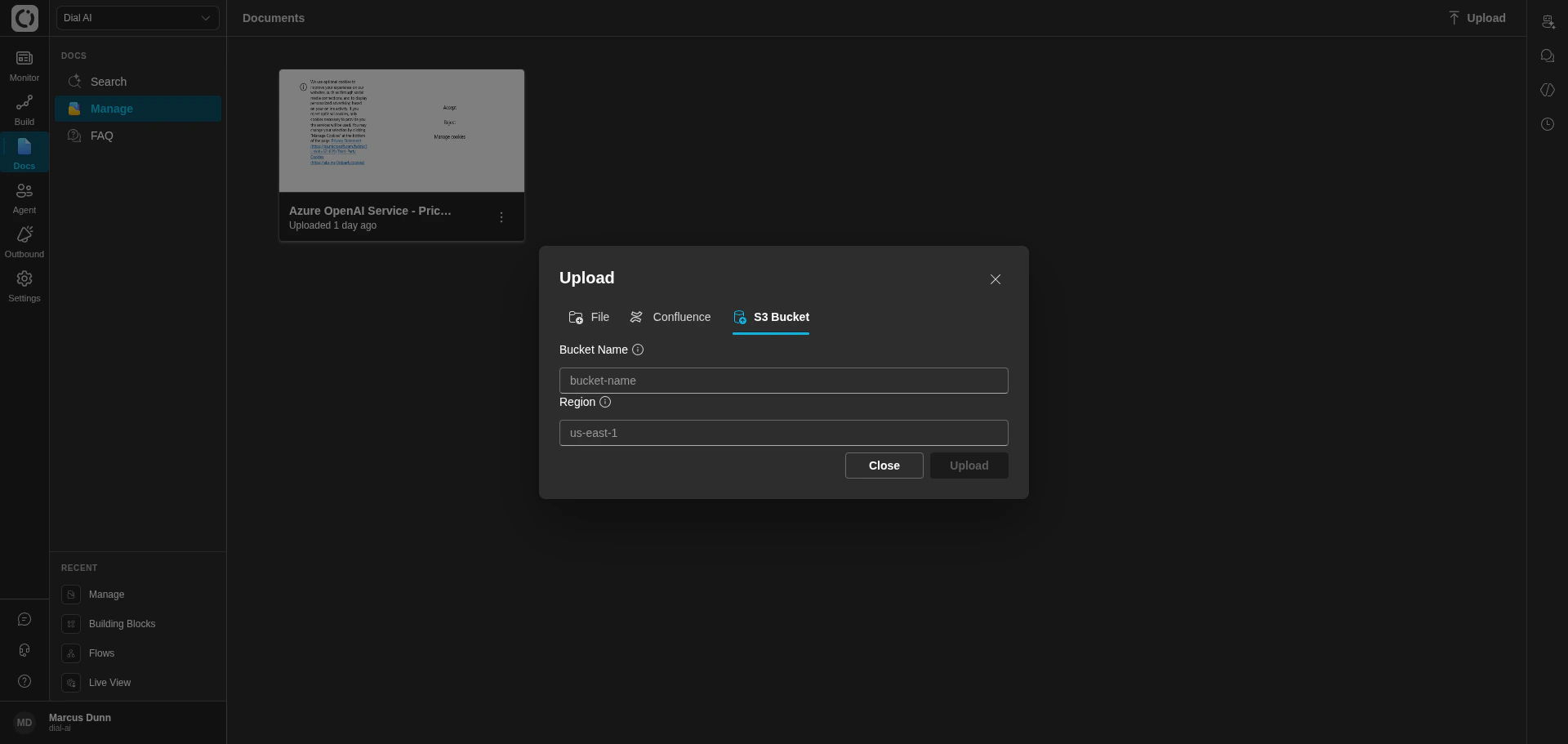 Use the **S3 Bucket** tab when your documents already live in S3 and you want the AI agent to read from the source of truth.
The exact name of the bucket — no `s3://` prefix, no region suffix.
The AWS region the bucket lives in (e.g., `us-east-1`, `us-west-2`).
The platform queues an indexing job. Objects in the bucket are pulled, indexed, and turned into searchable documents in the background. Each indexed object appears as its own card in the list.
The tenant must already have IAM access to the bucket configured at the platform level. If indexing fails with a permission error, contact your administrator to grant the platform's service role read access. Buckets not pre-authorized for the tenant cannot be added.
To pick up new objects added to the bucket later, open the bucket's card in the documents list and use **More actions > Sync** to trigger a re-index.
### Confluence
Use the **S3 Bucket** tab when your documents already live in S3 and you want the AI agent to read from the source of truth.
The exact name of the bucket — no `s3://` prefix, no region suffix.
The AWS region the bucket lives in (e.g., `us-east-1`, `us-west-2`).
The platform queues an indexing job. Objects in the bucket are pulled, indexed, and turned into searchable documents in the background. Each indexed object appears as its own card in the list.
The tenant must already have IAM access to the bucket configured at the platform level. If indexing fails with a permission error, contact your administrator to grant the platform's service role read access. Buckets not pre-authorized for the tenant cannot be added.
To pick up new objects added to the bucket later, open the bucket's card in the documents list and use **More actions > Sync** to trigger a re-index.
### Confluence
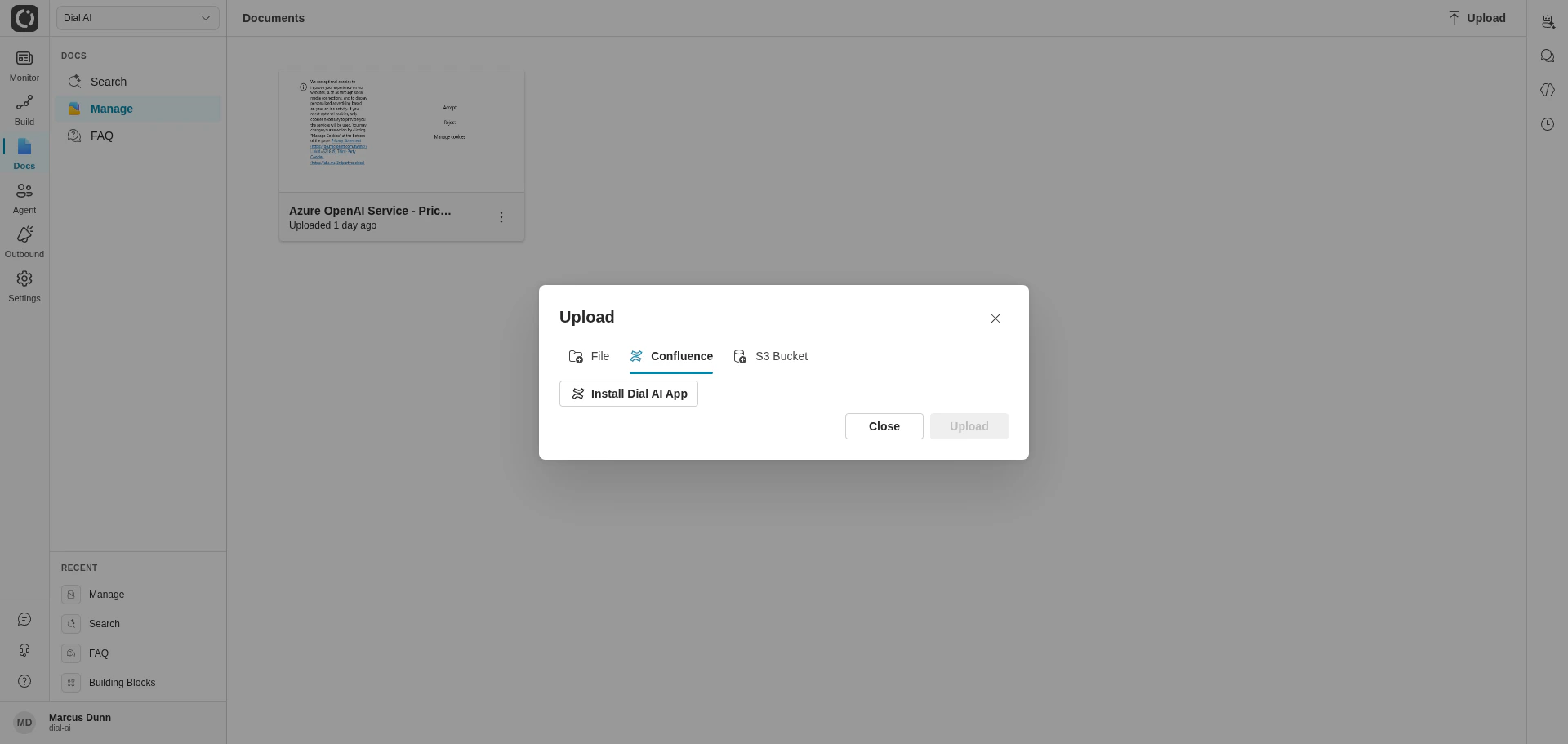
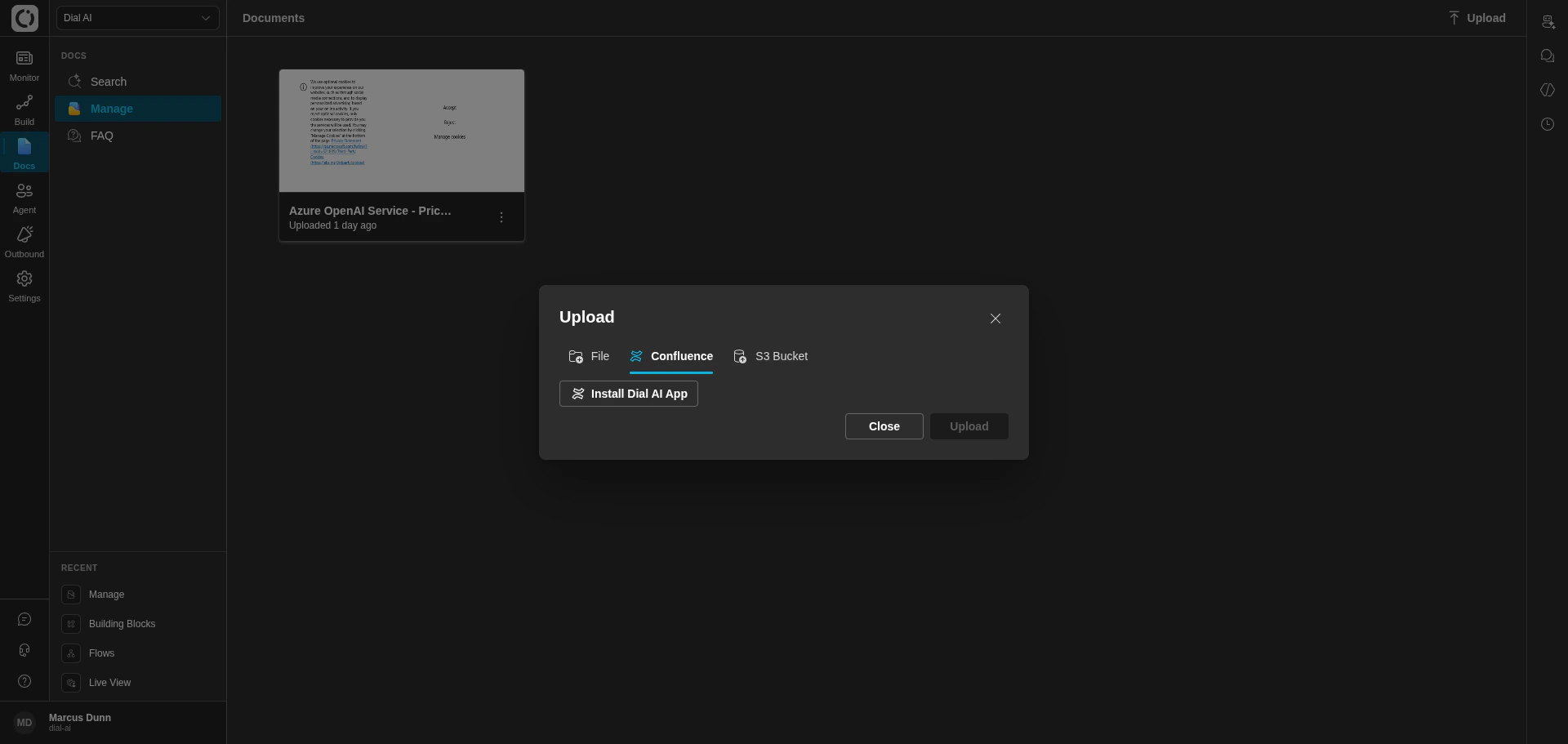 Use the **Confluence** tab to sync documents from a Confluence space. The first time you connect, you'll see an **Install Dial AI App** button — that launches the OAuth flow on Atlassian's side.
Click **Install Dial AI App**. You'll be redirected to Atlassian to authorize. Once approved, the OAuth token is stored against your tenant and you can return to the dialog.
After install, the Confluence tab populates with the spaces the app has access to. Pick the one you want to index.
Add one or more labels to the **Allowed labels** list. When set, only pages with at least one matching label are indexed. Leave empty to index every page in the space.
The platform queues an indexing job. Pages are fetched, indexed, and surfaced as searchable documents. Each page becomes its own document card.
To pick up changes (new pages, edits to existing pages, removed pages), use **More actions > Sync** on a Confluence-sourced document to re-index. Sync is on-demand — the platform does not currently poll Confluence on a schedule.
## Managing existing documents
Click **More actions** on any document card for:
* **Download** — save the indexed source to disk. For Confluence and S3 sources, this is the fetched copy at index time.
* **Sync** — re-fetch and re-index. Useful after changes in the source bucket or space.
* **Delete** — remove the document from the tenant.
If a document is currently attached to a flow's Documentation tab, deletion is blocked. Detach it from every flow first.
## How documents reach the AI agent
A document in this list isn't automatically used by every flow. To make the agent search a document during a conversation, attach it to a flow under **Configure Flow > Documentation**. See [Flow Documentation](/flow-documentation) for the full configuration reference, including how to tune document amount and query rewriting.
The same documents are also available from [Document Search](/document-search) — a standalone interface for ad-hoc querying.
## Source comparison
| | File upload | S3 Bucket | Confluence |
| -------------- | ---------------------------------------- | ----------------------------------- | ------------------------------------------------------------------------- |
| **Best for** | One-off documents you own | Documents already in S3 | Living documentation in Confluence |
| **Auth** | None | Platform-level IAM (admin) | OAuth (per tenant) |
| **Filtering** | n/a (one file at a time) | Whole bucket | Labels (optional) |
| **Sync model** | One-time at upload | On-demand re-index | On-demand re-index |
| **Best when** | Static reference material rarely changes | You already manage versioning in S3 | Your team edits docs in Confluence and wants the agent to pick up updates |
## Supported file formats
For direct file upload: **PDF, TXT, HTM, HTML**. S3 and Confluence connectors handle the file/page types those sources naturally expose.
***
## Related
Search across every indexed document.
Attach documents to a specific flow.
Configure short Q\&A pairs that complement documents.
Use the **Confluence** tab to sync documents from a Confluence space. The first time you connect, you'll see an **Install Dial AI App** button — that launches the OAuth flow on Atlassian's side.
Click **Install Dial AI App**. You'll be redirected to Atlassian to authorize. Once approved, the OAuth token is stored against your tenant and you can return to the dialog.
After install, the Confluence tab populates with the spaces the app has access to. Pick the one you want to index.
Add one or more labels to the **Allowed labels** list. When set, only pages with at least one matching label are indexed. Leave empty to index every page in the space.
The platform queues an indexing job. Pages are fetched, indexed, and surfaced as searchable documents. Each page becomes its own document card.
To pick up changes (new pages, edits to existing pages, removed pages), use **More actions > Sync** on a Confluence-sourced document to re-index. Sync is on-demand — the platform does not currently poll Confluence on a schedule.
## Managing existing documents
Click **More actions** on any document card for:
* **Download** — save the indexed source to disk. For Confluence and S3 sources, this is the fetched copy at index time.
* **Sync** — re-fetch and re-index. Useful after changes in the source bucket or space.
* **Delete** — remove the document from the tenant.
If a document is currently attached to a flow's Documentation tab, deletion is blocked. Detach it from every flow first.
## How documents reach the AI agent
A document in this list isn't automatically used by every flow. To make the agent search a document during a conversation, attach it to a flow under **Configure Flow > Documentation**. See [Flow Documentation](/flow-documentation) for the full configuration reference, including how to tune document amount and query rewriting.
The same documents are also available from [Document Search](/document-search) — a standalone interface for ad-hoc querying.
## Source comparison
| | File upload | S3 Bucket | Confluence |
| -------------- | ---------------------------------------- | ----------------------------------- | ------------------------------------------------------------------------- |
| **Best for** | One-off documents you own | Documents already in S3 | Living documentation in Confluence |
| **Auth** | None | Platform-level IAM (admin) | OAuth (per tenant) |
| **Filtering** | n/a (one file at a time) | Whole bucket | Labels (optional) |
| **Sync model** | One-time at upload | On-demand re-index | On-demand re-index |
| **Best when** | Static reference material rarely changes | You already manage versioning in S3 | Your team edits docs in Confluence and wants the agent to pick up updates |
## Supported file formats
For direct file upload: **PDF, TXT, HTM, HTML**. S3 and Confluence connectors handle the file/page types those sources naturally expose.
***
## Related
Search across every indexed document.
Attach documents to a specific flow.
Configure short Q\&A pairs that complement documents.