> ## Documentation Index
> Fetch the complete documentation index at: https://docs.dialai.ca/llms.txt
> Use this file to discover all available pages before exploring further.
# Outbound Campaigns
> Run AI-driven outbound voice campaigns against a list of contacts, or dispatch one-off calls
 **Outbound Campaigns** let the AI agent place calls *to* customers — for billing reminders, appointment confirmations, NPS follow-ups, renewals, or anything else where you reach out instead of waiting for inbound. Each campaign attaches a flow to a list of contacts and dispatches calls at a controlled rate.
For one-off calls outside a campaign, see [Dispatch Single](#dispatch-single).
## Accessing Outbound
Navigate to **Outbound > Campaigns** in the left sidebar.
## What's on the page
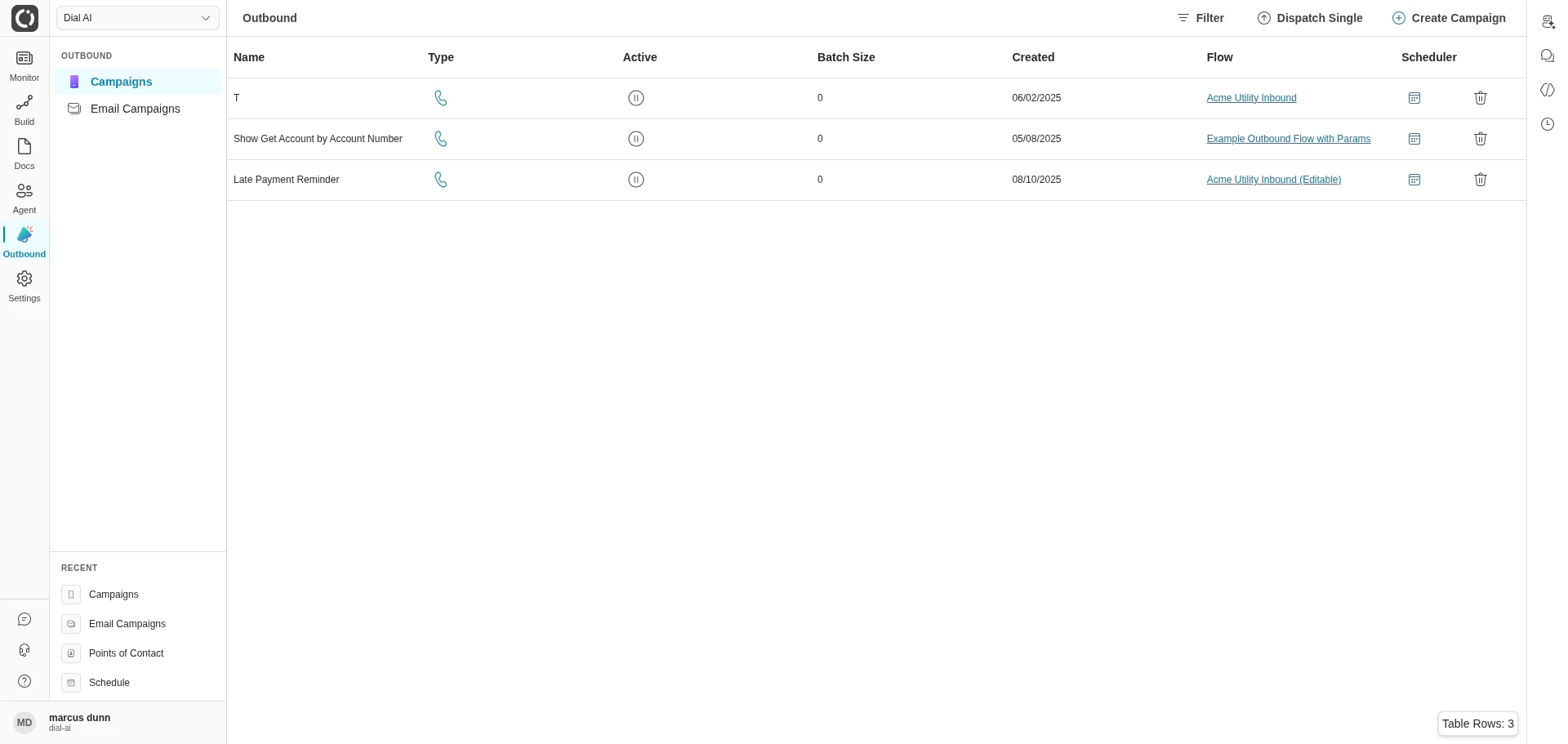
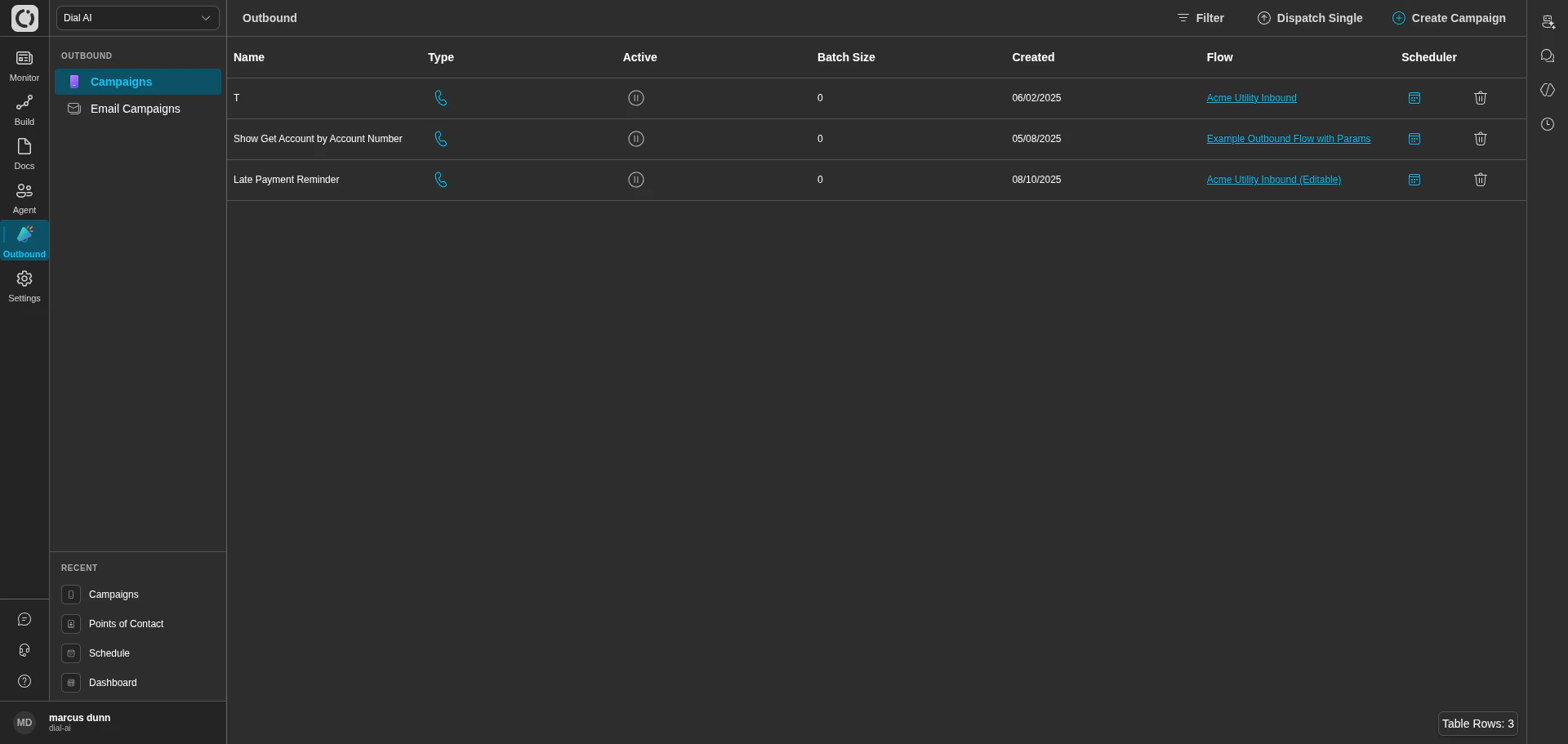
The campaigns table shows every outbound voice campaign in the tenant.
| Column | What it shows |
| -------------- | ----------------------------------------------------------------- |
| **Name** | The campaign name (e.g., "Late Payment Reminder"). |
| **Type** | Icon for the campaign type. |
| **Active** | Status indicator — paused or running. |
| **Batch Size** | Maximum concurrent calls the dispatcher will schedule at once. |
| **Created** | When the campaign was created. |
| **Flow** | The flow this campaign runs. Click to open it in the flow editor. |
| **Scheduler** | Link into the campaign's scheduler tab. |
Top-right actions:
* **Filter** — narrow the campaigns by name, date, or active status.
* **Dispatch Single** — open the [one-off call](#dispatch-single) form.
* **Create Campaign** — start the campaign-creation flow.
## Creating a campaign
Click **Create Campaign** to start the create flow. You'll attach a flow, configure the dispatcher, and upload a contacts manifest. The contacts table inside the campaign is where the actual call queue lives.
## Inside a campaign
Open a campaign by clicking its row. Each campaign has two tabs.
### Scheduler
**Outbound Campaigns** let the AI agent place calls *to* customers — for billing reminders, appointment confirmations, NPS follow-ups, renewals, or anything else where you reach out instead of waiting for inbound. Each campaign attaches a flow to a list of contacts and dispatches calls at a controlled rate.
For one-off calls outside a campaign, see [Dispatch Single](#dispatch-single).
## Accessing Outbound
Navigate to **Outbound > Campaigns** in the left sidebar.
## What's on the page
The campaigns table shows every outbound voice campaign in the tenant.
| Column | What it shows |
| -------------- | ----------------------------------------------------------------- |
| **Name** | The campaign name (e.g., "Late Payment Reminder"). |
| **Type** | Icon for the campaign type. |
| **Active** | Status indicator — paused or running. |
| **Batch Size** | Maximum concurrent calls the dispatcher will schedule at once. |
| **Created** | When the campaign was created. |
| **Flow** | The flow this campaign runs. Click to open it in the flow editor. |
| **Scheduler** | Link into the campaign's scheduler tab. |
Top-right actions:
* **Filter** — narrow the campaigns by name, date, or active status.
* **Dispatch Single** — open the [one-off call](#dispatch-single) form.
* **Create Campaign** — start the campaign-creation flow.
## Creating a campaign
Click **Create Campaign** to start the create flow. You'll attach a flow, configure the dispatcher, and upload a contacts manifest. The contacts table inside the campaign is where the actual call queue lives.
## Inside a campaign
Open a campaign by clicking its row. Each campaign has two tabs.
### Scheduler
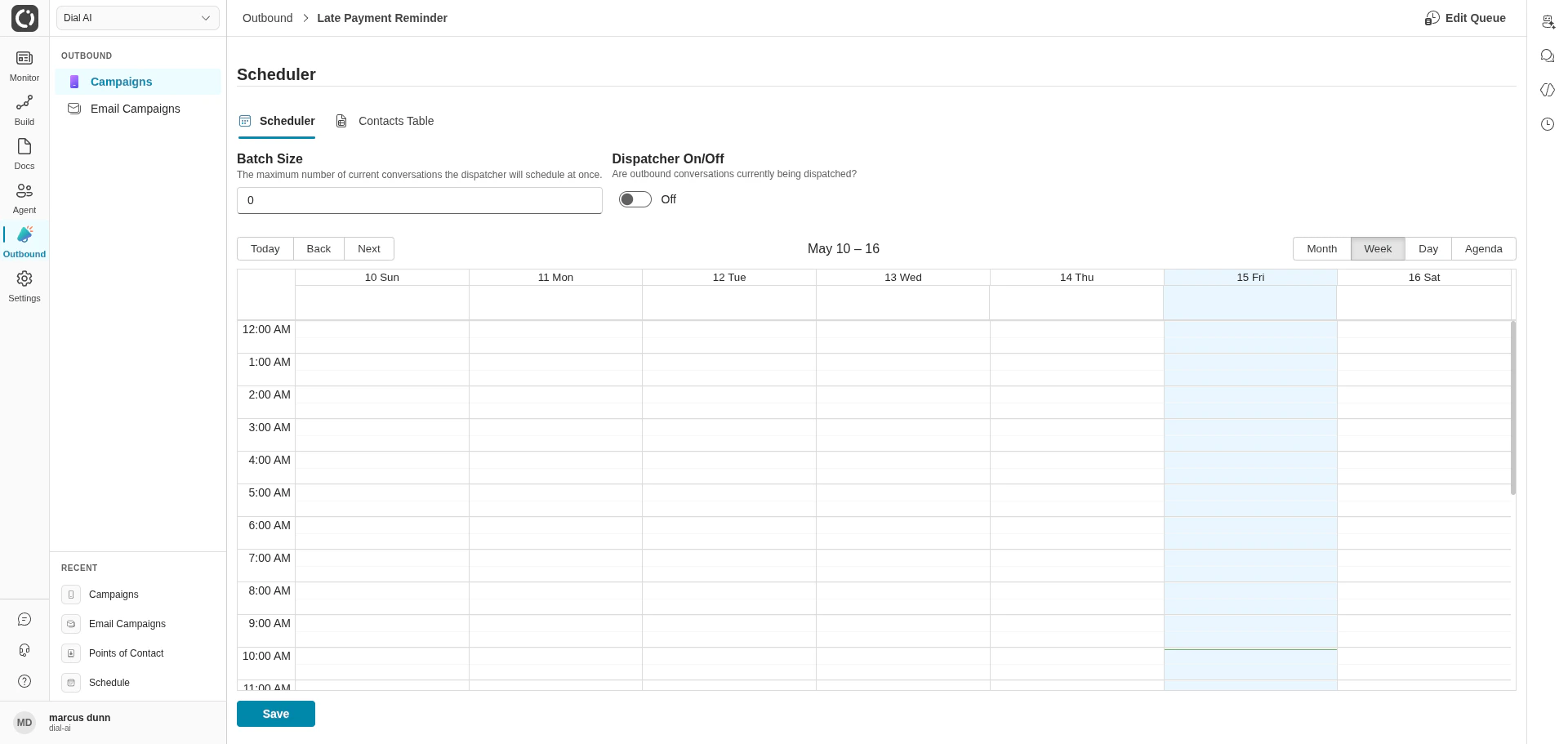
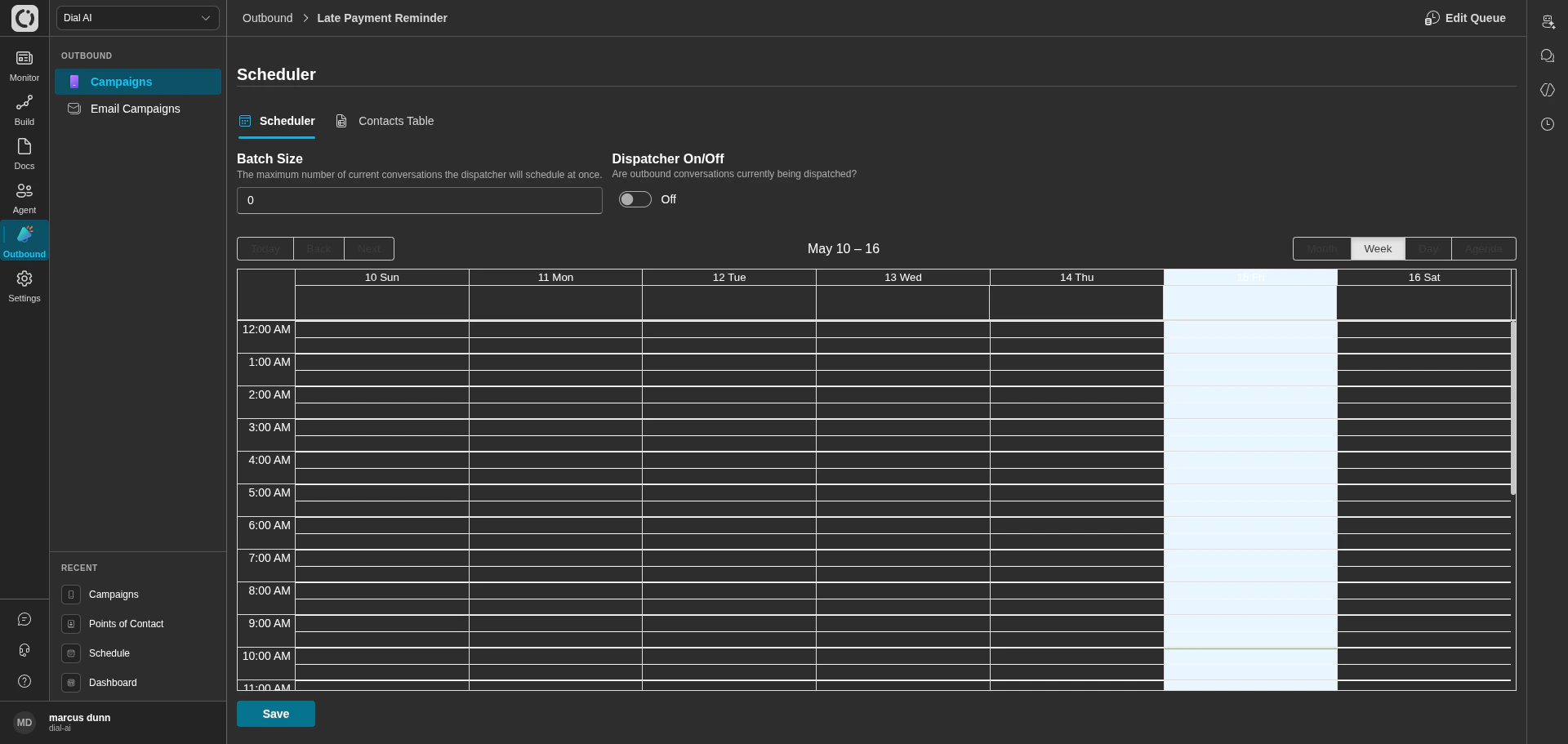 Controls when and how aggressively the dispatcher places calls.
* **Batch Size** — maximum concurrent calls the dispatcher will schedule at once. Higher numbers process the contact list faster but consume more telephony capacity.
* **Dispatcher On/Off** — master switch. Flip on when you want the campaign to start placing calls.
* **Calendar** — schedule windows for when the dispatcher is allowed to run. Same calendar widget as the platform-wide [Schedule](/schedule) page, but scoped to this campaign. Use windows like "Tue–Thu 10am–4pm" to respect customer timezones and call-time rules.
The **Edit Queue** button in the top-right opens the queue settings (max concurrent calls, retry policy) in a side panel.
### Contacts Table
Controls when and how aggressively the dispatcher places calls.
* **Batch Size** — maximum concurrent calls the dispatcher will schedule at once. Higher numbers process the contact list faster but consume more telephony capacity.
* **Dispatcher On/Off** — master switch. Flip on when you want the campaign to start placing calls.
* **Calendar** — schedule windows for when the dispatcher is allowed to run. Same calendar widget as the platform-wide [Schedule](/schedule) page, but scoped to this campaign. Use windows like "Tue–Thu 10am–4pm" to respect customer timezones and call-time rules.
The **Edit Queue** button in the top-right opens the queue settings (max concurrent calls, retry policy) in a side panel.
### Contacts Table
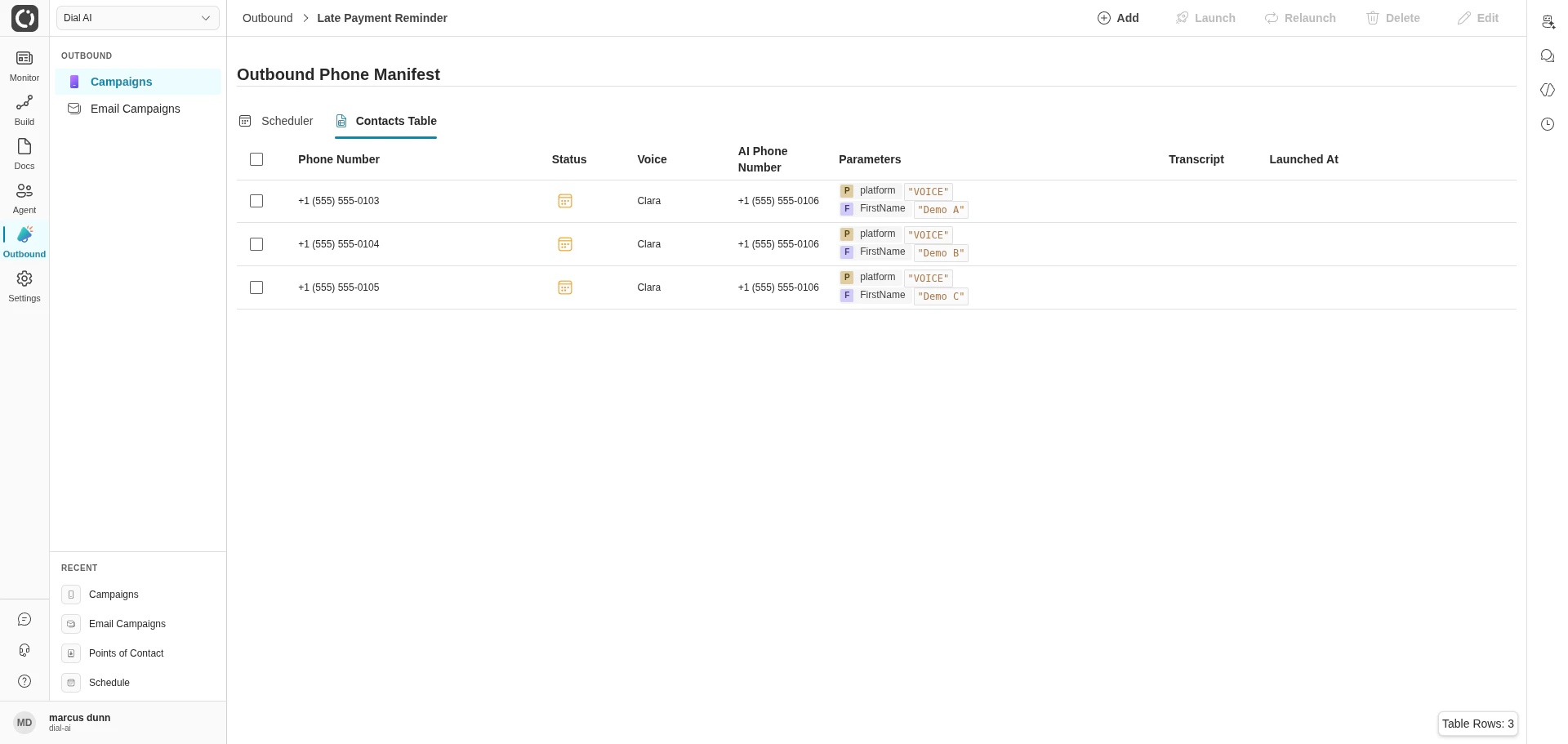
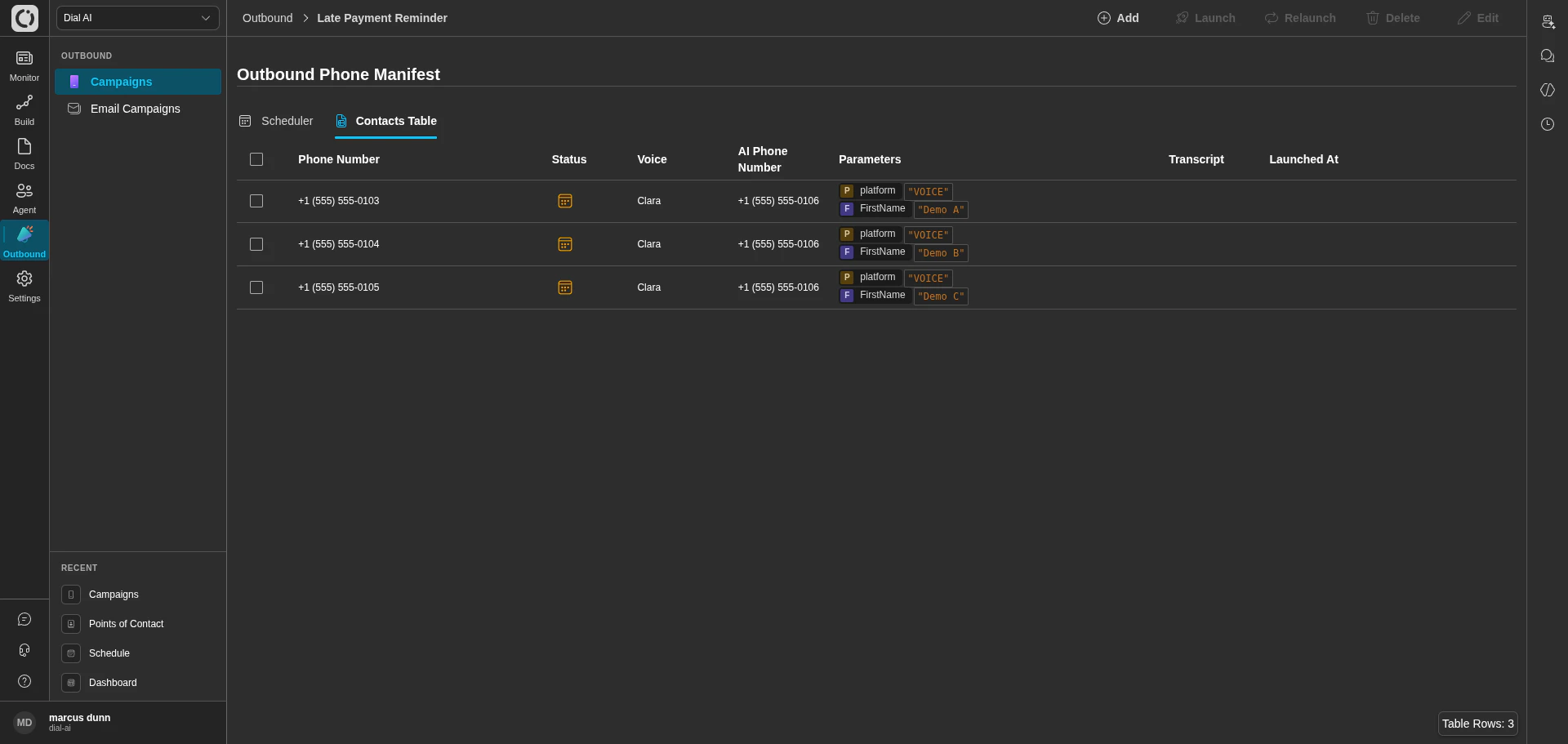 The full queue of contacts. Each row is one outbound call.
| Column | What it shows |
| ------------------- | -------------------------------------------------------------- |
| **Phone Number** | The customer's number. |
| **Status** | Queued / Launched / Completed / Failed. |
| **Voice** | The synthetic voice used for this call. |
| **AI Phone Number** | The caller-ID number the call dials *from*. |
| **Parameters** | Per-contact parameters merged into the flow (e.g., FirstName). |
| **Transcript** | Link to the transcript after the call completes. |
| **Launched At** | When the call was dispatched. |
Top-right toolbar:
* **Add** — append contacts to the campaign. The add dialog supports CSV upload and inline entry.
* **Launch** — manually launch the selected contacts (overrides batch-size pacing for emergencies).
* **Relaunch** — re-dispatch contacts that already ran. Useful for retry-after-fix scenarios.
* **Delete** — remove contacts from the campaign.
* **Edit** — modify exactly one contact's parameters before it dispatches.
## Dispatch Single
The full queue of contacts. Each row is one outbound call.
| Column | What it shows |
| ------------------- | -------------------------------------------------------------- |
| **Phone Number** | The customer's number. |
| **Status** | Queued / Launched / Completed / Failed. |
| **Voice** | The synthetic voice used for this call. |
| **AI Phone Number** | The caller-ID number the call dials *from*. |
| **Parameters** | Per-contact parameters merged into the flow (e.g., FirstName). |
| **Transcript** | Link to the transcript after the call completes. |
| **Launched At** | When the call was dispatched. |
Top-right toolbar:
* **Add** — append contacts to the campaign. The add dialog supports CSV upload and inline entry.
* **Launch** — manually launch the selected contacts (overrides batch-size pacing for emergencies).
* **Relaunch** — re-dispatch contacts that already ran. Useful for retry-after-fix scenarios.
* **Delete** — remove contacts from the campaign.
* **Edit** — modify exactly one contact's parameters before it dispatches.
## Dispatch Single
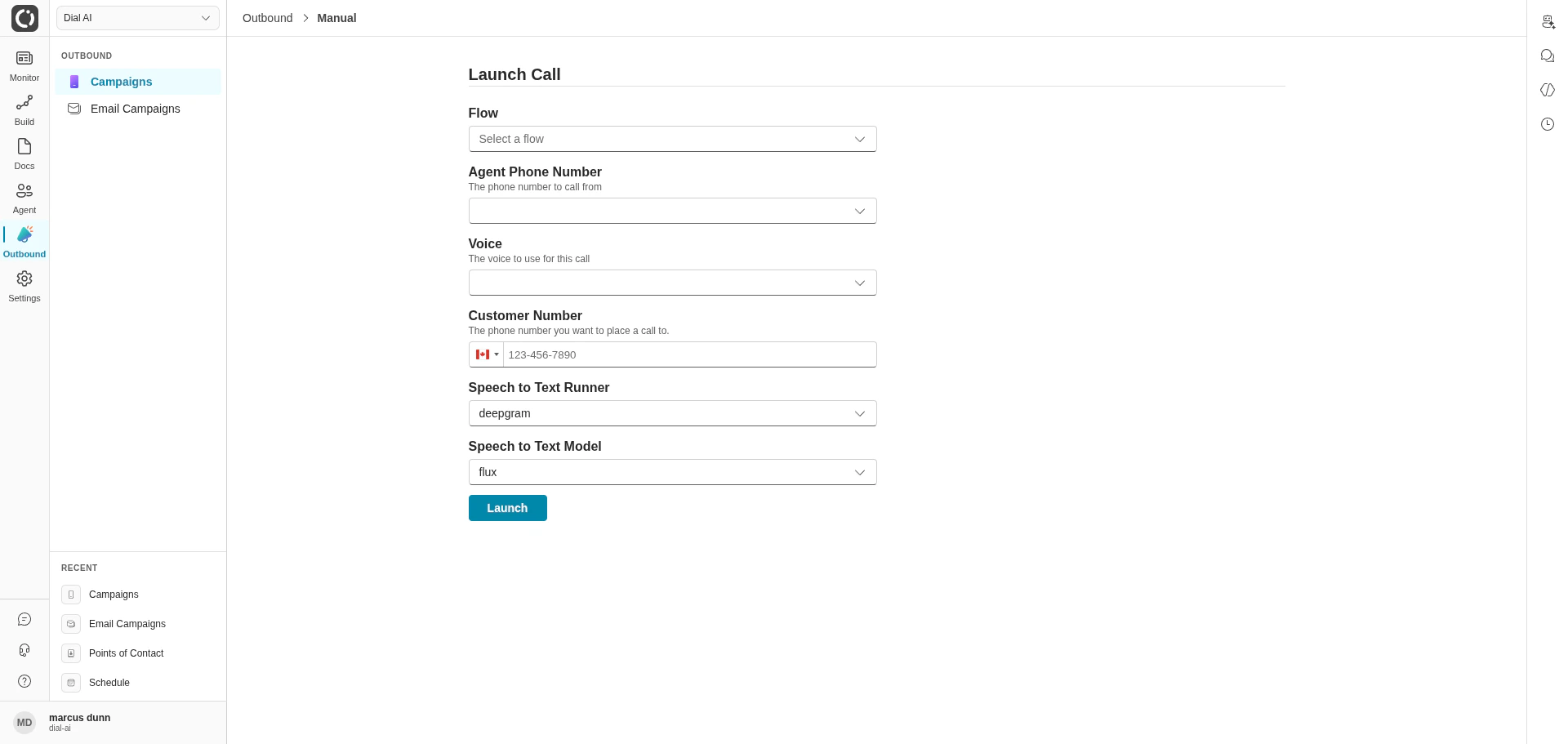
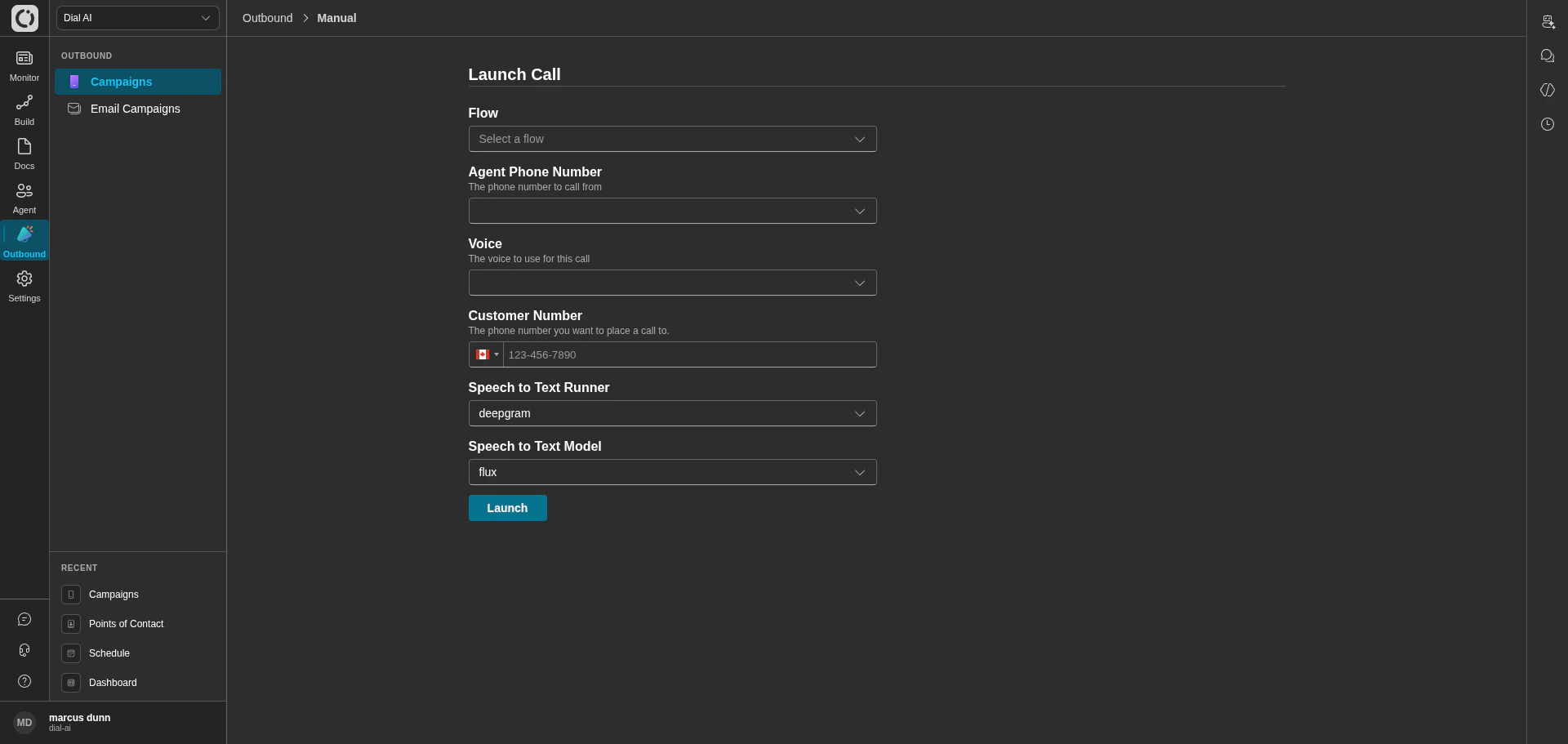 The **Dispatch Single** action (top-right of the Campaigns page) opens a one-off launch form for placing a single outbound call without setting up a campaign. Use for ad-hoc test calls, executive follow-ups, or any single dispatch that doesn't justify a campaign.
Required fields:
* **Flow** — the conversation flow to run.
* **Agent Phone Number** — the caller-ID number to dial from.
* **Voice** — the synthetic voice.
* **Customer Number** — the number to dial.
* **Speech to Text Runner** and **Model** — transcription configuration (default: deepgram / flux).
Click **Launch** to place the call.
## Per-contact parameters
Each contact in a campaign can carry parameters that get merged into the flow at call time. The Contacts Table shows these in the **Parameters** column — for example, a `FirstName` parameter so the agent says "Hi Demo A, this is..." instead of a generic greeting.
Set per-contact parameters when uploading the contact manifest, or use **Edit** on a single row to tweak before dispatch.
## Compliance: Do-Not-Call
Manage your tenant's Do-Not-Call suppression list under **Settings > Operations > Do Not Call** — see [Operations](/operations#do-not-call). Before launching a campaign, review the DNC list against your contact manifest to keep prohibited numbers out of the queue.
## Tips
* **Start with a small batch size.** A batch size of 1–3 lets you watch the first few calls before opening the floodgates.
* **Use call-time windows.** Even if your contacts span timezones, the campaign Scheduler's calendar makes it easy to respect "no calls before 9am or after 8pm local time" rules.
* **Set caller-ID to a number the customer recognizes.** Calls from unrecognized numbers get answered far less often.
* **Watch the first conversations.** Use [Live View](/live-view) to monitor the first few real outbound calls — that's where flow bugs surface fastest.
***
## Related
Outbound via email instead of voice.
Configure the caller-ID numbers campaigns dial from.
Watch calls go out in real time.
Manage the Do-Not-Call list.
The **Dispatch Single** action (top-right of the Campaigns page) opens a one-off launch form for placing a single outbound call without setting up a campaign. Use for ad-hoc test calls, executive follow-ups, or any single dispatch that doesn't justify a campaign.
Required fields:
* **Flow** — the conversation flow to run.
* **Agent Phone Number** — the caller-ID number to dial from.
* **Voice** — the synthetic voice.
* **Customer Number** — the number to dial.
* **Speech to Text Runner** and **Model** — transcription configuration (default: deepgram / flux).
Click **Launch** to place the call.
## Per-contact parameters
Each contact in a campaign can carry parameters that get merged into the flow at call time. The Contacts Table shows these in the **Parameters** column — for example, a `FirstName` parameter so the agent says "Hi Demo A, this is..." instead of a generic greeting.
Set per-contact parameters when uploading the contact manifest, or use **Edit** on a single row to tweak before dispatch.
## Compliance: Do-Not-Call
Manage your tenant's Do-Not-Call suppression list under **Settings > Operations > Do Not Call** — see [Operations](/operations#do-not-call). Before launching a campaign, review the DNC list against your contact manifest to keep prohibited numbers out of the queue.
## Tips
* **Start with a small batch size.** A batch size of 1–3 lets you watch the first few calls before opening the floodgates.
* **Use call-time windows.** Even if your contacts span timezones, the campaign Scheduler's calendar makes it easy to respect "no calls before 9am or after 8pm local time" rules.
* **Set caller-ID to a number the customer recognizes.** Calls from unrecognized numbers get answered far less often.
* **Watch the first conversations.** Use [Live View](/live-view) to monitor the first few real outbound calls — that's where flow bugs surface fastest.
***
## Related
Outbound via email instead of voice.
Configure the caller-ID numbers campaigns dial from.
Watch calls go out in real time.
Manage the Do-Not-Call list.