> ## Documentation Index
> Fetch the complete documentation index at: https://docs.dialai.ca/llms.txt
> Use this file to discover all available pages before exploring further.
# Permissions
> Roles and scope-based access control for your tenant
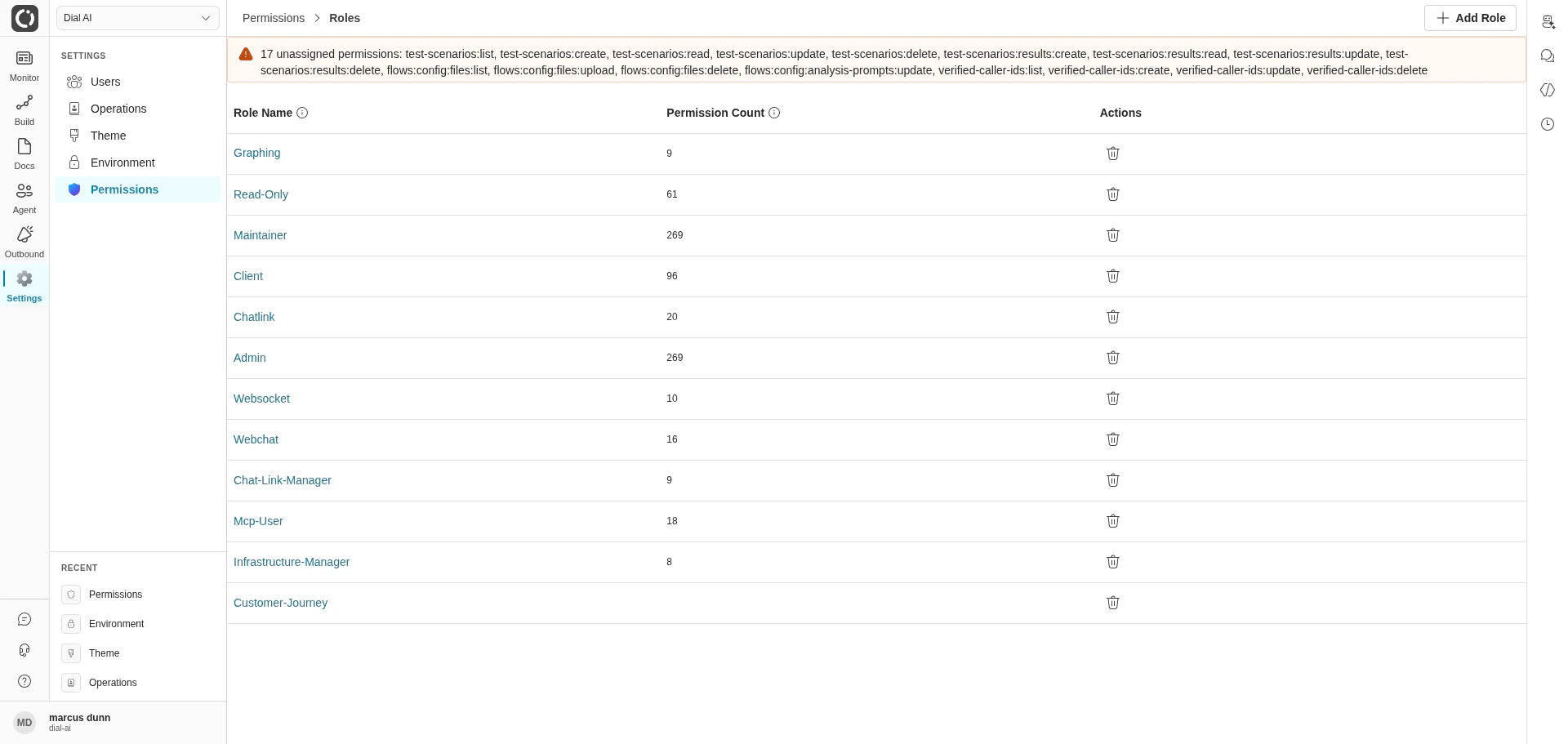
 The **Permissions** page is where administrators define and review the roles that govern who can do what in your tenant. Access is **scope-based**: each role bundles a set of fine-grained scopes (e.g., `transcripts:read`, `flows:publish`, `users:update`), and a user's effective access is the union of every scope on every role they hold.
## Accessing Permissions
Navigate to **Settings > Permissions** in the left sidebar.
## What's on the page
The Roles list shows every role configured for your tenant.
| Column | What it shows |
| -------------------- | ------------------------------------------------------- |
| **Role Name** | The role's display name. Click to open the role editor. |
| **Permission Count** | How many scopes the role bundles. |
| **Actions** | Delete the role (row-level icon). |
Top-right: **Add Role** opens the new-role dialog.
### Unassigned permissions banner
At the top of the page, the platform surfaces any scopes that **exist in the system but aren't covered by any role in this tenant**. This banner is your hint that a recent platform update added new permissions — review and assign them to the right roles so the features become reachable.
## Built-in roles
The platform ships with a starter set of roles. Common ones:
| Role | Typical use |
| --------------------------- | --------------------------------------------------------------------------------------------------------------- |
| **Admin** / **DialAiAdmin** | Full tenant access — manage users, flows, environment, billing. |
| **Maintainer** | Build and publish flows, manage agents and POCs, run campaigns. Cannot manage users or permissions. |
| **Read-Only** | View dashboards, conversations, transcripts. No edits. |
| **Chatlink** / **Webchat** | Service-account roles used by embedded chat widgets — minimum scopes to start a conversation and send messages. |
| **Customer-Journey** | Service-account role for journey backfill and customer-history sync. |
| **Infrastructure-Manager** | Platform-team role that spans environment and integration management. |
The exact set varies by deployment — your tenant may have additional roles tailored to your organization's structure.
## Creating a role
Opens the role editor.
Pick a name that describes the role's purpose (e.g., "QA Reviewer", "Campaign Operator").
Tick each scope the role should grant. Scopes are grouped by domain (transcripts, flows, channels, etc.) — start narrow and expand as needed.
The role is immediately available in the [Users](/users) page for assignment.
## Editing a role
Click a role's name to open the editor. Toggle scopes and click **Save**. Changes take effect on the next request for any user holding the role.
Removing scopes from a role can lock currently-signed-in users out of pages they have open. Communicate before tightening a role that's in active use.
## Deleting a role
Click the delete icon on the role row, then confirm.
Deleting a role detaches it from every user who holds it. Those users keep their other roles' permissions, but lose anything that was granted only by the deleted role. Check the [Users](/users) page for affected accounts before deleting.
## Assigning roles to users
Roles are assigned from the [Users](/users) page — edit a user, add or remove **Groups**, save. A user can hold any number of roles; their effective permissions are the union.
## Scopes naming convention
Scopes follow a `domain:resource:action` shape. Examples seen across the platform:
* `transcripts:list`, `transcripts:read`, `transcripts:update`
* `flows:config:files:upload`, `flows:config:files:delete`
* `test-scenarios:create`, `test-scenarios:results:read`
* `verified-caller-ids:list`, `verified-caller-ids:update`
The granular shape is intentional: it lets a role like "Read-Only Auditor" grant `transcripts:read` without granting `transcripts:update` or `flows:publish`.
***
## Related
Assign these roles to operator accounts.
Per-user settings users can adjust themselves.
Tenant config gated by these roles.
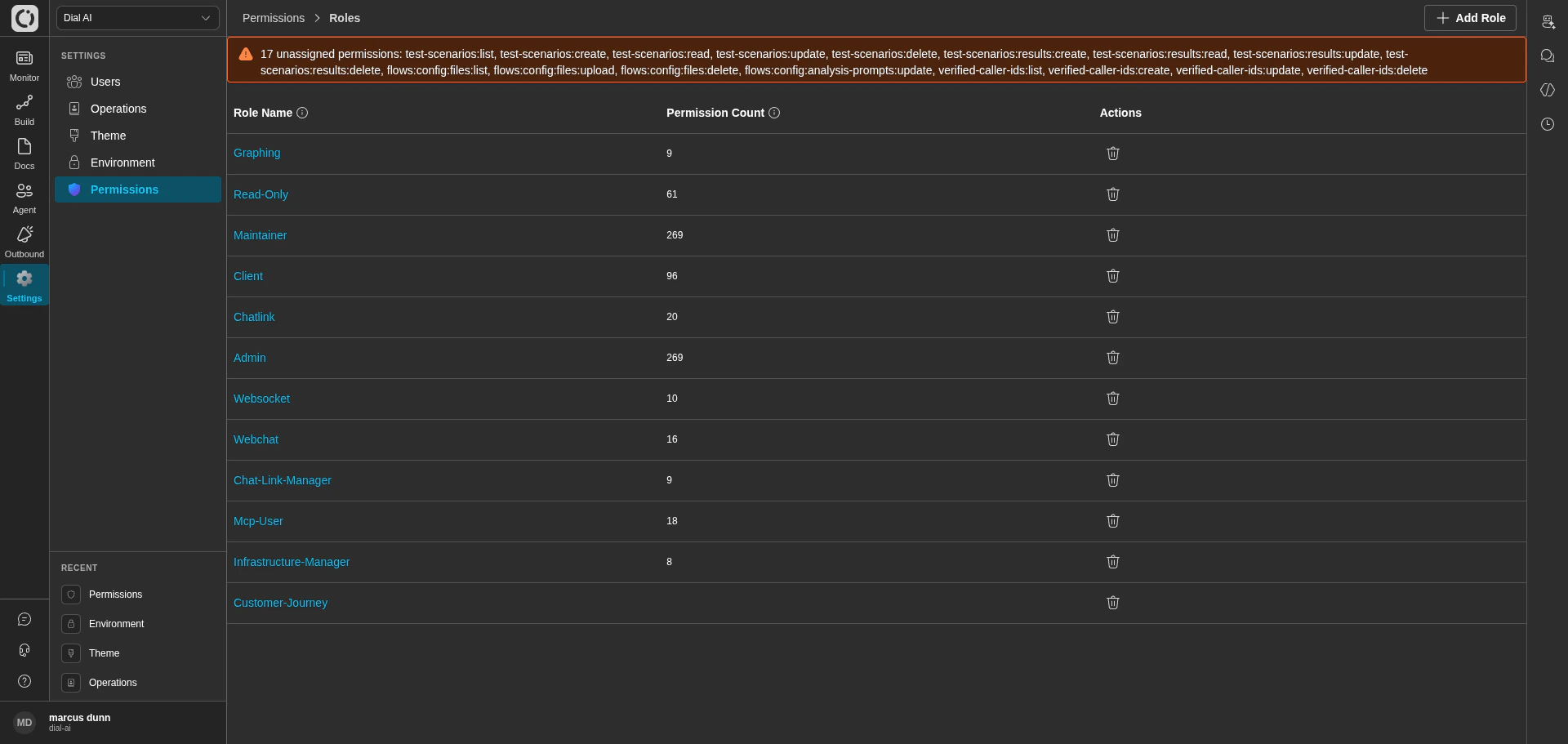
The **Permissions** page is where administrators define and review the roles that govern who can do what in your tenant. Access is **scope-based**: each role bundles a set of fine-grained scopes (e.g., `transcripts:read`, `flows:publish`, `users:update`), and a user's effective access is the union of every scope on every role they hold.
## Accessing Permissions
Navigate to **Settings > Permissions** in the left sidebar.
## What's on the page
The Roles list shows every role configured for your tenant.
| Column | What it shows |
| -------------------- | ------------------------------------------------------- |
| **Role Name** | The role's display name. Click to open the role editor. |
| **Permission Count** | How many scopes the role bundles. |
| **Actions** | Delete the role (row-level icon). |
Top-right: **Add Role** opens the new-role dialog.
### Unassigned permissions banner
At the top of the page, the platform surfaces any scopes that **exist in the system but aren't covered by any role in this tenant**. This banner is your hint that a recent platform update added new permissions — review and assign them to the right roles so the features become reachable.
## Built-in roles
The platform ships with a starter set of roles. Common ones:
| Role | Typical use |
| --------------------------- | --------------------------------------------------------------------------------------------------------------- |
| **Admin** / **DialAiAdmin** | Full tenant access — manage users, flows, environment, billing. |
| **Maintainer** | Build and publish flows, manage agents and POCs, run campaigns. Cannot manage users or permissions. |
| **Read-Only** | View dashboards, conversations, transcripts. No edits. |
| **Chatlink** / **Webchat** | Service-account roles used by embedded chat widgets — minimum scopes to start a conversation and send messages. |
| **Customer-Journey** | Service-account role for journey backfill and customer-history sync. |
| **Infrastructure-Manager** | Platform-team role that spans environment and integration management. |
The exact set varies by deployment — your tenant may have additional roles tailored to your organization's structure.
## Creating a role
Opens the role editor.
Pick a name that describes the role's purpose (e.g., "QA Reviewer", "Campaign Operator").
Tick each scope the role should grant. Scopes are grouped by domain (transcripts, flows, channels, etc.) — start narrow and expand as needed.
The role is immediately available in the [Users](/users) page for assignment.
## Editing a role
Click a role's name to open the editor. Toggle scopes and click **Save**. Changes take effect on the next request for any user holding the role.
Removing scopes from a role can lock currently-signed-in users out of pages they have open. Communicate before tightening a role that's in active use.
## Deleting a role
Click the delete icon on the role row, then confirm.
Deleting a role detaches it from every user who holds it. Those users keep their other roles' permissions, but lose anything that was granted only by the deleted role. Check the [Users](/users) page for affected accounts before deleting.
## Assigning roles to users
Roles are assigned from the [Users](/users) page — edit a user, add or remove **Groups**, save. A user can hold any number of roles; their effective permissions are the union.
## Scopes naming convention
Scopes follow a `domain:resource:action` shape. Examples seen across the platform:
* `transcripts:list`, `transcripts:read`, `transcripts:update`
* `flows:config:files:upload`, `flows:config:files:delete`
* `test-scenarios:create`, `test-scenarios:results:read`
* `verified-caller-ids:list`, `verified-caller-ids:update`
The granular shape is intentional: it lets a role like "Read-Only Auditor" grant `transcripts:read` without granting `transcripts:update` or `flows:publish`.
***
## Related
Assign these roles to operator accounts.
Per-user settings users can adjust themselves.
Tenant config gated by these roles.