> ## Documentation Index
> Fetch the complete documentation index at: https://docs.dialai.ca/llms.txt
> Use this file to discover all available pages before exploring further.
# Points of Contact
> Connect AI agents to phone numbers, SMS lines, email addresses, web chat snippets, and Slack channels
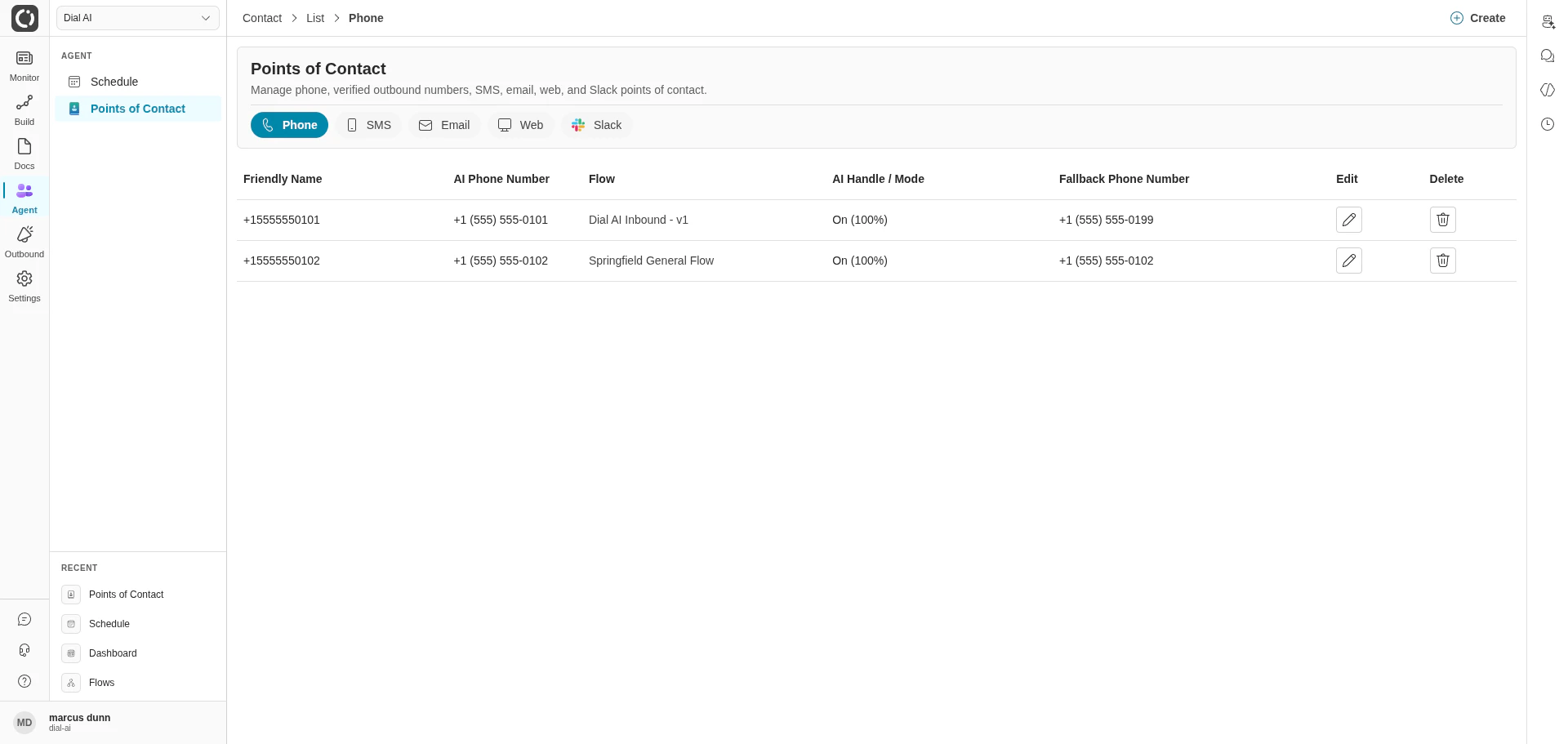
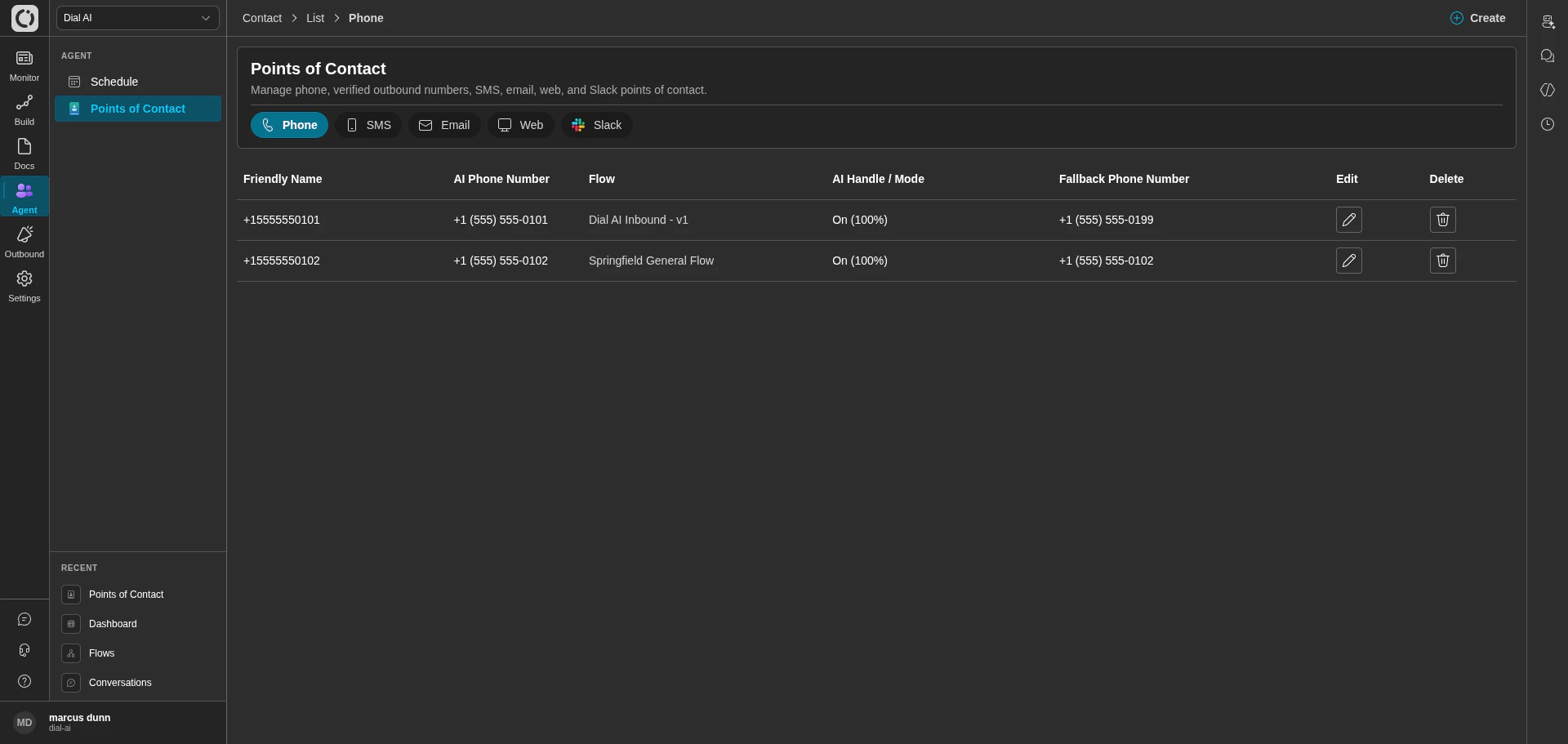 A **Point of Contact** (POC) is the bridge between a customer and a flow. It's the channel — phone number, SMS line, email address, web chat snippet, or Slack workspace — that customers reach the AI agent through. Each POC ties a channel to exactly one flow and the routing rules that control how interactions are distributed.
## Accessing Points of Contact
Navigate to **Agent > Points of Contact** in the left sidebar.
The page is organized into five tabs, one per channel type: **Phone**, **SMS**, **Email**, **Web**, **Slack**.
To get new phone numbers or email addresses provisioned, consult your account representative. Only authorized contact points can be added.
## Channel tabs
Each tab shows a table of configured POCs with the columns relevant to that channel.
### Phone
Voice POCs route incoming phone calls to a flow.
| Column | What it shows |
| ------------------------- | ----------------------------------------------------------- |
| **Friendly Name** | An internal label (e.g., "Main Support Line"). |
| **AI Phone Number** | The number assigned to the AI agent. |
| **Flow** | The flow this number runs. |
| **AI Handle / Mode** | Routing mode and AI-handled percentage (e.g., "On (100%)"). |
| **Fallback Phone Number** | Where calls go when the AI does not handle them. |
### SMS
A **Point of Contact** (POC) is the bridge between a customer and a flow. It's the channel — phone number, SMS line, email address, web chat snippet, or Slack workspace — that customers reach the AI agent through. Each POC ties a channel to exactly one flow and the routing rules that control how interactions are distributed.
## Accessing Points of Contact
Navigate to **Agent > Points of Contact** in the left sidebar.
The page is organized into five tabs, one per channel type: **Phone**, **SMS**, **Email**, **Web**, **Slack**.
To get new phone numbers or email addresses provisioned, consult your account representative. Only authorized contact points can be added.
## Channel tabs
Each tab shows a table of configured POCs with the columns relevant to that channel.
### Phone
Voice POCs route incoming phone calls to a flow.
| Column | What it shows |
| ------------------------- | ----------------------------------------------------------- |
| **Friendly Name** | An internal label (e.g., "Main Support Line"). |
| **AI Phone Number** | The number assigned to the AI agent. |
| **Flow** | The flow this number runs. |
| **AI Handle / Mode** | Routing mode and AI-handled percentage (e.g., "On (100%)"). |
| **Fallback Phone Number** | Where calls go when the AI does not handle them. |
### SMS
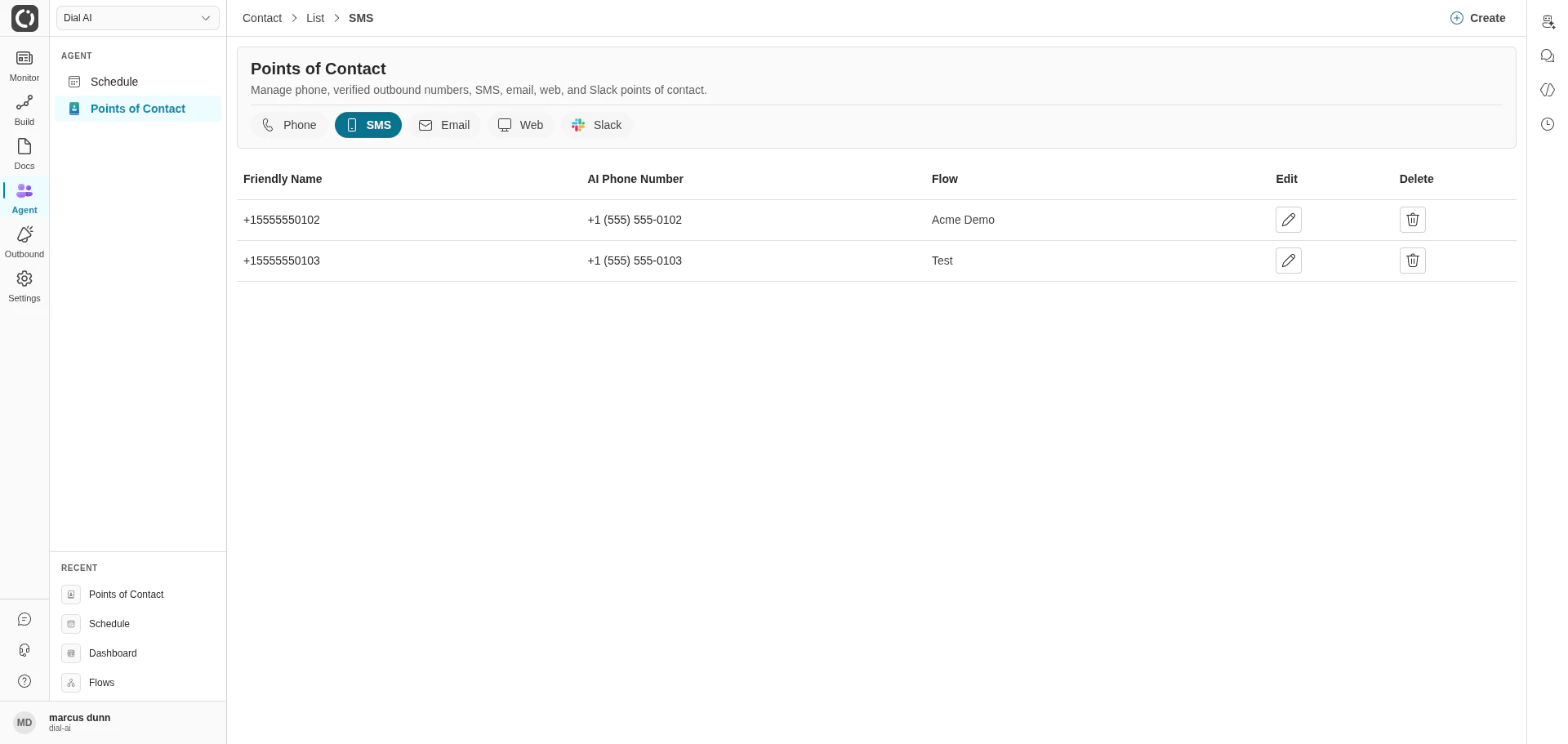
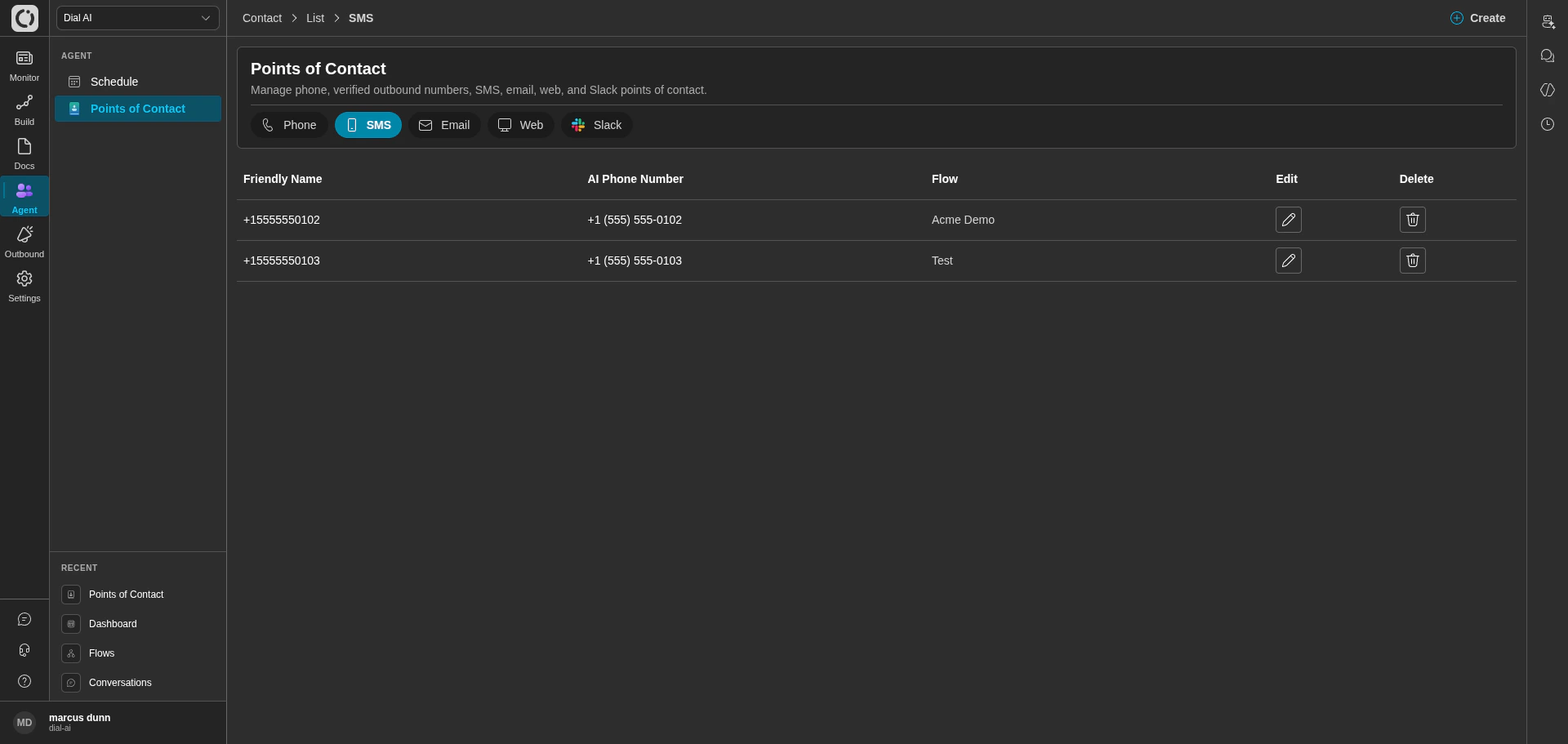 SMS POCs route text messages to a flow. Each row shows Friendly Name, AI Phone Number, and Flow.
### Email
SMS POCs route text messages to a flow. Each row shows Friendly Name, AI Phone Number, and Flow.
### Email
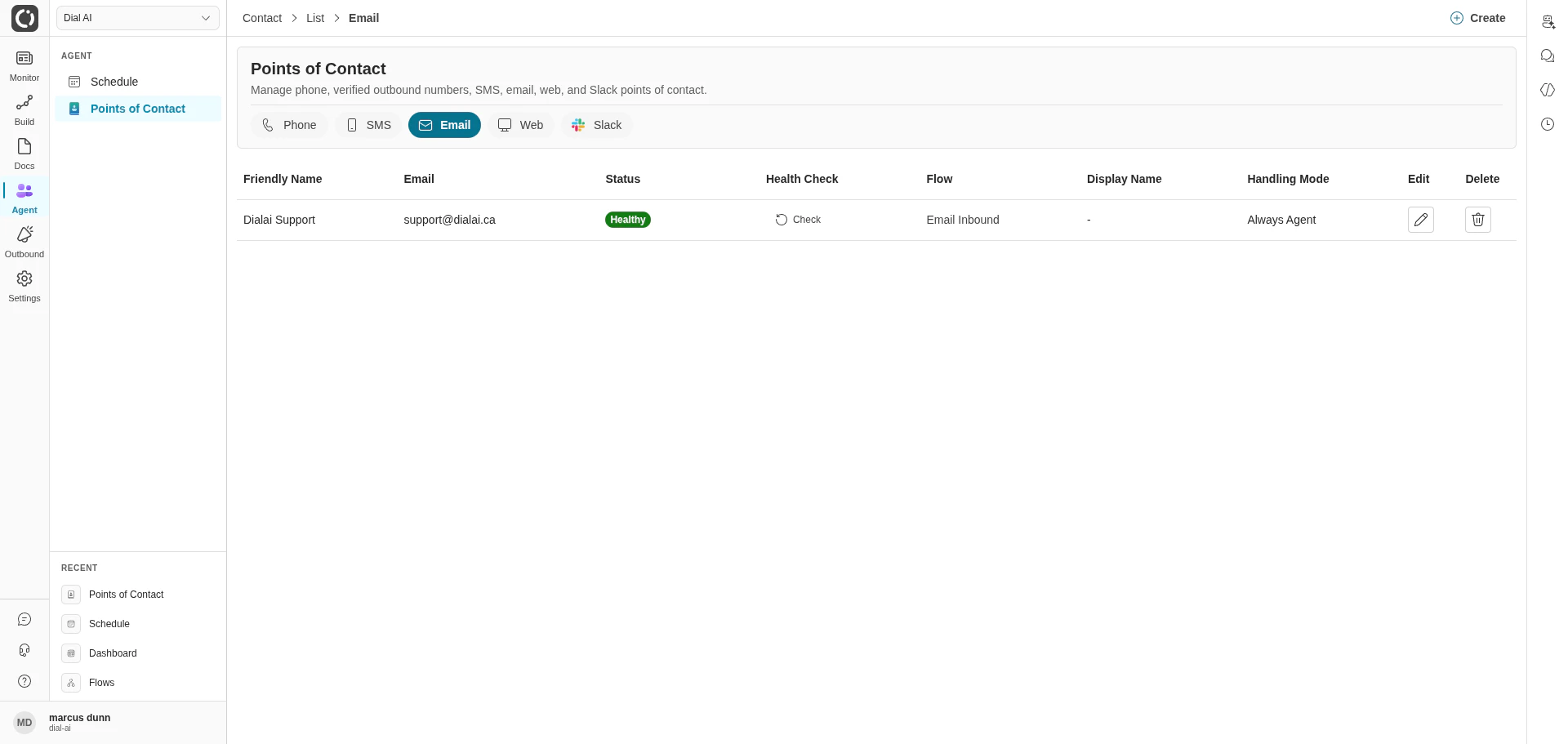
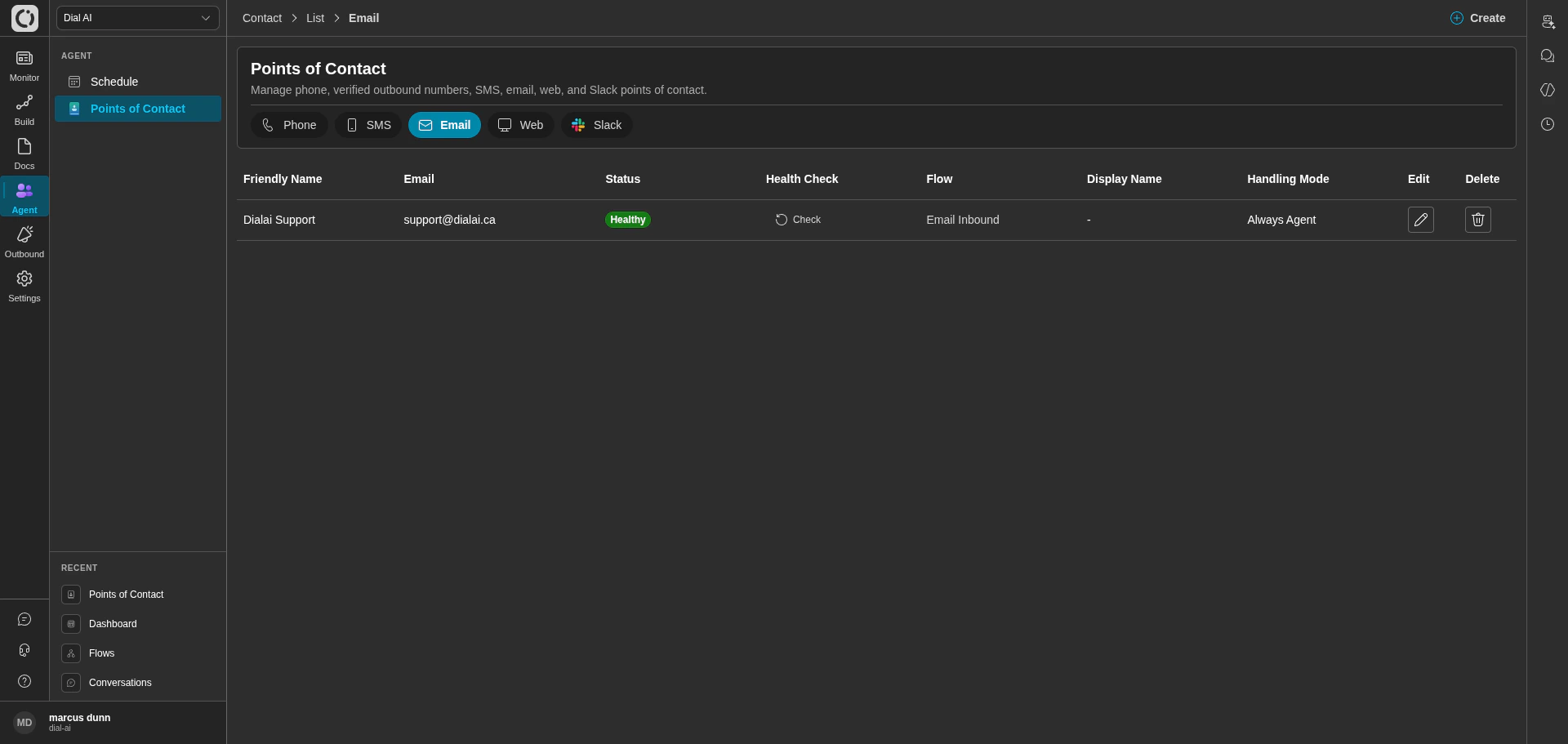 Email POCs handle inbound mail. Additional columns:
* **Email** — the address customers email.
* **Status** — health indicator for the email connection (e.g., **Healthy**).
* **Health Check** — runs a connectivity check against Microsoft Graph or SendGrid.
* **Display Name** — the name shown in the agent's outgoing replies.
* **Handling Mode** — how inbound mail is processed (e.g., **Always Agent**).
### Web
Email POCs handle inbound mail. Additional columns:
* **Email** — the address customers email.
* **Status** — health indicator for the email connection (e.g., **Healthy**).
* **Health Check** — runs a connectivity check against Microsoft Graph or SendGrid.
* **Display Name** — the name shown in the agent's outgoing replies.
* **Handling Mode** — how inbound mail is processed (e.g., **Always Agent**).
### Web
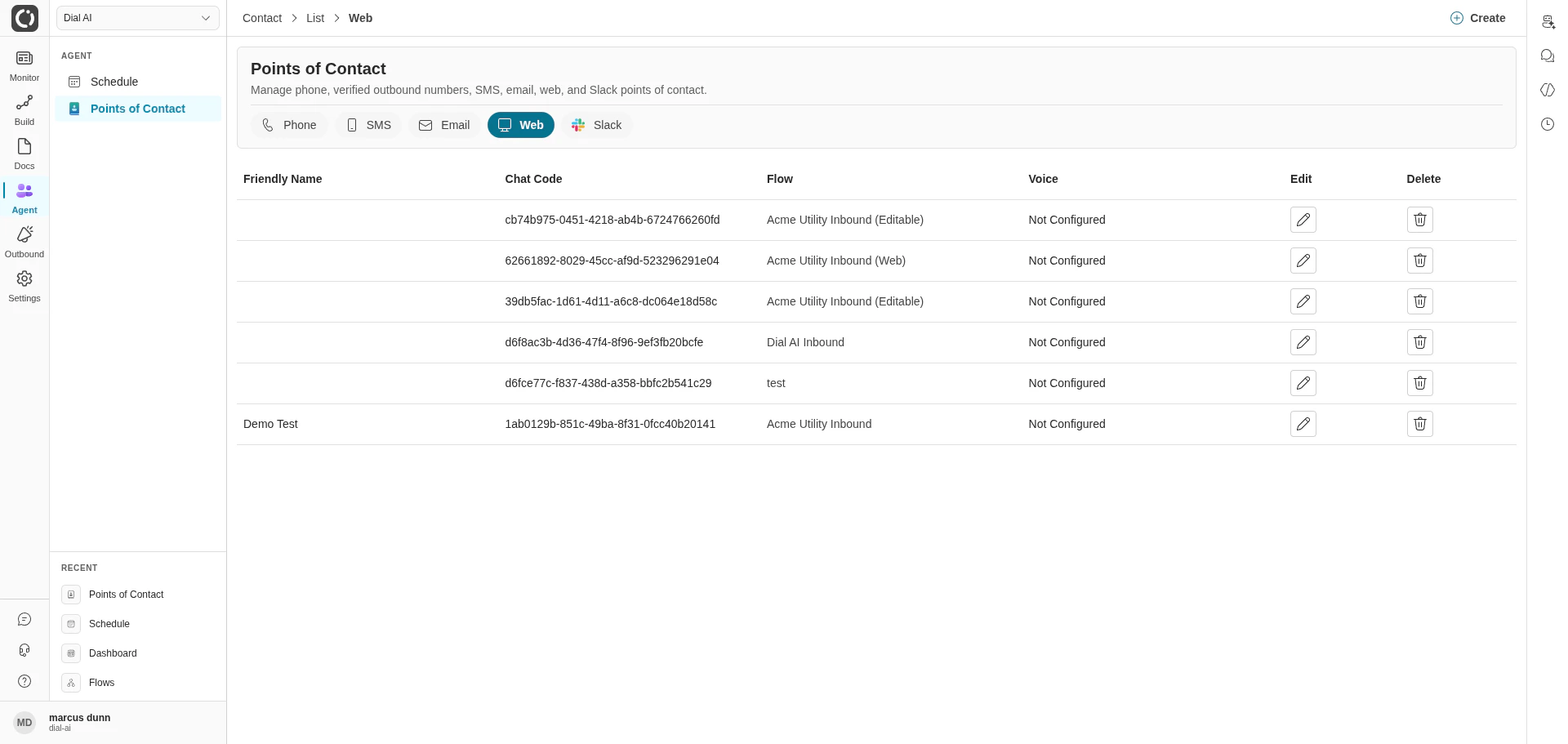
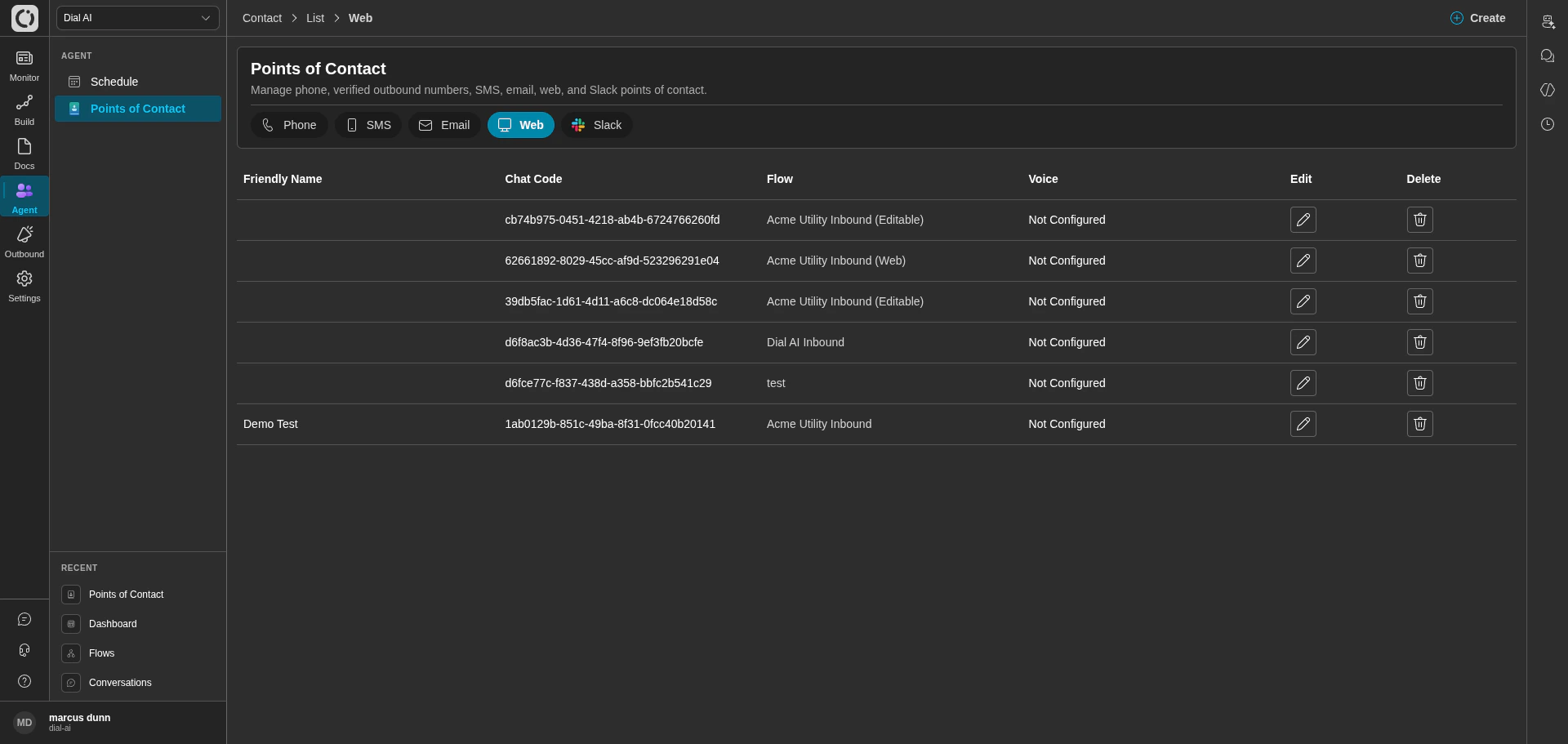 Web POCs are chat-widget links you embed on a site. Each row shows the **Chat Code** (a UUID used in the embed snippet), the **Flow** it runs, and the **Voice** assignment (used when the chat supports voice input).
See [iframe integration](/iframe-integration) and [script tag integration](/script-tag-integration) for how to embed a web POC.
### Slack
Slack POCs connect a flow to a Slack workspace. Click **Create** if the tab is empty; the create flow walks you through Slack OAuth.
## Creating a POC
Click **Create** in the top-right and pick the channel type. Required fields vary by channel:
* **Friendly Name** — internal label.
* **Channel Type** — Phone, SMS, Email, Web, or Slack.
* **Flow** — the flow this POC routes to.
* **Phone Number** / **Email** / **Chat Code** — the channel-specific identifier.
* **Environment** — Production or Internal Testing.
* For voice channels: **Speech to Text Runner**, **Speech to Text Model**, **Speech to Text Endpointing**, **Voice**, **Background Noise**.
## Editing a POC
Click the edit (pencil) icon on a row. The Edit Configuration page has three tabs.
### Details
Web POCs are chat-widget links you embed on a site. Each row shows the **Chat Code** (a UUID used in the embed snippet), the **Flow** it runs, and the **Voice** assignment (used when the chat supports voice input).
See [iframe integration](/iframe-integration) and [script tag integration](/script-tag-integration) for how to embed a web POC.
### Slack
Slack POCs connect a flow to a Slack workspace. Click **Create** if the tab is empty; the create flow walks you through Slack OAuth.
## Creating a POC
Click **Create** in the top-right and pick the channel type. Required fields vary by channel:
* **Friendly Name** — internal label.
* **Channel Type** — Phone, SMS, Email, Web, or Slack.
* **Flow** — the flow this POC routes to.
* **Phone Number** / **Email** / **Chat Code** — the channel-specific identifier.
* **Environment** — Production or Internal Testing.
* For voice channels: **Speech to Text Runner**, **Speech to Text Model**, **Speech to Text Endpointing**, **Voice**, **Background Noise**.
## Editing a POC
Click the edit (pencil) icon on a row. The Edit Configuration page has three tabs.
### Details
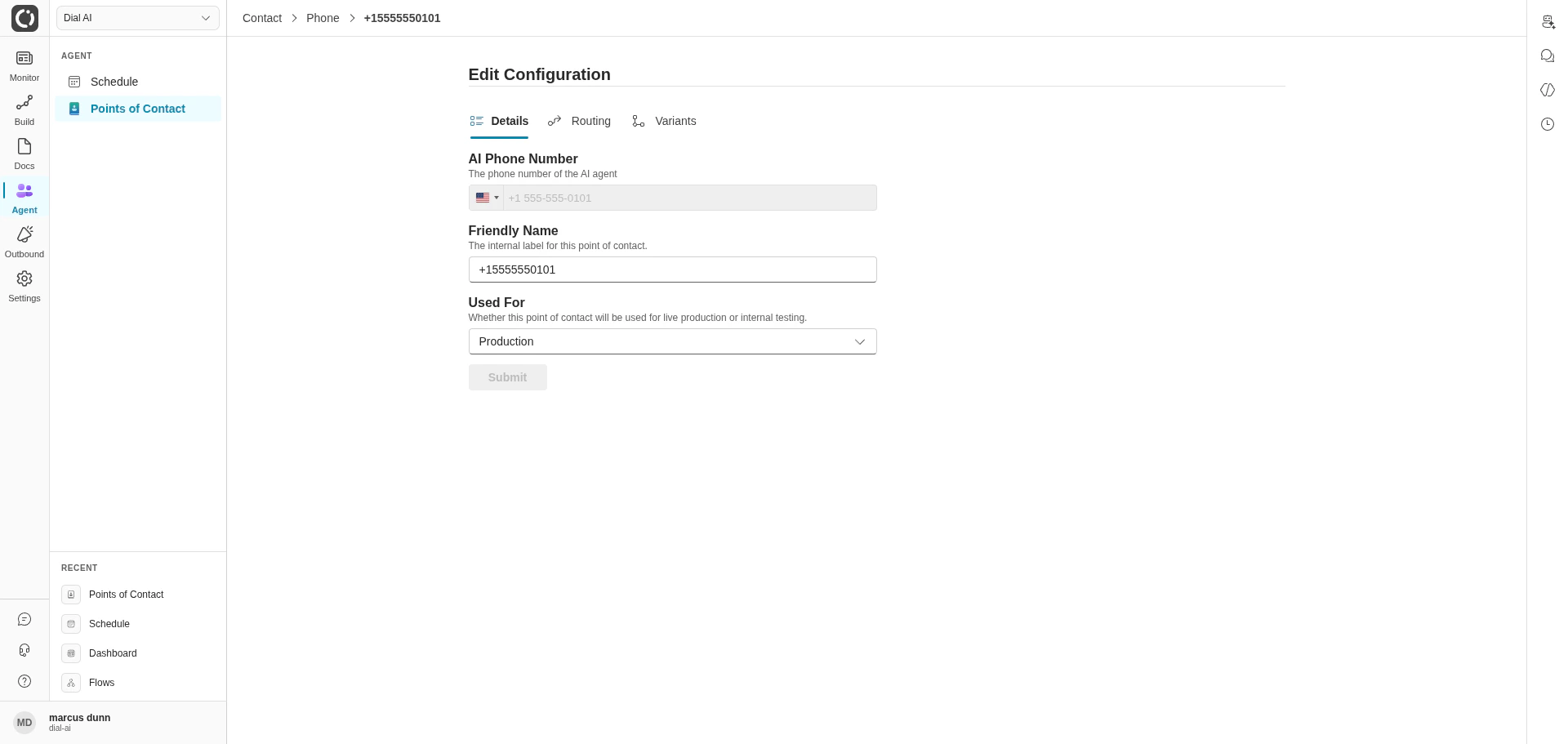
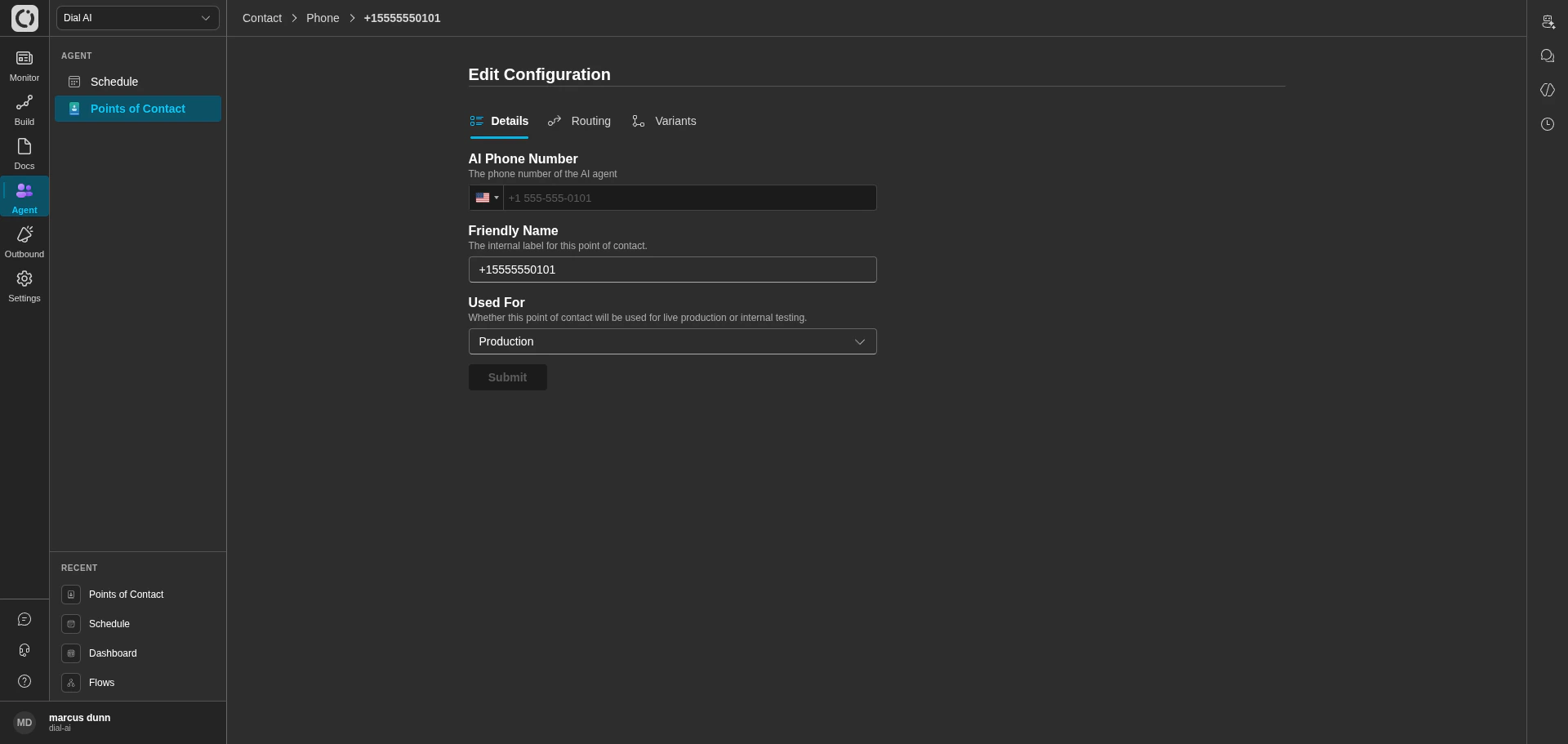 The AI Phone Number is read-only; everything else is editable:
* **Friendly Name** — internal label.
* **Used For** — Production or Internal Testing.
### Routing
The AI Phone Number is read-only; everything else is editable:
* **Friendly Name** — internal label.
* **Used For** — Production or Internal Testing.
### Routing
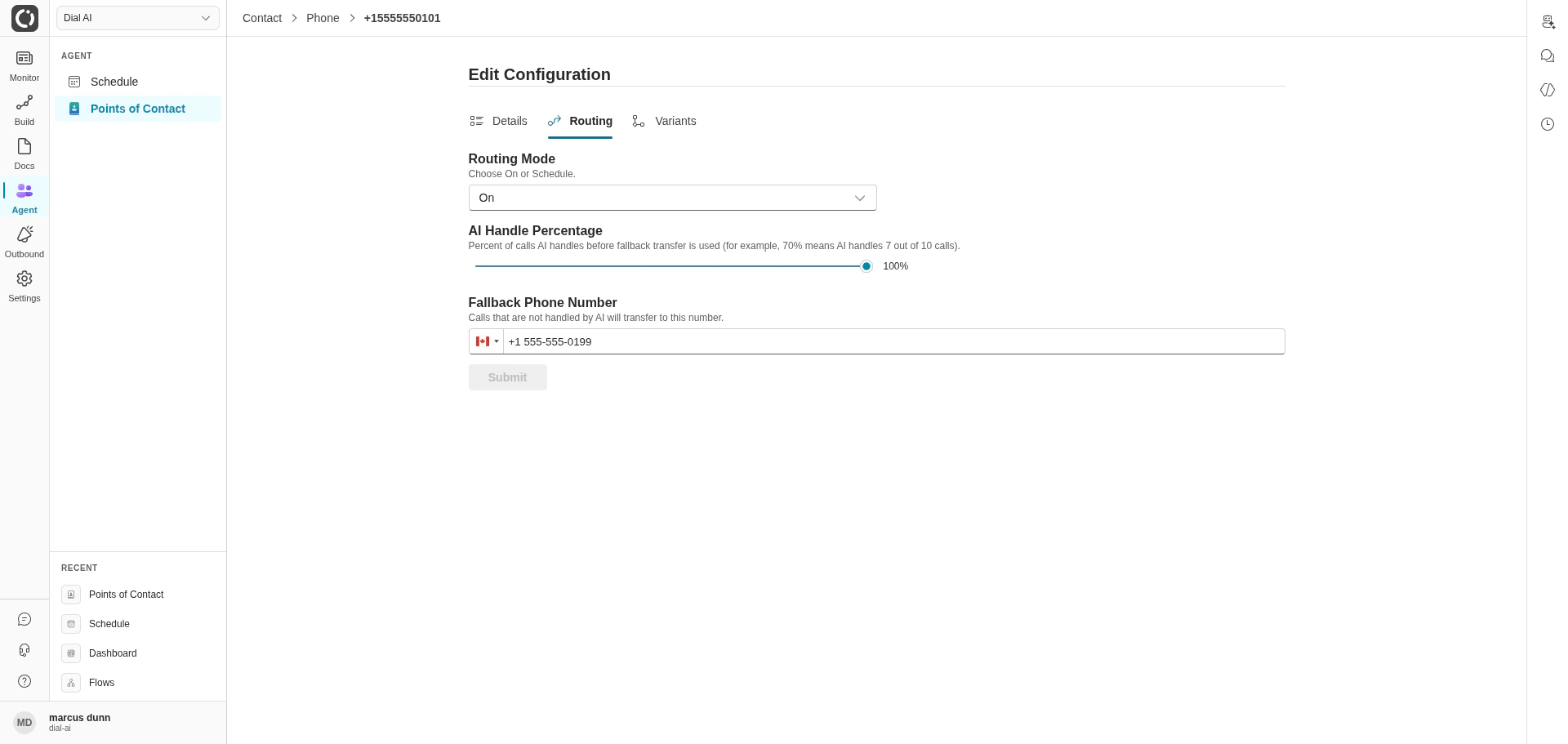
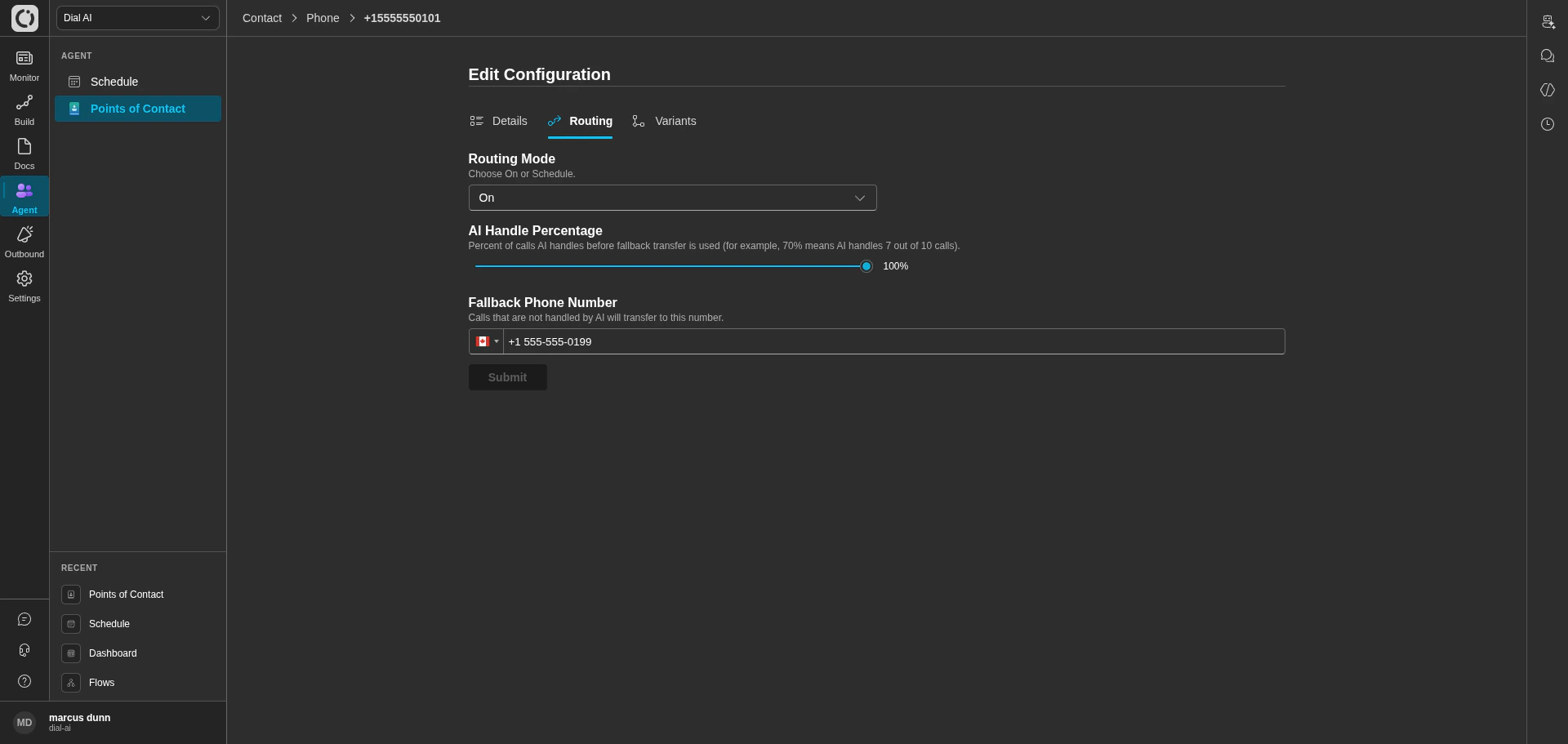 Controls how incoming interactions are distributed.
* **Routing Mode** — `On` or `Schedule`.
* **On**: AI is always active. Configure **AI Handle Percentage** (0-100%) to split traffic between AI and fallback. The remaining percentage transfers to the **Fallback Phone Number**.
* **Schedule**: AI is active only during configured time windows. Click **Edit Schedule** to open the schedule editor — see [Schedule](/schedule).
* **Fallback Phone Number** — where unhandled calls go.
### Variants
Controls how incoming interactions are distributed.
* **Routing Mode** — `On` or `Schedule`.
* **On**: AI is always active. Configure **AI Handle Percentage** (0-100%) to split traffic between AI and fallback. The remaining percentage transfers to the **Fallback Phone Number**.
* **Schedule**: AI is active only during configured time windows. Click **Edit Schedule** to open the schedule editor — see [Schedule](/schedule).
* **Fallback Phone Number** — where unhandled calls go.
### Variants
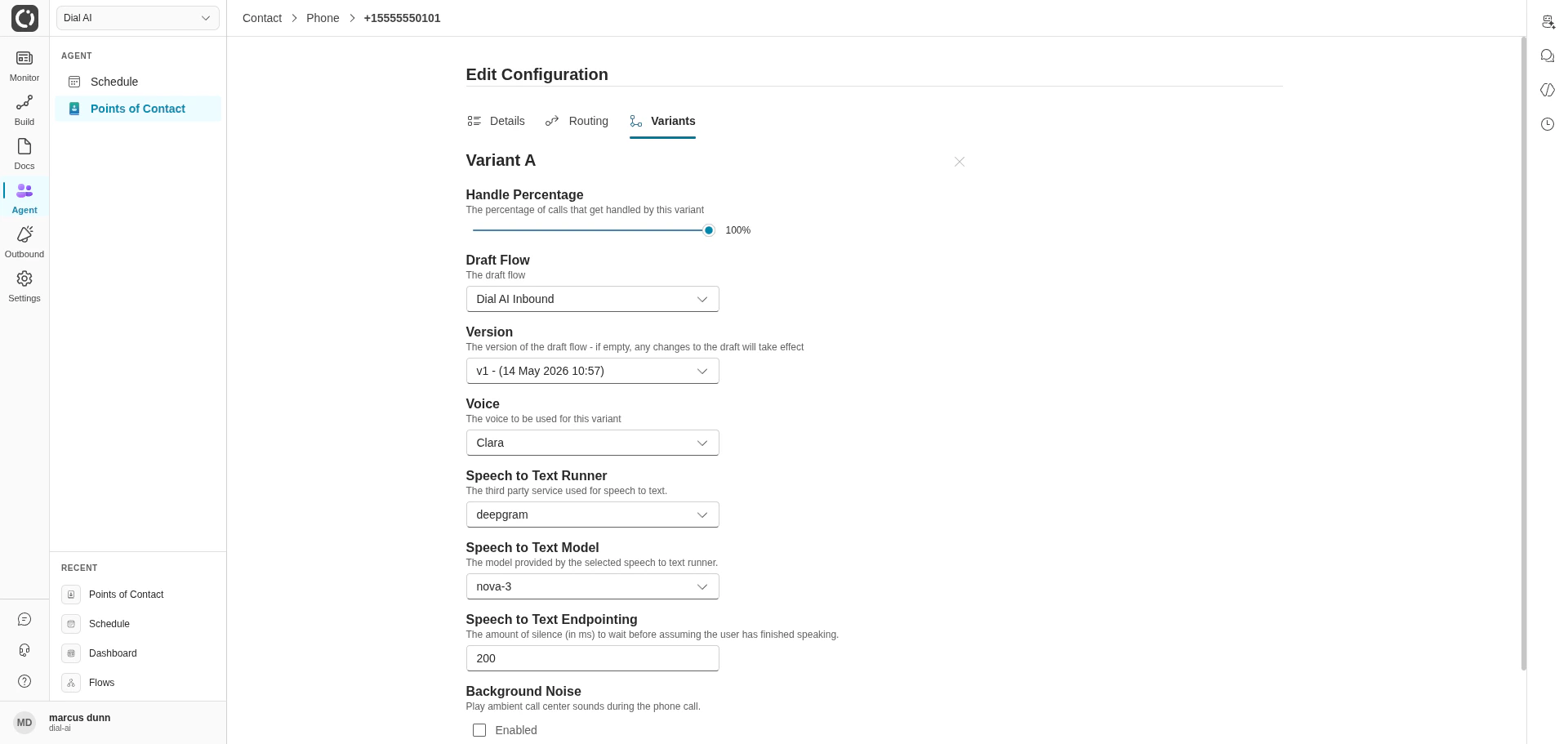
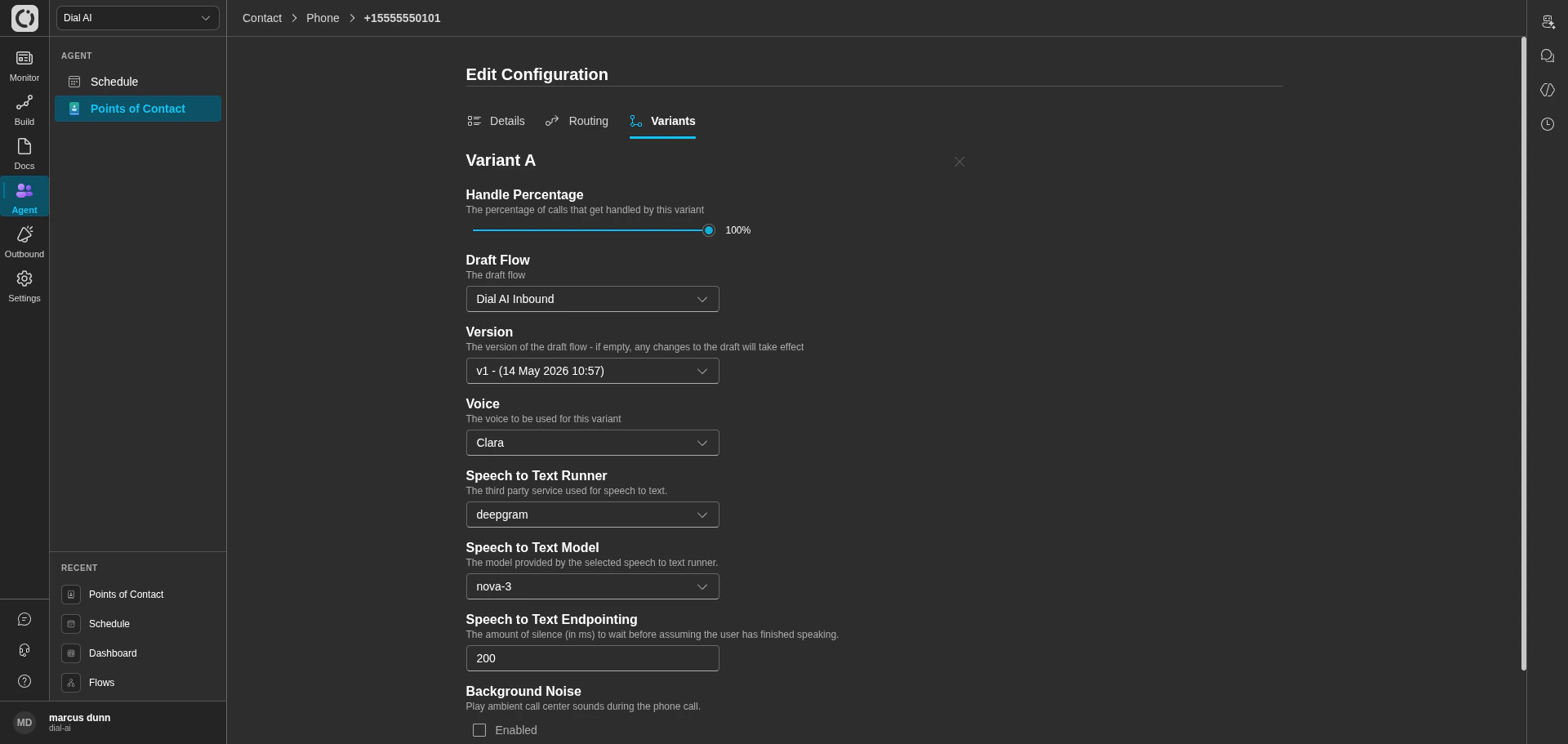 Variants let you A/B test multiple flow configurations on the same POC. Each variant has:
* **Handle Percentage** — share of calls routed to this variant. Variants must sum to 100%.
* **Draft Flow** — the flow this variant runs.
* **Version** — a specific published version. Leave empty to track the draft (any edit takes effect immediately).
* **Voice** — synthetic voice for this variant.
* **Speech to Text Runner** / **Model** / **Endpointing** — voice transcription settings.
* **Background Noise** — ambient call center sounds during voice calls.
Use **Add variant** to create a new variant; the `×` button removes one.
## Tips
* **Friendly names matter.** "Main Support Line" beats "+1 (555) 555-0101" when you have 30 POCs.
* **Roll out gradually.** Use the **AI Handle Percentage** slider to ramp the AI from 10% to 100% over a few days.
* **Test before going live.** Set **Used For** to **Internal Testing** while iterating; flip to **Production** when ready.
* **Plan fallback explicitly.** Every Phone POC needs a fallback number — don't leave it empty.
***
## Related
Set time-of-day routing windows.
Pick the AI's synthetic voice.
Embed a Web POC.
Run outbound campaigns from a verified caller ID.
Variants let you A/B test multiple flow configurations on the same POC. Each variant has:
* **Handle Percentage** — share of calls routed to this variant. Variants must sum to 100%.
* **Draft Flow** — the flow this variant runs.
* **Version** — a specific published version. Leave empty to track the draft (any edit takes effect immediately).
* **Voice** — synthetic voice for this variant.
* **Speech to Text Runner** / **Model** / **Endpointing** — voice transcription settings.
* **Background Noise** — ambient call center sounds during voice calls.
Use **Add variant** to create a new variant; the `×` button removes one.
## Tips
* **Friendly names matter.** "Main Support Line" beats "+1 (555) 555-0101" when you have 30 POCs.
* **Roll out gradually.** Use the **AI Handle Percentage** slider to ramp the AI from 10% to 100% over a few days.
* **Test before going live.** Set **Used For** to **Internal Testing** while iterating; flip to **Production** when ready.
* **Plan fallback explicitly.** Every Phone POC needs a fallback number — don't leave it empty.
***
## Related
Set time-of-day routing windows.
Pick the AI's synthetic voice.
Embed a Web POC.
Run outbound campaigns from a verified caller ID.