> ## Documentation Index
> Fetch the complete documentation index at: https://docs.dialai.ca/llms.txt
> Use this file to discover all available pages before exploring further.
# Testing Flows
> Validate AI agent flows before publishing — quick chat sandbox, simulated platforms, and reusable test scenarios
 Testing a flow before you ship it is the difference between an agent that works and an agent that drifts. The platform has three tools for this, in roughly increasing order of effort:
1. **Live Test** — a one-off interactive conversation, useful for quick "does this work?" checks while editing.
2. **Test Platform** — emulate a specific channel (Voice, SMS, Web, Email) to verify channel-specific behavior.
3. **Test Scenarios** — recorded conversations with assertions, replayable across flow versions to catch regressions.
This page covers all three.
## Live Test (chat sandbox)
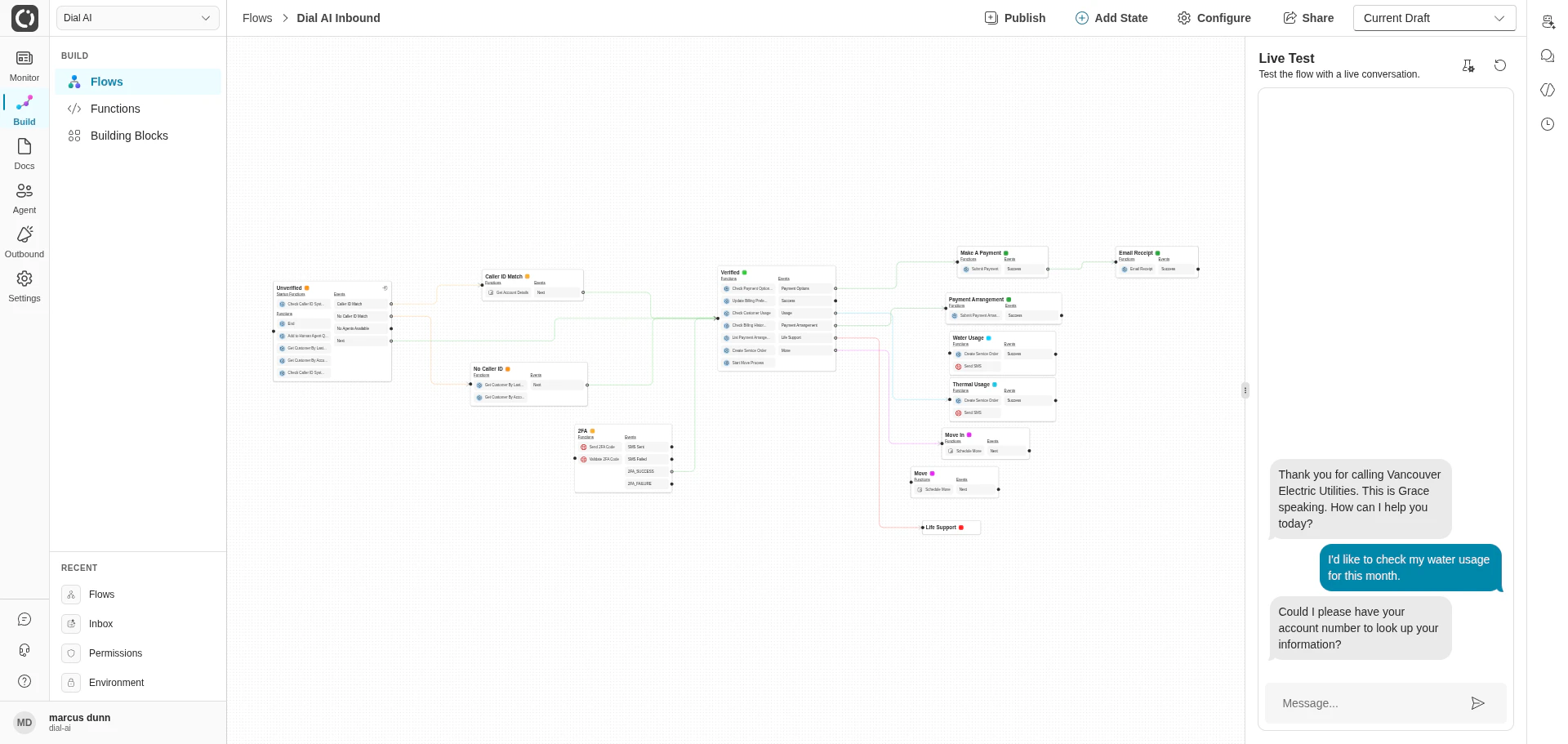
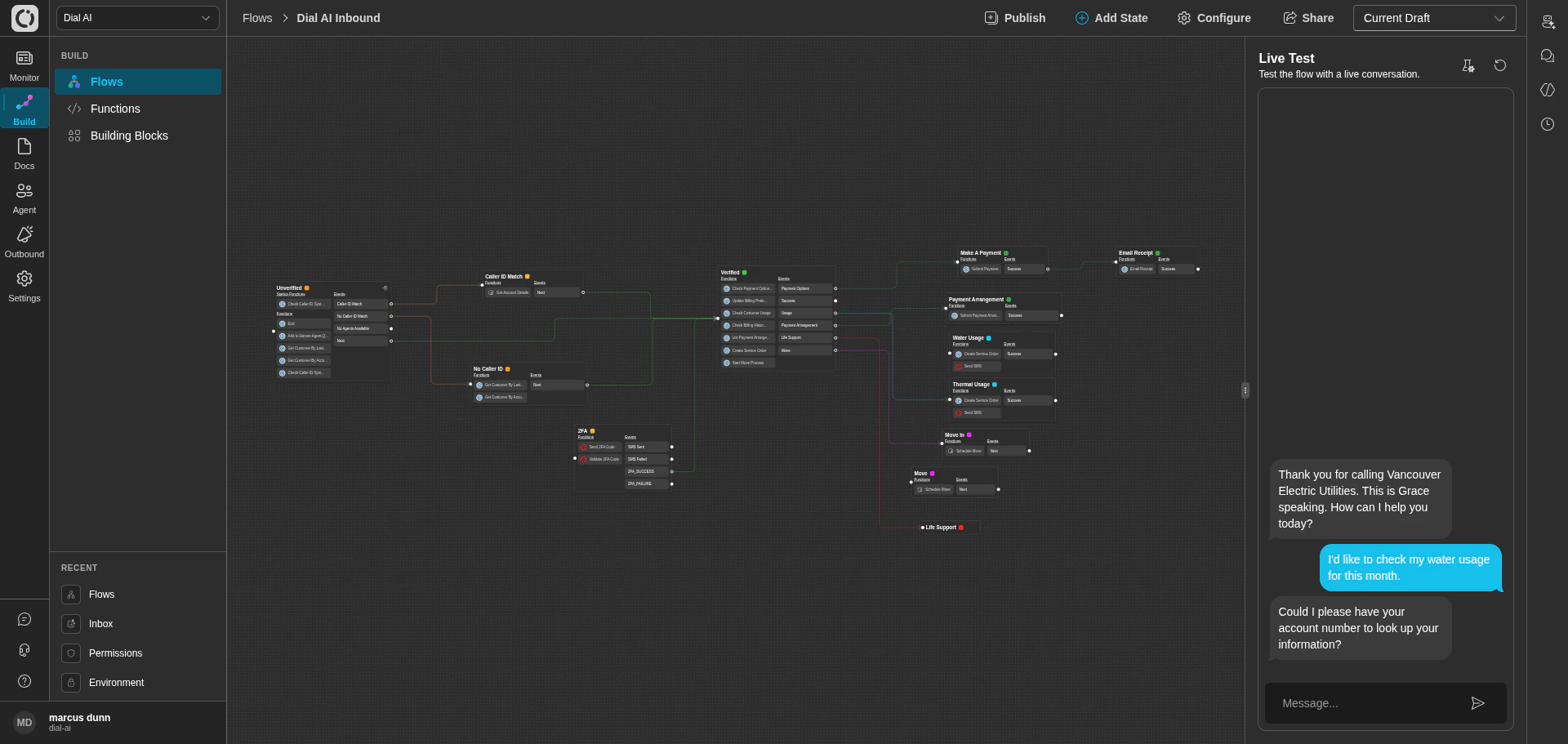
The fastest way to talk to the flow you're editing — built into the right side of the flow editor. When the panel first opens, you pick **Chat Using Text** or **Voice Using Voice** to start a conversation against the current draft.
From the **Flows** page, click any flow's **Edit** button.
On the right side, the **Live Test** panel asks "Chat Using Text" or "Voice Using Voice". Chat is text-only and faster to iterate. Voice exercises the speech pipeline end-to-end.
Type as if you were the customer. The agent responds using the current draft of the flow.
The transcript shows function calls, state transitions, and the agent's thought process alongside each turn. Use this to confirm the right functions are firing on the right inputs.
Testing a flow before you ship it is the difference between an agent that works and an agent that drifts. The platform has three tools for this, in roughly increasing order of effort:
1. **Live Test** — a one-off interactive conversation, useful for quick "does this work?" checks while editing.
2. **Test Platform** — emulate a specific channel (Voice, SMS, Web, Email) to verify channel-specific behavior.
3. **Test Scenarios** — recorded conversations with assertions, replayable across flow versions to catch regressions.
This page covers all three.
## Live Test (chat sandbox)
The fastest way to talk to the flow you're editing — built into the right side of the flow editor. When the panel first opens, you pick **Chat Using Text** or **Voice Using Voice** to start a conversation against the current draft.
From the **Flows** page, click any flow's **Edit** button.
On the right side, the **Live Test** panel asks "Chat Using Text" or "Voice Using Voice". Chat is text-only and faster to iterate. Voice exercises the speech pipeline end-to-end.
Type as if you were the customer. The agent responds using the current draft of the flow.
The transcript shows function calls, state transitions, and the agent's thought process alongside each turn. Use this to confirm the right functions are firing on the right inputs.
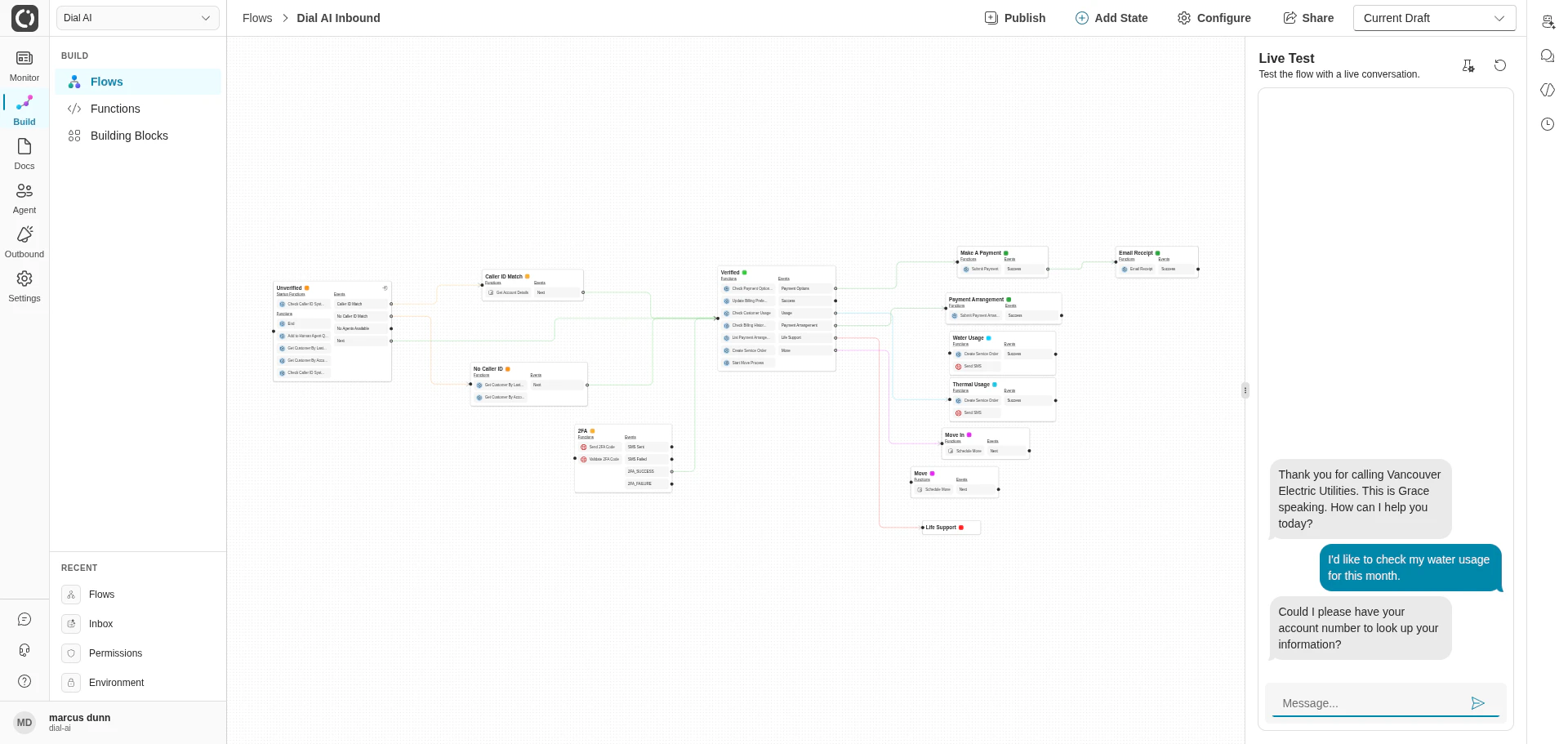
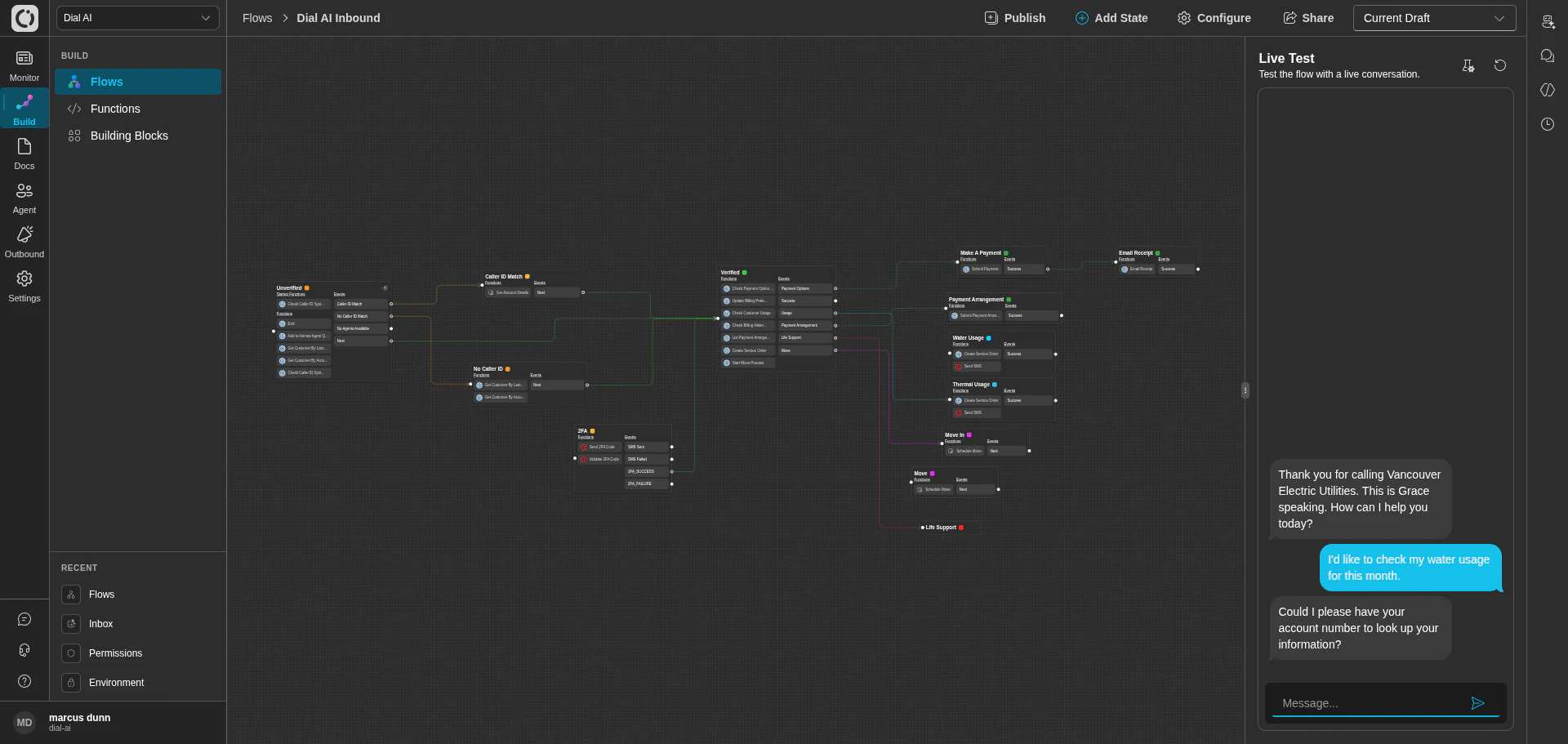 Live Test always runs against the current draft, so any edit you save is immediately reflected on the next message. No need to publish.
## Test Platform
The chat sandbox runs in a neutral text mode. Real conversations happen on specific channels — voice has different latencies and phonetic considerations than SMS; email is async and quote-aware. **Test Platform** runs the same draft flow but emulates a specific channel.
From the **Flows** page, click the three-dot menu on the flow card and select **Test Platform**.
Voice, SMS, Web, or Email. Each applies the platform-specific behavior the runtime would apply on a live conversation.
Type messages as the customer. The agent responds in the chosen channel's style — voice-style speech for Voice, short messages for SMS, formatted body text for Email.
### Channel-specific things to watch
| Channel | Watch for |
| ------- | ---------------------------------------------------------------------------------------------------------------------------- |
| Voice | The agent spells back names digit-by-digit / letter-by-letter when needed; numbers are read naturally (twenty-two, not 2-2). |
| SMS | Messages are short. Long structured responses get awkward on a phone screen. |
| Web | Formatting renders (Markdown, lists, links). |
| Email | Quotes and threading work; the agent's tone reads as written, not spoken. |
To input spaced/spelled-out characters in voice tests, type each letter separated by spaces — `B r i a n` — and the runtime will treat it as a spelled name.
## Test Scenarios
The chat sandbox and Test Platform are interactive — good for exploring, bad for catching regressions. **Test Scenarios** are recorded conversations with assertions: you walk through a flow once, save the scenario, and the platform can replay it against any future flow version to confirm behavior is stable.
### Creating a scenario
On the flow editor, open the **Test Scenarios** panel.
Click **New scenario**, walk through a representative conversation in the sandbox. Each turn is captured along with the agent's response, function calls, and state transitions.
On each turn, mark which assertions matter: a specific state was reached, a specific function was called, a specific event was emitted, a specific tag was set, the agent's reply contained certain phrasing.
Assign the scenario to a category (e.g., "Happy path", "Edge cases", "Compliance"). Save.
### Running scenarios
The Test Scenarios panel lists every saved scenario. Click **Run** on one to replay it; click **Run all** to replay the entire category. Each run shows pass/fail per assertion alongside the full replay transcript.
### Versioned results
Test results are tracked per **flow version**. When you publish a new version of a flow, run all scenarios — the platform records the result against that version. The history view shows which scenarios pass against which versions, making it easy to see when a regression was introduced and against which change.
This is the safety net for editing a flow that's already live. As long as your scenarios cover the conversations you care about, you can edit confidently — failing assertions will catch breakage before it reaches customers.
## What to test before publishing
A minimal test plan for any flow heading to production:
* **Happy path** for every primary intent your flow handles.
* **Disambiguation** — what happens when a function returns multiple matches or no matches.
* **Out-of-scope requests** — the customer asks for something this flow can't do; does the agent transfer or escalate gracefully?
* **Emergencies** if your domain has them — fire, gas leak, medical, threats of harm. The agent must route correctly.
* **Channel-specific quirks** — at minimum a smoke test on each channel the flow will run on.
* **Language fallback** if the flow is single-language but customers may try another.
Convert each into a Test Scenario so future edits can't regress them silently.
***
## Related
Where testing fits in the build process.
Most flow bugs are thought bugs — fix them here.
Configure call review criteria that complement scenario testing.
Live Test always runs against the current draft, so any edit you save is immediately reflected on the next message. No need to publish.
## Test Platform
The chat sandbox runs in a neutral text mode. Real conversations happen on specific channels — voice has different latencies and phonetic considerations than SMS; email is async and quote-aware. **Test Platform** runs the same draft flow but emulates a specific channel.
From the **Flows** page, click the three-dot menu on the flow card and select **Test Platform**.
Voice, SMS, Web, or Email. Each applies the platform-specific behavior the runtime would apply on a live conversation.
Type messages as the customer. The agent responds in the chosen channel's style — voice-style speech for Voice, short messages for SMS, formatted body text for Email.
### Channel-specific things to watch
| Channel | Watch for |
| ------- | ---------------------------------------------------------------------------------------------------------------------------- |
| Voice | The agent spells back names digit-by-digit / letter-by-letter when needed; numbers are read naturally (twenty-two, not 2-2). |
| SMS | Messages are short. Long structured responses get awkward on a phone screen. |
| Web | Formatting renders (Markdown, lists, links). |
| Email | Quotes and threading work; the agent's tone reads as written, not spoken. |
To input spaced/spelled-out characters in voice tests, type each letter separated by spaces — `B r i a n` — and the runtime will treat it as a spelled name.
## Test Scenarios
The chat sandbox and Test Platform are interactive — good for exploring, bad for catching regressions. **Test Scenarios** are recorded conversations with assertions: you walk through a flow once, save the scenario, and the platform can replay it against any future flow version to confirm behavior is stable.
### Creating a scenario
On the flow editor, open the **Test Scenarios** panel.
Click **New scenario**, walk through a representative conversation in the sandbox. Each turn is captured along with the agent's response, function calls, and state transitions.
On each turn, mark which assertions matter: a specific state was reached, a specific function was called, a specific event was emitted, a specific tag was set, the agent's reply contained certain phrasing.
Assign the scenario to a category (e.g., "Happy path", "Edge cases", "Compliance"). Save.
### Running scenarios
The Test Scenarios panel lists every saved scenario. Click **Run** on one to replay it; click **Run all** to replay the entire category. Each run shows pass/fail per assertion alongside the full replay transcript.
### Versioned results
Test results are tracked per **flow version**. When you publish a new version of a flow, run all scenarios — the platform records the result against that version. The history view shows which scenarios pass against which versions, making it easy to see when a regression was introduced and against which change.
This is the safety net for editing a flow that's already live. As long as your scenarios cover the conversations you care about, you can edit confidently — failing assertions will catch breakage before it reaches customers.
## What to test before publishing
A minimal test plan for any flow heading to production:
* **Happy path** for every primary intent your flow handles.
* **Disambiguation** — what happens when a function returns multiple matches or no matches.
* **Out-of-scope requests** — the customer asks for something this flow can't do; does the agent transfer or escalate gracefully?
* **Emergencies** if your domain has them — fire, gas leak, medical, threats of harm. The agent must route correctly.
* **Channel-specific quirks** — at minimum a smoke test on each channel the flow will run on.
* **Language fallback** if the flow is single-language but customers may try another.
Convert each into a Test Scenario so future edits can't regress them silently.
***
## Related
Where testing fits in the build process.
Most flow bugs are thought bugs — fix them here.
Configure call review criteria that complement scenario testing.