> ## Documentation Index
> Fetch the complete documentation index at: https://docs.dialai.ca/llms.txt
> Use this file to discover all available pages before exploring further.
# Theme
> Customize your tenant's branding — display name, logos, and color palette
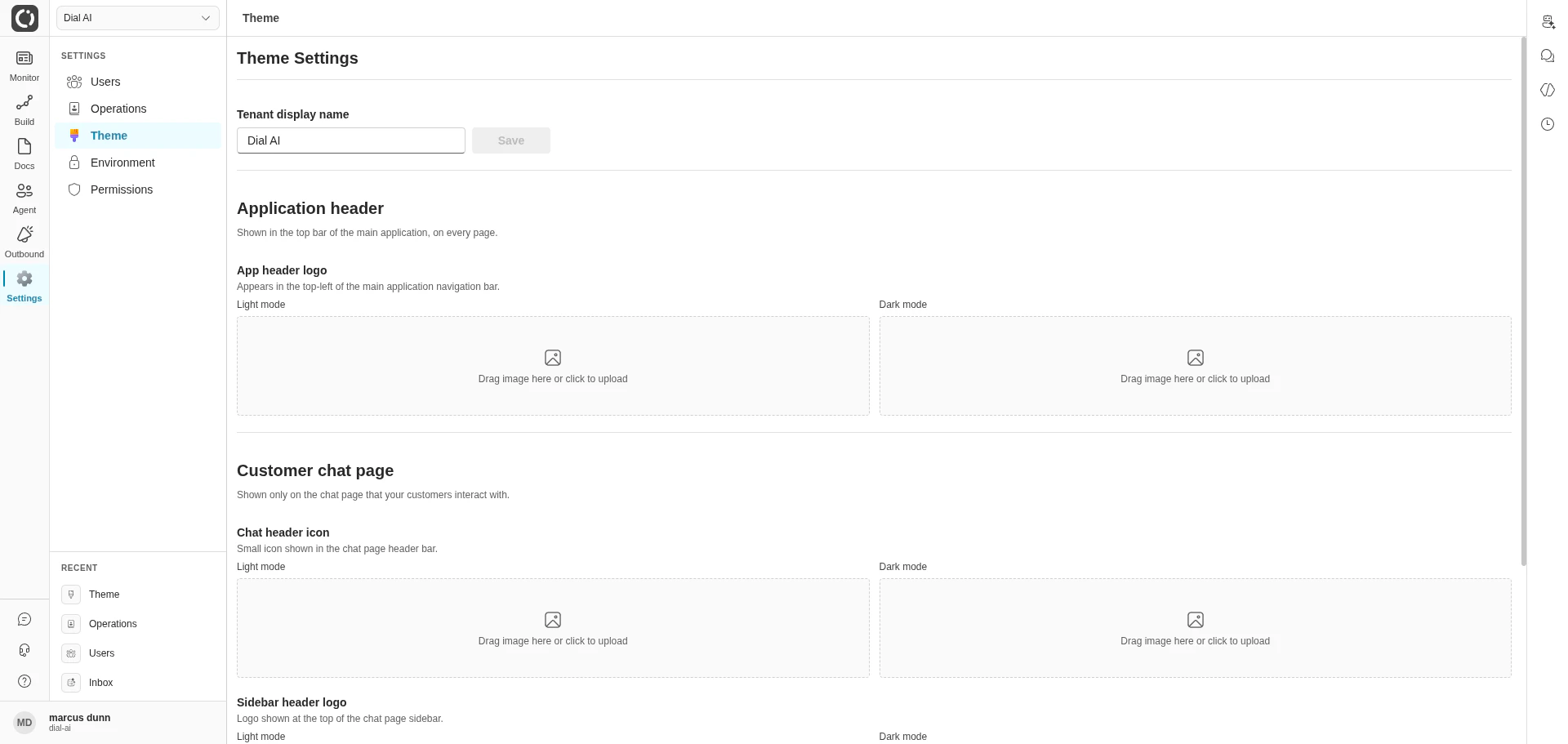
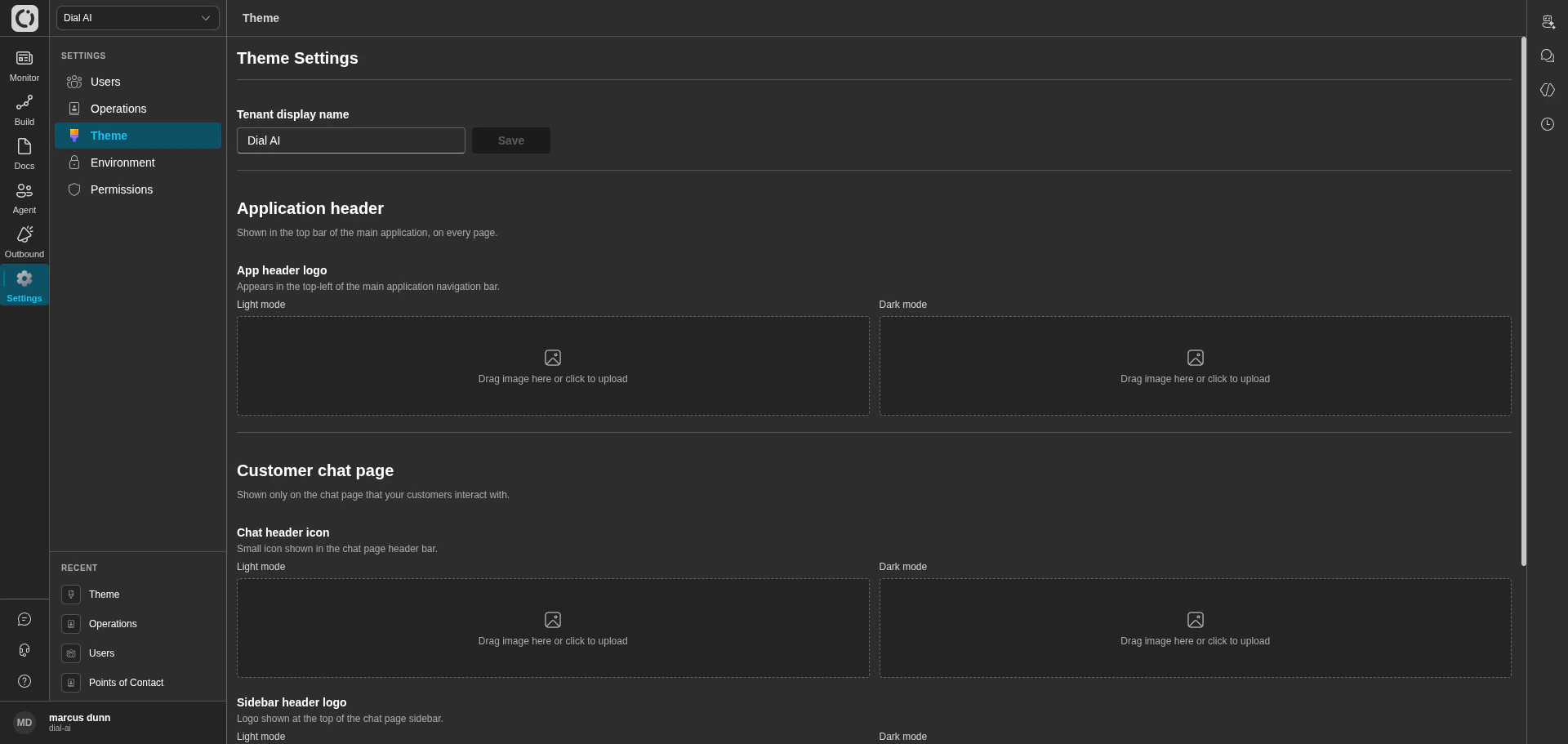 The **Theme** page controls the tenant's visible branding — the display name, the logos that appear in the app and on customer-facing chat pages, the per-handoff destination icons, and the color palette that drives buttons, badges, and links.
## Accessing Theme
Navigate to **Settings > Theme** in the left sidebar.
## Tenant display name
The **Tenant display name** field at the top of the page sets the name shown in the browser title bar, the tenant switcher, and any place the product references the tenant by name.
Type the new display name.
The **Save** button enables once the value changes.
## Logos
Every logo slot accepts a separate **Light mode** and **Dark mode** image, so your branding matches whichever theme the viewer has selected. Click the **Upload** button under each slot to pick a file (PNG or JPEG, up to 2 MB).
### Application header
The logo shown in the top-left of the platform's main navigation bar — visible on every page after sign-in.
### Customer chat page
Two surfaces, both shown on the chat page that **end customers** interact with (not the operator UI):
* **Chat header icon** — small icon shown in the chat page's header bar.
* **Sidebar header logo** — full logo shown at the top of the chat page sidebar.
The sidebar header logo is the most visible branding to your customers — invest the most polish here.
## Handoff icons
When a flow hands a conversation off to another destination (a queue, an external integration, a human agent group), the destination appears in the [Conversations](/conversations) table under the **Status** column. The Handoff icons section lets you customize the icon shown for each destination.
Only handoff destinations that have already appeared in real transcripts can be customized — the platform discovers destinations from transcript history. If you don't see a destination listed, drive a conversation that hands off to it first, then return here.
## Color palette (Brand)
The brand palette drives primary buttons, chat bubbles, link colors, and selected branded UI elements. It is a 16-step ramp from `10` (darkest) to `160` (lightest), with `80` representing the primary brand color.
### Example palette
```json theme={null}
{
"10": "#011821", "20": "#045066", "30": "#04566c", "40": "#056078",
"50": "#00647d", "60": "#00647d", "70": "#017490", "80": "#0088AA",
"90": "#0194b7", "100": "#08b1da", "110": "#0fc1ec", "120": "#43d8fd",
"130": "#47d6fa", "140": "#84e9ff", "150": "#a3f8ff", "160": "#eefcff"
}
```
### Generating a palette
A practical way to build a coordinated palette from a new primary color is to provide an example like the one above to an LLM along with your new `80` value and ask for a matching ramp.
### Applying a palette
Themes are applied per tenant via the API:
```http theme={null}
PUT /api/v1/frontend/config/theme/update
X-Organization-Id: {your-tenant}
Authorization: Bearer {token}
Content-Type: application/json
{"10": "#...", "20": "#...", ..., "160": "#..."}
```
For the underlying theme variables and what each one drives, see [Fluent UI 9's theme documentation](https://react.fluentui.dev/?path=/docs/theme-colors--docs) — the platform's UI is built on Fluent UI 9, so every variable from that catalog is accepted in the body.
### Advanced — per-mode overrides
To override individual variables for light and dark mode separately, prefix the key with `light-` or `dark-`:
```json theme={null}
{
"80": "#E10D11",
"light-colorNeutralStroke2": "#708090",
"dark-colorNeutralStroke2": "#434D54"
}
```
Custom theme overrides can break contrast and readability. Test against WCAG contrast guidelines before rolling a change tenant-wide.
### Commonly tuned variables
| Variable | What it drives |
| --------------------------------- | -------------------------------------------------- |
| `colorNeutralBackground1` | Main background. |
| `colorNeutralBackground1Selected` | Customer chat bubbles, user tags, card grid items. |
| `colorNeutralBackground3` | Secondary background panels. |
| `colorNeutralForeground1` | Primary text. |
| `colorNeutralForeground3` | Secondary text. |
| `colorNeutralStroke2` | Main border color. |
| `colorBrandForegroundLink` | Link color. |
***
## Related
Manage tenant-wide environment variables and secrets.
Onboard operators who will see this branding.
The customer-facing chat surface the logos appear on.
The **Theme** page controls the tenant's visible branding — the display name, the logos that appear in the app and on customer-facing chat pages, the per-handoff destination icons, and the color palette that drives buttons, badges, and links.
## Accessing Theme
Navigate to **Settings > Theme** in the left sidebar.
## Tenant display name
The **Tenant display name** field at the top of the page sets the name shown in the browser title bar, the tenant switcher, and any place the product references the tenant by name.
Type the new display name.
The **Save** button enables once the value changes.
## Logos
Every logo slot accepts a separate **Light mode** and **Dark mode** image, so your branding matches whichever theme the viewer has selected. Click the **Upload** button under each slot to pick a file (PNG or JPEG, up to 2 MB).
### Application header
The logo shown in the top-left of the platform's main navigation bar — visible on every page after sign-in.
### Customer chat page
Two surfaces, both shown on the chat page that **end customers** interact with (not the operator UI):
* **Chat header icon** — small icon shown in the chat page's header bar.
* **Sidebar header logo** — full logo shown at the top of the chat page sidebar.
The sidebar header logo is the most visible branding to your customers — invest the most polish here.
## Handoff icons
When a flow hands a conversation off to another destination (a queue, an external integration, a human agent group), the destination appears in the [Conversations](/conversations) table under the **Status** column. The Handoff icons section lets you customize the icon shown for each destination.
Only handoff destinations that have already appeared in real transcripts can be customized — the platform discovers destinations from transcript history. If you don't see a destination listed, drive a conversation that hands off to it first, then return here.
## Color palette (Brand)
The brand palette drives primary buttons, chat bubbles, link colors, and selected branded UI elements. It is a 16-step ramp from `10` (darkest) to `160` (lightest), with `80` representing the primary brand color.
### Example palette
```json theme={null}
{
"10": "#011821", "20": "#045066", "30": "#04566c", "40": "#056078",
"50": "#00647d", "60": "#00647d", "70": "#017490", "80": "#0088AA",
"90": "#0194b7", "100": "#08b1da", "110": "#0fc1ec", "120": "#43d8fd",
"130": "#47d6fa", "140": "#84e9ff", "150": "#a3f8ff", "160": "#eefcff"
}
```
### Generating a palette
A practical way to build a coordinated palette from a new primary color is to provide an example like the one above to an LLM along with your new `80` value and ask for a matching ramp.
### Applying a palette
Themes are applied per tenant via the API:
```http theme={null}
PUT /api/v1/frontend/config/theme/update
X-Organization-Id: {your-tenant}
Authorization: Bearer {token}
Content-Type: application/json
{"10": "#...", "20": "#...", ..., "160": "#..."}
```
For the underlying theme variables and what each one drives, see [Fluent UI 9's theme documentation](https://react.fluentui.dev/?path=/docs/theme-colors--docs) — the platform's UI is built on Fluent UI 9, so every variable from that catalog is accepted in the body.
### Advanced — per-mode overrides
To override individual variables for light and dark mode separately, prefix the key with `light-` or `dark-`:
```json theme={null}
{
"80": "#E10D11",
"light-colorNeutralStroke2": "#708090",
"dark-colorNeutralStroke2": "#434D54"
}
```
Custom theme overrides can break contrast and readability. Test against WCAG contrast guidelines before rolling a change tenant-wide.
### Commonly tuned variables
| Variable | What it drives |
| --------------------------------- | -------------------------------------------------- |
| `colorNeutralBackground1` | Main background. |
| `colorNeutralBackground1Selected` | Customer chat bubbles, user tags, card grid items. |
| `colorNeutralBackground3` | Secondary background panels. |
| `colorNeutralForeground1` | Primary text. |
| `colorNeutralForeground3` | Secondary text. |
| `colorNeutralStroke2` | Main border color. |
| `colorBrandForegroundLink` | Link color. |
***
## Related
Manage tenant-wide environment variables and secrets.
Onboard operators who will see this branding.
The customer-facing chat surface the logos appear on.