> ## Documentation Index
> Fetch the complete documentation index at: https://docs.dialai.ca/llms.txt
> Use this file to discover all available pages before exploring further.
# Users
> Create, edit, and de-provision tenant operator accounts
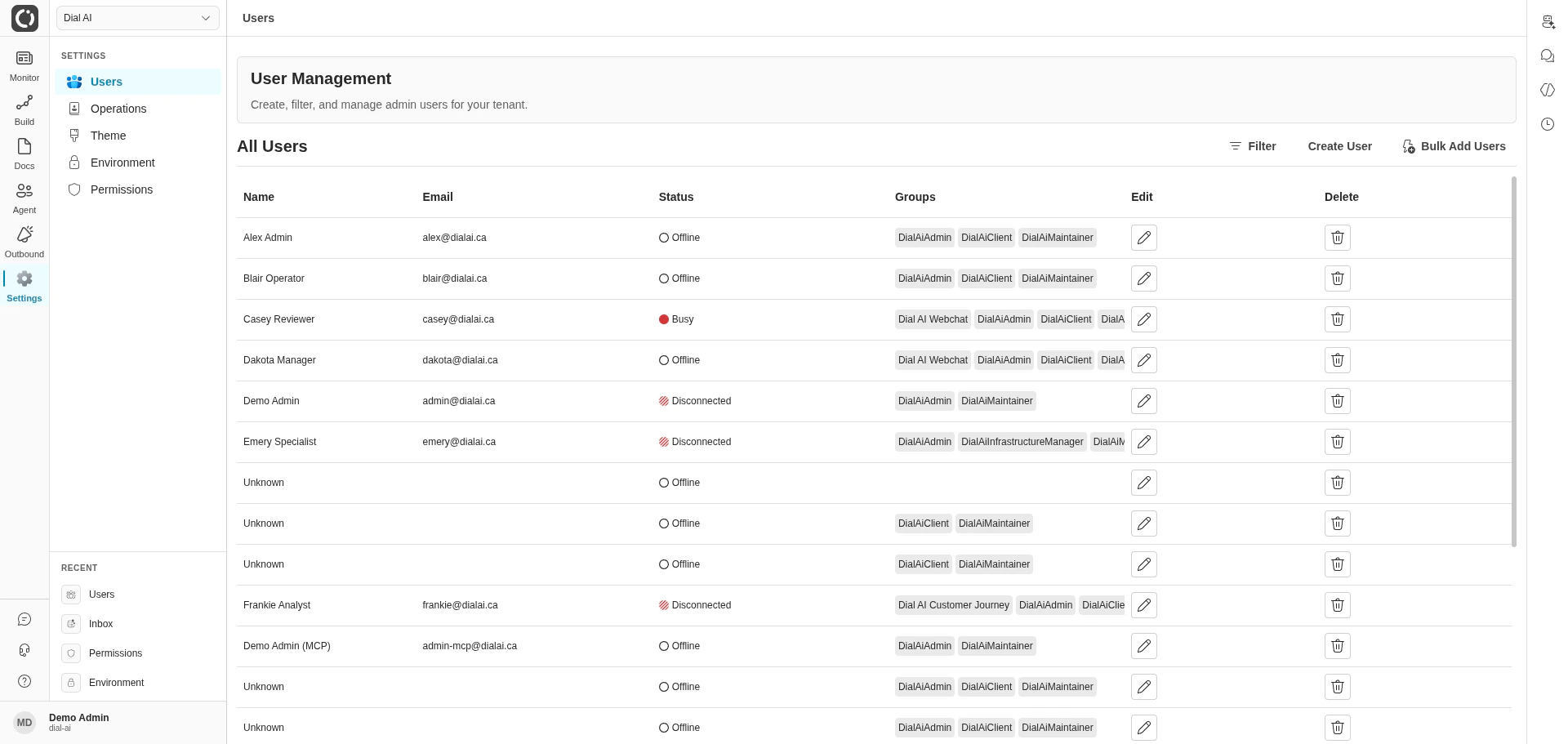
 The **Users** page is where you onboard, edit, and de-provision the operators who use the platform — the people who monitor conversations, build flows, take handoffs, and run campaigns. Every user belongs to one or more roles, and roles determine what they can do.
## Accessing Users
Navigate to **Settings > Users** in the left sidebar.
## What's on the page
The users table lists every operator account in your tenant.
| Column | What it shows |
| ---------- | ---------------------------------------------------------------------------------------------------------- |
| **Name** | Display name. Searchable from the filter. |
| **Email** | Login email. Searchable from the filter. |
| **Status** | Current availability — `Available`, `Busy`, `Offline`, or `Disconnected` (websocket dropped unexpectedly). |
| **Groups** | Role badges (e.g., **DialAiAdmin**, **Maintainer**, **Read-Only**). |
| **Edit** | Open the edit drawer for this user. |
| **Delete** | Soft-delete the account after confirmation. |
Top-right actions:
* **Filter** — narrow the list by name, email, status, or role.
* **Bulk Add Users** — onboard many users at once via CSV.
* **Create User** — open the single-user create form.
## Creating a user
Opens the create form.
The email must be unique within the tenant. An invite email with a password-set link is sent automatically.
Roles drive access. See [Permissions](/permissions) for what each role allows.
The user appears in the table immediately.
## Bulk onboarding
Click **Bulk Add Users** to provision many accounts at once. Useful when standing up a new team or seeding a fresh tenant.
## Editing a user
Click the edit (pencil) icon on a row. The drawer exposes:
* **Groups** — add or remove role memberships.
* **Status** — manually set availability.
* **CSR User** — flag this account as a human agent eligible for routing.
* **Skills** — assign [Skills](/operations#skills) used to match handoffs to this user.
* **Voice Calls** — toggle whether voice calls can be routed to this user.
* **Max Chats / Max Emails** — concurrency caps (0–10 each).
* **Mobile Phone Number** — PSTN destination for transferred calls.
To promote a temporary admin, just add the **DialAiAdmin** group. No re-invite required.
## De-provisioning
The confirmation dialog asks you to type the user's email to confirm.
The account is soft-deleted — historical reports keep referencing it, but the user can no longer sign in.
## Read-only fields
Username, first name, last name, and email are immutable after creation. To change any of these, create a new account and de-provision the old one.
## What "Disconnected" means
The user's browser websocket closed without a clean sign-out (tab closed, network drop, sleep). They appear offline to the router until they re-open the app.
***
## Related
Roles, scopes, and what each role lets a user do.
What an individual user can tune for themselves.
Define the skills users select for routing.
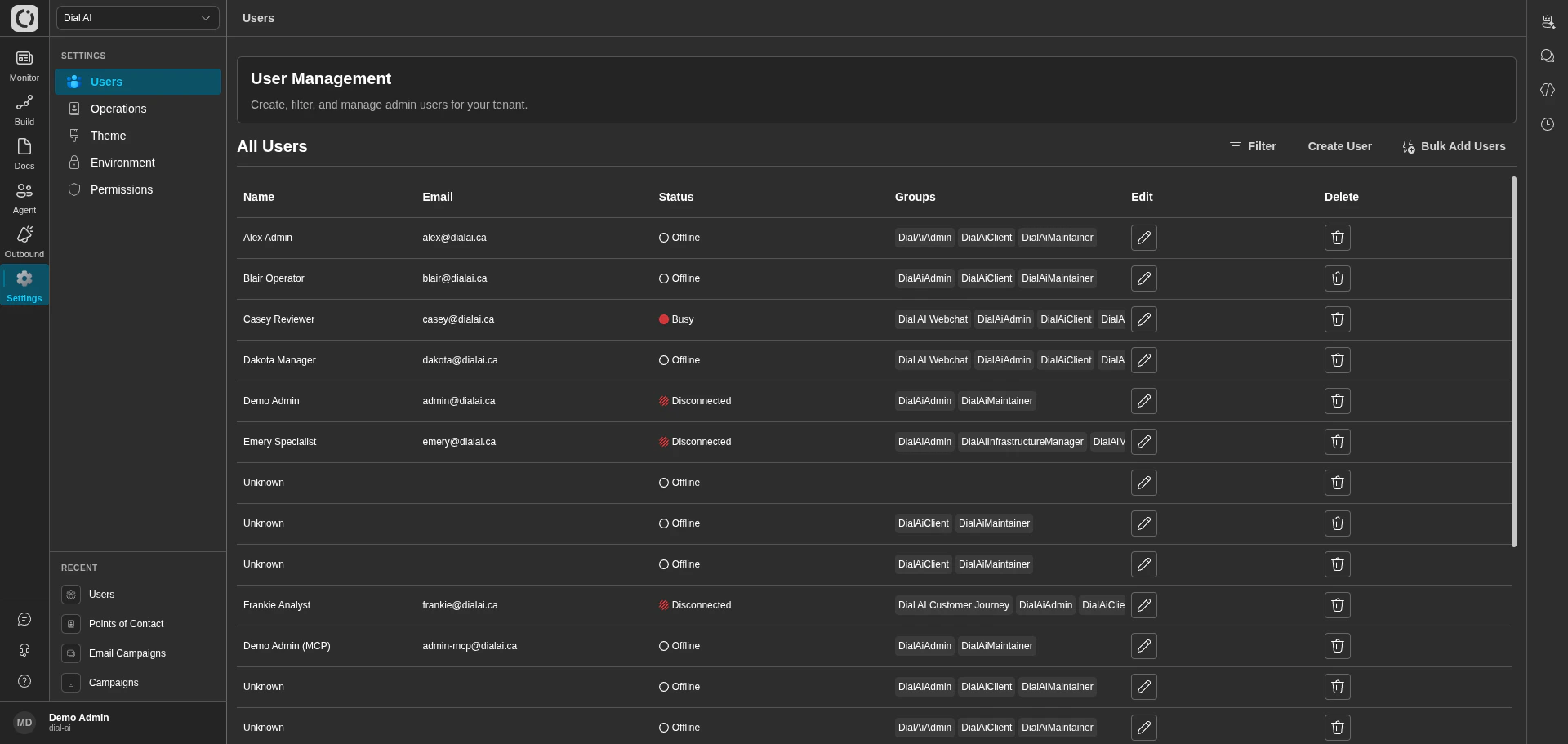
The **Users** page is where you onboard, edit, and de-provision the operators who use the platform — the people who monitor conversations, build flows, take handoffs, and run campaigns. Every user belongs to one or more roles, and roles determine what they can do.
## Accessing Users
Navigate to **Settings > Users** in the left sidebar.
## What's on the page
The users table lists every operator account in your tenant.
| Column | What it shows |
| ---------- | ---------------------------------------------------------------------------------------------------------- |
| **Name** | Display name. Searchable from the filter. |
| **Email** | Login email. Searchable from the filter. |
| **Status** | Current availability — `Available`, `Busy`, `Offline`, or `Disconnected` (websocket dropped unexpectedly). |
| **Groups** | Role badges (e.g., **DialAiAdmin**, **Maintainer**, **Read-Only**). |
| **Edit** | Open the edit drawer for this user. |
| **Delete** | Soft-delete the account after confirmation. |
Top-right actions:
* **Filter** — narrow the list by name, email, status, or role.
* **Bulk Add Users** — onboard many users at once via CSV.
* **Create User** — open the single-user create form.
## Creating a user
Opens the create form.
The email must be unique within the tenant. An invite email with a password-set link is sent automatically.
Roles drive access. See [Permissions](/permissions) for what each role allows.
The user appears in the table immediately.
## Bulk onboarding
Click **Bulk Add Users** to provision many accounts at once. Useful when standing up a new team or seeding a fresh tenant.
## Editing a user
Click the edit (pencil) icon on a row. The drawer exposes:
* **Groups** — add or remove role memberships.
* **Status** — manually set availability.
* **CSR User** — flag this account as a human agent eligible for routing.
* **Skills** — assign [Skills](/operations#skills) used to match handoffs to this user.
* **Voice Calls** — toggle whether voice calls can be routed to this user.
* **Max Chats / Max Emails** — concurrency caps (0–10 each).
* **Mobile Phone Number** — PSTN destination for transferred calls.
To promote a temporary admin, just add the **DialAiAdmin** group. No re-invite required.
## De-provisioning
The confirmation dialog asks you to type the user's email to confirm.
The account is soft-deleted — historical reports keep referencing it, but the user can no longer sign in.
## Read-only fields
Username, first name, last name, and email are immutable after creation. To change any of these, create a new account and de-provision the old one.
## What "Disconnected" means
The user's browser websocket closed without a clean sign-out (tab closed, network drop, sleep). They appear offline to the router until they re-open the app.
***
## Related
Roles, scopes, and what each role lets a user do.
What an individual user can tune for themselves.
Define the skills users select for routing.