> ## Documentation Index
> Fetch the complete documentation index at: https://docs.dialai.ca/llms.txt
> Use this file to discover all available pages before exploring further.
# Web Widgets
> Put a chat with one of your flows on your website, with a launcher in the corner of each page.
 A **web widget** puts a chat with one of your flows on your own website. The widget adds a launcher in a bottom corner of each page. A visitor clicks the launcher, and a chat panel opens on the same page.
Web Widgets are the new way to put chat on a website. They replace the legacy web chat (chat links on the **Web (Legacy)** tab, with the [iframe](/iframe-integration) or the [script tag](/script-tag-integration)). Use a web widget for each new site.
A widget has these parts:
* **A flow** — the flow that answers the visitors.
* **Allowed sites** — the sites that can show the widget. No other site can show it.
* **An appearance** — a preset and your changes to it. See [Widget appearance](/web-widget-appearance).
* **Sign-in** — optional. A portal that signs its customers in can tell the widget who the customer is. See [Signed-in visitors](/web-widget-sign-in).
## Find Web Widgets
Go to **Agent > Points of Contact** and select the **Web Widgets** tab.
The tab shows only when your role has the `web-widgets:list` permission. Other actions need other permissions:
| Permission | What it lets you do |
| - | - |
| `web-widgets:list` | See the **Web Widgets** tab and the list of widgets. |
| `web-widgets:read` | Open the page of a widget. |
| `web-widgets:create` | Create a widget with **Create Widget**. |
| `web-widgets:update` | Change a widget: its status, allowed sites, appearance and sign-in. |
| `web-widgets:simulate` | Use **Act as a customer** on the **Try it** card. |
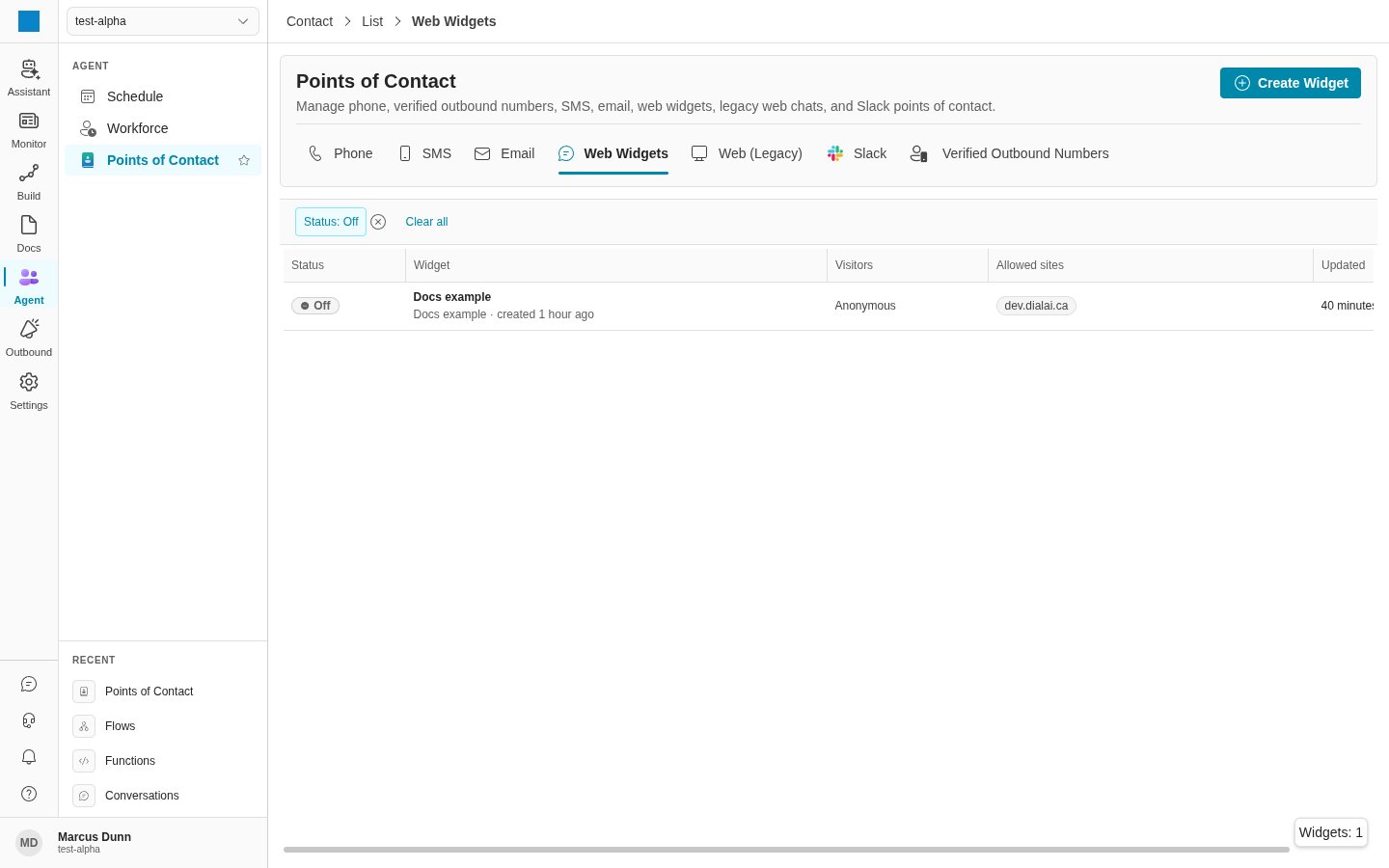
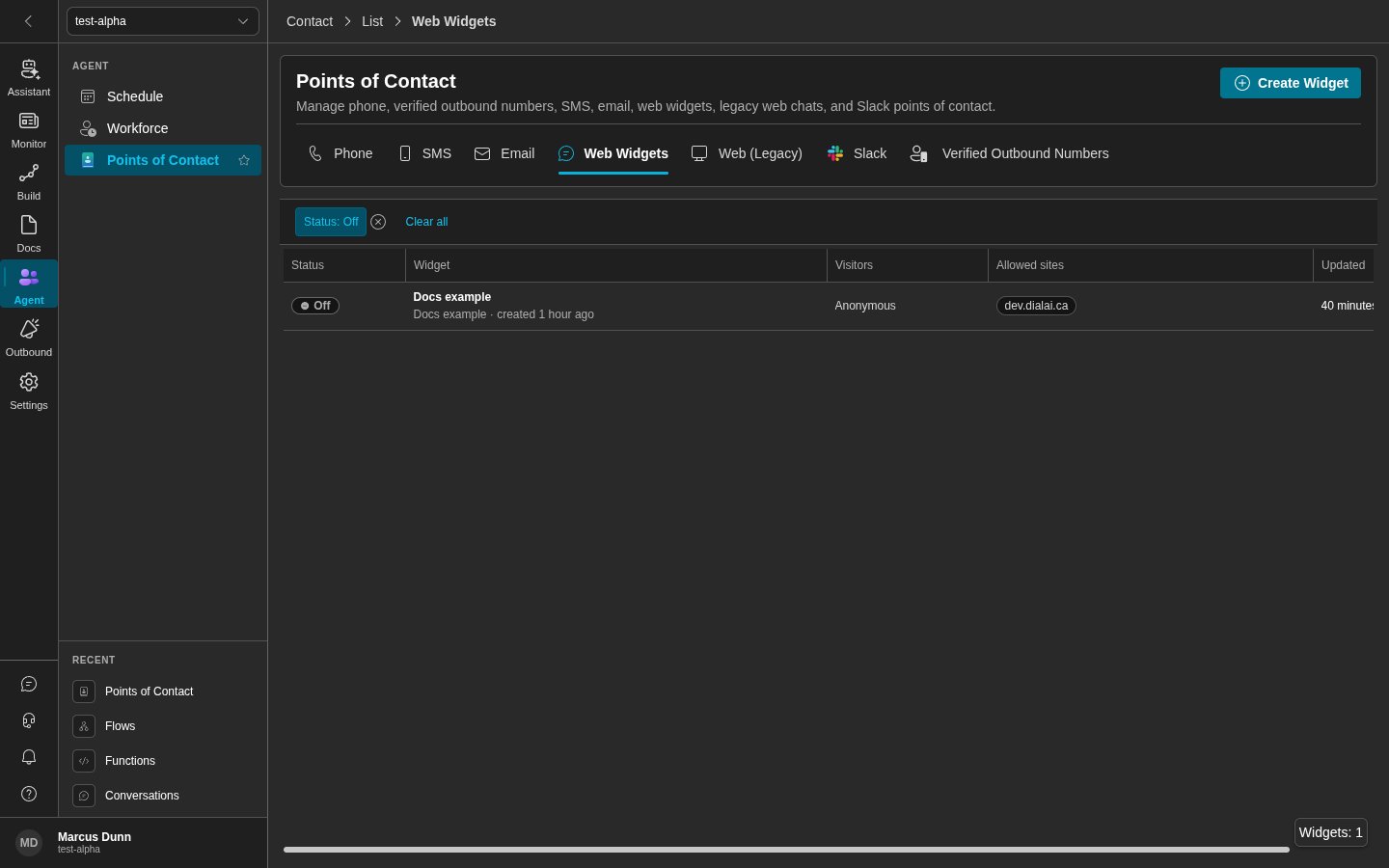
The list has these columns: **Status**, **Widget**, **Visitors**, **Allowed sites** and **Updated**. Active widgets are at the top. Use the **Status** filter to show only **Active** or **Off** widgets. Click a row to open the page of that widget.
## Create a widget
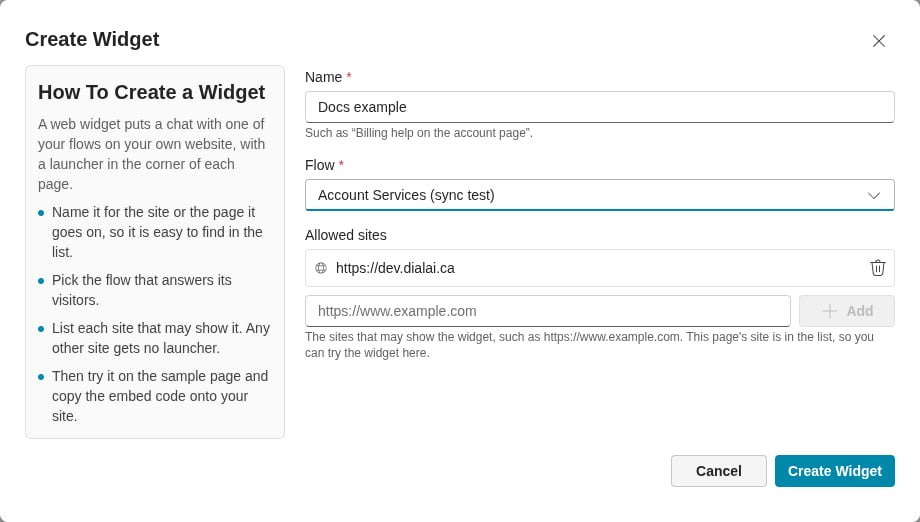
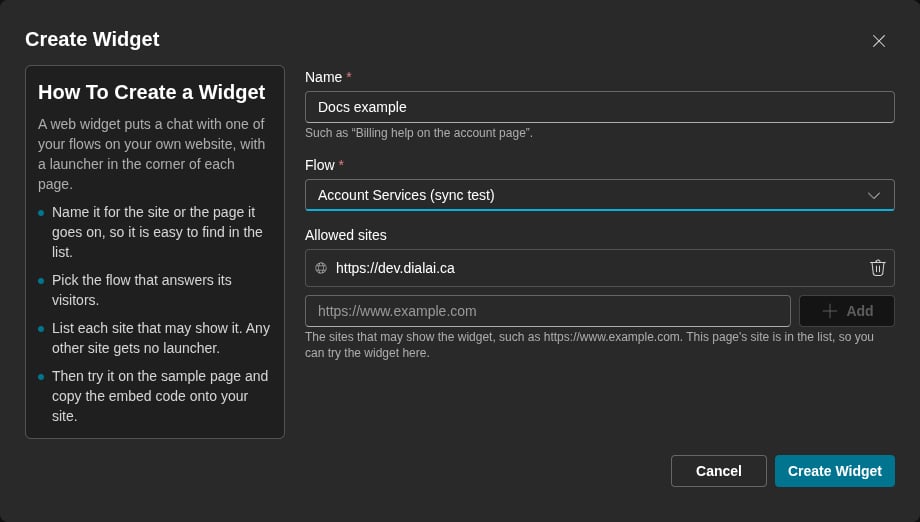
On the **Web Widgets** tab, click **Create Widget**.
In **Name**, type a name for the site or the page that shows the widget. An example is "Billing help on the account page". Each widget in your tenant must have a different name.
In **Flow**, select the flow that answers the visitors.
In **Allowed sites**, type the address of a site, such as `https://www.example.com`. Click **Add**. Do this again for each site that shows the widget.
Click **Create Widget**. The page of the new widget opens.
A **web widget** puts a chat with one of your flows on your own website. The widget adds a launcher in a bottom corner of each page. A visitor clicks the launcher, and a chat panel opens on the same page.
Web Widgets are the new way to put chat on a website. They replace the legacy web chat (chat links on the **Web (Legacy)** tab, with the [iframe](/iframe-integration) or the [script tag](/script-tag-integration)). Use a web widget for each new site.
A widget has these parts:
* **A flow** — the flow that answers the visitors.
* **Allowed sites** — the sites that can show the widget. No other site can show it.
* **An appearance** — a preset and your changes to it. See [Widget appearance](/web-widget-appearance).
* **Sign-in** — optional. A portal that signs its customers in can tell the widget who the customer is. See [Signed-in visitors](/web-widget-sign-in).
## Find Web Widgets
Go to **Agent > Points of Contact** and select the **Web Widgets** tab.
The tab shows only when your role has the `web-widgets:list` permission. Other actions need other permissions:
| Permission | What it lets you do |
| - | - |
| `web-widgets:list` | See the **Web Widgets** tab and the list of widgets. |
| `web-widgets:read` | Open the page of a widget. |
| `web-widgets:create` | Create a widget with **Create Widget**. |
| `web-widgets:update` | Change a widget: its status, allowed sites, appearance and sign-in. |
| `web-widgets:simulate` | Use **Act as a customer** on the **Try it** card. |
The list has these columns: **Status**, **Widget**, **Visitors**, **Allowed sites** and **Updated**. Active widgets are at the top. Use the **Status** filter to show only **Active** or **Off** widgets. Click a row to open the page of that widget.
## Create a widget
On the **Web Widgets** tab, click **Create Widget**.
In **Name**, type a name for the site or the page that shows the widget. An example is "Billing help on the account page". Each widget in your tenant must have a different name.
In **Flow**, select the flow that answers the visitors.
In **Allowed sites**, type the address of a site, such as `https://www.example.com`. Click **Add**. Do this again for each site that shows the widget.
Click **Create Widget**. The page of the new widget opens.
 A new widget is active. Each visitor is anonymous until you set up [sign-in](/web-widget-sign-in). The appearance is the **Classic** preset until you change it.
## Allowed sites
The allowed sites are a security control. A site that is not in the list cannot show the widget. On that site, the launcher does not show, and the browser blocks the chat panel. If the list is empty, no site can show the widget.
Each entry is an origin: a scheme, a host and an optional port. The widget ignores the path of an address. These forms are permitted:
| Form | Example | Notes |
| - | - | - |
| One site | `https://www.example.com` | The usual form. |
| All subdomains of a domain | `https://*.example.com` | Not permitted on a public suffix, such as `*.co.uk` or `*.github.io`. |
| A site with a port | `https://portal.example.com:8443` | The platform removes a default port (`:443` on https). |
| A local test site | `http://localhost:3000` | Only `localhost` and `127.0.0.1` can use `http`. |
A widget has a maximum of 50 allowed sites.
The list in the **Create Widget** dialog starts with the site of the Dial AI dashboard. This lets you try the widget on the **Try it** card at once. Keep this entry while you use **Try it**.
To change the list later, click the edit (pencil) icon beside **Allowed sites** on the page of the widget. Add or remove sites, then click **Save**.
## The page of a widget
The page has these cards: **Try it**, **Appearance**, **Embed code** and **Sign-in**. The side panel shows the **Status**, **Flow**, **Visitors**, **Allowed sites**, **Look**, **Limits** and **Created** date.
### Status
The **Status** switch turns the widget on or off for all sites at the same time.
* **Active: sites show the widget** — each allowed site shows the launcher.
* **Off: no site shows it** — the launcher goes away, and the widget starts no new session.
Use **Off** to stop a widget. The page has no delete action.
### Limits
**Limits** shows the maximum number of conversations that the widget starts in one day (UTC), or **No daily limit**. You cannot change the limit on this page.
## Try it
The **Try it** card shows a sample website with the widget on it. Click the launcher in its bottom corner and chat as a visitor does. A chat on the sample site is a real conversation with the flow of the widget.
A new widget is active. Each visitor is anonymous until you set up [sign-in](/web-widget-sign-in). The appearance is the **Classic** preset until you change it.
## Allowed sites
The allowed sites are a security control. A site that is not in the list cannot show the widget. On that site, the launcher does not show, and the browser blocks the chat panel. If the list is empty, no site can show the widget.
Each entry is an origin: a scheme, a host and an optional port. The widget ignores the path of an address. These forms are permitted:
| Form | Example | Notes |
| - | - | - |
| One site | `https://www.example.com` | The usual form. |
| All subdomains of a domain | `https://*.example.com` | Not permitted on a public suffix, such as `*.co.uk` or `*.github.io`. |
| A site with a port | `https://portal.example.com:8443` | The platform removes a default port (`:443` on https). |
| A local test site | `http://localhost:3000` | Only `localhost` and `127.0.0.1` can use `http`. |
A widget has a maximum of 50 allowed sites.
The list in the **Create Widget** dialog starts with the site of the Dial AI dashboard. This lets you try the widget on the **Try it** card at once. Keep this entry while you use **Try it**.
To change the list later, click the edit (pencil) icon beside **Allowed sites** on the page of the widget. Add or remove sites, then click **Save**.
## The page of a widget
The page has these cards: **Try it**, **Appearance**, **Embed code** and **Sign-in**. The side panel shows the **Status**, **Flow**, **Visitors**, **Allowed sites**, **Look**, **Limits** and **Created** date.
### Status
The **Status** switch turns the widget on or off for all sites at the same time.
* **Active: sites show the widget** — each allowed site shows the launcher.
* **Off: no site shows it** — the launcher goes away, and the widget starts no new session.
Use **Off** to stop a widget. The page has no delete action.
### Limits
**Limits** shows the maximum number of conversations that the widget starts in one day (UTC), or **No daily limit**. You cannot change the limit on this page.
## Try it
The **Try it** card shows a sample website with the widget on it. Click the launcher in its bottom corner and chat as a visitor does. A chat on the sample site is a real conversation with the flow of the widget.
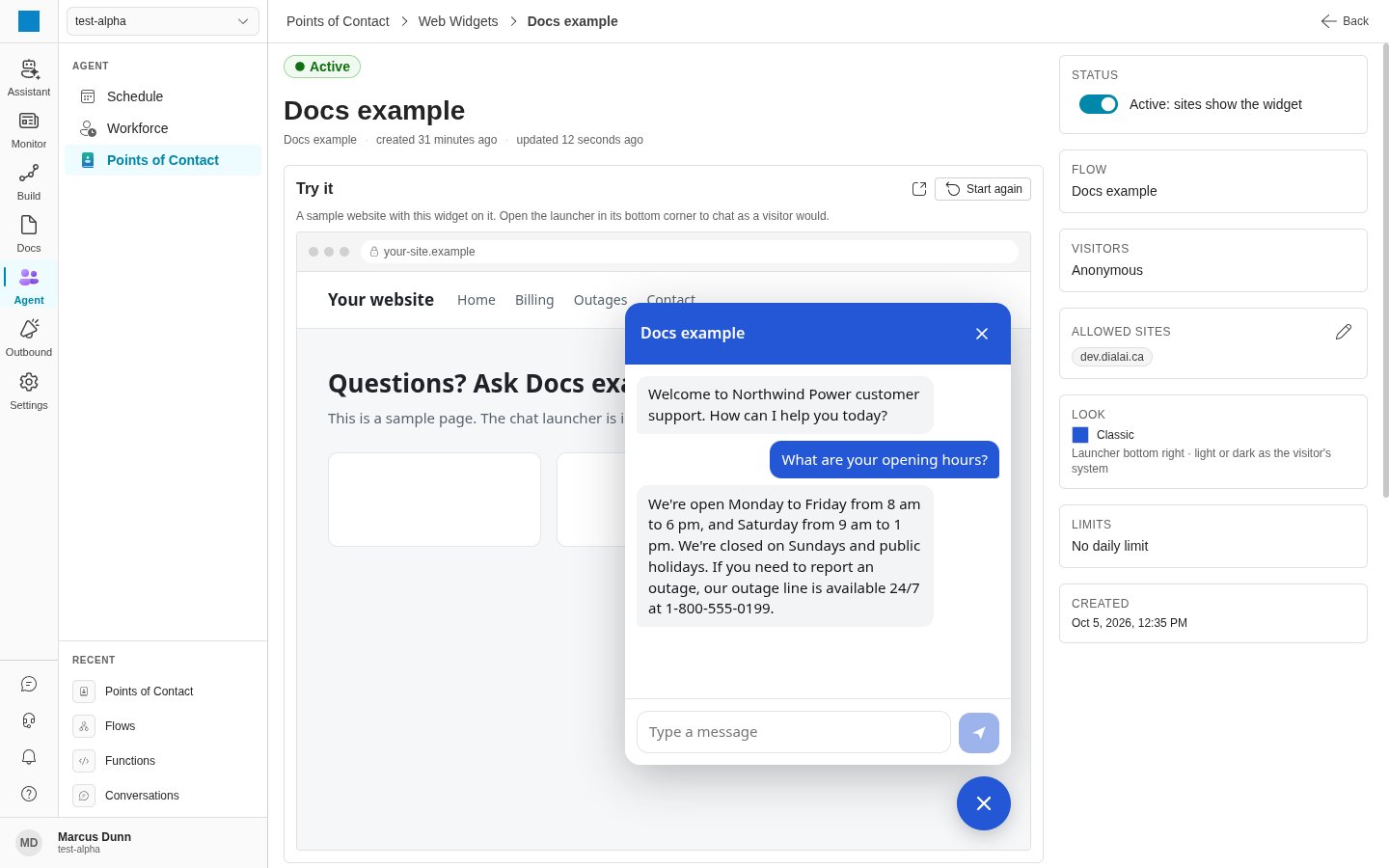
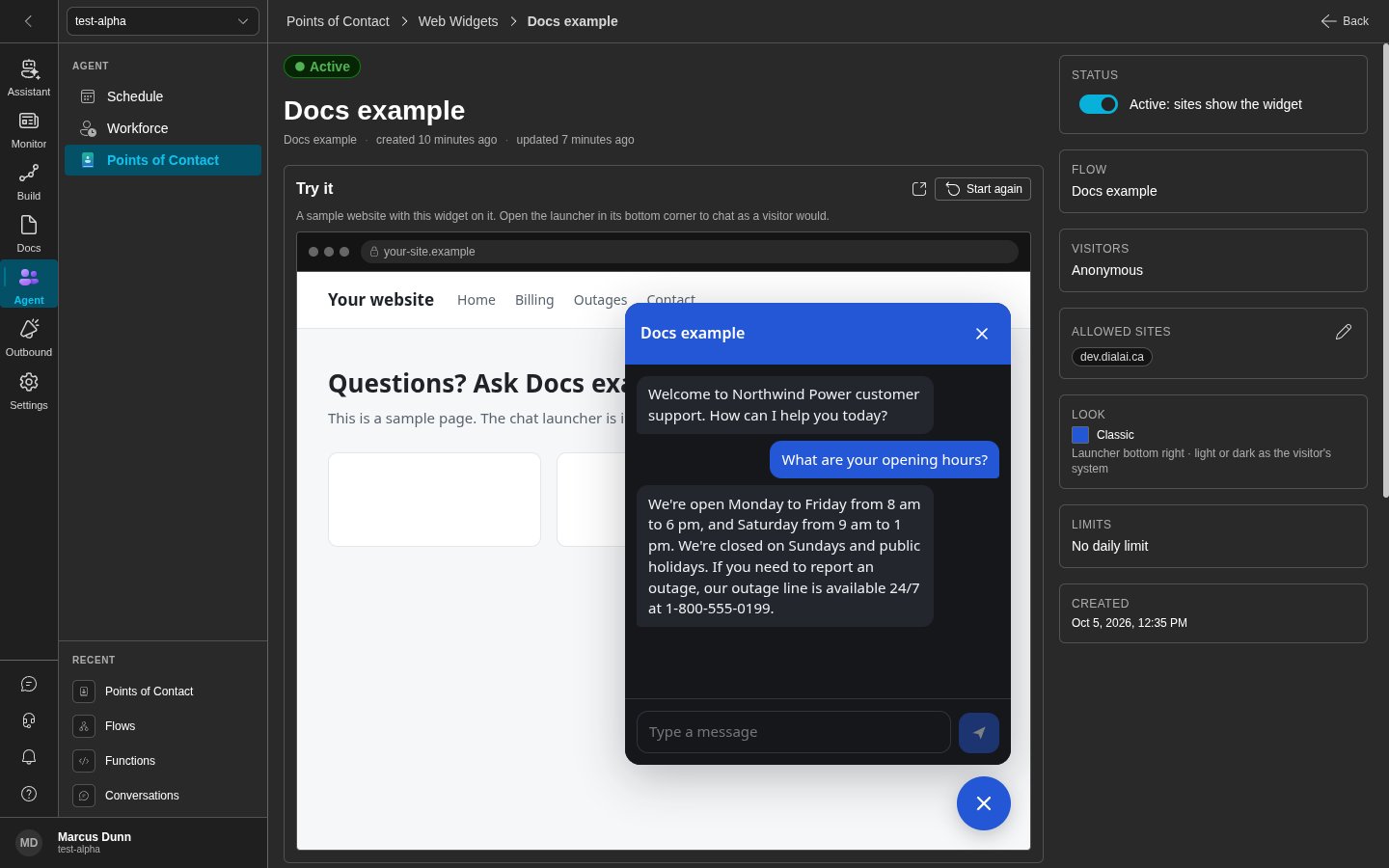 * **Start again** loads the sample site again.
* The **Open the sample site in a new tab** icon button opens the sample site in a new browser tab. In the tab, the widget has the full window, so it shows its desktop layout.
* **Start again** loads the sample site again.
* The **Open the sample site in a new tab** icon button opens the sample site in a new browser tab. In the tab, the widget has the full window, so it shows its desktop layout.
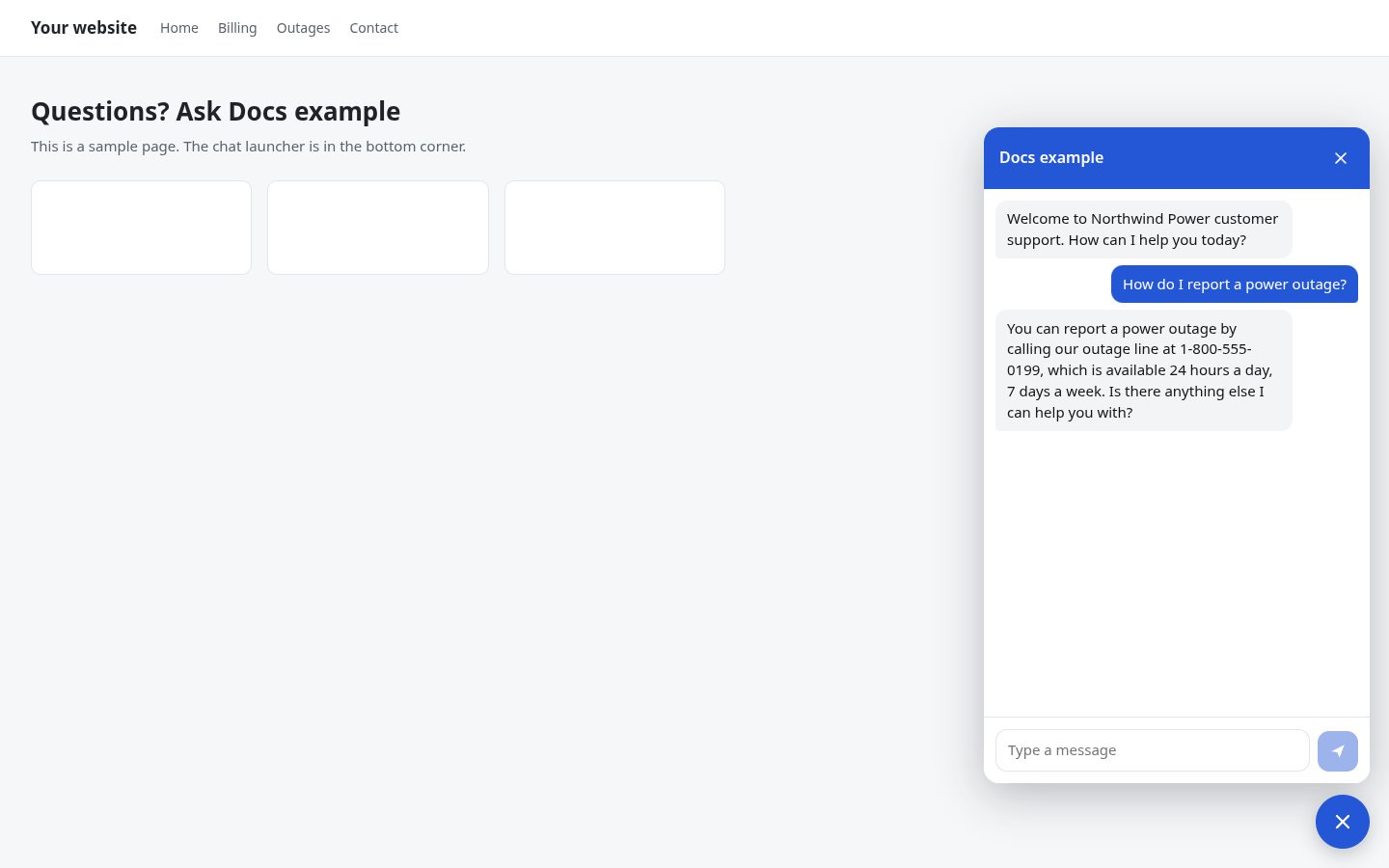
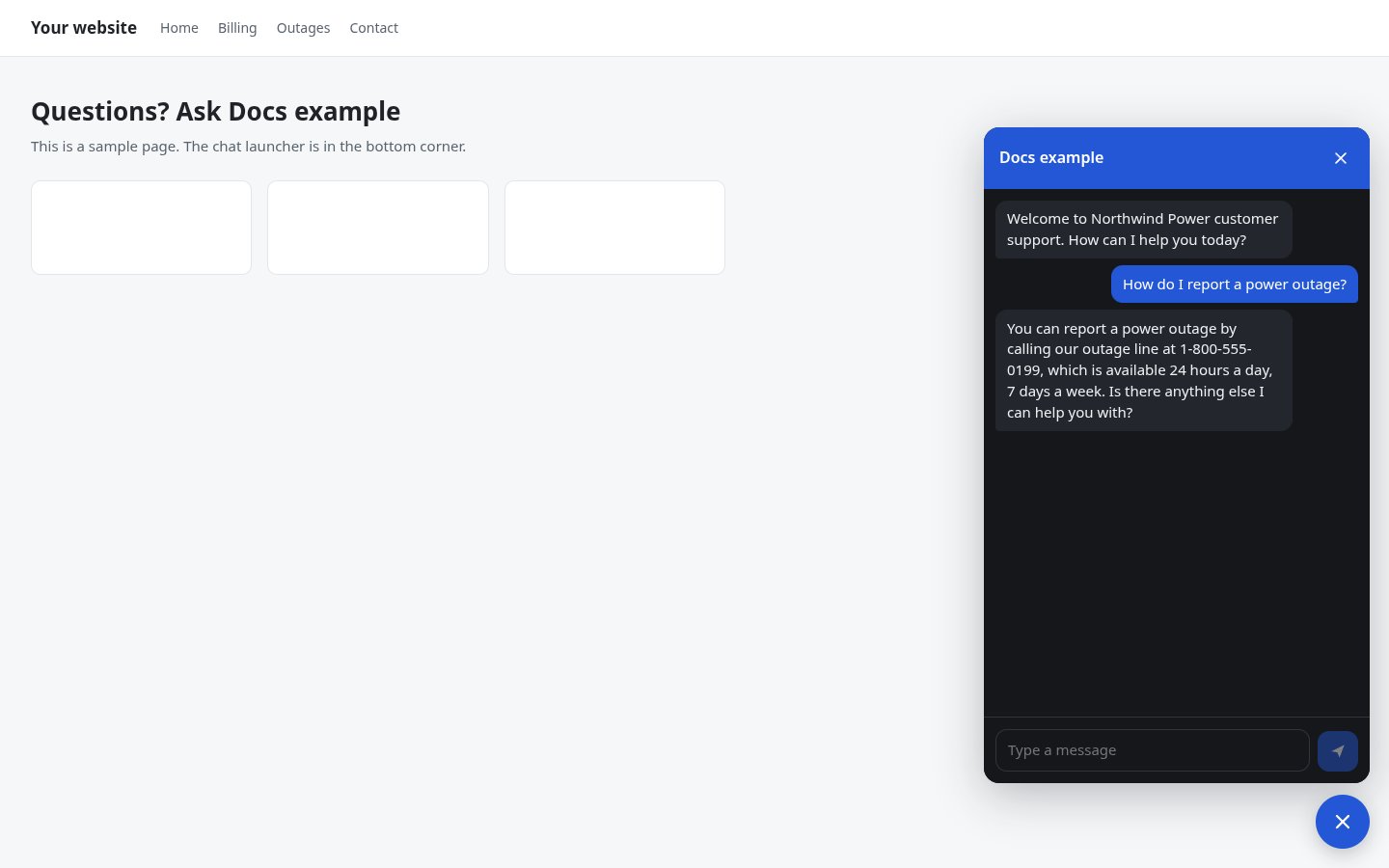 The new tab reads the widget again each 3 seconds. When somebody saves a change, a bar shows **The theme has changed.** or **The widget has changed.** Click **Reload** to show the change.
The sample site cannot show the widget in these conditions. The card then shows the reason.
| Message | What to do |
| - | - |
| This page (…) is not one of the widget's allowed sites, so the widget cannot show here. | Add the site of the dashboard to **Allowed sites**. |
| The widget is off, so no site shows it. | Set **Status** to **Active**. |
| The chat widget is not available on this deployment… | Contact your account representative. |
When the widget has a sign-in provider, you can also chat as a signed-in customer. See [Act as a customer](/web-widget-sign-in#test-the-paths-with-act-as-a-customer).
## Put the widget on your site
On the **Embed code** card, click **Copy**.
Paste the code immediately before the `` tag of each page that shows the widget.
The new tab reads the widget again each 3 seconds. When somebody saves a change, a bar shows **The theme has changed.** or **The widget has changed.** Click **Reload** to show the change.
The sample site cannot show the widget in these conditions. The card then shows the reason.
| Message | What to do |
| - | - |
| This page (…) is not one of the widget's allowed sites, so the widget cannot show here. | Add the site of the dashboard to **Allowed sites**. |
| The widget is off, so no site shows it. | Set **Status** to **Active**. |
| The chat widget is not available on this deployment… | Contact your account representative. |
When the widget has a sign-in provider, you can also chat as a signed-in customer. See [Act as a customer](/web-widget-sign-in#test-the-paths-with-act-as-a-customer).
## Put the widget on your site
On the **Embed code** card, click **Copy**.
Paste the code immediately before the `` tag of each page that shows the widget.