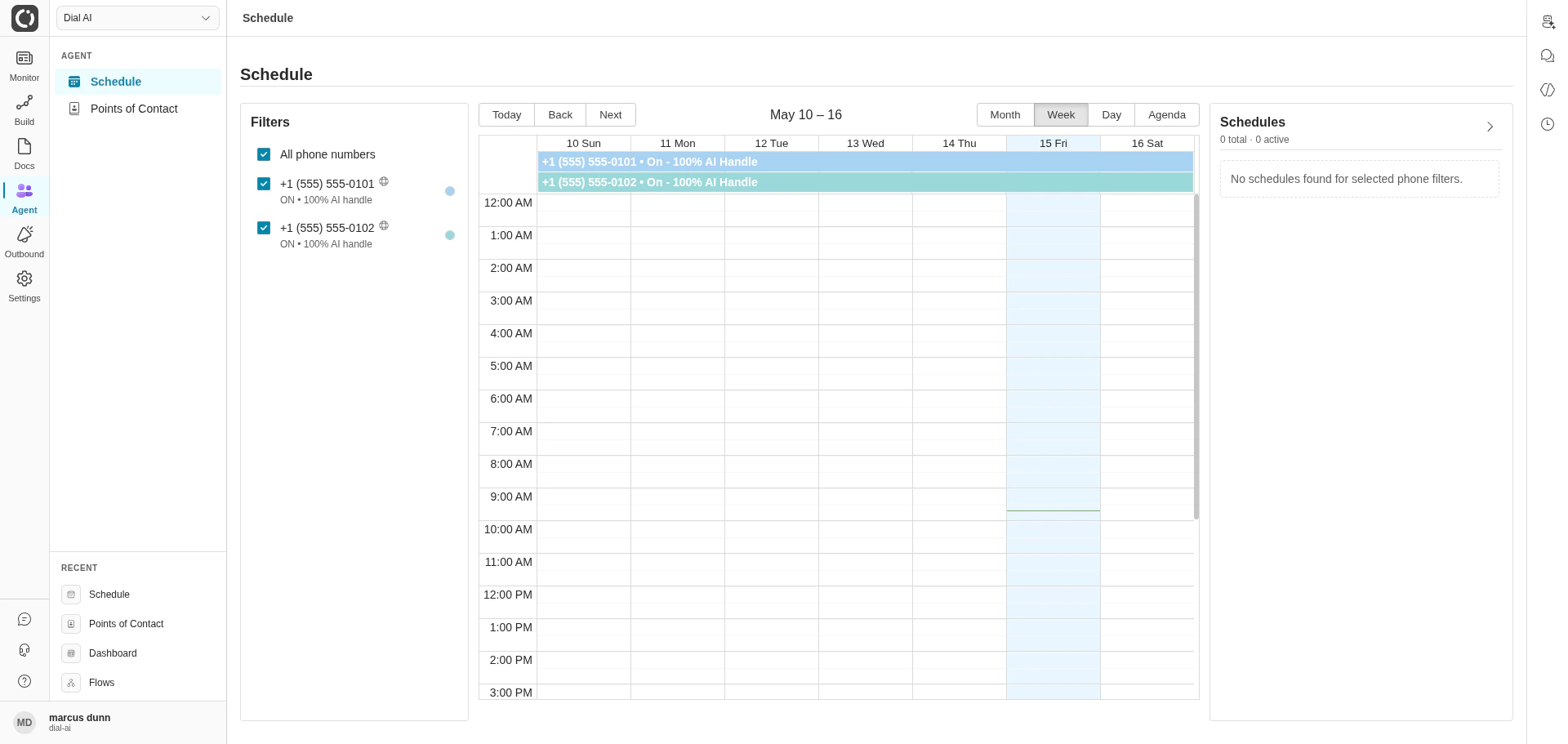
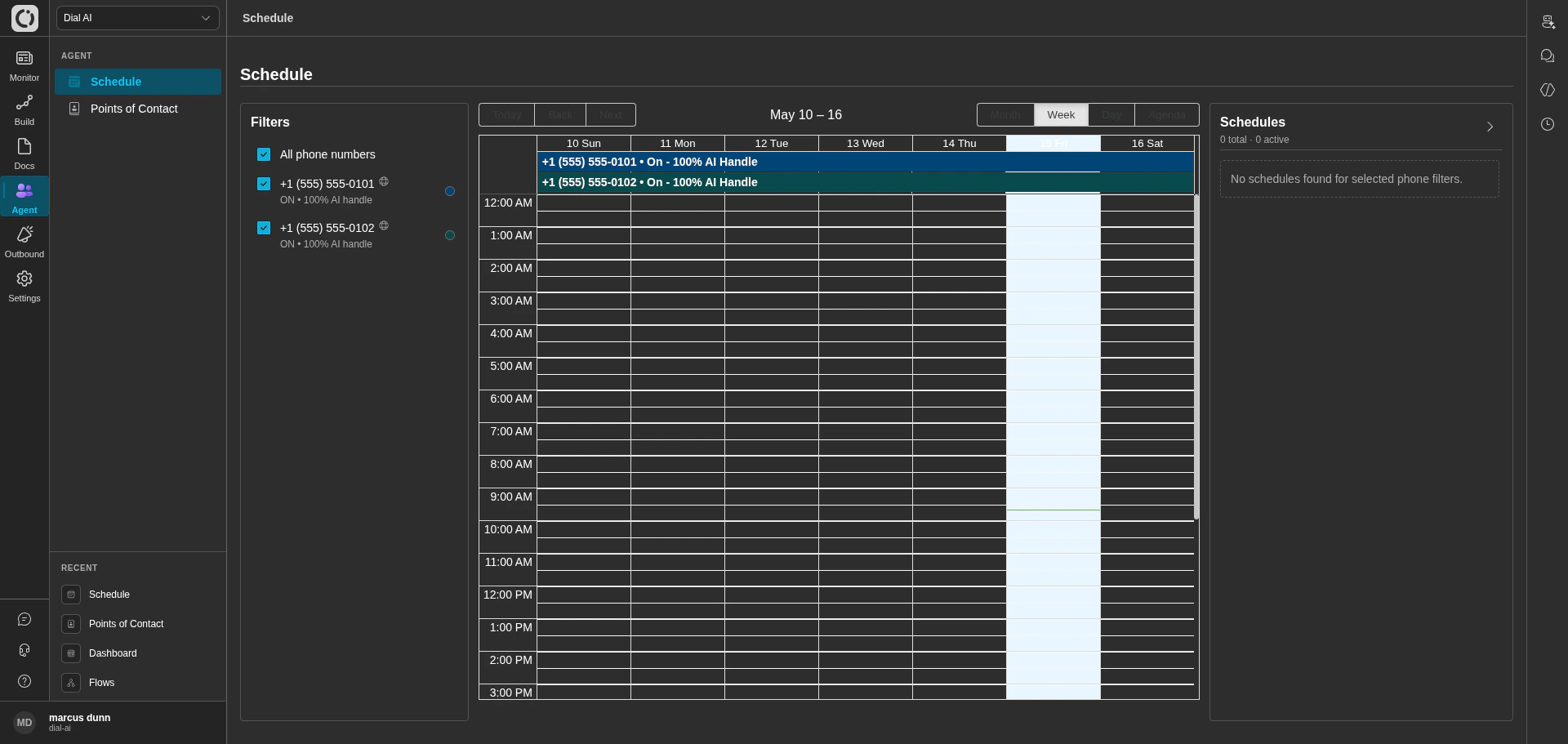
The Schedule page — every phone POC's active windows in one calendar
Accessing Schedule
Navigate to Agent > Schedule in the left sidebar.What’s on the page
- Filters panel (left) — checkboxes for each phone POC, each showing its current routing mode and AI handle percentage (e.g.,
ON • 100% AI handle). Toggle individual numbers to focus the calendar, or use All phone numbers to show everything. - Calendar (center) — colored bars showing each POC’s active windows. Switch views with the Month, Week, Day, Agenda tabs. Use Today, Back, Next to navigate between time periods.
- Schedules panel (right) — a summary of total and active schedule windows for the currently selected POCs.
Routing modes
Every phone POC has a Routing Mode set on its Points of Contact > Edit > Routing tab:- On — AI is always active. The handle percentage applies at every hour of every day.
- Schedule — AI is active only during the configured time windows. Outside those windows, AI handle drops to 0% and calls transfer to the fallback number.
Editing a schedule
Two entry points:1
From this page
Click a phone POC’s bar in the calendar — it opens the schedule editor pre-filtered to that POC.
2
From a Point of Contact
Edit the POC, switch to the Routing tab, set Routing Mode to Schedule, then click Edit Schedule. See Points of Contact for the full editor walkthrough.
Creating a schedule window
In the schedule editor:- Click + New Event (or drag-select on the calendar to pre-fill the time range).
- Fill in:
- Name — what this window is for (e.g., “Business Hours”, “Weekend Coverage”).
- AI Handle Percentage — share of calls AI handles during this window (0–100%).
- From / To — the day and time range. Schedule windows repeat weekly.
- Enabled — uncheck to disable a window without deleting it.
- Click Add.
Rules and gotchas
- Each window repeats every week.
- Same-day windows require end-time after start-time.
- Overlapping windows on the same POC aren’t allowed.
- Outside any active window, AI handle is 0% and calls transfer to the fallback number.
Common patterns
Calendar views
- Month — the whole month at a glance; good for spotting coverage gaps.
- Week — hour-resolution view of a single week; the default for active configuration.
- Day — focus on one day; useful for densely-scheduled POCs.
- Agenda — list view of upcoming windows.
Tips
- Default to Schedule mode for production POCs. It makes business hours explicit and gives you a calendar you can audit.
- One window per shift, not one per day. Use a single Monday-9am→Friday-5pm window instead of five identical daily windows.
- Disable, don’t delete. Toggle Enabled off when an emergency change is needed; that way you can re-enable later without re-typing the times.
Related
Points of Contact
Set Routing Mode and Fallback per POC.
Operations
Tenant-wide ops: skills, internal contacts, do-not-call.