Overview
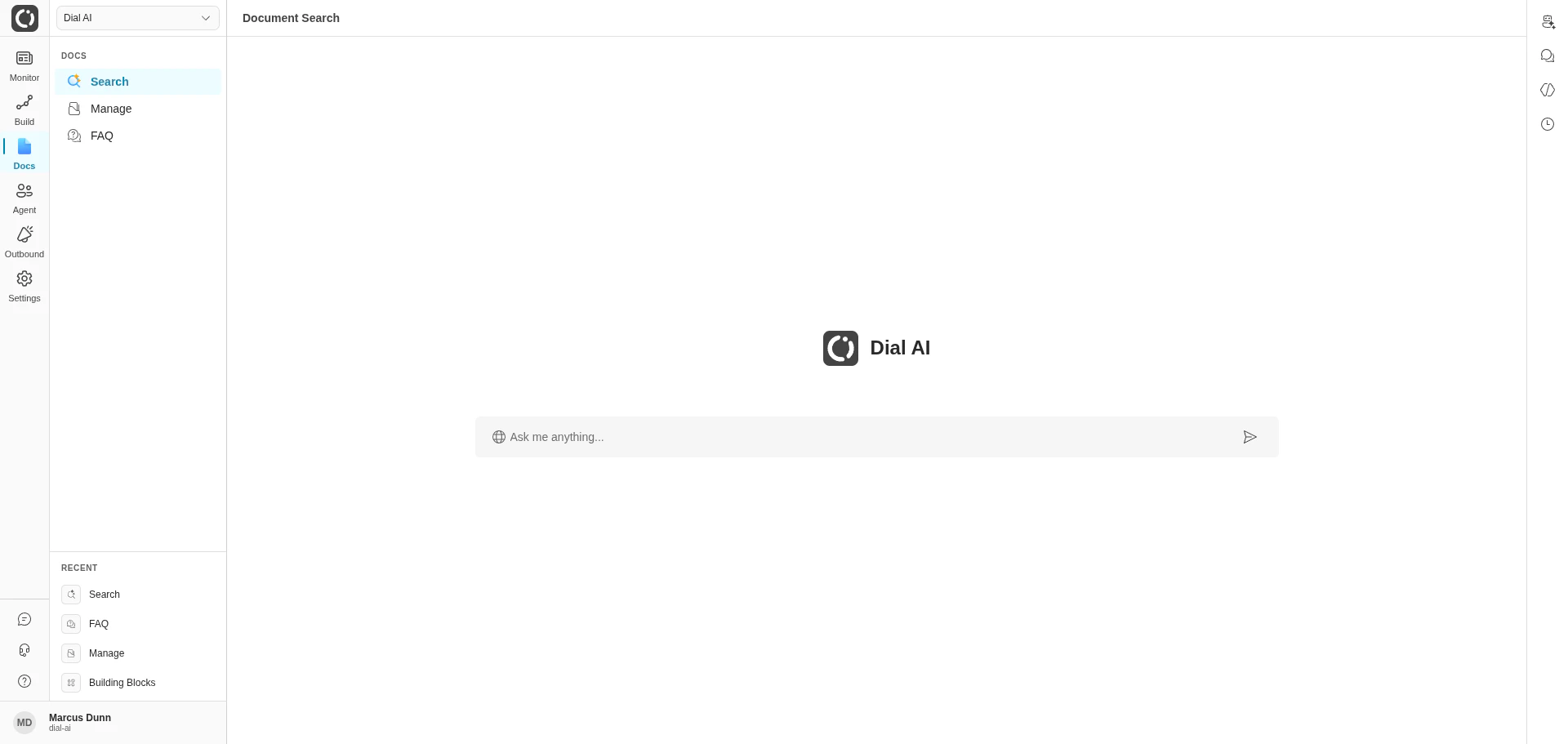
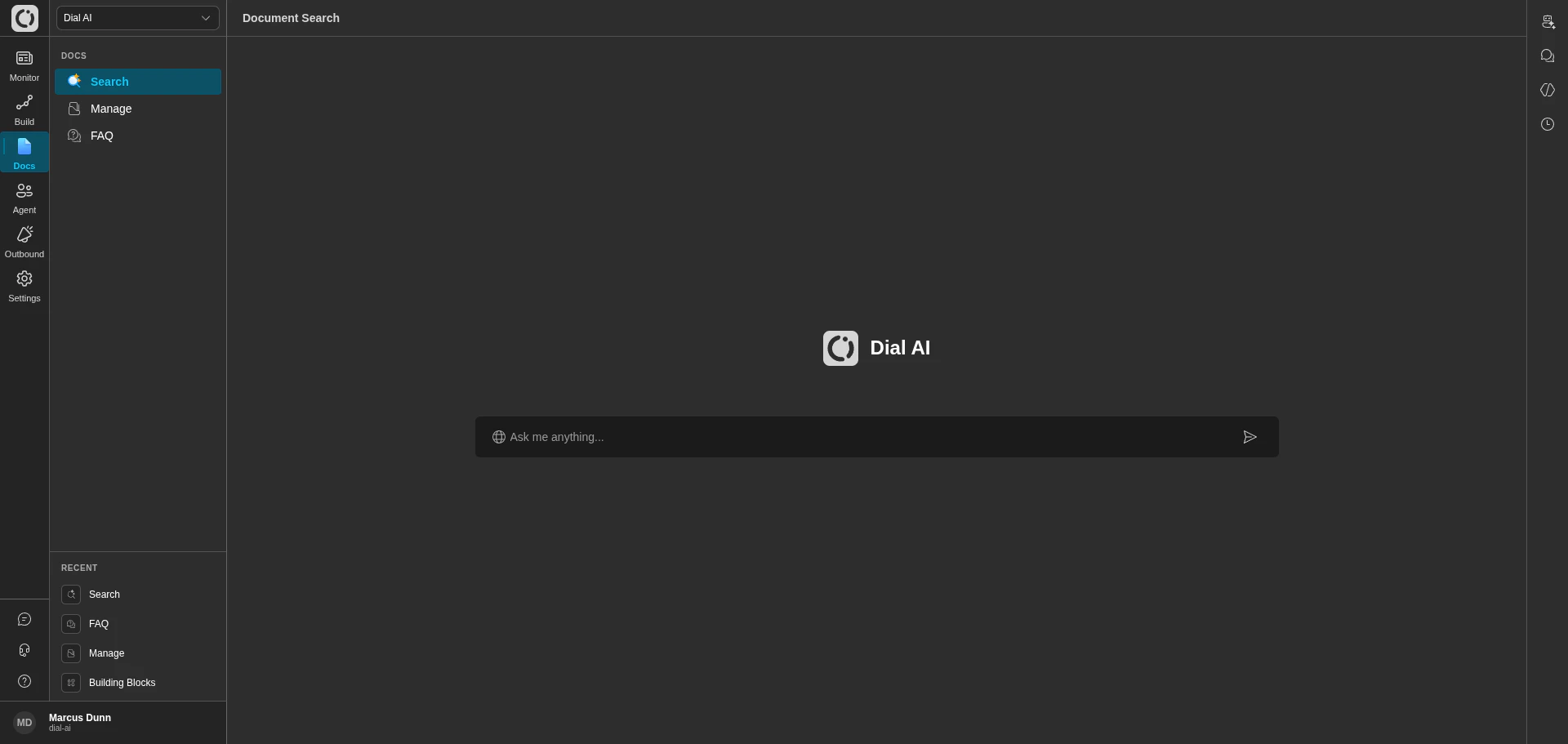
The Document Search page provides a powerful AI-driven interface to search and query information from documents you’ve uploaded to your organization. Instead of manually browsing through documents, you can ask natural language questions and receive comprehensive answers based on the content of your documents. [SCREENSHOT: Overview of Document Search interface showing the main chat area with search input and Dial AI branding]Purpose
Document Search enables you to:- Query information across multiple uploaded documents simultaneously
- Get AI-generated responses with source citations
- Access document content through a conversational interface
- Integrate document knowledge into your AI agent workflows
Accessing Document Search
Navigate to the Document Search page from the sidebar:- Open the Docs section in the left sidebar
- Click on Search
Main Interface Components
Search Input
The central search interface features a prominent input field labeled “Ask me anything…” where you can type your questions or queries about your uploaded documents. [SCREENSHOT: Close-up of the search input field with placeholder text “Ask me anything…”]Agent Selector
At the bottom of the interface, you can select which AI agent should process your document queries. By default, the “Internal Agent” is selected. [SCREENSHOT: Agent selector dropdown showing “Internal Agent” selected]How to Search Documents
Asking Questions
- Type your question or query in the search input field
- Click the send button (arrow icon) or press Enter
- Wait for the AI to process your query and search through relevant documents
- “What can you help me with?”
- “Tell me about our refund policy”
- “What are the technical specifications?”
Understanding Responses
When you submit a query, the Document Search system:- Searches through your uploaded documents
- Identifies relevant information
- Generates a comprehensive response
- Provides source document references
Source Documents
Below each response, you’ll see a “Documents:” section listing the source documents that were used to generate the answer. These appear as document titles (e.g., “AboutAffirm.pdf”, “BCHYDRO_Rebats.pdf”). Depending on the interface, document titles may be clickable to open a preview, but direct source links are not always available. [SCREENSHOT: Response with source documents section showing document titles]Viewing Source Documents
Click on any document name to open a preview panel showing the actual document content. This allows you to:- Verify the AI’s response against the source material
- Read the full context
- Navigate through the document pages
- Tab interface for switching between multiple documents
- Page navigation controls
- Zoom controls for adjusting document view
- Scroll functionality for multi-page documents
Additional Features
New Chat
Start a fresh conversation by clicking the New Chat button in the top-right corner of the interface. [SCREENSHOT: New Chat button location in top-right corner]Chat History
Access previous search sessions and conversations by clicking the Chat History icon in the bottom-right corner. [SCREENSHOT: Chat History icon highlighted]Explore Agents
Browse and select different AI agents for document queries using the Explore Agents feature. [SCREENSHOT: Explore Agents button or panel]Scheduled Agent Tasks
View and manage scheduled tasks related to document processing through the Scheduled Agent Tasks interface. [SCREENSHOT: Scheduled Agent Tasks interface]Integration with AI Agent Conversations
Document Search seamlessly integrates with your AI agent workflows. When an AI agent needs to reference information from your documents during a customer conversation, it can pull data from the same document repository accessed through Document Search. This ensures:- Consistent information across all customer interactions
- Up-to-date responses based on your latest documents
- Reduced manual intervention in customer support
Best Practices
Organizing Documents
- Upload relevant documents to the Documents page (see Managing Documents)
- Use clear, descriptive filenames
- Keep documents updated with the latest information
- Remove outdated documents to avoid conflicting information
Crafting Effective Queries
- Be specific in your questions
- Use natural language
- Ask one question at a time for clearest results
- Reference specific topics or categories when needed
Verifying Responses
- Always check the source documents when accuracy is critical
- Review the actual document content for complete context
- Cross-reference information from multiple documents when available
Related Features
- Manage Documents: Upload, organize, and delete documents in your repository
- FAQ Page: Manage frequently asked questions for your AI agents
- Agent Configuration: Configure how agents use document information
Troubleshooting
No results returned:- Ensure documents are properly uploaded in the Documents page
- Verify your query is relevant to your document content
- Try rephrasing your question
- Check if the relevant documents contain the information you’re seeking
- Review document quality and formatting
- Consider uploading additional documentation for better coverage
- Ensure your browser allows pop-ups and side panels
- Try refreshing the page
- Check document format compatibility