How it works
- A customer signs in to your portal.
- The widget asks your page for a token. Your page gets a token for the customer from your identity provider or from your backend.
- The platform checks the signature, the issuer, the audience and the age of the token.
- The platform reads the user id and the context parameters from the claims of the token, with the paths that you set.
- The conversation starts. Functions in the flow read the context parameters as internal parameters.
Who can chat
On the page of the widget, click Edit on the Sign-in card. In Who can chat, select a mode:
The two sign-in modes need at least one sign-in provider.
When the customer on the page changes, or signs out, the widget clears the conversation at once. It then starts again as the new customer, as an anonymous visitor (Sign-in optional), or with “Sign in to chat.” (Sign-in required).
Add a sign-in provider
A sign-in provider is an issuer of tokens that the widget trusts, such as your identity provider. A widget can have a maximum of 20 providers. Theiss claim of a token selects the provider.
1
Open the sign-in settings
On the page of the widget, click Edit on the Sign-in card.
2
Add a provider
Click Add a sign-in provider.
3
Fill in the fields
Fill in the fields in the table below.
4
Add the context parameters
Click Add a parameter for each value that the flow needs. See Map claims to context parameters.
5
Save
Select the mode in Who can chat, then click Save.
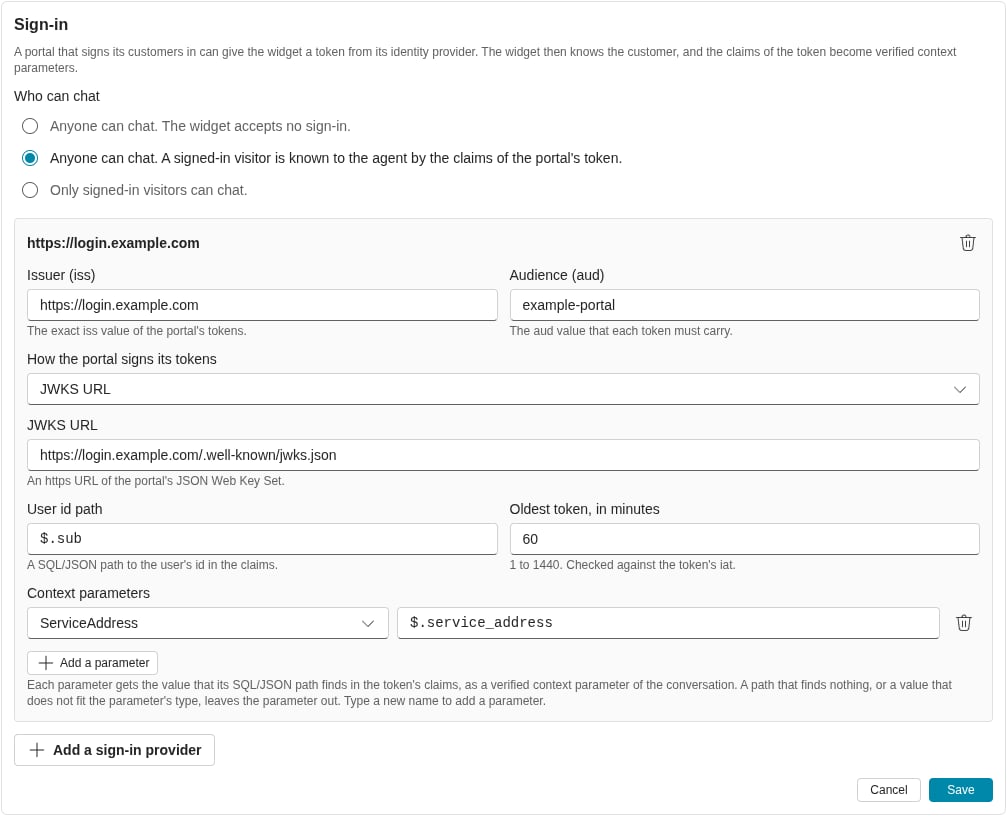
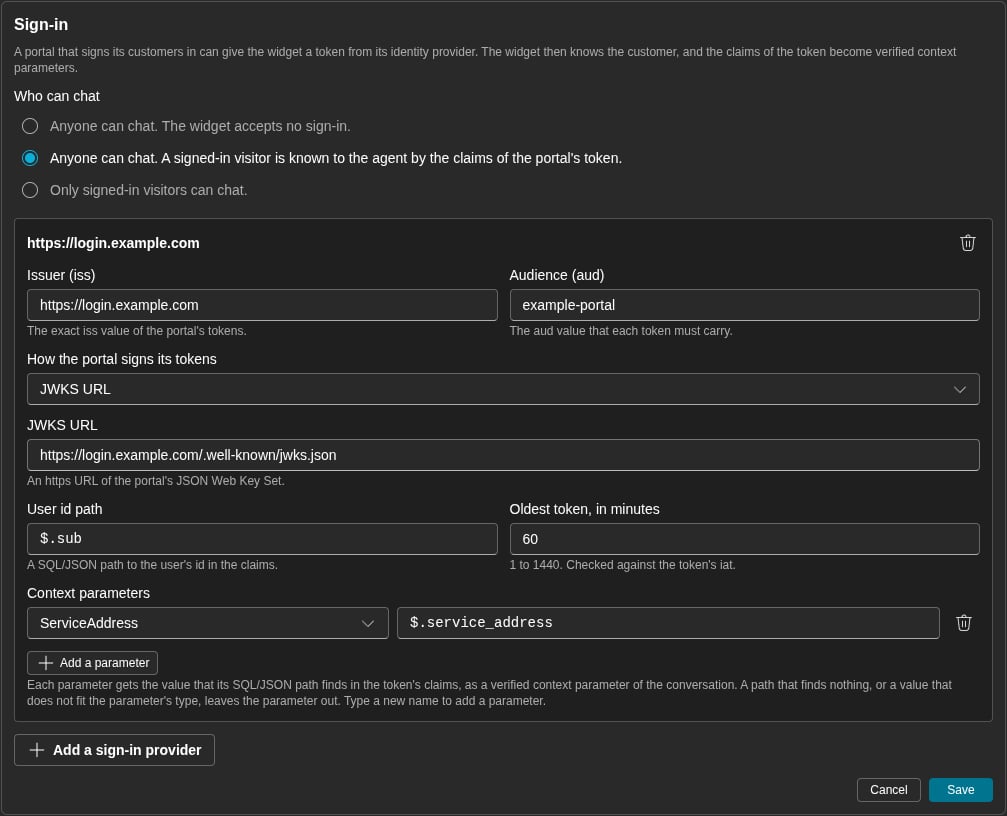
The Sign-in card with one sign-in provider
Keys
Select how your portal signs its tokens:
Use a JWKS URL when your identity provider publishes one. Then a key rotation needs no change here.
Use a Shared secret when your own backend signs a token for the widget. After you save, the secret does not show again. To keep the secret, leave the field empty when you edit the provider. To replace it, type a new secret. If the page shows “This deployment cannot store a shared secret. Use a JWKS URL or a public key.”, use one of the other kinds.
What the token must have
iss, equal to Issuer (iss).aud, equal to Audience (aud), or an array that holds it.expandiat.- The claim that User id path finds. It must be text that is not empty, or a number.
Map claims with JSONPath queries
The User id path and each context parameter use a JSONPath query, as RFC 9535 defines it. The platform runs each path on the claims of the token. A path finds no value, one value, or more values. Example claims of a token. Theaud, iat and exp claims are not shown.
Rules for a path
- A path starts with
$, the root of the claims. Do not put a space before$or after the end of the path. - Use
.namefor a member whose name has only letters, digits and_, and does not start with a digit. For other names, use['name']or["name"]. [*]selects each element of an array, and.*selects each member of an object. Thus they find one value for each element or member. To select one element, use an index or a filter.- A filter can use the functions of RFC 9535. For example,
$.accounts[?search(@.number, '2$')].numberfinds"1002". - A path has a maximum of 1000 characters.
Outcomes
Each path has one of three outcomes:
An ambiguous outcome is a mistake in the path, and only you can correct it.
Some details about the outcomes:
- A path cannot fail on the claims. A comparison of two values of different types is false. For example,
$.accounts[?@.number > 1000].numberfinds no value, because eachnumberis text and1000is a number. - A filter without a comparison only tests that the member is there. For example,
$.accounts[?@.primary].numberfinds two values, because both accounts haveprimary. To test the value, write$.accounts[?@.primary == true].number. - A path into a value of a different type finds no value. For example,
$.sub.innerfinds no value, becausesubis text. - An array or an object is one value. For example,
$.rolesis found, and gives the array["a", "b", "c"]. - A JSON
nullis a value, so a path tonullis found. A context parameter then getsnullif its schema permits it.
The check when you save
When you click Save, the platform reads each path. If a path is not a correct RFC 9535 JSONPath query, the field shows “This is not an RFC 9535 JSONPath query, such as .accounts[0].number”, then the problem that the platform found and its position in the path. For example, the platform refuses these paths:$., because the path ends with a dot.$.accounts[?@.number = '1001'], because a comparison uses==, not=.$.accounts[?like(@.number, '1')], because RFC 9535 has no functionlike.
Map claims to context parameters
A context parameter is a parameter of your tenant that the widget fills from the claims of the token.- In Context parameters, click Add a parameter.
- Select the parameter. To make a new parameter, type its name and select Add ‘name’.
- Type the JSONPath query to the value in the claims, such as
$.accounts[0].number.
Give the widget a token
Your page gives the widget a token through theidentity option of init. identity is a function with no arguments. It returns a promise of a token for the customer who is signed in now, or null when nobody is signed in.
To use identity, call init yourself, and remove the data-tenant, data-widget-id and data-host attributes from the script tag. See Call DialAI before the script loads.
- Return a new token on each call.
- Return
nullwhen nobody is signed in. - Return in less than 10 seconds. The widget counts no answer as
null. - Keep the token under 32 KiB.
null.
When a customer signs out of your portal, also call DialAI("logout"). Then the next person on the same browser does not see the conversation.
Your backend can sign the token
If your portal has no identity provider that issues JWTs, your backend can sign a short token for the widget:- Your backend checks the portal session of the customer.
- It signs a JWT with HS256 and the shared secret of the provider. Or it signs with its own private key, and you give the public key or a JWKS URL to the provider.
- It puts the verified values in the claims, for example the account number.
- It returns the token to the
identityfunction of your page.
Test the paths with Act as a customer
Act as a customer lets you chat on the Try it card as a signed-in customer, with claims that you type. You do not need a token from your portal. You need theweb-widgets:simulate permission, and the widget must have at least one sign-in provider.
1
Start
On the Try it card, click Act as a customer.
2
Select the provider
In Sign-in provider, select the provider to test.
3
Type the claims
In Claims (JSON), type the claims of a customer’s token. The field starts with a test user at the User id path. The maximum is 16 KiB.
4
Chat
Click Start as this customer. Then open the launcher on the sample site and chat.
- Visitor id — Found, or the reason the sign-in fails:
- “The path finds nothing in the claims. The sign-in fails.”
- “Not an id. Use text that is not empty, or a number. The sign-in fails.”
- For an ambiguous path, the number of values and the first values. For example, the user id path
$.accounts[*].numberon the example claims above givesThe path finds 2 values: "1001", "1002". It must find one. The sign-in fails.
- Each context parameter — one of these:
- Set.
- “The path finds nothing in the claims”.
- “Does not fit: …” with the schema problem.
- For an ambiguous path, the number of values and the first values, then “It must find one, so the parameter is left out.”
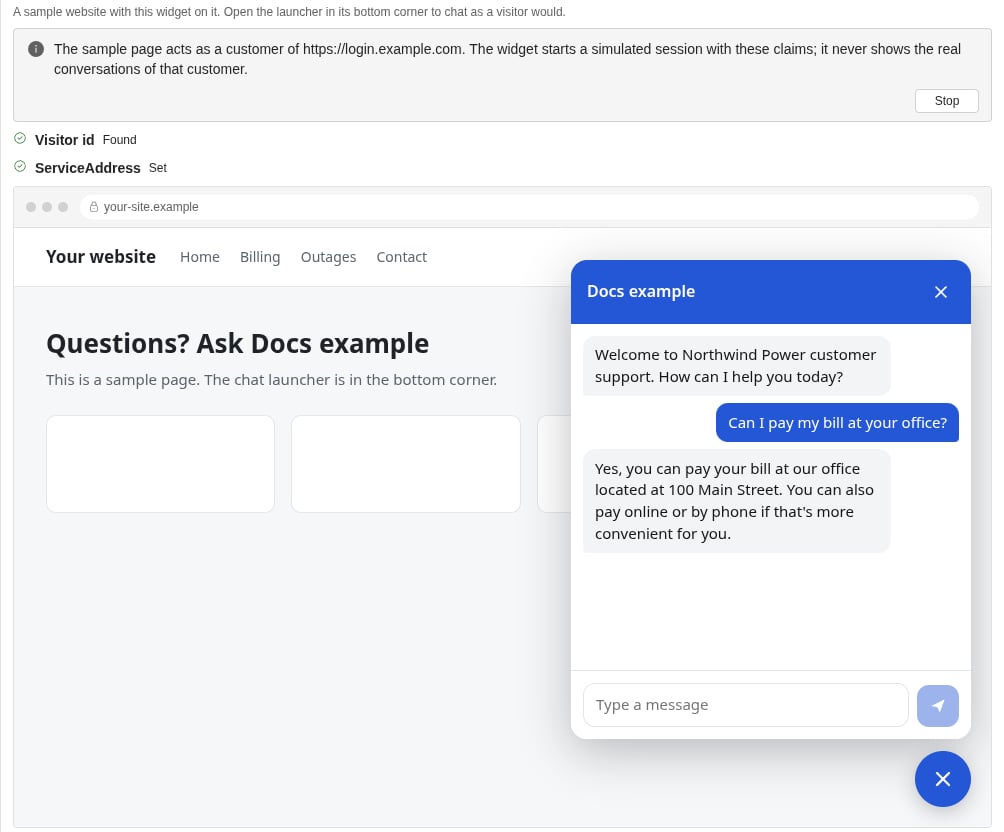
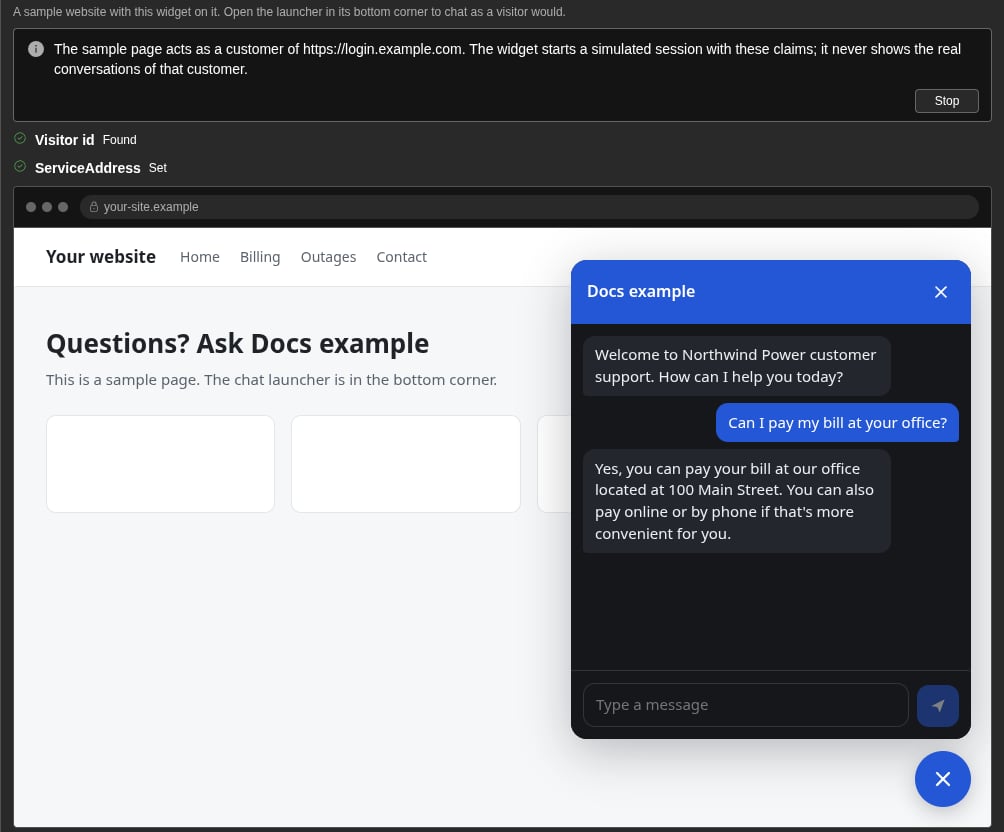
Act as a customer. The paths found the visitor id and set the context parameter.
When a sign-in fails
When the platform refuses a token, the widget gets one of these codes. Your developers can see the code in the network tab of the browser.Best practices
Related
Web Widgets
Create a widget and put it on your site.
Widget appearance
Presets, colours, fonts and the launcher.
Functions and events
Read context parameters in a function.
Building blocks
Make the parameters that the widget fills.